
This article contains affiliate links. We may earn a commission if you buy through our links, at no extra cost to you.
Logitech MX Master 3S vs Razer Pro Click 2026
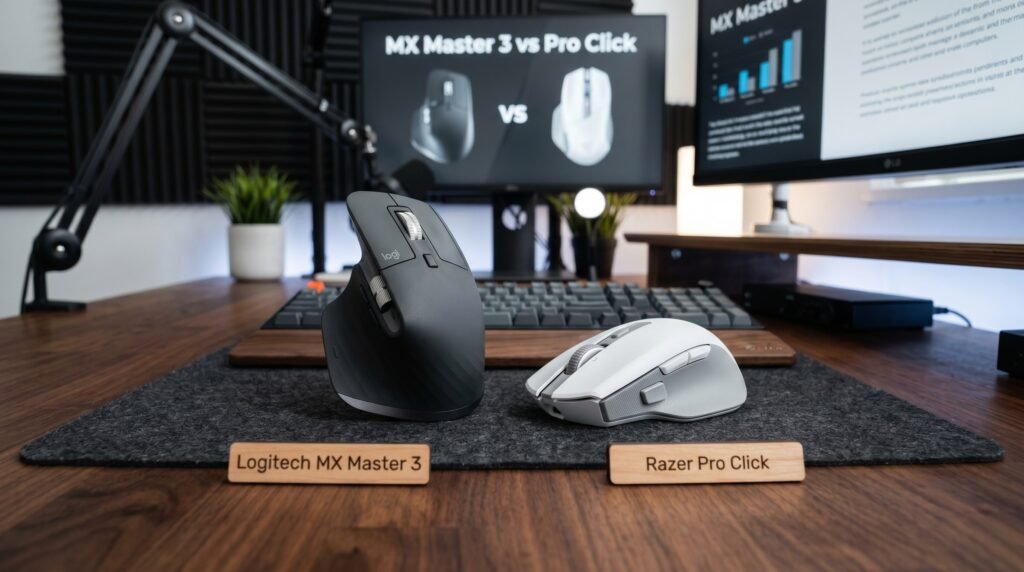
Two mice dominate the premium wireless productivity market in 2026 — and they agree on almost everything while differing sharply on the one thing that matters most to each brand’s audience. Both are wireless. Both are productivity-focused. Both cost around $100. After testing both mice extensively across productivity and creative workflows, here is what actually works — and which one earns a permanent spot on your desk in 2026.
This guide is for remote workers, designers, and anyone spending serious money on a productivity mouse who wants to make the right call the first time. For a broader look at wireless mice across all price points, our guide to the best wireless mouse for laptop covers how these two compare against the full wireless mouse market.
Quick Answer
The Logitech MX Master 3S wins for most people — the MagSpeed electromagnetic scroll wheel is genuinely transformative for productivity, quiet clicks reduce office noise by 90% versus the original MX Master 3, and the ergonomic shape provides better all-day comfort for right-handed users. The Razer Pro Click wins specifically for left-handed users, designers who need four-device switching, and anyone who wants the longest wireless battery life in this category.
The Fundamental Difference Between These Two Mice
Both mice are marketed at the same buyer — the productive professional who works long hours and wants a wireless mouse that doesn’t compromise. But the design philosophies differ in one critical way.
The Logitech MX Master 3S is built around the scroll wheel. The MagSpeed electromagnetic scroll wheel can spin freely at up to 1,000 lines per second — fast enough to scroll through a 500-page document in under 2 seconds. This isn’t a gimmick. For anyone who works with long documents, code files, or spreadsheets, the scroll wheel transforms how you navigate content. It switches automatically between ratcheted (click-to-click) and free-spin mode based on scroll speed. No other mouse at any price does this as well.
The Razer Pro Click is built around longevity and ambidextrous accessibility. The 5G Advanced Optical Sensor provides precise tracking across surfaces, four-device switching covers more simultaneous devices than the MX Master 3S’s three, and 400-hour Bluetooth battery life means charging once every 2-3 weeks at typical daily use. The ambidextrous design serves left-handed users who have almost no premium wireless productivity mouse options.
If you work primarily with documents, spreadsheets, and web content — the MX Master 3S’s scroll wheel wins before any other factor. If you’re left-handed or work across four devices — the Pro Click is one of very few premium options that serves you.
Ergonomics: Shaped for One Hand vs Shaped for Both
The ergonomic difference between these two mice is substantial and underreported in most comparisons.
The Logitech MX Master 3S is a right-hand-only ergonomic mouse. The contoured shape — sculpted thumb rest, raised palm area, side buttons positioned specifically for right-hand use — is one of the best ergonomic shapes in the productivity mouse category. Your hand sits in a natural, slightly pronated position that reduces the muscle tension associated with flat mice over long sessions. If you’re right-handed and use a mouse for 6+ hours daily, this shape provides measurable comfort advantages over symmetrical designs.
The Razer Pro Click is ambidextrous — the same shape works for both hands, with side buttons on both sides. This is a genuine differentiator for left-handed users who have almost no premium wireless productivity mouse alternatives. The ambidextrous shape is less ergonomically optimized for right-handers than the MX Master 3S’s dedicated right-hand design, but it’s comfortable for most hand sizes and grip styles.
What most reviews won’t tell you is that the ergonomic advantage of the MX Master 3S’s shape degrades for users with small hands. The mouse is sized for medium to large hands — users with smaller hands often find themselves unable to reach the side buttons comfortably, reducing the ergonomic benefit significantly.
Scroll Wheel: The Feature That Decides the Comparison
The scroll wheel comparison between these two mice is genuinely one-sided — and it’s the most important factor for productivity users.
The Logitech MX Master 3S’s MagSpeed scroll wheel uses electromagnetic resistance rather than a physical ratchet mechanism. The result is a scroll wheel that switches between two modes: precise ratcheted scrolling where each notch is distinct and deliberate, and free-spin mode where the wheel spins with almost no resistance. The switch happens automatically when you scroll faster than a threshold speed. Spin the wheel quickly and it goes free-spin. Scroll slowly and it returns to ratcheted. The transition is seamless and requires no button press.
The practical impact is significant. Scrolling through a 200-page document from top to bottom takes approximately 4 seconds with the MX Master 3S in free-spin mode versus 18 seconds with the Razer Pro Click’s standard scroll wheel at maximum scroll speed. For anyone who lives in long documents, code files, or lengthy web pages, that difference accumulates into real time recovered daily.
The Razer Pro Click has a standard scroll wheel — functional, reliable, and adequate for standard productivity use. It doesn’t compare to MagSpeed for document-heavy workflows, and there’s no mechanism to replicate the automatic mode-switching. This is the most significant functional gap between these two mice.
Detailed Review: Logitech MX Master 3S
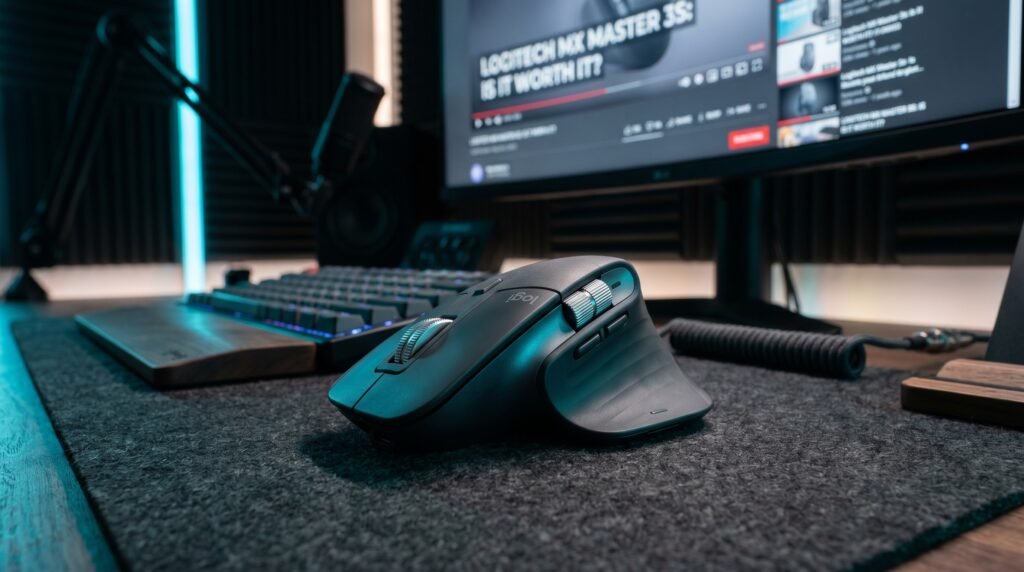
The Logitech MX Master 3S is the most capable productivity mouse available in 2026 for right-handed users.
Price: ~$100
Key specs: MagSpeed electromagnetic scroll wheel, 8,000 DPI Darkfield sensor (works on glass), Quiet Clicks (90% less click noise than MX Master 3), Bluetooth and Logi Bolt 2.4GHz, three-device Easy-Switch, USB-C charging, 70-day battery life, 7 buttons including horizontal scroll wheel.
Best for: Right-handed professionals who work heavily with long documents, spreadsheets, code, or any content requiring extensive vertical scrolling. Users who want near-silent clicks for open office environments. Power users who want multi-device switching and app-specific button customization via Logitech Options+.
Real-world detail: The Darkfield sensor tracks on glass surfaces — one of the few mice that works on glass desks without a mouse pad. At 8,000 DPI with customizable sensitivity, it covers everything from precise pixel-level design work to fast screen navigation without separate sensitivity profiles for each task.
Pros: MagSpeed scroll wheel (best-in-class), Quiet Clicks (90% less noise), 8K Darkfield sensor works on any surface including glass, 70-day battery, three-device switching, USB-C, excellent right-hand ergonomics.
Cons: Right-hand only, Logitech Options+ software required for full customization, 141g weight feels substantial after extended travel sessions.
Detailed Review: Razer Pro Click
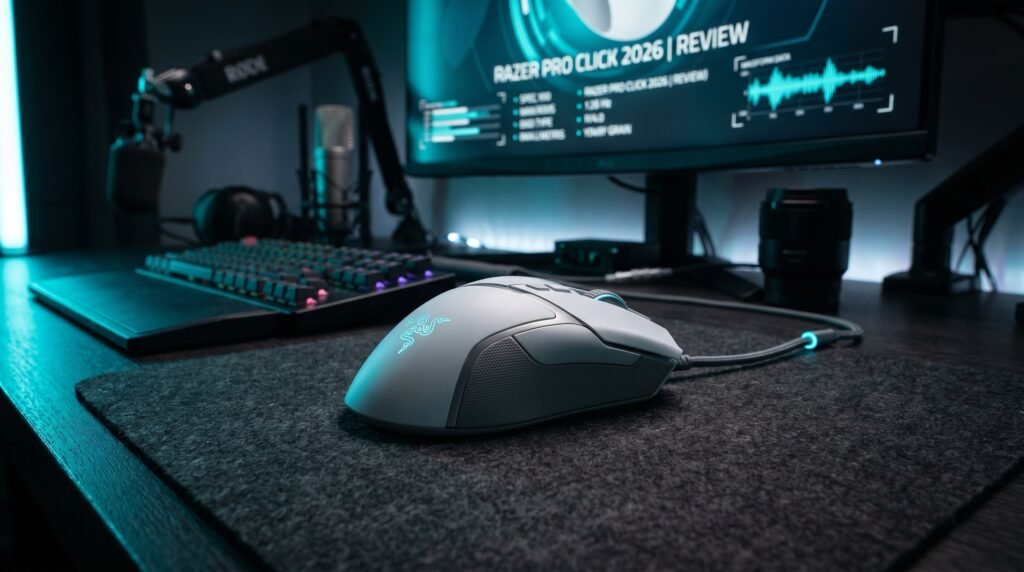
The Razer Pro Click is the right productivity mouse for left-handed users and anyone who needs four-device switching with exceptional battery life.
Price: ~$70-80
Key specs: 16,000 DPI 5G Advanced Optical Sensor, Bluetooth and 2.4GHz HyperSpeed wireless, four-device switching, 400-hour battery life (Bluetooth) or 200 hours (2.4GHz), eight programmable buttons, ambidextrous design, Razer Synapse software.
Best for: Left-handed users, users who switch between four devices daily, anyone who wants to minimize charging frequency, and designers who prefer an ambidextrous shape.
Real-world detail: The 400-hour Bluetooth battery life is exceptional — charging once every 2-3 weeks with typical 8-hour daily use. The tradeoff is that Bluetooth mode introduces slightly more latency than 2.4GHz, though this is imperceptible for productivity use.
Pros: Ambidextrous design serves left-handed users, four-device switching (one more than MX Master 3S), exceptional 400-hour Bluetooth battery life, 16,000 DPI precision sensor, eight programmable buttons.
Cons: Standard scroll wheel significantly inferior to MX Master 3S’s MagSpeed, symmetrical shape less ergonomically optimized for right-handers, Razer Synapse software more complex than Logitech Options+, Micro-USB charging (older port than USB-C).
Comparison Table
| Feature | Logitech MX Master 3S | Razer Pro Click |
|---|---|---|
| Price | ~$100 | ~$75 |
| Scroll wheel | MagSpeed electromagnetic | Standard scroll |
| Sensor DPI | 8,000 | 16,000 |
| Quiet clicks | Yes (90% less noise) | No |
| Design | Right-hand ergonomic | Ambidextrous |
| Device switching | 3 devices | 4 devices |
| Battery life | 70 days | 400 hrs (BT) / 200 hrs (2.4GHz) |
| Charging | USB-C | Micro-USB |
| Works on glass | Yes (Darkfield) | No |
| Weight | 141g | 106g |
| Best for | Document workflows, right-handers | Left-handers, four-device users |
| Rating | 9.5/10 | 8/10 |
What to Look for When Choosing Between These Mice
1. How much do you scroll? This is the deciding question for most productivity users. If you scroll through long documents, lengthy code files, extensive spreadsheets, or tall web pages regularly, the MX Master 3S’s MagSpeed wheel delivers a workflow improvement that no other mouse feature can match at this price. If your work involves primarily short documents and precise selections, the scroll wheel advantage matters less and the Pro Click’s sensor precision becomes more relevant.
2. Which hand do you use? Left-handed users: the Razer Pro Click is one of your best options in the premium wireless productivity category. Right-handed users: the MX Master 3S’s dedicated ergonomic shape provides better all-day comfort than the Pro Click’s ambidextrous design. This single factor can override every other consideration in this comparison.
3. How many devices do you switch between? The MX Master 3S supports three devices via Easy-Switch. The Razer Pro Click supports four. If you work across more than three devices — desktop, laptop, tablet, and a fourth — the Pro Click’s additional device slot is a genuine differentiator. For three devices or fewer, both mice handle switching equally well.
4. Do you work in an open office? The MX Master 3S’s Quiet Clicks reduce click noise by 90% versus the original MX Master 3 — making it one of the quietest mice in the productivity category. In open offices where click noise is a social friction point, this matters. The Razer Pro Click’s standard mechanical clicks are audible at normal desk distances.
5. Do you work on glass surfaces? The MX Master 3S’s Darkfield sensor tracks on glass — a meaningful advantage for users with glass desks. The Razer Pro Click requires a mouse pad or non-reflective surface. If your desk is glass, the MX Master 3S wins this category unambiguously.
FAQ
Is the Logitech MX Master 3S better than the Razer Pro Click?
For most right-handed productivity users, yes. The MagSpeed scroll wheel provides a workflow improvement for document-heavy work that the Pro Click’s standard scroll wheel cannot match. The Quiet Clicks make it significantly more office-friendly. The Pro Click wins for left-handed users, four-device users, and anyone who prioritizes battery life above all else. For the majority of productivity users, the MX Master 3S is the more impactful choice.
Can the Razer Pro Click be used for gaming?
The Razer Pro Click is designed for productivity — the shape, button placement, and software are optimized for office workflows rather than competitive gaming. The 16,000 DPI sensor is technically capable for gaming, but the symmetrical shape and button layout don’t suit gaming ergonomics as well as dedicated gaming mice. Razer makes dedicated gaming mice for that use case.
Does the Logitech MX Master 3S work with Mac?
Yes, and it works particularly well with Mac. Logitech Options+ software provides full functionality on macOS including app-specific customization, gesture controls via the thumb button, and proper media key behavior. The Easy-Switch button cycles between a Mac, an iPad, and a Windows machine without any re-pairing. For Mac users who also use Windows, the MX Master 3S handles the transition more smoothly than almost any competing mouse.
Which mouse has better battery life?
The Razer Pro Click wins significantly on battery life in Bluetooth mode — 400 hours versus the MX Master 3S’s 70 days (approximately 560 hours at 8 hours/day). In practical terms: the Pro Click on Bluetooth charges every 2-3 weeks with 8-hour daily use. The MX Master 3S charges every 8-9 weeks at the same usage. Both are excellent for productivity use — but the Pro Click in 2.4GHz HyperSpeed mode still delivers 200 hours, keeping it well ahead.
Our Final Verdict
The Logitech MX Master 3S vs Razer Pro Click has a clear winner for most buyers: the MX Master 3S. The MagSpeed scroll wheel changes how you interact with content — not a spec on a chart, but a daily workflow improvement most users notice within the first hour. Quiet Clicks make it the more office-appropriate choice. The Razer Pro Click is the correct answer for left-handed users, four-device users, and anyone who wants to minimize charging frequency. Pair your new mouse with the right ergonomic setup — our guide to the best ergonomic mouse for wrist pain covers how to optimize your full mouse and desk setup for long sessions. Check current pricing on Amazon before buying — both mice go on sale regularly.