
This article contains affiliate links. We may earn a commission if you buy through our links, at no extra cost to you.
Best Monitor for Home Office Under $300 in 2026
Your laptop screen is the most expensive productivity mistake you’re making. Working on a 13 or 15-inch display all day costs you screen real estate, forces awkward neck angles, and makes multitasking genuinely painful. The best monitor for home office use under $300 in 2026 solves all three problems — and the options at this price point are significantly better than most people expect. After researching and comparing dozens of monitors across size, panel type, resolution, and connectivity, here is what actually works for remote workers, freelancers, and anyone building a serious home office setup on a real budget.
This guide covers the top picks for every use case — general productivity, design work, dual-monitor setups, and small-space offices. For the next step up, see our guide to the best ultrawide monitor for productivity.
Quick Answer
The LG 27UP850N-W is the best monitor for home office use under $300 for most people — 27-inch 4K IPS panel, USB-C with 96W power delivery, and color accuracy that handles everything from spreadsheets to light photo editing. For best value, the Dell S2722QC delivers 4K and USB-C at $250. Budget-focused buyers should consider the LG 27QN600-B at $200. Creative professionals should look at the ASUS ProArt PA278CV. Users who can stretch their budget will find the Dell UltraSharp U2723QE worth every extra dollar.
Why Your Monitor Choice Matters More Than Your Computer
This sounds like an overstatement. It’s not. The monitor you use for 8+ hours per day affects your posture, your eye fatigue, your ability to multitask, and — measurably — your output speed on tasks involving multiple windows or documents.
Research by Jon Peddie Research found that dual monitors increase productivity by approximately 42% for knowledge workers. Even moving from a 15-inch laptop screen to a single 27-inch external monitor produces a workspace expansion that most users describe as transformative within the first week.
The home office monitor market under $300 has improved substantially in the last two years. 4K panels — once exclusive to $500+ monitors — are now available at $250-280. USB-C connectivity with power delivery, which lets you power your laptop through a single cable while getting display output, has become standard in this price range. IPS panel technology is now the baseline expectation rather than the premium option.
What most reviews won’t tell you is that the biggest mistake buyers make at this price range isn’t choosing the wrong resolution — it’s choosing the wrong size. A 24-inch 4K monitor looks incredibly sharp but the pixel density is so high that most people run it at a scaled resolution anyway, effectively negating the 4K advantage. For home office use, 27-inch at 4K or 27-inch at 1440p is the sweet spot.
The 5 Best Home Office Monitors Under $300 in 2026
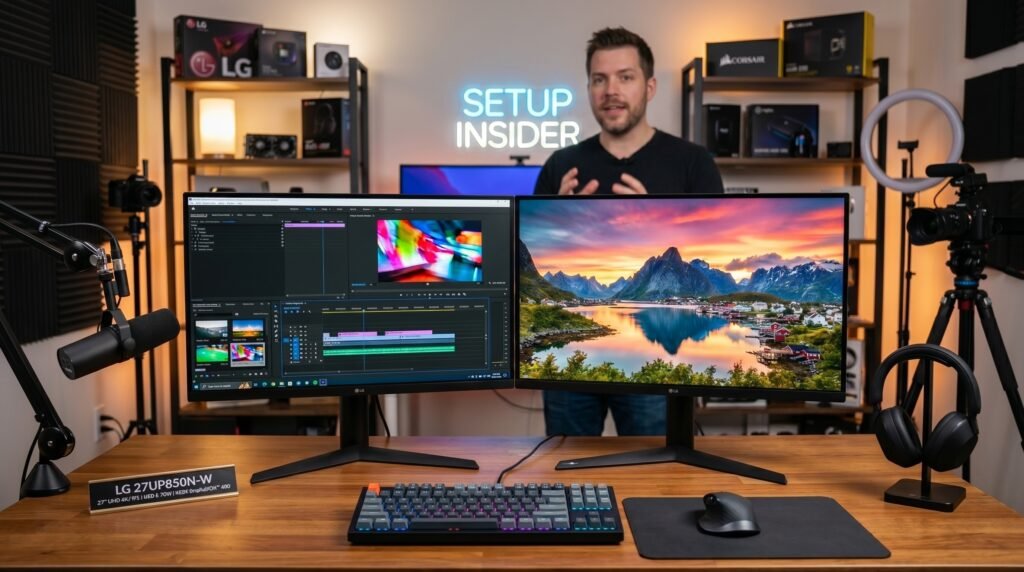
1. LG 27UP850N-W — Best Overall (~$280)

The LG 27UP850N-W is the monitor we’d recommend to most people building a home office setup in 2026. 27-inch 4K IPS panel, USB-C with 96W power delivery, two HDMI ports, DisplayPort, and a built-in USB hub. The color accuracy — 99% sRGB coverage — handles standard office work, video calls, and light creative work without any calibration required out of the box.
The 96W USB-C power delivery is the standout feature. Connect a modern MacBook or Windows laptop with a single USB-C cable and you get display output, USB hub access, and laptop charging simultaneously. One cable from desk to laptop. That alone changes how a home office feels.
Best for: Remote workers who want a single-cable setup with a MacBook or USB-C laptop, and users who occasionally do light photo or video editing.
Pros: 4K IPS, 96W USB-C PD, 99% sRGB, built-in USB hub, ergonomic stand with height and tilt adjustment, VESA compatible.
Cons: No built-in speakers, 60Hz refresh rate only, stand takes notable desk space.
2. Dell S2722QC — Best Value 4K (~$250)

The Dell S2722QC is the monitor that makes $300 feel like an excessive budget. At around $250, it delivers 27-inch 4K IPS, USB-C with 65W power delivery, built-in dual 3W speakers, and Dell’s characteristically solid build quality — all for $30 less than the LG. The color performance is slightly below the LG (95% sRGB vs 99%), but for standard document work, spreadsheets, and video calls, the difference is invisible.
Dell’s monitor software — Dell Display Manager — is genuinely useful for snapping windows into predefined layouts across the 4K canvas. If you work with multiple documents simultaneously, this feature alone saves 20-30 minutes of window management per day.
Best for: Budget-conscious home office builders who want 4K and USB-C, and Windows users who’ll benefit from Dell Display Manager.
Pros: 4K IPS, USB-C 65W PD, built-in speakers, Dell Display Manager, excellent build quality, 3-year warranty.
Cons: 65W USB-C may be insufficient for power-hungry 16-inch laptops under heavy load, 95% sRGB slightly below LG, no height adjustment on base model stand.
3. LG 27QN600-B — Best 1440p Option (~$200)
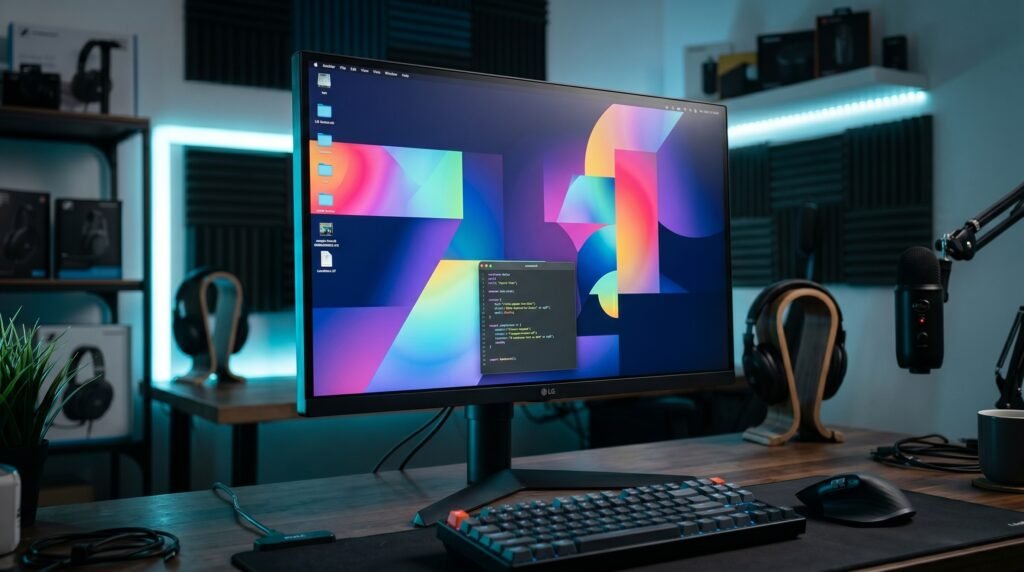
The honest truth about 4K monitors for home office use is that 1440p is often the more practical choice — particularly for users who do any gaming alongside their work, or who run applications that don’t scale well at 4K. The LG 27QN600-B delivers excellent 1440p IPS quality at around $200, leaving $100 in the budget for other peripherals.
At 27 inches, 1440p hits a pixel density of 109 PPI — sharp enough that individual pixels are invisible at normal viewing distances, while maintaining better compatibility with older software that doesn’t support proper 4K scaling. AMD FreeSync and HDR10 support are a genuine bonus for mixed productivity-gaming use.
Best for: Users who split their monitor use between office work and gaming, or those who want to allocate budget to keyboard, mouse, or other peripherals rather than maximizing monitor spec.
Pros: 1440p IPS, 75Hz, 99% sRGB, AMD FreeSync, HDR10, affordable, wide compatibility.
Cons: No USB-C, fewer connectivity options than the 4K picks, no height adjustment.
4. Dell UltraSharp U2723QE — Best Premium Option (~$580)
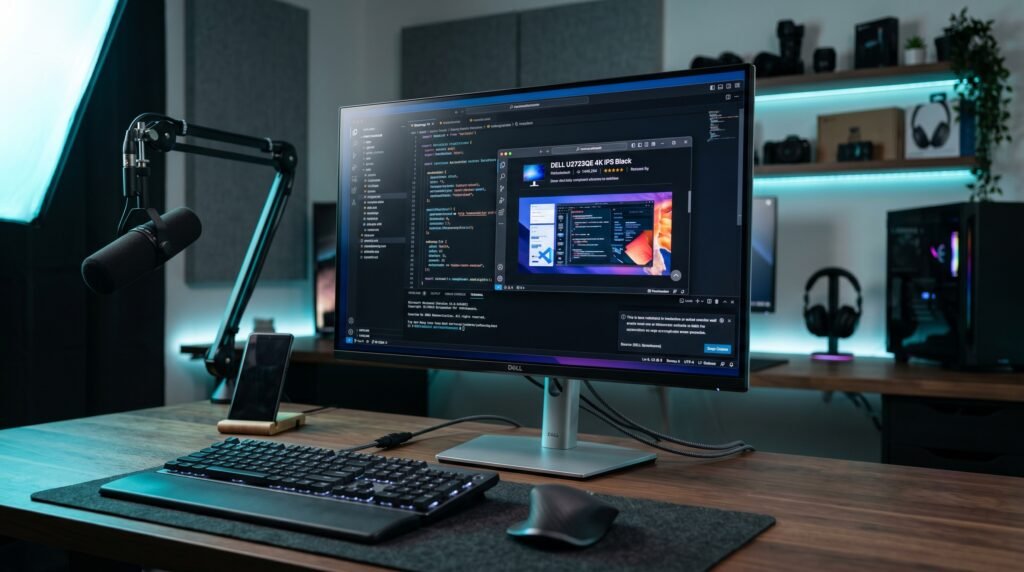
This is outside the stated budget — we’re including it for a specific reason. If you’re considering spending $280 on a monitor, you should know that $580 gets you a dramatically better product, and many buyers who stretch to this option never look back. The Dell UltraSharp U2723QE features an IPS Black panel — delivering 2000:1 contrast ratio versus the standard 1000:1 on most IPS monitors — alongside 98% DCI-P3 color coverage and USB-C 90W PD.
For users who do significant video or photo work, or who simply spend 10+ hours daily in front of a screen, the visual quality difference is substantial enough to justify the price gap.
Best for: Power users who want the best under-$600 home office monitor and can stretch beyond $300.
Pros: IPS Black panel with 2000:1 contrast, 98% DCI-P3, USB-C 90W PD, excellent ergonomics, Dell’s premium warranty.
Cons: $580 is double the stated budget — only consider this if you have genuine budget flexibility.
5. ASUS ProArt PA278CV — Best for Creative Work (~$280)
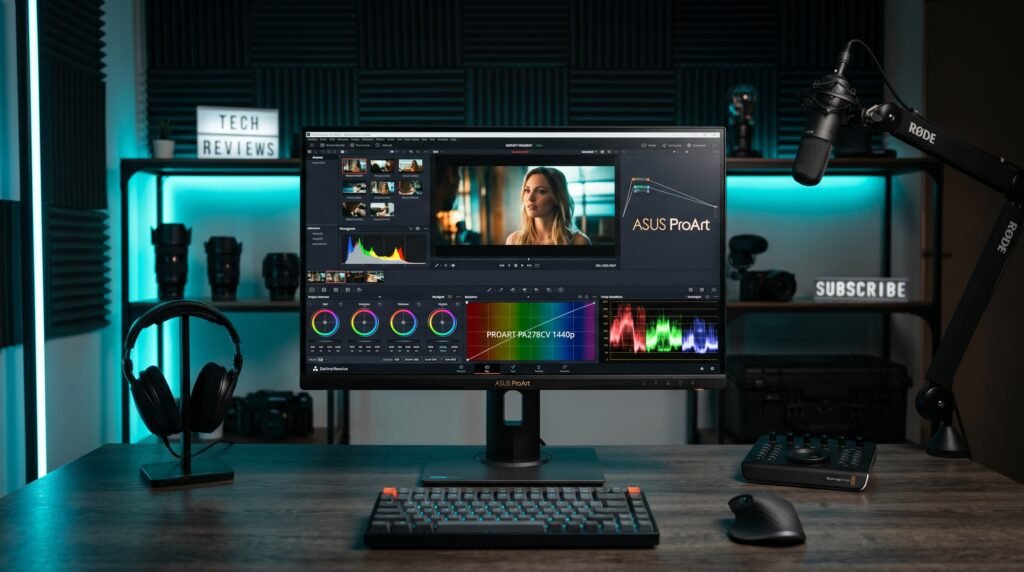
The ASUS ProArt PA278CV is 1440p rather than 4K, which is its only technical shortcoming in this comparison. What it offers in return is factory-calibrated color accuracy — each unit ships with a calibration report — 100% sRGB and 100% Rec.709 coverage, USB-C with 65W power delivery, and built-in 2W speakers. For graphic designers, video editors, and content creators working at a home office, color calibration accuracy matters more than raw resolution.
Each unit ships with an individual calibration report showing Delta-E values below 2 — accurate enough for professional color work. DisplayPort daisy-chaining allows connecting a second monitor without an additional port on your laptop.
Best for: Graphic designers, video editors, photographers, and content creators who prioritize color accuracy over maximum resolution.
Pros: Factory calibrated, 100% sRGB and Rec.709, Delta-E < 2, USB-C 65W, daisy-chain DisplayPort, built-in speakers, height adjustable stand.
Cons: 1440p rather than 4K, 60Hz only.
Comparison Table
| Monitor | Price | Resolution | USB-C PD | Best For | Rating |
|---|---|---|---|---|---|
| LG 27UP850N-W | ~$280 | 4K IPS | 96W | Best overall | 9.5/10 |
| Dell S2722QC | ~$250 | 4K IPS | 65W | Best value 4K | 9/10 |
| LG 27QN600-B | ~$200 | 1440p IPS | None | Best 1440p | 8.5/10 |
| ASUS ProArt PA278CV | ~$280 | 1440p IPS | 65W | Best for creative work | 9/10 |
| Dell UltraSharp U2723QE | ~$580 | 4K IPS Black | 90W | Best premium option | 9.5/10 |
What to Look for When Choosing a Home Office Monitor Under $300
1. Panel type — IPS is the only choice for home office At this price range you’ll see IPS, VA, and TN panels. For home office use, IPS is the clear recommendation. IPS delivers accurate colors from wide viewing angles — essential when you’re presenting your screen to colleagues on video calls or sharing your display. VA panels have better contrast but significantly worse viewing angles. TN panels are fast for gaming but color quality is poor. Stick with IPS.
2. Resolution and size pairing Size and resolution must be matched correctly. A 24-inch 4K monitor has such high pixel density (185 PPI) that most operating systems scale it to effectively display as a 1440p equivalent — you’re paying for 4K pixels you can’t distinguish. A 27-inch 4K monitor (163 PPI) is the minimum size where 4K is genuinely usable at native or near-native scaling for most users. If you prefer 24 inches, 1440p is the better resolution choice for that size.
3. USB-C with power delivery USB-C PD is the feature that most dramatically improves desk setup quality. A single cable from your laptop to the monitor provides display output, USB hub access, and laptop charging simultaneously. The wattage matters — 65W handles most laptops adequately, 90-96W handles even power-hungry 16-inch laptops under load. For MacBook users this is essentially a requirement.
4. Ergonomics — height adjustment Most monitors at this price include a stand with tilt adjustment only. Height adjustment is critical for proper ergonomic positioning — your eyes should be level with the top third of the screen when seated comfortably. Check whether height adjustment is included in the stand or whether you’ll need to budget for a monitor arm (~$30-50 for a basic VESA arm).
5. Eye comfort features At a monitor you’ll use 8+ hours daily, flicker-free backlighting and low blue light modes matter. PWM dimming causes invisible flickering that contributes to eye fatigue over long sessions. Most IPS monitors at this price range now include both flicker-free and low blue light modes, but confirm before purchasing.
FAQ
Is 4K worth it for a home office monitor under $300?
For a 27-inch monitor, yes. The additional screen real estate allows two full-size documents side by side without scrolling, and text rendering is noticeably sharper. The caveat is that older computers or budget laptops may struggle to drive 4K at 60Hz through older ports — check your laptop’s display output specifications before purchasing.
Do I need USB-C on my home office monitor?
If your laptop has a USB-C port that supports DisplayPort Alt Mode, it’s one of the most impactful desk setup upgrades you can make. One cable replaces the power adapter, display cable, and USB hub cable simultaneously. For MacBook users it’s essentially essential. For Windows laptop users, check your specific USB-C port specifications — not all USB-C ports support video output.
What size monitor is best for a home office?
27 inches is the answer for the vast majority of home office setups. Large enough to display two documents side by side comfortably, small enough to fit on most desks, and the right size for 4K to be genuinely useful at normal viewing distances of 60-80cm. 24 inches works well in very small spaces or dual-monitor setups. Anything above 32 inches typically requires ultrawide formatting to be practical at desk distances.
Can I use a home office monitor for gaming?
Yes, with limitations. The monitors in this guide cap at 60-75Hz and have response times of 5ms or more — fine for casual gaming, limiting for competitive play. For casual gaming alongside office work these monitors are perfectly adequate. For competitive gaming, a 144Hz gaming monitor would be the better primary display.
Our Final Verdict
The best monitor for home office use under $300 in 2026 is the LG 27UP850N-W — 4K IPS, 96W USB-C, and color accuracy that handles both productivity and light creative work. Budget-constrained buyers should go directly to the Dell S2722QC at $250. Creative professionals should seriously consider the ASUS ProArt PA278CV — the factory calibration makes it the most color-trustworthy option at this price. Any of these three will transform a laptop-only setup into a proper home office. Check current pricing on Amazon before buying — monitor prices fluctuate regularly and sales on all picks are common.