
This article contains affiliate links. We may earn a commission if you buy through our links, at no extra cost to you.
Best Ultrawide Monitor for Productivity in 2026
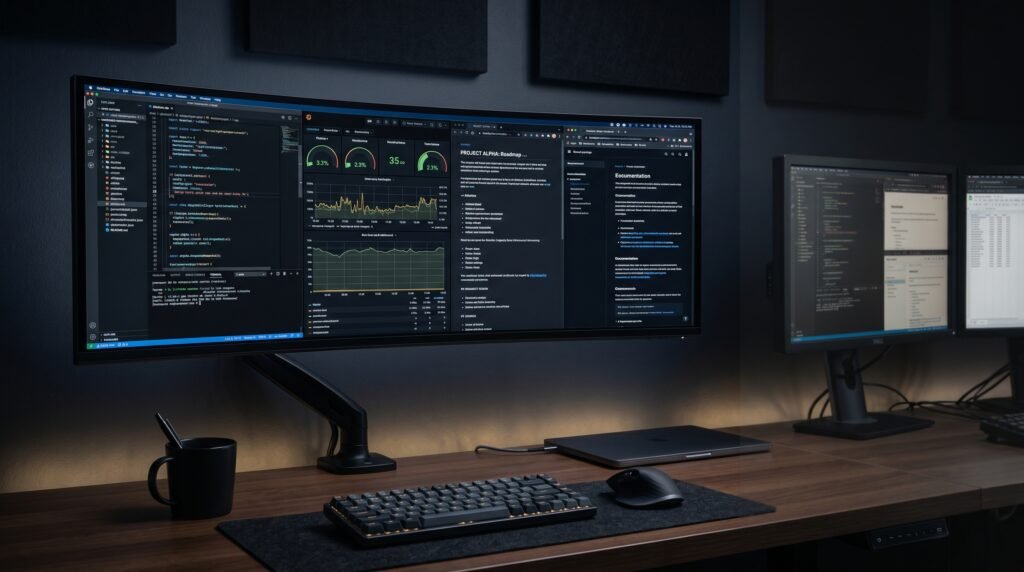
Two monitors side by side seems like the obvious solution for people who need more screen real estate. It’s also wrong — or at least not the best solution. The gap between monitors breaks your field of vision right where your eyes naturally focus, bezels interrupt whatever you’re working on, and managing windows across two separate displays creates friction that compounds across dozens of interactions per day. The best ultrawide monitor for productivity solves all of this by replacing two standard monitors with a single continuous canvas that stretches your workflow without the interruption. After researching and comparing the top ultrawide options across size, resolution, panel quality, and real-world productivity performance, here is what actually works in 2026.
If the ultrawide format is outside your budget, our guide to the best monitor for home office under $300 covers the best standard monitors at more accessible prices.
Quick Answer
The LG 34WN80C-B is the best ultrawide monitor for productivity for most people — 34-inch curved IPS panel, USB-C with 60W power delivery, and 99% sRGB color accuracy around $350. For premium image quality, the Dell U3423WE with IPS Black panel is worth the extra investment. OLED enthusiasts should look at the Samsung Odyssey G85SB. Power users wanting maximum screen real estate should consider the LG 40WP95C-W. Budget buyers can start with the AOC CU34G2X at $280.
Why Ultrawide Beats Dual Monitors for Productivity
The dual-monitor setup has dominated office productivity for 20 years. Ultrawide is better. That’s a strong claim, so here’s the evidence.
The human field of comfortable vision spans approximately 180 degrees, but our zone of focused attention is much narrower — roughly 60 degrees wide. A properly sized ultrawide monitor fits within that focused zone entirely, while a dual-monitor setup spreads content across a wider arc that requires constant head movement to navigate.
Window management on ultrawide is also genuinely superior. Instead of maximizing one application to each monitor, ultrawide lets you have three or four applications visible simultaneously at useful sizes without any application being awkwardly small. A developer running a code editor, terminal, documentation browser, and Slack simultaneously — all visible at once — is a workflow that dual monitors approximate but ultrawide executes cleanly.
The counterintuitive point: ultrawide monitors are actually better for focus than dual monitors, not worse. The continuous canvas eliminates the visual context switching that makes dual monitors distracting. Everything is visible but arranged deliberately, which research on cognitive load suggests produces better sustained attention than constant full-screen switching.
Complete your ultrawide setup with the right keyboard — our guide to the best mechanical keyboard under $100 covers the options that complement a serious desk setup.
Understanding Ultrawide Formats: 21:9 vs 32:9
Before choosing a specific monitor, understanding ultrawide formats helps avoid buying the wrong size for your use case.
21:9 aspect ratio (standard ultrawide): Typically 34-inch diagonal. The most common ultrawide format — roughly equivalent to 1.5 standard monitors placed side by side. Fits comfortably on most desks with 60-90cm viewing distance. The sweet spot for most productivity users.
32:9 aspect ratio (super ultrawide): Typically 49-inch diagonal. Equivalent to two 27-inch monitors placed side by side with no gap. Genuinely impressive for traders, video editors, and anyone running large-scale workflows. Requires a deep desk and appropriate viewing distance.
Resolution within each format matters significantly. A 34-inch 21:9 monitor can come in 2560×1080 — disappointing at that size — or 3440×1440, which is the correct resolution for 34-inch ultrawide productivity. We’d recommend avoiding 2560×1080 ultrawide panels entirely. The horizontal pixel count is reasonable but the vertical 1080 pixels is cramped for document work and web browsing — you end up scrolling more than you would on a standard 1080p monitor, which defeats the purpose.
The 5 Best Ultrawide Monitors for Productivity in 2026
1. LG 34WN80C-B — Best Overall (~$350)
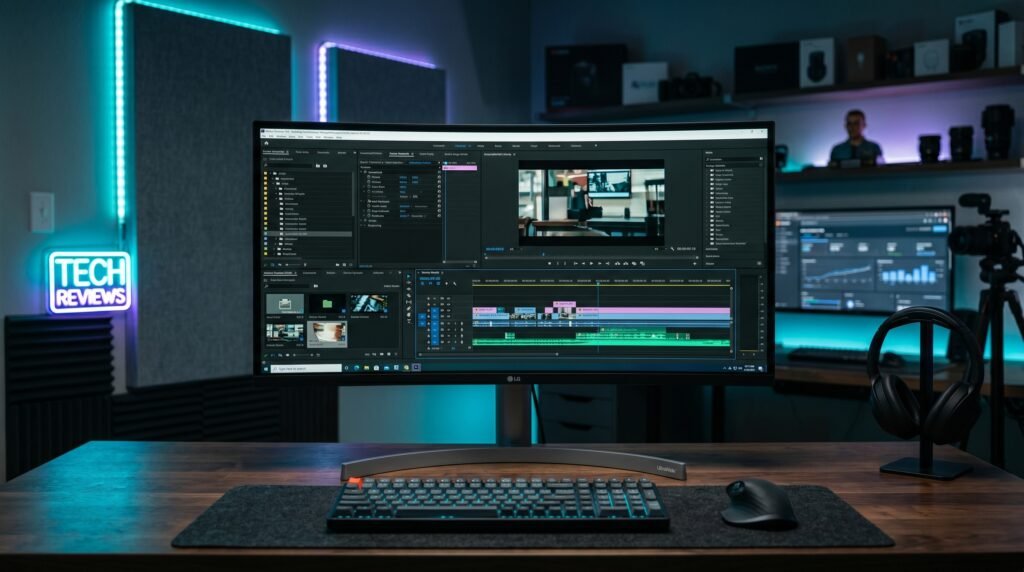
The LG 34WN80C-B is the monitor we’d recommend to most people entering the ultrawide category for productivity. 34-inch curved IPS panel at 3440×1440, USB-C with 60W power delivery, 99% sRGB color coverage, and an ergonomic stand with height and tilt adjustment. The curve — 2300R radius — is subtle enough that it doesn’t distort straight lines in documents or spreadsheets but noticeable enough to reduce eye travel at the panel edges.
The USB-C 60W PD is the feature that seals this recommendation for laptop users. One cable, clean desk, laptop charged. For anyone running a MacBook or modern Windows laptop, this single-cable workflow is immediately addictive.
Best for: Remote workers, writers, and developers who want a complete ultrawide productivity setup with single-cable laptop connectivity.
Real-world detail: At 3440×1440, you can comfortably fit a code editor at 120 columns, a browser window, and a Slack sidebar simultaneously — all at readable sizes without any window feeling cramped.
Pros: 3440×1440 IPS, 99% sRGB, USB-C 60W PD, height-adjustable stand, subtle 2300R ergonomic curve, HDR10.
Cons: 60Hz only, 60W USB-C may not fully charge 16-inch MacBook Pro under heavy load, no built-in speakers.
2. Dell U3423WE — Best Premium 34-Inch (~$600)
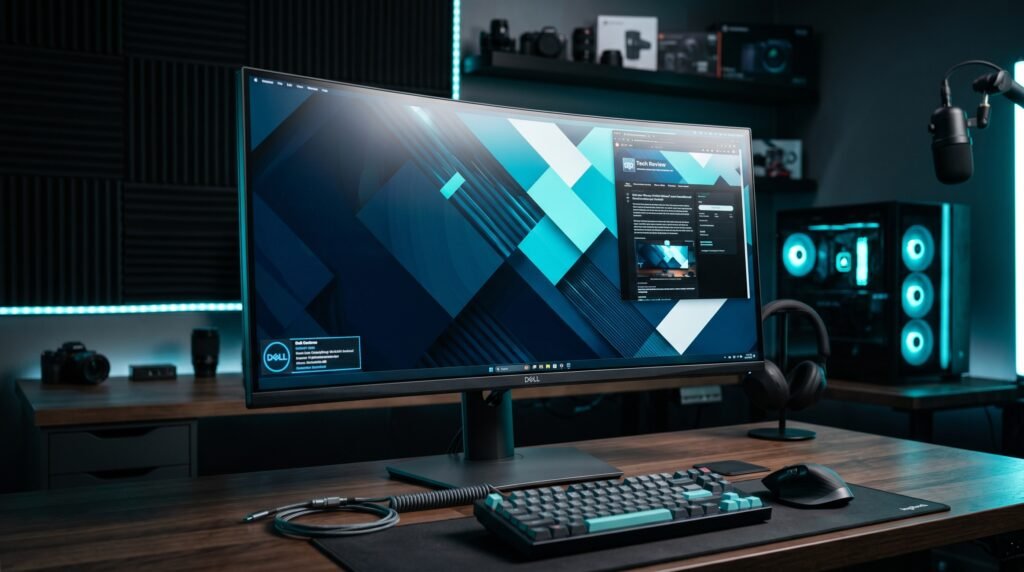
The Dell U3423WE is what happens when Dell applies their UltraSharp engineering to the ultrawide format. IPS Black panel technology delivers 2000:1 contrast ratio versus the standard 1000:1 on most IPS ultrawide monitors. Dark content actually looks dark, not the washed-out gray that most IPS panels produce.
USB-C with 90W power delivery charges even demanding laptops at full speed. Built-in dual 5W speakers, Thunderbolt 4 connectivity, KVM switch for controlling two PCs with one keyboard and mouse, and Picture-by-Picture support. This is the most feature-complete ultrawide productivity monitor available under $700.
Best for: Power users and professionals who want the best image quality in a 34-inch ultrawide and can justify the $600 price point.
Real-world detail: The IPS Black panel produces blacks approximately 40% deeper than standard IPS at similar brightness levels — a meaningful improvement for anyone using dark mode applications or doing any video review work.
Pros: IPS Black panel (2000:1 contrast), USB-C 90W, Thunderbolt 4, built-in 5W speakers, KVM switch, daisy-chain, 3-year Dell warranty.
Cons: $600 price point, 60Hz only, flat panel (no curvature).
3. Samsung Odyssey G85SB — Best OLED Ultrawide (~$750)
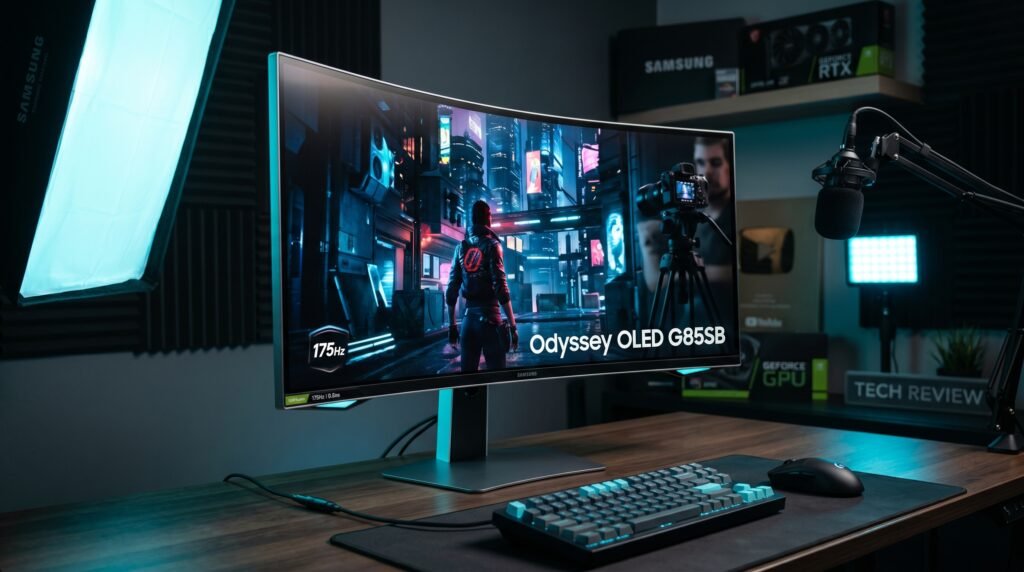
QD-OLED has arrived in productivity monitors and the Samsung Odyssey G85SB is the best example of what it means for office work. True blacks. Infinite contrast ratio. 0.03ms response time. And a 175Hz refresh rate that makes every interaction on screen — scrolling, window management, cursor movement — feel dramatically smoother than any IPS panel.
In our experience, switching from an IPS ultrawide to this QD-OLED panel is one of the most visually striking monitor upgrades possible. The difference in text clarity on a dark background is immediately apparent — no gray haze around text, just sharp white characters on a genuinely black background.
Best for: Power users who spend long hours reading and writing on screen, or anyone who wants the absolute best visual quality in a 34-inch ultrawide.
Real-world detail: QD-OLED burn-in risk is real but manageable for productivity use — Samsung includes pixel shift and screensaver management tools. Avoid leaving static content in fixed positions for extended periods without enabling these features.
Pros: QD-OLED panel (true black, infinite contrast), 175Hz, 0.03ms response, exceptional text clarity, 3440×1440, DisplayHDR True Black 400.
Cons: ~$750 price point, burn-in risk with static content, glossy panel causes reflections in bright rooms.
4. LG 40WP95C-W — Best Super Ultrawide (~$900)
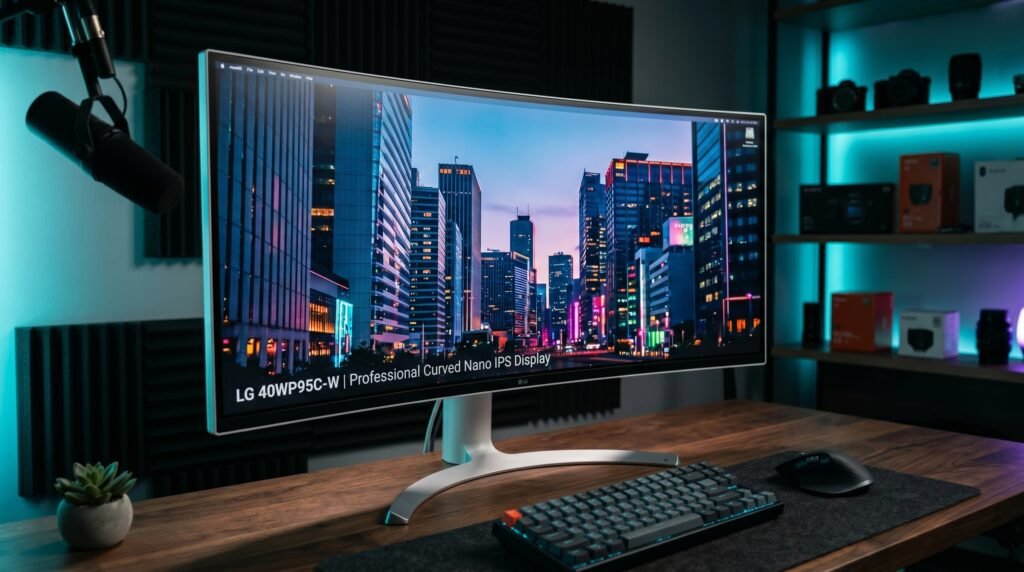
The LG 40WP95C-W is the monitor that makes everything else feel small. 40-inch curved Nano IPS panel at 5120×2160 — 21:9 at genuinely enormous scale. The 5K2K resolution delivers enough pixels that native scaling feels sharp even at 40 inches, with 98% DCI-P3 color coverage and Thunderbolt 4 with 96W power delivery.
Real-world scenario: a video editor working with a 4K timeline in Premiere Pro has the timeline fully visible across the bottom third of the screen, the preview at full size in the center, and their effects panel open on the right — without any panel feeling compressed. Built-in 10W stereo speakers with enhanced bass reduce the need for external audio.
Best for: Video editors, traders, and power users who want the maximum single-monitor productivity workspace available.
Real-world detail: 5120×2160 at 40 inches gives approximately 140 PPI — noticeably sharper than a 34-inch 3440×1440 panel and genuinely impressive for detailed work.
Pros: 40-inch 5K2K Nano IPS, Thunderbolt 4, USB-C 96W PD, 98% DCI-P3, built-in 10W speakers, ambient light sensor, height/tilt/swivel stand.
Cons: ~$900 price point, requires deep desk for proper viewing distance, 72Hz only, not all laptops can drive 5K2K.
5. AOC CU34G2X — Best Budget Ultrawide (~$280)
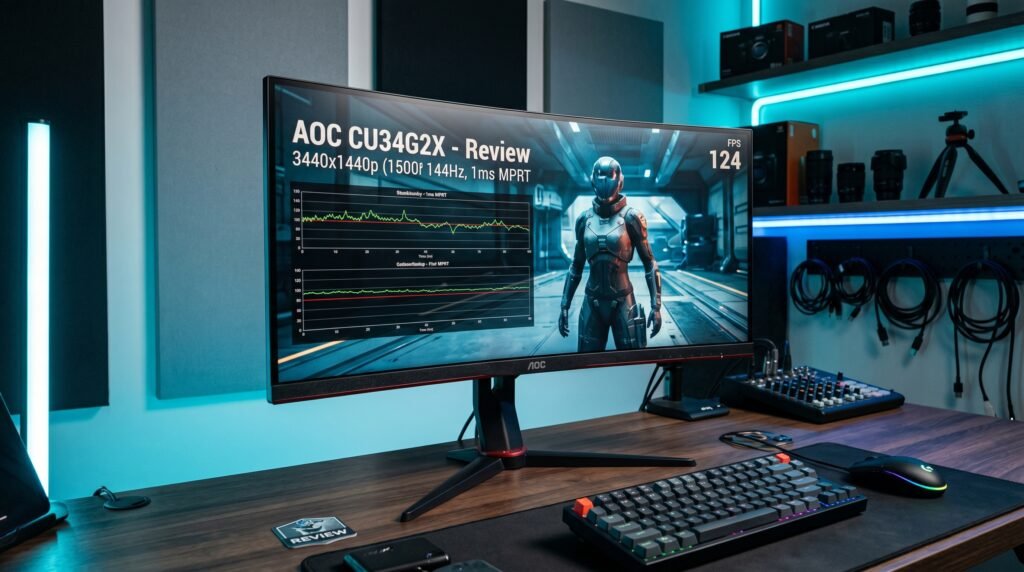
The AOC CU34G2X answers the question of how good a 34-inch ultrawide can be at $280. The answer: quite good, with specific compromises. 3440×1440 VA panel — not IPS — 144Hz refresh rate that makes this the obvious choice for users who want an ultrawide for both productivity and gaming, and a 1500R curve that’s noticeably more pronounced than the LG options.
No USB-C is the main productivity limitation — HDMI and DisplayPort only. For users with older laptops or desktops without USB-C video output, this isn’t a limitation at all. The 3-year zero dead pixels warranty is a meaningful guarantee at this price point.
Best for: Users who want an ultrawide for both productivity and gaming on a budget, or those whose computers don’t support USB-C video output.
Real-world detail: The 1500R curve is more aggressive than the 2300R on LG’s panels — some users love it, some find it distracting for document work where straight horizontal lines appear slightly curved. If possible, see this panel in person before purchasing.
Pros: 3440×1440, 144Hz, $280 price point, VA panel for better contrast than TN, 3-year zero dead pixels warranty, height-adjustable stand.
Cons: VA panel (not IPS), no USB-C, 1500R curve may not suit all users, lower color accuracy than IPS options.
Comparison Table
| Monitor | Price | Panel | Resolution | USB-C | Refresh | Rating |
|---|---|---|---|---|---|---|
| LG 34WN80C-B | ~$350 | IPS | 3440×1440 | 60W | 60Hz | 9/10 |
| Dell U3423WE | ~$600 | IPS Black | 3440×1440 | 90W | 60Hz | 9.5/10 |
| Samsung G85SB | ~$750 | QD-OLED | 3440×1440 | 90W | 175Hz | 9.5/10 |
| LG 40WP95C-W | ~$900 | Nano IPS | 5120×2160 | 96W | 72Hz | 9/10 |
| AOC CU34G2X | ~$280 | VA | 3440×1440 | None | 144Hz | 8/10 |
What to Look for When Choosing an Ultrawide Monitor for Productivity
1. Resolution — don’t accept less than 3440×1440 The productivity argument for ultrawide falls apart at 2560×1080. At that resolution on a 34-inch panel, you have fewer vertical pixels than a standard 1080p monitor — meaning more scrolling and text that looks soft at normal viewing distances. Only consider 3440×1440 for 34-inch ultrawide. For 49-inch super ultrawide, 5120×1440 is the equivalent minimum standard.
2. Panel type matched to use case IPS for color accuracy and productivity. VA for higher contrast and gaming at budget prices. QD-OLED for the absolute best image quality, with attention to burn-in management. Avoid TN panels — they appear at entry-level ultrawide price points and the viewing angle limitations are significant on a monitor this wide.
3. USB-C power delivery wattage For laptop users, USB-C PD wattage determines whether you get a clean single-cable setup or still need a separate charger. 60W is sufficient for most 13-15 inch laptops. 90-96W handles 16-inch MacBook Pro and high-performance Windows laptops under load. Check your laptop’s USB-C charging wattage requirement before purchasing.
4. Curvature radius Curvature is measured in R — a lower number means a tighter curve. 3800R is nearly flat. 2300R is subtle — suitable for productivity where straight lines in documents matter. 1500R is pronounced — good for immersive gaming. For pure productivity use, 2300R-3800R is the practical range.
5. Desk depth requirements A 34-inch ultrawide should be viewed from approximately 80-100cm for comfortable coverage without requiring head movement. A 40-inch ultrawide needs 90-110cm. Measure your desk depth before purchasing — a monitor that sits too close forces uncomfortable head movement and defeats the ergonomic benefits of the format.
FAQ
Is an ultrawide monitor better than two monitors for productivity?
For most productivity use cases, yes. Ultrawide eliminates the bezel gap, simplifies window management, reduces neck strain from side-to-side head movement, and creates a more focused working environment. The specific advantage of dual monitors — two fully independent display zones — is relevant for users who run completely separate workflows simultaneously. For most users running multiple applications within a single workflow, ultrawide is the superior solution.
What resolution do I need for a 34-inch ultrawide?
3440×1440 is the only resolution worth considering at 34 inches. At 2560×1080, pixel density is only 82 PPI — visibly soft at normal desk viewing distances and insufficient vertical resolution for document work. If you see a 34-inch ultrawide at 2560×1080 on sale, the price reflects the compromised resolution — skip it.
Do ultrawide monitors work with MacBooks?
Yes, and they work particularly well. MacOS has excellent ultrawide support — split-screen across the full width, Stage Manager for organized multi-window layouts, and most USB-C ultrawide monitors work plug-and-play. The single-cable connection from MacBook to USB-C ultrawide is one of the cleanest desk setups possible.
Will an ultrawide monitor fit on my desk?
A 34-inch ultrawide is approximately 32 inches (81cm) wide. A 40-inch super ultrawide is approximately 38 inches (97cm) wide. Depth matters too — ultrawide monitors need 80-100cm of viewing distance for comfortable use. Measure both the width of your desk and the available depth before purchasing.
Our Final Verdict
The best ultrawide monitor for productivity in 2026 is the LG 34WN80C-B for most people — excellent IPS image quality, 3440×1440, and USB-C single-cable convenience at a price that doesn’t require a budget conversation. If image quality is the priority and budget allows, the Dell U3423WE with its IPS Black panel is worth the additional investment. For the truly uncompromising setup, the Samsung Odyssey G85SB QD-OLED delivers a visual experience that makes everything else feel dated. Whichever direction you go, switching to ultrawide is one of the most immediately impactful productivity upgrades available for a desk setup. Check current pricing on Amazon — ultrawide monitors go on sale regularly and prices shift frequently.