This article contains affiliate links. We may earn a commission if you buy through our links, at no extra cost to you.
Color accuracy is the one spec that separates a real editing monitor from a gaming panel wearing a costume — and you don’t need to spend $800 to get it. The best monitor for video editing under 500 dollars delivers factory-calibrated color, enough resolution to see your timeline clearly, and the connectivity to drive it from a laptop. The trick is knowing which specs actually matter and which ones are marketing.
Most “editing monitor” lists just rank panels by price. That misses the point. A colorist grading footage and a YouTuber cutting talking-head clips need very different things from the same budget.
After researching the panels that creative pros actually keep on their desks, here’s what holds up under $500. This guide is for video editors, motion designers, and content creators who want accurate color without paying reference-monitor prices.
By the end, you’ll know exactly which panel fits your workflow and your machine.
Quick Answer
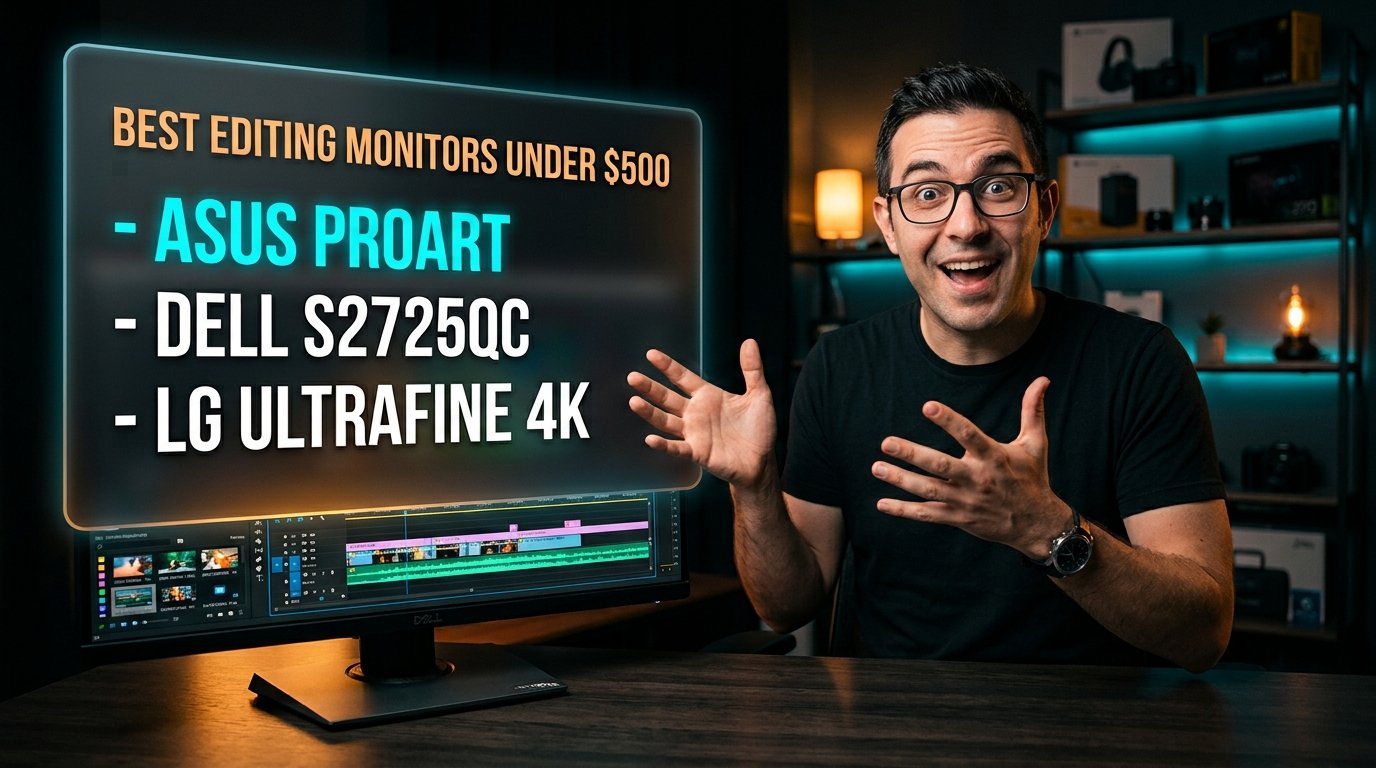
The ASUS ProArt PA278QV is the best monitor for video editing under $500 for most people — factory-calibrated to Delta E < 2 with 100% sRGB, at around $230. If you edit from a laptop and want 4K plus single-cable USB-C, the Dell S2725QC is the pick. For the sharpest 4K on a tight budget, the LG UltraFine 27US500-W delivers 90% DCI-P3 for around $180.
Color Accuracy Matters More Than Resolution
Factory calibration is the single most important feature for a video editing monitor, and it’s the one buyers skip most often. A color-accurate 1440p panel will serve an editor far better than an uncalibrated 4K one, because if the colors on your screen don’t match reality, everything you export looks wrong on someone else’s display.
The number to look for is Delta E, which measures how far a monitor’s color strays from the true value. A Delta E under 2 means the difference is invisible to the human eye. The ASUS ProArt PA278QV ships Calman Verified at Delta E < 2 with 100% sRGB and 100% Rec. 709 coverage — the exact color spaces most video work targets.
What most reviews won’t tell you: for standard-definition and HD video delivery, 100% sRGB and Rec. 709 matter more than the wider DCI-P3 gamut everyone brags about. DCI-P3 is a cinema and HDR standard. If you’re cutting for YouTube, Instagram, or corporate clients, sRGB accuracy is what actually keeps your exports looking right. Our guide to the best monitor for eye strain covers the comfort side of long editing sessions.
4K vs 1440p: The Trade-Off Nobody Explains
1440p is the sweet spot for editing under $500, and this is the counterintuitive part most buyers get wrong. 4K sounds obviously better, but it forces a compromise at this price: to hit 4K on a sub-$500 budget, manufacturers usually cut corners on calibration.
A 27-inch 1440p panel gives you 109 pixels per inch — sharp enough to see your footage clearly and read your timeline without squinting. A 27-inch 4K panel jumps to 163 PPI, which is gorgeous, but at this budget you’re often paying for those pixels by getting a less color-accurate panel.
Here’s the honest trade-off. Choose 1440p (the ASUS ProArt) if color accuracy is your priority and you edit HD or 1080p delivery. Choose 4K (the Dell or LG) if you edit 4K source footage and need to view it at full resolution, or if the monitor doubles as your everyday driver.
In our experience, most working editors under $500 are better served by the calibrated 1440p panel — but if your source footage is 4K, seeing it 1:1 is worth the jump.
Connectivity: Why USB-C Changes Everything for Laptop Editors
USB-C with power delivery is the feature that transforms a monitor for anyone editing on a laptop, and it’s worth prioritizing if that’s your setup. A single USB-C cable carries video, data, and up to 65W of charging power — so you close your MacBook or Windows laptop, plug in one cable, and you’re editing on a big screen while your machine charges.
The Dell S2725QC delivers exactly this: 4K at 120Hz over a single USB-C cable with 65W power delivery, plus HDMI 2.1 and a built-in USB hub. For a laptop-based editor, that one cable replaces a charger, an adapter, and a video cable.
A concrete scenario: you get to your desk, connect one cable, and your color-graded timeline appears on a calibrated 27-inch screen while your laptop tops up its battery — no dongle nest, no separate power brick. That convenience is why USB-C monitors command a premium, and why the Dell earns its higher price for the right user.
If you don’t edit from a laptop, USB-C matters far less, and you can put that budget toward color accuracy instead.
Best Monitor for Video Editing Under $500: Comparison Table
| Product | Price | Best For | Rating |
|---|---|---|---|
| ASUS ProArt PA278QV | ~$230 | Best color accuracy | 9.5/10 |
| Dell S2725QC | ~$330 | Best 4K + USB-C for laptops | 9/10 |
| LG UltraFine 27US500-W | ~$180 | Best budget 4K | 8.5/10 |
Detailed Reviews
ASUS ProArt PA278QV — Best Color Accuracy
The ASUS ProArt PA278QV is the editor’s pick because it ships factory-calibrated at Delta E < 2 with 100% sRGB and 100% Rec. 709, for around $230. It’s a 27-inch 1440p IPS panel with an ergonomic stand, a built-in USB hub, and ASUS’s ProArt Palette for fine color control.
Who it’s for: video editors and colorists who prioritize accurate color for HD and 1080p delivery over raw 4K resolution.
Real-world detail: Each unit comes with a printed factory calibration report verifying its Delta E out of the box — the kind of assurance you normally only get on monitors costing twice as much.
Pros: Calman Verified Delta E < 2 out of the box, 100% sRGB and Rec. 709 coverage, ProArt Palette for precise tuning, fully ergonomic stand, five-year warranty available.
Cons: 1440p rather than 4K, 75Hz refresh rate is basic, no USB-C power delivery.
Dell S2725QC — Best 4K + USB-C for Laptop Editors
The Dell S2725QC is the best choice for laptop-based editors who want 4K, delivering a 27-inch 3840×2160 IPS panel at 120Hz with single-cable USB-C for around $330. It carries 99% sRGB coverage, a 1500:1 contrast ratio, and USB-C with 65W power delivery plus HDMI 2.1.
Who it’s for: editors working from a MacBook or Windows laptop who want 4K resolution and a clean single-cable desk.
Real-world detail: The 120Hz refresh rate is unusual at this price and this resolution — it makes scrubbing through a timeline and general navigation feel noticeably smoother than the 60Hz panels that dominate this budget.
Pros: True 4K at 120Hz, single-cable USB-C with 65W charging, 99% sRGB, HDMI 2.1 and USB hub, TÜV-certified low blue light.
Cons: Pricier than the 1440p ASUS, not factory-calibrated with a report, sRGB-focused rather than wide DCI-P3.
LG UltraFine 27US500-W — Best Budget 4K
The LG UltraFine 27US500-W gets you into real 4K editing for around $180, with a 27-inch 3840×2160 IPS panel covering 90% of DCI-P3 and supporting HDR10. It’s the value pick for editors who want maximum resolution per dollar and can live without USB-C.
Who it’s for: budget-conscious creators who want to view 4K footage at full resolution without spending over $200.
Real-world detail: At around $180 for a 4K panel with 90% DCI-P3 coverage, it’s one of the cheapest ways to get genuinely wide-gamut color for viewing 4K source footage — a spec that used to cost twice as much.
Pros: True 4K under $200, 90% DCI-P3 coverage, HDR10 support, slim three-sided bezel for multi-monitor setups, strong value.
Cons: No USB-C, tilt-only stand (no height adjustment), not factory-calibrated for pro color work.
What to Look for When Choosing a Video Editing Monitor
1. Color accuracy and factory calibration. This is the top priority. Look for a stated Delta E < 2 and 100% sRGB / Rec. 709 coverage. A factory calibration report means the panel was verified before it shipped, which matters far more than resolution for accurate exports.
2. Resolution vs your source footage. Match the panel to what you edit. If you cut 1080p or HD, a calibrated 1440p screen is ideal. If your source is 4K, a 4K panel lets you view it at full resolution instead of a scaled-down preview.
3. USB-C for laptop workflows. If you edit from a laptop, USB-C with power delivery replaces three cables with one and charges your machine. If you’re on a desktop, skip it and put the money toward color accuracy.
4. Panel type and viewing angles. IPS is the standard for editing because it holds color consistent across wide viewing angles. Avoid TN and most VA panels for color-critical work — the color shifts as you move your head.
5. Ergonomic stand. Long editing sessions demand height and tilt adjustment. A tilt-only stand (like the LG’s) is a real compromise if you sit for hours; the ASUS and Dell both offer full adjustment.
FAQ
What is the best monitor for video editing under $500?
The ASUS ProArt PA278QV is the best pick for most editors at around $230, thanks to its factory calibration at Delta E < 2 and 100% sRGB coverage. If you need 4K and edit from a laptop, the Dell S2725QC with USB-C is the stronger choice. Both stay well under $500 while delivering the color accuracy editing demands.
Do I need 4K for video editing?
You need 4K only if your source footage is 4K and you want to view it at full resolution. For editing 1080p or HD delivery, a color-accurate 1440p monitor is actually the better buy, since accurate color matters more than pixel count for most video work. Many working editors prefer a calibrated 1440p panel over an uncalibrated 4K one.
Is IPS or VA better for video editing?
IPS is better for video editing because it maintains consistent, accurate color across wide viewing angles. VA panels offer higher contrast but shift color as your viewing angle changes, which is a problem for color-critical work. Every monitor recommended here uses an IPS panel for this reason.
How important is color accuracy for editing?
Color accuracy is the single most important spec for a video editing monitor, because if your screen’s colors are off, your exports will look wrong on every other display. Look for a Delta E under 2 and full sRGB or Rec. 709 coverage. This matters more than resolution, refresh rate, or brand.
Our Final Verdict
For most editors, the ASUS ProArt PA278QV is the monitor to buy under $500 — factory-calibrated color at Delta E < 2, 100% sRGB, and a printed calibration report, all for around $230. It nails the one spec that actually matters for video work and skips the ones that don’t. See the full breakdown of color accuracy and resolution trade-offs above.
If you edit 4K from a laptop, the Dell S2725QC and its single-cable USB-C is worth the step up, and the LG UltraFine 27US500-W gets you into 4K for under $200. Check current pricing on Amazon and get color you can trust.