This article contains affiliate links. We may earn a commission if you buy through our links, at no extra cost to you.
Best Webcam for Home Office in 2026
Your laptop webcam is making you look unprofessional. That’s not an opinion — it’s a technical reality. Built-in webcams on most laptops use small sensors, fixed focal lengths, and aggressive noise reduction that turns your face into a blurry, overexposed mess the moment your lighting isn’t perfect. For remote workers doing video calls every day, the webcam is the first thing colleagues and clients see. A dedicated home office webcam fixes this with a larger sensor, better optics, and autofocus that actually tracks your face instead of hunting for it.
After researching and comparing dozens of webcams specifically for home office and remote work use — not gaming, not streaming — here is what actually works for professionals who need to look sharp on camera in 2026. For a complete home office setup, pair your webcam with the right monitor — our guide to the best monitor for home office under $300 covers the top picks for every budget.
Quick Answer
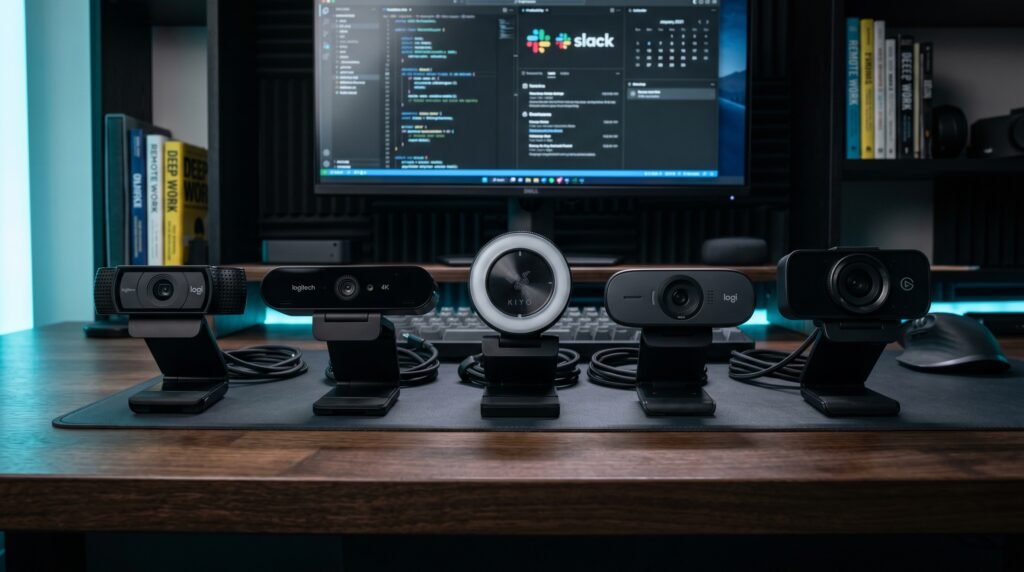
The Logitech C920x is the best webcam for home office use for most people — 1080p at 30fps, reliable autofocus, and a price point around $70 that’s hard to argue with for daily professional use. If you’re on camera for client calls or presentations where appearance directly affects business outcomes, the Logitech MX Brio at 4K is worth the premium. Budget buyers should start with the Logitech C505e. Low-light offices should look at the Razer Kiyo Pro. Creators who also work from home should consider the Elgato Facecam MK.2.
Why Your Laptop Webcam Is Holding You Back
The gap between a built-in laptop webcam and a dedicated external webcam is larger than most people expect — and it shows up in ways that are hard to unsee once you notice them.
Built-in webcams are designed to hit a cost target, not a quality target. The sensors are physically small, which means poor low-light performance and aggressive digital noise reduction that softens facial detail. The lenses are fixed focal length with no optical correction, which produces slight distortion at the edges. And the autofocus — when it exists — is slow to lock and easily confused by movement or background changes.
The practical consequence: on a call with five people on screen, the person with the dedicated webcam looks visibly sharper, more evenly lit, and more professionally presented. That gap is real and other people notice it even if they can’t articulate why.
The counterintuitive point: lighting matters more than the webcam for how you look on camera. A $70 Logitech C920x in good natural light will outperform a $200 webcam in a dark room every time. Before spending on a premium webcam, make sure you have a light source in front of your face — a window, a ring light, or a dedicated desk lamp. Fix your lighting first, then buy the webcam. In that order.
What the Specs Actually Mean for Home Office Use
Webcam marketing is full of numbers that sound impressive but don’t translate directly into better calls. Here’s what actually matters.
Resolution is the most marketed spec and the least important one past a certain threshold. 1080p at 30fps is sufficient for any video call platform — Zoom, Teams, and Google Meet all cap their video streams at 1080p regardless of your webcam’s native resolution. 4K webcams are genuinely useful if you’re recording video content or frequently screensharing documents where sharpness matters for readability. For pure video calls, 1080p is the practical ceiling.
Autofocus quality matters more than resolution for how you actually look on calls. A good autofocus system locks on your face immediately, tracks small movements smoothly, and doesn’t hunt or pulse when you shift position. A bad autofocus system — common in budget webcams — produces that unsettling soft-then-sharp-then-soft cycle that’s distracting for everyone on the call.
Field of view (FOV) determines how much of your background appears on camera. 65-78 degrees is standard for single-person home office use — wide enough to frame your face and shoulders naturally without showing your entire room.
Low-light performance separates the $70 webcams from the $150+ options more than any other spec. Cameras with larger sensors and wider apertures handle dim rooms, backlit windows, and inconsistent indoor lighting significantly better.
For a full home office setup context, see our guide on the best monitor arm for desk — monitor placement directly affects how your webcam frames you on calls.
The 5 Best Webcams for Home Office in 2026
1. Logitech C920x — Best Overall (~$70)
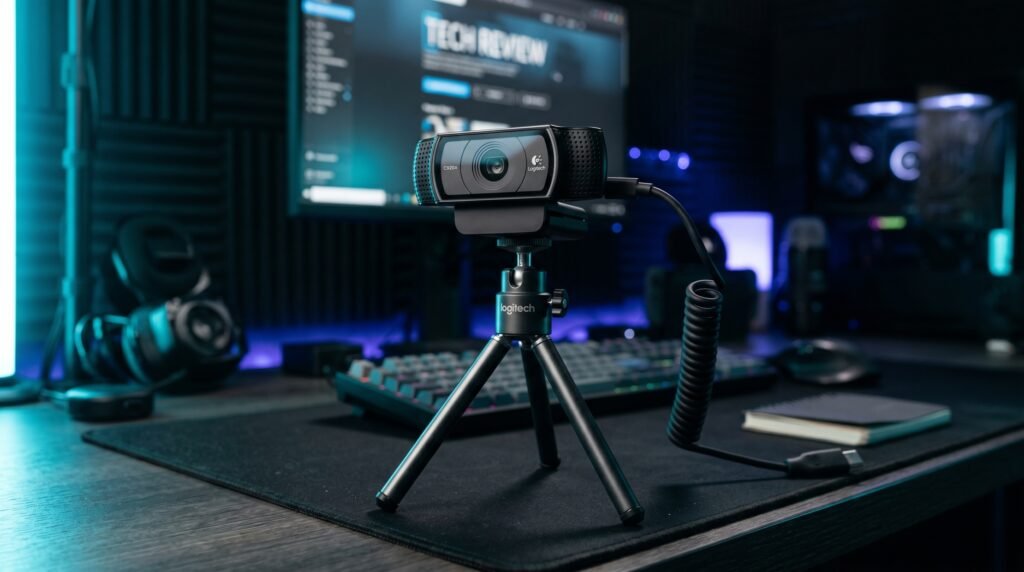
The Logitech C920x has been the benchmark home office webcam for years and remains the recommendation for most remote workers in 2026. 1080p at 30fps, dual stereo microphones with noise reduction, and autofocus that locks on within 1-2 seconds and holds cleanly through normal movement. The glass lens — not plastic, which is unusual at this price — produces noticeably sharper images than competing webcams in the same range.
The C920x includes a privacy shutter — a small but meaningful addition for anyone who keeps their webcam mounted permanently. It clips securely to monitors up to about 35mm thick and sits stable without adjustment drift over time.
At $70, it’s the webcam we’d recommend to any remote worker who currently uses a laptop camera and wants the single highest-impact upgrade to their video call quality.
Pros: Glass lens for sharp 1080p image, reliable autofocus, dual stereo mics, privacy shutter included, universally compatible, proven long-term reliability. Cons: 30fps only, low-light performance adequate but not exceptional, no AI framing or background blur.
2. Logitech MX Brio — Best Premium Webcam (~$200)
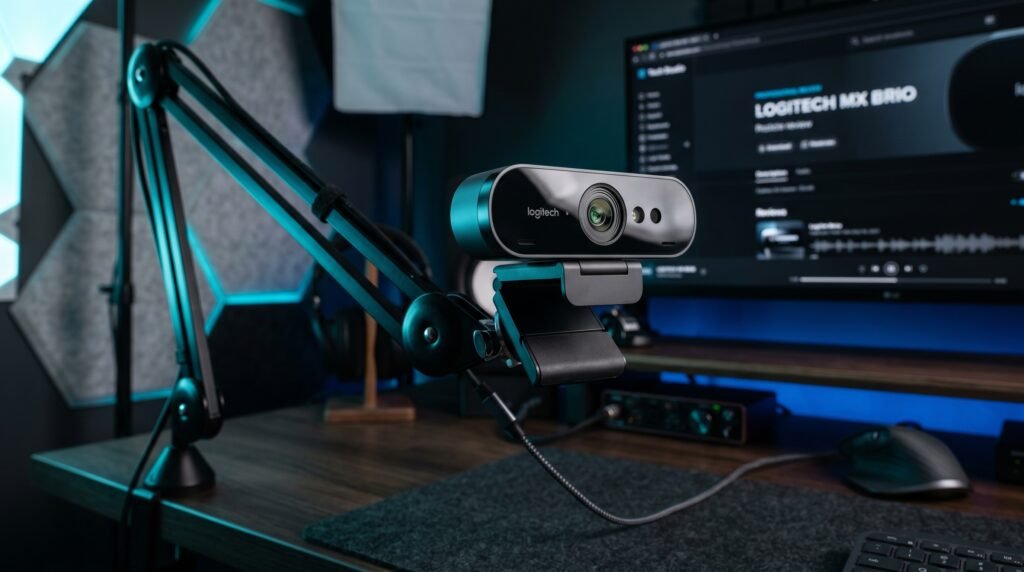
The Logitech MX Brio is the recommendation for professionals whose appearance on camera directly affects business outcomes — client-facing roles, executives, consultants, and anyone who presents regularly to external audiences. 4K resolution at 30fps or 1080p at 60fps, a large sensor that handles backlit and low-light scenarios that defeat cheaper webcams, and Show Mode that lets you flip the camera down to display documents or products on your desk during calls.
The AI-powered light correction is the standout feature. In a room with a window behind you — one of the hardest lighting scenarios for any webcam — the MX Brio adjusts exposure dynamically to keep your face properly exposed rather than turning you into a silhouette. Most webcams fail this test completely.
Best for: Professionals in client-facing roles, executives, and anyone who presents regularly to external audiences.
Pros: 4K sensor with genuine low-light advantage, AI light correction, Show Mode, premium build quality, USB-C, works across all platforms. Cons: $200 is hard to justify for occasional video calls, overkill for users with good lighting already.
3. Razer Kiyo Pro — Best for Low-Light Home Offices (~$100)
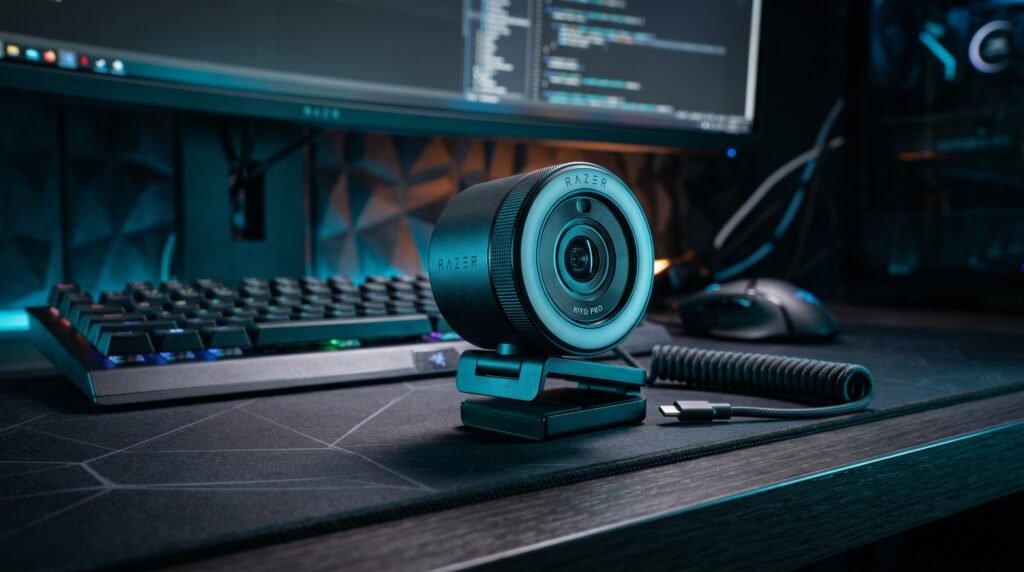
The Razer Kiyo Pro takes a different approach to the low-light problem. Instead of boosting ISO digitally — which introduces grain and noise — it uses an adaptive light sensor with a wide f/2.0 aperture that physically collects more light. The result is cleaner, less noisy video in dim conditions than any webcam in its price range.
1080p at 60fps is the other headline spec — 60fps makes movement smoother on screen, which matters if you gesture frequently during presentations. For a remote worker whose home office gets poor natural light — basement setup, north-facing window, evening calls — the Kiyo Pro’s sensor advantage is worth the $30 premium over the C920x.
Best for: Remote workers with genuinely dark home offices or variable lighting conditions.
Pros: f/2.0 aperture for genuine low-light advantage, 1080p at 60fps, HDR mode, wide/standard/narrow FOV options. Cons: Razer Synapse required for full features and is resource-heavy, occasional compatibility issues with some conferencing platforms.
4. Logitech C505e — Best Budget Option (~$45)
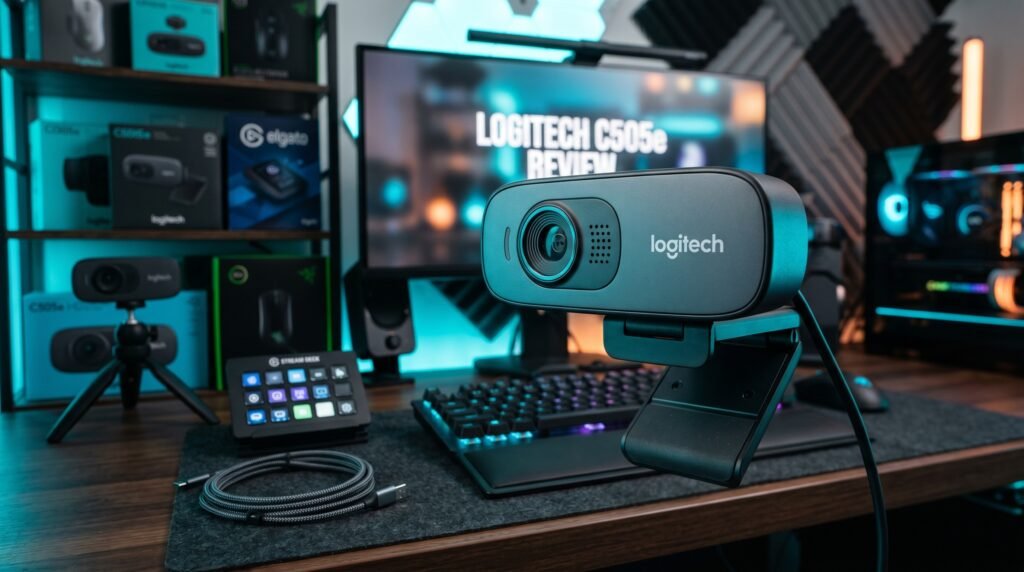
The Logitech C505e is the recommendation for remote workers who need a meaningful upgrade from their laptop webcam without spending more than $50. 720p at 30fps, fixed focus, and a long 2-meter USB cable that accommodates more flexible monitor placement than the short cables most webcams include.
720p is a genuine step down from 1080p — the image is softer. But on a call where other participants are on laptop cameras, a C505e in good lighting still produces a noticeably cleaner, more stable image than a built-in webcam. The fixed focus is the more significant limitation — if you move closer or further from the camera, the image goes soft until you find the fixed focal distance again.
Best for: Someone who does occasional calls and can’t justify $70-100 for a webcam they’ll use twice a week.
Pros: Affordable, long 2m USB cable, reliable Logitech build quality, universally compatible, simple plug-and-play. Cons: 720p only, fixed focus limits positioning flexibility, no autofocus.
5. Elgato Facecam MK.2 — Best for Content Creators Who Also Work from Home (~$150)
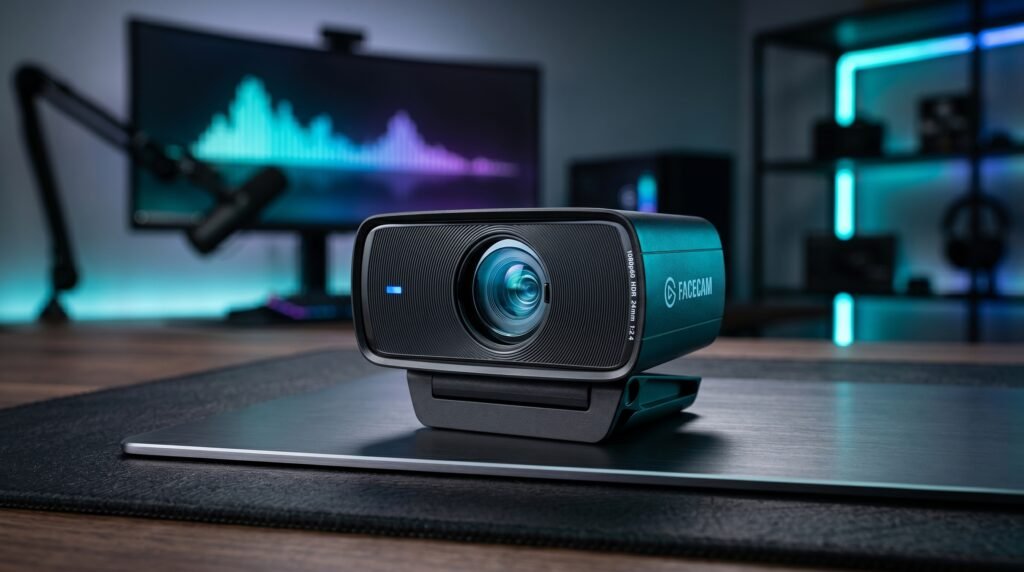
The Elgato Facecam MK.2 is built around a Sony STARVIS sensor that produces exceptional detail and color accuracy at 1080p60, with HDR enabled and PTZ control via the Camera Hub software. It’s one of the sharpest 1080p webcams available and holds up well in a home office context for professionals who want maximum image quality without going to 4K.
What most reviews won’t tell you is that the Facecam MK.2’s fixed focus is a deliberate design decision — Elgato argues that manual focus set once produces more stable, consistent image quality than autofocus hunting during calls. For a fixed desk setup where your position doesn’t change between sessions, they’re right. A built-in privacy shutter is a welcome addition over the original Facecam.
Best for: Users who use their desk for both professional video calls and content creation, and anyone who wants the sharpest 1080p image available without 4K pricing.
Pros: Sony STARVIS sensor, 1080p60, HDR enabled, PTZ control, uncompressed video, privacy shutter, Camera Hub software. Cons: No autofocus — manual focus only, no built-in mic, $150 competes with stronger all-around options.
Comparison Table
| Product | Price | Best For | Rating |
|---|---|---|---|
| Logitech C920x | ~$70 | Best overall for most remote workers | 9.5/10 |
| Logitech MX Brio | ~$200 | Premium quality and low-light performance | 9/10 |
| Razer Kiyo Pro | ~$100 | Low-light home offices | 8.5/10 |
| Logitech C505e | ~$45 | Budget upgrade from laptop camera | 7.5/10 |
| Elgato Facecam MK.2 | ~$150 | Creators who also work from home | 8/10 |
What to Look for When Choosing a Home Office Webcam
1. Resolution matched to your actual use case 1080p is the practical ceiling for video calls — Zoom and Teams compress the stream regardless of your webcam’s native resolution. 4K is worth paying for if you record video content, do product demonstrations, or screenshare documents where text sharpness matters. Don’t pay the 4K premium for pure call use.
2. Autofocus quality over autofocus presence Every webcam above $50 claims autofocus. The quality varies enormously. Logitech’s autofocus — particularly in the C920x and MX Brio — is the most reliable in the category: fast lock, smooth tracking, no hunting. Budget webcams with autofocus often produce hunting behavior that’s more distracting than fixed focus would be.
3. Low-light performance for your specific office Test your current setup: take a photo of yourself with your phone in your typical call lighting. If the image is grainy, dark, or uneven, low-light performance should be your primary buying criterion — prioritize the Razer Kiyo Pro or Logitech MX Brio. If your lighting is consistently good, the C920x matches or exceeds both at less than half the price.
4. Field of view for your desk distance Measure the distance from your webcam position to where your face sits during calls. At 60-80cm — typical for a monitor-mounted webcam — a 78-degree FOV frames your face and upper body naturally. Wider FOVs at close distances show too much background. Most home office users sit at a similar distance, so standard FOV webcams work without adjustment.
5. Compatibility with your conferencing platform All five webcams on this list work with Zoom, Teams, Google Meet, and every major platform as plug-and-play USB devices. The compatibility concern is with proprietary software features — AI framing and lighting correction sometimes require the manufacturer’s software. If you prefer a clean, no-software setup, the C920x delivers its full feature set without additional software.
FAQ
Is 1080p enough for professional video calls in 2026?
Yes, for the overwhelming majority of use cases. Zoom, Microsoft Teams, and Google Meet all cap outgoing video at 1080p regardless of your webcam’s native resolution. The practical difference between a good 1080p webcam and a 4K webcam on a standard video call is minimal — most of the visible quality improvement comes from better optics, autofocus, and low-light handling rather than raw resolution.
Do webcam microphones work well enough for professional calls?
Built-in webcam microphones are generally adequate for casual calls but fall short for professional environments with background noise, echo, or reverb. The Logitech C920x’s dual stereo microphones are among the best built-in options in the category. For anyone doing frequent client calls, presentations, or recordings, a dedicated USB microphone produces noticeably better audio quality than any webcam mic.
Where should I position my webcam for the best results?
Eye level or just above is the standard recommendation — cameras positioned below eye level create an unflattering upward angle, while cameras mounted too high make you appear to be looking down at your screen rather than at the camera. For monitor-mounted webcams, placing the webcam on top of your primary monitor and slightly adjusting your monitor height to bring the lens close to eye level produces the most natural, professional framing.
Can a better webcam compensate for bad lighting?
Partially. Premium webcams with wide apertures and large sensors — the Razer Kiyo Pro and Logitech MX Brio — handle poor lighting significantly better than budget options. But no webcam fully compensates for a strongly backlit window behind you or a very dark room. Fixing your lighting source — adding a front-facing light, closing blinds behind you — produces a larger visible improvement than upgrading your webcam in a problematic lighting environment.
Our Final Verdict
The best webcam for home office use in 2026 is the Logitech C920x for most remote workers — the glass lens, reliable autofocus, and proven long-term performance at $70 make it the clearest recommendation in the category. Professionals in client-facing roles should go straight to the Logitech MX Brio. Anyone dealing with a genuinely dark home office should prioritize the Razer Kiyo Pro for its sensor advantage. Fix your lighting first, then buy the webcam. In that order. Check current pricing on Amazon for all five options in this guide.