This article contains affiliate links. We may earn a commission if you buy through our links, at no extra cost to you.
Best Webcam for Zoom Calls in 2026
The difference between looking professional and looking like you’re calling from 2015 comes down to one piece of hardware most remote workers ignore until a client mentions it. Zoom compresses video — but it compresses good video significantly better than it compresses bad video. A dedicated webcam with a proper sensor and glass optics gives Zoom’s algorithm more to work with, which translates directly into a sharper, cleaner image on the other end of the call.
After researching and comparing dozens of webcams specifically through the lens of Zoom performance — compression handling, low-light behavior, and autofocus stability during calls — here is what actually works for remote professionals in 2026. For a broader look at webcams across all use cases, see our guide to the best webcam for home office.
Quick Answer
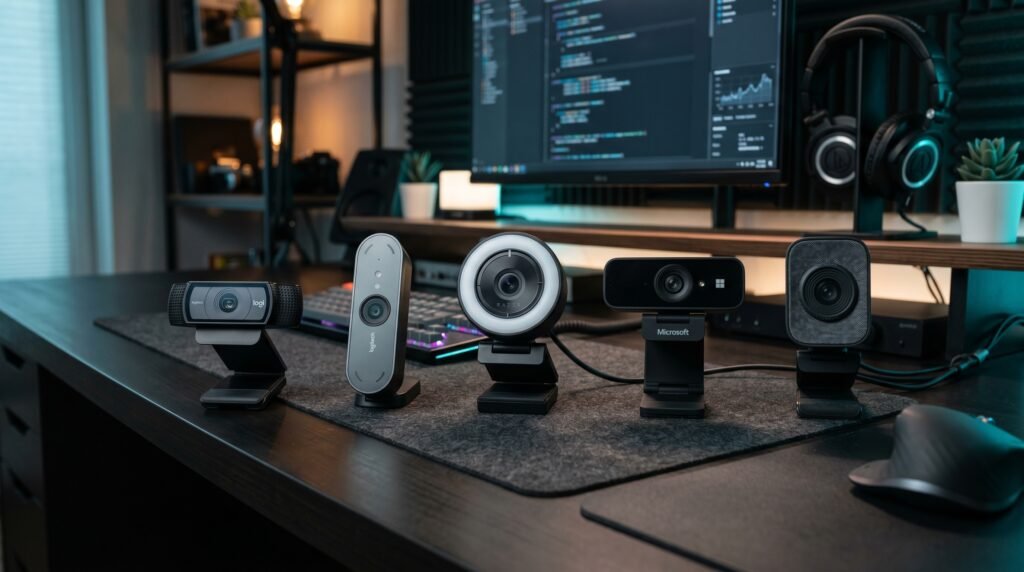
The Logitech C920x is the best webcam for Zoom calls for most people — 1080p glass lens optics, fast autofocus, and Zoom-certified performance at $70 that outperforms webcams twice its price in standard office lighting. For professionals who present to clients in variable lighting, the Logitech Brio 500 adds AI-powered framing and RightLight 4 correction that makes a visible difference. Low-light offices should look at the Razer Kiyo Pro. Teams and Zoom dual users should consider the Microsoft Modern Webcam. Creators who also take Zoom calls should look at the Logitech StreamCam.
How Zoom Actually Handles Your Video — And Why It Matters
Most people assume Zoom takes whatever their webcam sends and broadcasts it as-is. The reality is more nuanced — and understanding it explains why certain webcams look dramatically better on Zoom than others at similar price points.
Zoom compresses outgoing video to manage bandwidth. The compression algorithm works by identifying areas of the frame that don’t change between frames and discarding redundant information. A webcam with a clean, sharp, well-exposed image gives the algorithm consistent, high-quality data to work with — the compression is less visible because there’s more real detail to preserve. A webcam with a noisy, soft, poorly exposed image gives the algorithm degraded data, and compression artifacts become more pronounced because the algorithm struggles to distinguish detail from noise.
This is why a $70 webcam with good optics consistently outperforms a $100 webcam with a larger sensor but poor lens quality on Zoom specifically. Zoom rewards optical clarity, not raw resolution.
The counterintuitive point: Zoom caps outgoing video at 1080p regardless of your webcam’s native resolution, and in practice most Zoom calls run at 720p unless HD video is explicitly enabled in settings. A 4K webcam on a standard Zoom call produces the same output resolution as a 1080p webcam — the advantage of 4K is in optical quality and downsampling sharpness, not the resolution the other person actually sees.
What Zoom-Specific Features Actually Matter
Zoom has its own video processing layer that interacts with your webcam’s output. Understanding which webcam features complement Zoom’s processing — and which are redundant — prevents you from paying for specs you don’t need.
Autofocus stability is the most Zoom-specific consideration. Zoom’s video compression is particularly sensitive to focus hunting — the soft-then-sharp-then-soft cycle that slow autofocus produces. Every time focus shifts, the compression algorithm treats the change as new information and uses more bandwidth, which can trigger Zoom’s automatic quality reduction. Webcams with fast, confident autofocus that locks and holds produce more stable Zoom video than webcams with erratic autofocus, even at lower resolution.
Built-in noise reduction in microphones matters differently for Zoom. Zoom applies its own noise suppression on top of whatever the webcam microphone sends — aggressive hardware noise reduction can interact poorly with Zoom’s software suppression, sometimes producing over-processed, slightly robotic audio. Webcams with more natural microphone pickup — like the Logitech C920x’s stereo mics — tend to work better with Zoom’s processing than webcams with heavy hardware noise cancellation.
Frame rate is less critical for Zoom than for streaming. Zoom’s default video runs at 24-30fps regardless of your webcam’s maximum frame rate. 60fps webcams don’t produce smoother Zoom calls — the 60fps spec matters for recording, not calling.
For context on how your monitor setup affects how you appear on Zoom, see our guide on the best monitor arm for desk — monitor height directly determines whether your webcam sits at eye level or creates an unflattering angle.
The 5 Best Webcams for Zoom Calls in 2026
1. Logitech C920x — Best Overall (~$70)

The Logitech C920x is Zoom-certified hardware — officially tested and validated by Zoom’s engineering team for compatibility and performance. That certification means the autofocus, exposure, and white balance behavior have been verified to work correctly with Zoom’s video processing without conflicts.
The glass lens is what separates the C920x from competitors at this price. Glass optics produce sharper edge-to-edge detail than plastic lenses, which means Zoom’s compression algorithm has cleaner data to work with and the output looks noticeably sharper on the receiving end. At $70, it’s the webcam we’d put on the desk of any remote worker who does Zoom calls daily.
Best for: Any remote worker doing daily Zoom calls who wants reliable, certified performance without overspending.
Pros: Zoom-certified, glass lens for sharp 1080p, reliable autofocus, dual stereo mics, privacy shutter, universally compatible. Cons: 30fps maximum, low-light performance adequate but not exceptional, no AI framing.
2. Logitech Brio 500 — Best Mid-Range for Zoom (~$85-90)
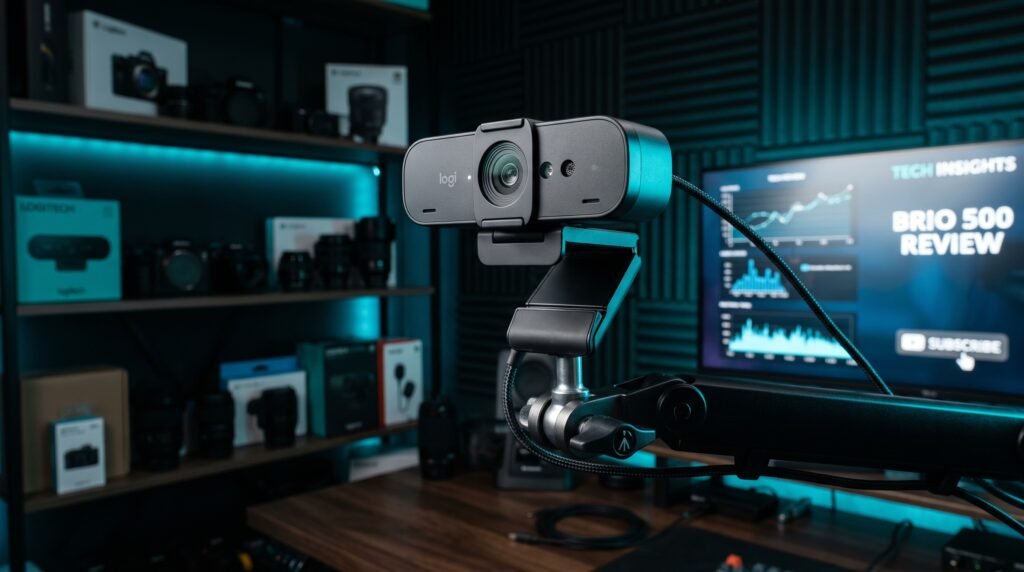
The Logitech Brio 500 is the recommendation for professionals who appear on Zoom calls in variable or challenging lighting — home offices near windows, rooms without overhead lighting, or anyone whose call schedule spans early mornings and evenings when natural light changes dramatically.
RightLight 4 technology with auto-framing adjusts exposure in real time to handle backlit windows and dim rooms that defeat the C920x. In a side-by-side comparison with a window behind the subject, the Brio 500 keeps the face properly exposed while the C920x tends toward silhouetting. Show Mode flips the camera downward to display your desk or documents during calls — genuinely useful for product demos and hands-on presentations.
Best for: Professionals in variable lighting conditions, standing desk users who move during calls, anyone who does desk demonstrations on Zoom.
Pros: RightLight 4 for variable lighting, auto-framing, Show Mode, USB-C, privacy shutter, Zoom-certified. Cons: Price premium over C920x for modest improvement in good lighting, 1080p only, microphone quality similar to C920x.
3. Razer Kiyo Pro — Best for Dark Home Offices (~$100)
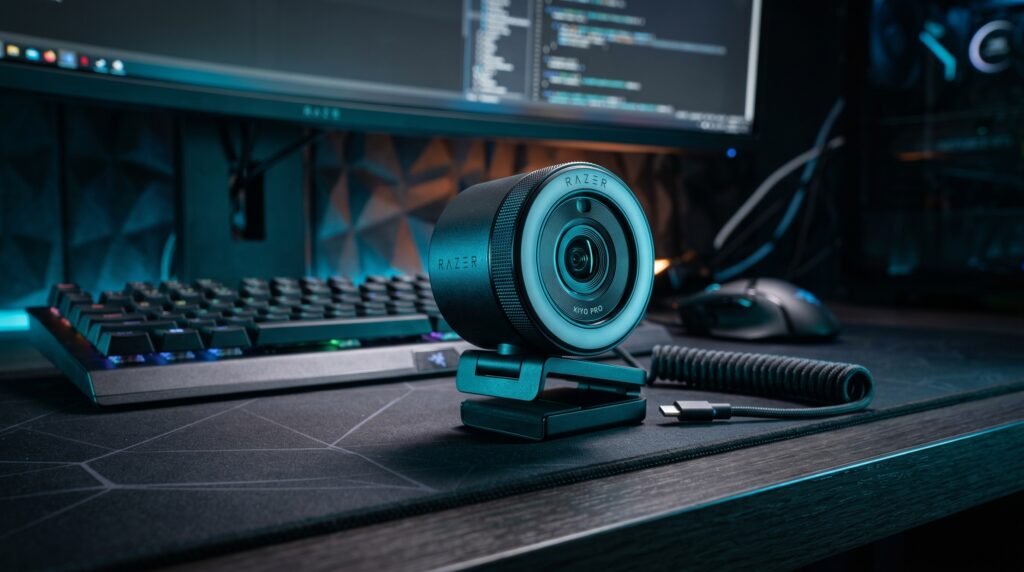
The Razer Kiyo Pro solves the low-light problem through hardware rather than software — its f/2.0 aperture Sony sensor collects significantly more light than the f/2.8-f/3.0 apertures common in most webcams at this price. The practical result is cleaner, less grainy video in dim conditions that Zoom’s compression then handles more cleanly because there’s less noise in the source signal.
A remote worker who exclusively takes early morning or evening Zoom calls in a home office without strong overhead lighting will see a visible quality difference from the Kiyo Pro’s sensor within the first week of use.
Best for: Home offices with consistently poor or variable natural light — basements, north-facing windows, evening Zoom call schedules.
Pros: f/2.0 aperture for genuine low-light advantage, Sony sensor, HDR mode, adjustable FOV, uncompressed USB output. Cons: Razer Synapse required for full features, occasional compatibility quirks with some Zoom versions, no privacy shutter.
4. Microsoft Modern Webcam — Best for Teams and Zoom Users (~$70)
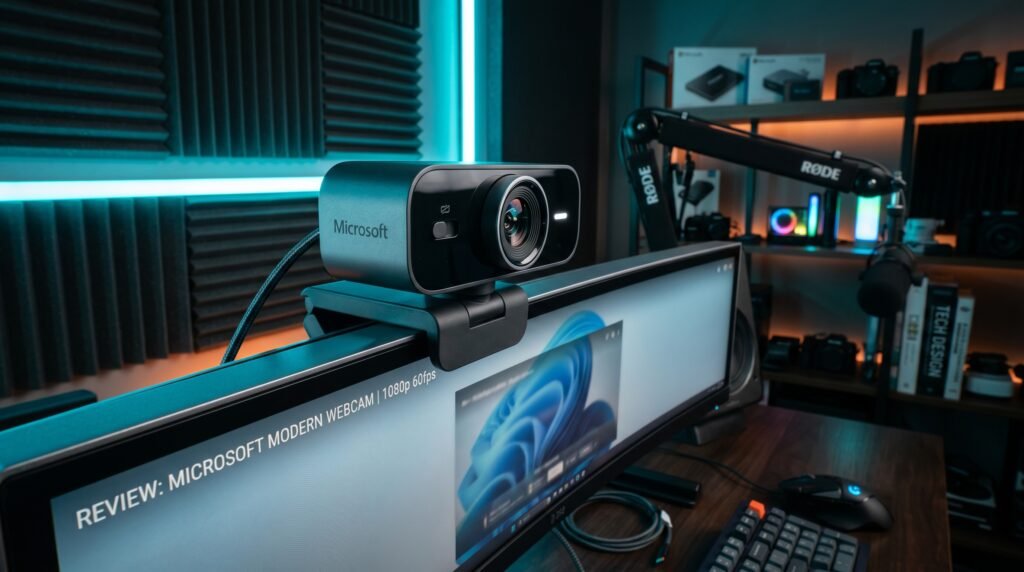
The Microsoft Modern Webcam is certified for both Zoom and Teams — genuinely well-optimized for both platforms, which matters for professionals who split their call time between the two. 1080p at 30fps, integrated HDR that handles backlit scenarios better than the C920x, and a tilt-adjustable mount that makes precise positioning easier than the clip-and-hope approach of most webcams.
At $70, it’s a legitimate alternative to the C920x for professionals who want a cleaner aesthetic or who run both Zoom and Teams daily. The plug-and-play setup with no software required is a meaningful advantage for users who want zero software overhead on their work machine.
Best for: Professionals who use both Zoom and Teams daily and want certified performance on both platforms without software overhead.
Pros: Certified for both Zoom and Teams, integrated HDR, adjustable tilt mount, plug-and-play with no software required, clean minimal design. Cons: Microphone performance below the C920x’s stereo setup, less established quality track record than Logitech, limited color options.
5. Logitech StreamCam — Best for Zoom Plus Content Creation (~$150)

The Logitech StreamCam is built around a USB-C connection and a portrait/landscape rotating mount — features designed primarily for content creators that translate well to Zoom in specific use cases. AI-powered facial tracking keeps you centered in frame when you move, which is genuinely useful for standing desk users who shift position during calls.
1080p at 60fps, autofocus that tracks faces specifically, and optical glass lens quality that matches the C920x at a higher price. The facial tracking — enabled through Logitech Capture software — produces noticeably more stable framing during active Zoom calls for people who move, gesture, or stand during meetings.
Best for: Standing desk users who move during Zoom calls, professionals who also create video content on the same machine.
Pros: AI facial tracking for moving users, USB-C, 60fps glass lens, portrait mode, solid build quality, Zoom compatible. Cons: $150 hard to justify for Zoom-only use, Logitech Capture required for tracking, USB-C only limits compatibility with older desktops.
Comparison Table
| Product | Price | Best For | Rating |
|---|---|---|---|
| Logitech C920x | ~$70 | Best overall Zoom performance | 9.5/10 |
| Logitech Brio 500 | ~$88 | Variable lighting and auto-framing | 9/10 |
| Razer Kiyo Pro | ~$100 | Dark home offices | 8.5/10 |
| Microsoft Modern Webcam | ~$70 | Zoom and Teams dual users | 8/10 |
| Logitech StreamCam | ~$150 | Moving users and content creators | 8/10 |
What to Look for When Choosing a Webcam for Zoom Calls
1. Zoom certification Zoom maintains an official hardware compatibility list. Certified webcams have been tested for autofocus behavior, exposure handling, and audio compatibility with Zoom’s processing layer. The C920x, Brio 500, and Microsoft Modern Webcam are all certified. Uncertified webcams work fine in most cases, but certification eliminates the small subset of compatibility issues that occasionally appear with non-certified hardware.
2. Autofocus stability over autofocus speed Fast autofocus that hunts is worse for Zoom than slightly slower autofocus that holds. Zoom’s compression penalizes focus instability by treating focus changes as new video information, which increases bandwidth usage and can trigger automatic quality reduction. Prioritize webcams with confident, stable autofocus — Logitech’s implementation is the benchmark.
3. Microphone quality matched to your audio setup If you use a headset or dedicated USB microphone for Zoom calls, webcam microphone quality is irrelevant — Zoom will use your selected audio input. If the webcam mic is your primary audio source, the C920x’s dual stereo setup is the best built-in option in this price range. Avoid webcams with aggressive hardware noise cancellation — Zoom’s software suppression stacked on top produces over-processed audio.
4. Lighting in your specific office at your specific call times Test your setup during the actual hours you take Zoom calls, not at midday when lighting is optimal. The gap between the C920x and the Brio 500 or Kiyo Pro is minimal in good light and significant in poor light. Most people don’t need the premium low-light option — but the people who do will see an immediate visible difference from day one.
5. Software requirements and system overhead The C920x and Brio 500 deliver full webcam functionality without software. Microsoft’s Modern Webcam needs no software at all. Razer Synapse for the Kiyo Pro is heavier and required for advanced features. If you’re running Zoom on a machine with limited RAM, webcam software overhead matters — prioritize plug-and-play options.
FAQ
Does Zoom work better with certain webcams?
Yes. Zoom has an official certified hardware program, and webcams on that list have been specifically tested for compatibility with Zoom’s video and audio processing. Beyond certification, webcams with stable autofocus, good optical quality, and natural microphone pickup tend to produce better Zoom output than webcams with erratic autofocus or aggressive hardware audio processing that conflicts with Zoom’s own noise suppression.
Why does my webcam look worse on Zoom than in the camera preview?
Zoom compresses video for transmission, which reduces quality compared to the uncompressed preview your operating system shows. Two factors make this worse: low bandwidth connections trigger more aggressive compression, and webcams with noisy or soft source images look worse after compression than webcams with clean source images. Improving your source image quality — better webcam, better lighting — and ensuring a stable internet connection both help.
Should I enable HD video in Zoom settings?
Yes, always. Zoom defaults to standard definition video unless HD is manually enabled in Settings → Video → Enable HD. With HD enabled and a 1080p webcam, Zoom will broadcast at up to 1080p on supported plans. This single settings change often produces a more visible improvement than a webcam upgrade for people who haven’t done it yet.
Is a ring light worth it for Zoom calls?
For most home offices, yes — particularly if your primary light source is behind you or to the side. A ring light or softbox positioned in front of your face eliminates the most common Zoom lighting problems: backlit silhouetting, uneven shadows, and the color cast from overhead fluorescent lighting. A $30-50 ring light combined with a $70 C920x will look better on Zoom than a $200 webcam in a poorly lit room.
Our Final Verdict
The best webcam for Zoom calls in 2026 is the Logitech C920x for the vast majority of remote workers — Zoom-certified, glass lens optics, stable autofocus, and $70 that’s genuinely difficult to beat. Upgrade to the Logitech Brio 500 if your lighting is variable or challenging. Choose the Razer Kiyo Pro if your home office is consistently dim. Before buying anything, enable HD video in your Zoom settings — it costs nothing and frequently produces a bigger visible improvement than a hardware upgrade for people who’ve never done it. Check current pricing on Amazon for all five webcams in this guide.