This article contains affiliate links. We may earn a commission if you buy through our links, at no extra cost to you.
How to Choose a Mechanical Keyboard Switch in 2026
Choosing the wrong mechanical keyboard switch is one of the most common and avoidable mistakes in building a desk setup. You spend $80-150 on a keyboard, live with it for 6 months, and realize the switches feel completely wrong for how you type — too loud for your office, too heavy for long sessions, or so light that you’re constantly misfiring keys. Knowing how to choose a mechanical keyboard switch before you buy saves you that entire frustrating cycle. After testing dozens of switch types across linear, tactile, and clicky categories, here is what actually works — and how to match the right switch to your specific needs in 2026.
This guide is for anyone buying their first mechanical keyboard or upgrading from a switch they’ve grown to dislike. Once you know your switch preference, our guide to the best mechanical keyboard under $100 covers the top options for every switch type.
Quick Answer
For most people buying their first mechanical keyboard, brown switches are the safest starting point — they provide tactile feedback without the loud click of blue switches, making them appropriate for both office and home use. If you already know you prefer a smooth, quiet experience, go with red switches. If you type heavily and want maximum feedback, blue switches are satisfying but require either a private office or very understanding coworkers.
The Three Switch Families: Linear, Tactile, and Clicky
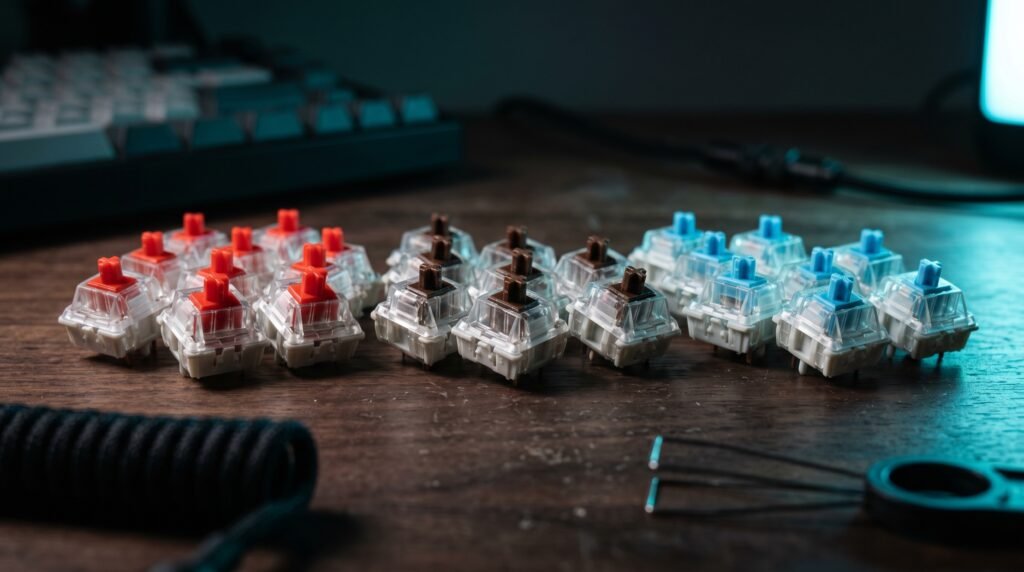
Every mechanical keyboard switch falls into one of three categories. Understanding these categories is the foundation of knowing how to choose a mechanical keyboard switch that suits you.
Linear switches travel smoothly from top to bottom with no bump, no click, and consistent resistance throughout the keystroke. The feedback is entirely through finger pressure — you feel the key compress uniformly. Linear switches are the quietest of the three families and the most popular for gaming because smooth travel allows rapid repeated keypresses without a tactile reset point interfering. Red switches — Cherry MX, Gateron, and equivalents — are the standard linear at 45g actuation force.
Tactile switches have a noticeable bump partway through the keystroke that tells your finger the key has registered. You don’t need to bottom out the key to actuate — you can feel the registration point and lift your finger, which reduces finger travel and fatigue over long typing sessions. Brown switches are the standard tactile — same 45g actuation force as reds but with the tactile bump at 2mm travel.
Clicky switches combine the tactile bump with an audible click at the actuation point. The click is produced by a separate mechanism — usually a click jacket or click bar — and is meaningfully louder than any other switch type, approximately 60-70 decibels at the key. Blue switches are the standard clicky — 60g actuation force, 2mm tactile position, 4mm total travel.
What most reviews won’t tell you is that these three families describe the feel, not the quality. A $0.30 Gateron linear and a $1.50 premium linear are both linear switches — the difference is in refinement, not category. Don’t equate price with switch type.
Actuation Force: How Heavy Should Your Switches Be?
Actuation force — measured in grams — determines how much pressure you need before the switch registers a keypress. It’s one of the most overlooked factors in how to choose a mechanical keyboard switch, and it has significant practical consequences.
Light switches (35-45g): Fast, effortless keypresses. Popular for gaming where rapid repeated inputs matter. The downside is accidental keypresses — resting your fingers lightly on light switches can register unintended keys. Speed Silver switches from Cherry MX at 45g actuation and 1.2mm pre-travel are the lightest mainstream option.
Medium switches (45-55g): The sweet spot for most typists. Enough resistance to prevent accidental actuation, light enough for comfortable long sessions. Most standard switches — Cherry MX Red, Gateron Red, Cherry MX Brown — fall in this range.
Heavy switches (60-80g): Require deliberate keypresses. Popular with typists who bottom out keys heavily and want resistance that prevents fatigue through physical feedback. Cherry MX Blue at 60g and Cherry MX Green at 80g are the main options. Heavy switches reduce misfires but increase finger fatigue in long sessions at 8+ hours of daily use.
Real-world scenario: a developer who types 80+ words per minute for 8 hours daily has very different needs from a casual user who types occasional emails. The developer benefits from medium switches that allow fast typing without fatigue. The casual user might enjoy the satisfying feel of heavier switches without the strain implications.
The Switch Brands That Actually Matter
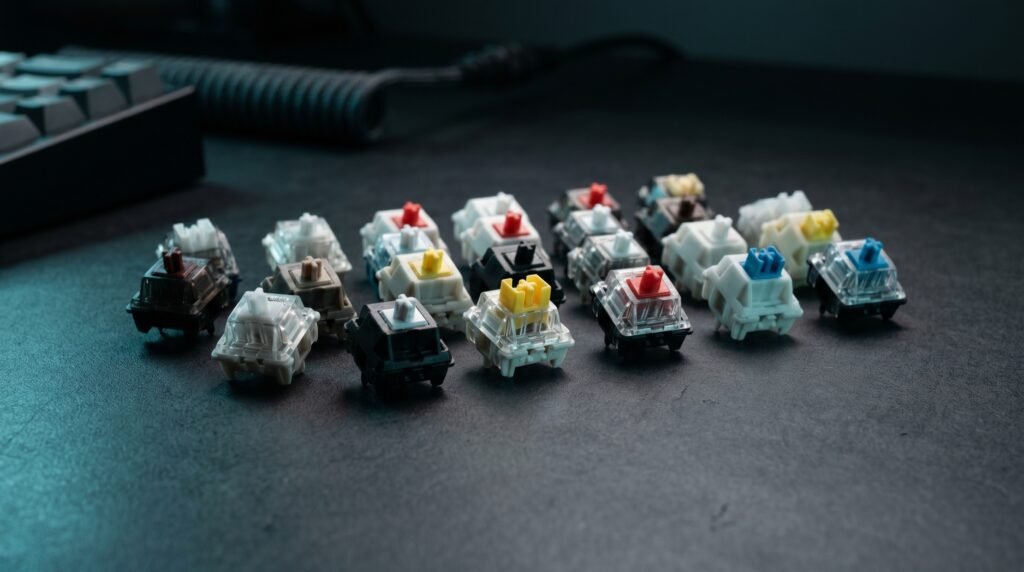
The switch market has expanded dramatically in the last five years. Cherry MX used to be the only serious option — now Gateron, Kailh, and Akko compete at equal or higher quality depending on the specific switch type.
Cherry MX — The Original Standard
Cherry MX switches have been the benchmark since 1983. German engineering, consistent quality control, and rated for 100 million keystrokes. Every switch type you’ll encounter — red, brown, blue, black, speed silver, clear — was defined by Cherry MX before competitors replicated the format.
Best for buyers who want proven reliability and the widest keyboard compatibility. Cherry MX switches have 4mm total travel and 2mm pre-travel across all standard variants — this consistency means any Cherry MX-compatible keyboard body works with any Cherry MX switch.
Pros: Industry standard, 100 million keystroke rating, consistent quality, widest compatibility. Cons: More expensive than Gateron equivalents (~$0.50/switch), slightly scratchier feel than lubed Gateron alternatives out of the box.
Gateron — Smoother Than Cherry at Lower Cost
Gateron switches are widely considered smoother than Cherry MX out of the box, particularly in linear variants. The manufacturing tolerances allow less stem wobble, which translates to a cleaner keystroke feel. Gateron Pro switches come pre-lubed from the factory — a feature that reduces the scratchiness that unlubed linears often have.
Gateron Yellow switches at 35g actuation force are one of the lightest and smoothest options available from any brand — popular for fast typists and gamers who want minimal resistance.
Pros: Smoother than Cherry MX linears, Gateron Pro pre-lubed, generally cheaper (~$0.25/switch). Cons: Slightly less consistent quality control than Cherry MX, less brand prestige.
Kailh — The Innovation Leader
Kailh pushes the category forward more aggressively than Cherry or Gateron. The Kailh Box series uses a box-shaped stem that provides better waterproofing and stem stability than standard cross-stem switches. Kailh Speed switches reduce pre-travel to 1.1mm — nearly half of standard switches — for faster actuation.
Kailh Box switches are rated for 80 million keystrokes and the box stem design provides better resistance to dust and liquid ingress — a strong choice for users who eat or drink at their desk.
Pros: Box stem waterproofing, Speed variants for fast actuation, innovative designs, competitive pricing (~$0.35/switch). Cons: Less mainstream than Cherry or Gateron — fewer pre-built keyboards ship with Kailh switches.
Akko CS — Best Budget Switch for Typing Feel
Akko CS switches have earned a reputation for exceptional typing feel at budget prices. The Akko CS Jelly variants — Jelly Pink (linear) and Jelly Blue (clicky) — are frequently compared favorably to switches costing twice as much. Pre-lubed from the factory at approximately $0.20 per switch in bulk.
Pros: Excellent feel per dollar, pre-lubed, widely available in Akko keyboards and as standalone switches. Cons: Less established brand recognition, not as widely available in third-party keyboards as Cherry or Gateron.
Switch Comparison Table
| Switch | Type | Actuation | Sound | Best For | Price/switch |
|---|---|---|---|---|---|
| Cherry MX Red | Linear | 45g | Quiet | Gaming, quiet typing | ~$0.50 |
| Cherry MX Brown | Tactile | 45g | Moderate | General use, first keyboard | ~$0.50 |
| Cherry MX Blue | Clicky | 60g | Loud | Typing enthusiasts, private offices | ~$0.50 |
| Gateron Yellow | Linear | 35g | Very quiet | Fast typists, gaming | ~$0.25 |
| Akko CS Jelly Pink | Linear | 45g | Quiet | Smooth budget typing | ~$0.20 |
| Kailh Box Brown | Tactile | 45g | Moderate | Durability + tactile feel | ~$0.35 |
What to Look for When Choosing a Mechanical Keyboard Switch
1. Your primary use case Gaming and typing have different optimal switch profiles. Gaming benefits from light linear switches — fast actuation, no tactile bump to interrupt rapid inputs, quiet enough for headset microphones. Typing benefits from medium tactile switches — the bump confirms registration without bottoming out, reducing finger travel and fatigue. If you do both equally, medium tactile (brown) is the correct compromise. If gaming dominates, linear red is the answer.
2. Your work environment Office environment or shared space? Blue and clicky switches are genuinely disruptive in open offices — the sound carries clearly across a room. Red and brown switches are appropriate for shared spaces. Working from home alone? Any switch is viable. Working from a coffee shop? Red switches minimize the stares. Underestimating this factor causes social friction that makes you switch keyboards far sooner than you intended.
3. Hot-swap vs soldered keyboard This is the strategic choice that affects all future switch decisions. A hot-swap keyboard lets you pull out and replace switches without soldering — you can try multiple switch types on the same board. A soldered keyboard locks you into the switch it ships with. If you’re unsure which switch type you’ll prefer, prioritize buying a hot-swap keyboard and experiment from there.
4. Actuation weight relative to your typing style Assess your current typing pressure before choosing. Type on a regular keyboard and pay attention to how hard you press each key. Heavy typists who bottom out keys consistently benefit from heavier switches (55-65g) that provide resistance. Light typists benefit from lighter switches (35-45g) that register without full depression. Most people don’t know their typing pressure until they try both — which is another argument for hot-swap keyboards.
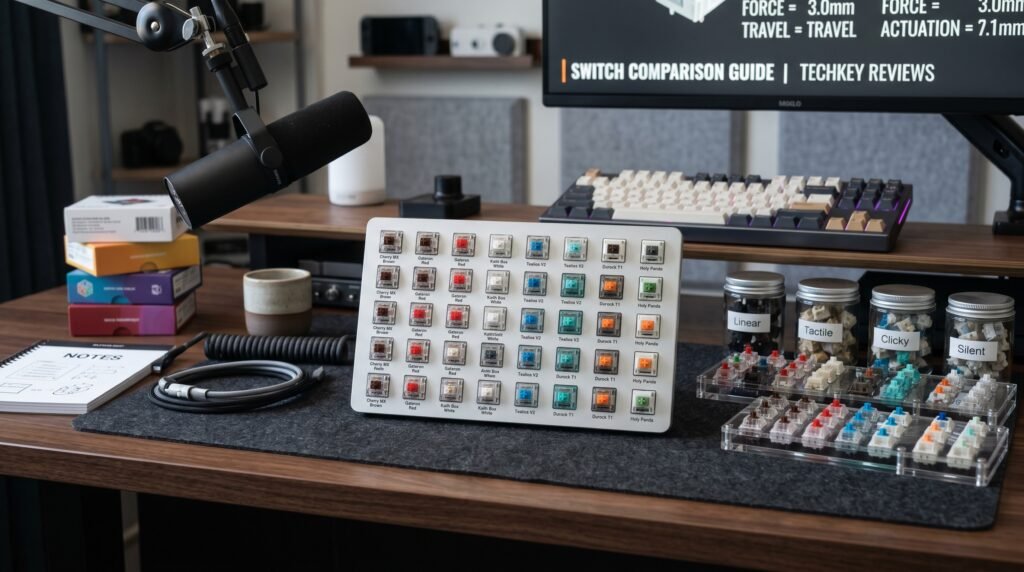
5. Buy a switch tester before committing Before committing to a full keyboard, spend $15-20 on a Griarrac Cherry MX Switch Tester — a small board with one of each switch type that lets you feel the difference between red, brown, blue, and variants in your own hands. Online descriptions of switch feel are useful but limited. The difference between a 45g linear and a 45g tactile is immediately obvious the moment you press both. Switch testers are the single best investment for a first-time mechanical keyboard buyer — they prevent the $100 mistake for $15.
FAQ
What is the best mechanical keyboard switch for beginners?
Brown switches are the standard recommendation for first-time buyers. They provide tactile feedback that helps you understand what mechanical switches feel like compared to membrane keyboards, without the loud click that makes blue switches inappropriate for shared spaces. After trying brown switches for 2-4 weeks, most users know clearly whether they want more feedback (clicky), less feedback (linear), or whether brown is exactly right.
Do mechanical keyboard switches wear out?
Yes, but slowly. Most mechanical switches are rated for 50-100 million keystrokes — Cherry MX at 100 million, Kailh Box at 80 million. At 10 million keystrokes per year for a heavy typist, that’s 5-10 years of daily use. In practice, the stem and spring degrade slightly over years of use, making the switch feel marginally smoother or lighter than when new. Switches don’t fail suddenly — they wear gradually in ways most users never notice.
Is there a difference between Cherry MX and Gateron switches?
Yes — primarily in smoothness. Gateron linear switches feel noticeably smoother than Cherry MX linears out of the box, particularly in the red and yellow variants. The manufacturing tolerances allow less stem wobble, which translates to cleaner keystroke feel. For tactile and clicky switches, the difference is smaller — both brands deliver comparable bump feel and click sound. Cherry MX has the edge in consistency, Gateron has the edge in out-of-box smoothness for linears at a lower price.
Should I lube my mechanical keyboard switches?
For linear switches, yes — lubing makes a noticeable difference in smoothness, reducing any residual scratchiness and producing a more refined sound. For tactile switches, lube carefully — applying lube to the tactile legs of brown switches reduces the bump feel significantly. For clicky switches, avoid lubing the click mechanism entirely. Lubing is a 1-2 hour process for a full keyboard using Krytox 205g0 for linears or Tribosys 3203 for tactiles. Worth doing on a keyboard you plan to keep long-term, but not necessary on premium switches that come pre-lubed.
Our Final Verdict
Knowing how to choose a mechanical keyboard switch comes down to three questions: What are you using it for? Where are you using it? And do you have a hot-swap keyboard to experiment with? Start with brown switches if you’re unsure — they’re the most forgiving choice for a first keyboard. Move to reds if you find yourself wanting less feedback, or blues if you want more. Buy a Griarrac Cherry MX Switch Tester before committing to a full keyboard purchase — it’s the $15 investment that prevents the $100 mistake. When you’re ready to choose your keyboard, our guide to the best mechanical keyboard under $50 covers the best options for every switch preference at entry-level prices. Check current pricing on Amazon for switch testers and individual switches before deciding.