
This article contains affiliate links. We may earn a commission if you buy through our links, at no extra cost to you.
Best Monitor Arm for Desk in 2026
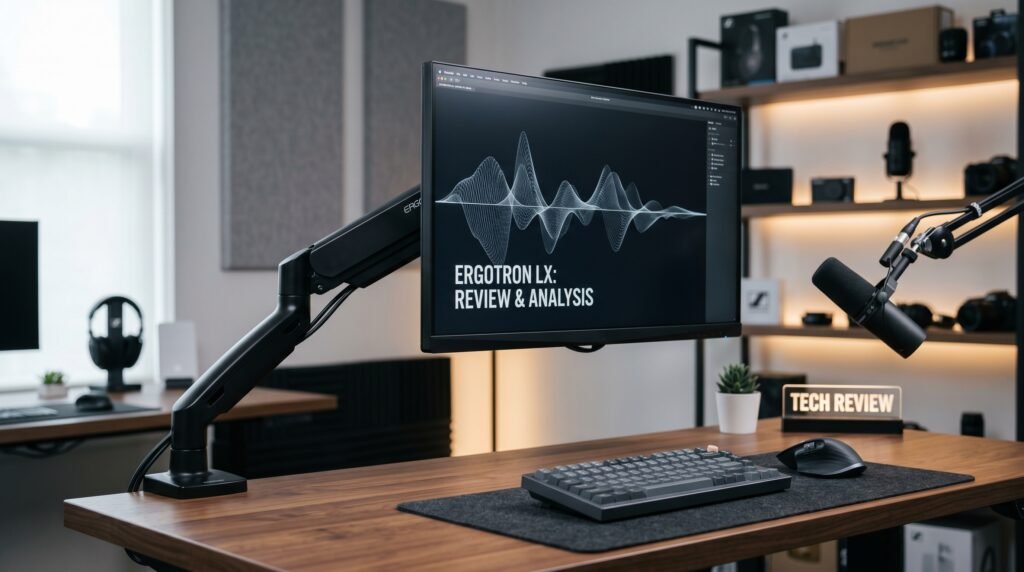
Removing your monitor’s stock stand is one of the most impactful changes you can make to a home office setup — and most people never do it. The stock stand that comes with your monitor is designed to be cheap and functional, not optimal. It sits in a fixed position, takes up significant desk space, and forces your monitor to a height that may or may not suit your ergonomics. The best monitor arm for desk use solves all three problems simultaneously: infinite height and angle adjustment, 4-6 inches of recovered desk space, and cable management built in. After researching and comparing dozens of monitor arms across price, build quality, and adjustability, here is what actually works in 2026.
Pairing your monitor arm with the right display makes all the difference — our guide to the best monitor for home office under $300 covers the top picks for every budget.
Quick Answer
The Ergotron LX is the best monitor arm for desk use for most people — smooth articulation, supports monitors up to 34 inches and 25 lbs, and the build quality justifies the $160 price point over years of daily use. For a dual monitor setup, the Ergotron LX Dual extends that same quality to two screens. Budget buyers should start with the Amazon Basics Gas Spring Arm. Standing desk users should consider the Fully Jarvis. For a premium aesthetic with ultrawide support, the Secretlab Magnus is worth the investment.
Why a Monitor Arm Changes Everything About Your Desk
The stock stand that ships with your monitor occupies a footprint of roughly 8-10 inches front to back. A monitor arm replaces that entirely with a single clamp or grommet mount at the desk edge, freeing that space for a keyboard tray, notebook, or simply a cleaner working area.
The ergonomic benefit is equally significant. Monitor height directly affects neck and shoulder posture — your eyes should be level with the top third of your screen when seated comfortably. Most stock stands adjust within a 3-4 inch range that doesn’t accommodate the full spectrum of desk heights and chair heights. A monitor arm adjusts across 15-20 inches of vertical range, handles tilt, swivel, and rotation, and lets you position the monitor exactly where it needs to be for your specific setup.
Real-world scenario: a 6’2″ developer using a monitor on its stock stand at standard desk height is likely looking down at their screen all day — a posture that contributes to neck stiffness that accumulates over weeks. A monitor arm that raises the screen by 4-6 inches corrects this immediately.
The counterintuitive point: monitor arms don’t work equally well on all desks. Glass desks, thin desktops under 1 inch thick, and desks with thick edge lips can all create mounting problems. Check your desk compatibility before purchasing — we cover this in the buying guide section below. Complete your desk setup with the best desk mat for home office — the right mat ties the entire workspace together visually.
Single vs Dual Monitor Arms: Which Do You Need?
Before choosing a specific product, the single vs dual question determines your entire shortlist.
Single monitor arms work for one screen. They’re simpler to install, cheaper, and work for any desk size. The best single arms support monitors up to 34-38 inches and allow full articulation — forward, backward, up, down, rotate to portrait mode. Most home office users with one monitor need a single arm.
Dual monitor arms mount two screens on a single desk clamp or grommet. They keep both screens at the same height and allow independent adjustment of each monitor’s angle. The tradeoff is that the single mounting point carries more weight — verify the arm’s weight capacity handles both monitors combined. For setups with two identical monitors, a dual arm is cleaner than two separate single arms.
In our experience, most buyers who think they need a dual arm actually need a single arm plus better cable management. Start with single unless you’re already running two monitors.
The 5 Best Monitor Arms for Desk in 2026
1. Ergotron LX Single Monitor Arm — Best Overall (~$160)
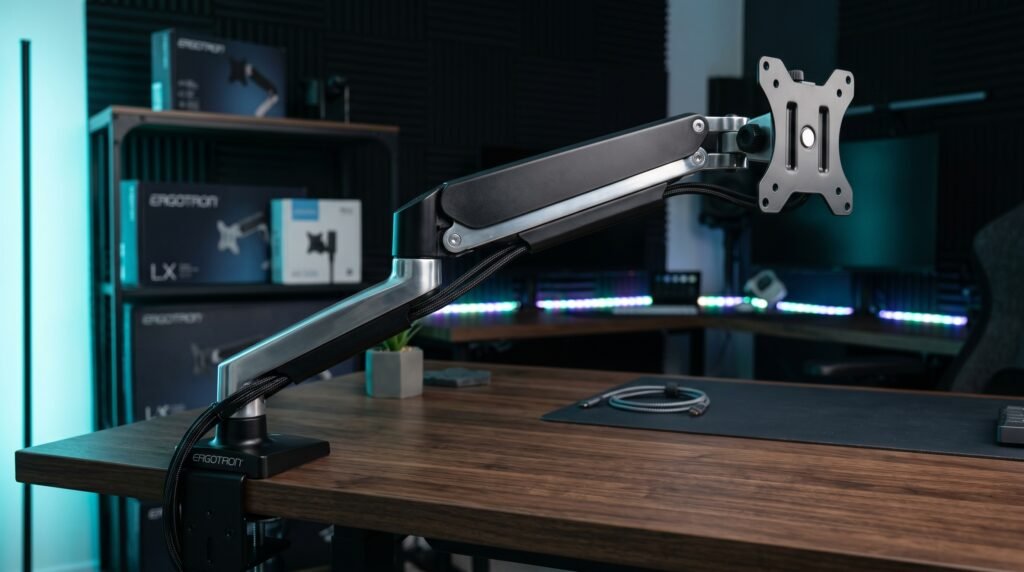
The Ergotron LX is the benchmark against which every other monitor arm is measured. It’s been the top recommendation in this category for over a decade, and in 2026 it still earns that position through consistent build quality and smooth articulation. The patented Constant Force technology means the arm holds its position under load without drifting — a problem that cheap arms develop within weeks of use.
Supports monitors up to 34 inches and 25 lbs. Full range of motion: 13 inches of height adjustment, 360-degree rotation, and tilt from -5 to +90 degrees. Cable management runs through the arm itself — no visible cables hanging from your monitor. 10-year warranty — the strongest in this category.
Best for: Home office users who want the most reliable single monitor arm available and plan to use it for 5+ years.
Real-world detail: The Ergotron LX is 10,000-cycle tested — equivalent to moving the arm three times per day for ten years. That’s the kind of longevity that makes the $160 price look cheap amortized over actual use.
Pros: Constant Force technology, smooth articulation, internal cable management, supports up to 34″ and 25 lbs, VESA 75×75 and 100×100, 10-year warranty.
Cons: $160 is the highest price in the single-arm category, not suitable for monitors over 25 lbs, matte white version shows fingerprints.
2. Ergotron LX Dual Monitor Arm — Best Dual Arm (~$250)
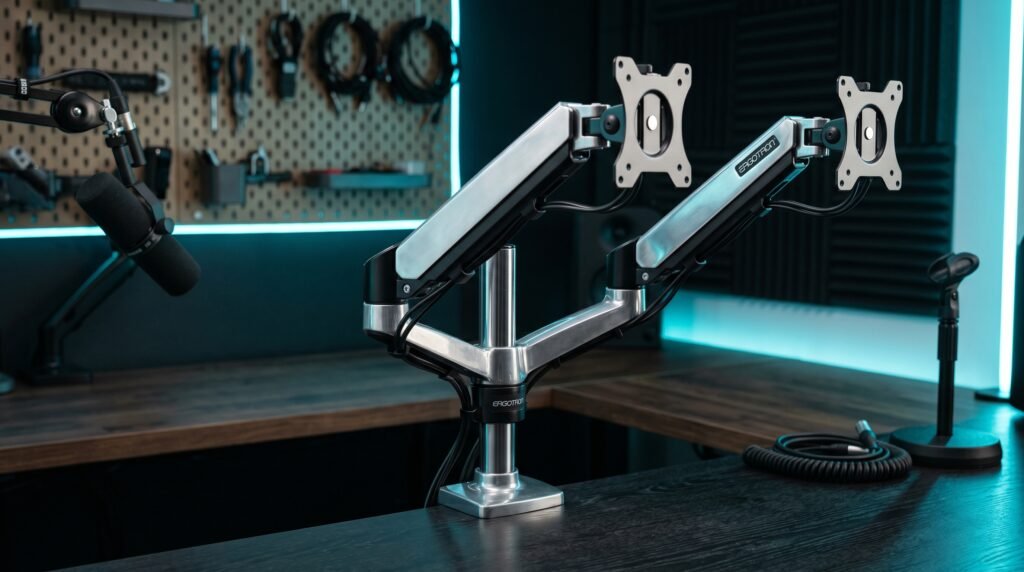
The Ergotron LX Dual applies the same Constant Force mechanism to two monitors simultaneously. Each arm adjusts independently — one monitor in landscape, one in portrait, at different heights and tilts. The single desk clamp or grommet mount handles both screens from one point, keeping the desk edge clean.
Maximum load is 20 lbs per arm — sufficient for most 27-inch monitors. The height range per arm is 7.5 inches of vertical adjustment, adequate for most setups where both monitors sit at similar heights. For users running two identical 24-27 inch monitors, this is the cleanest mounting solution available.
Best for: Users running two monitors of similar size who want a unified mounting solution without two separate desk clamps.
Real-world detail: The single mounting point requires a desk with at least 2.4 inches of clamp depth — most standard desks qualify, but thin-edge desks and glass desks may need a grommet mount instead of the included clamp.
Pros: Independent adjustment per arm, single clean mounting point, Constant Force technology, internal cable management per arm, 10-year warranty.
Cons: $250, 7.5-inch vertical range per arm, 20 lbs per arm excludes larger displays, supports up to 27-inch monitors per arm.
3. Amazon Basics Gas Spring Monitor Arm — Best Budget (~$50)
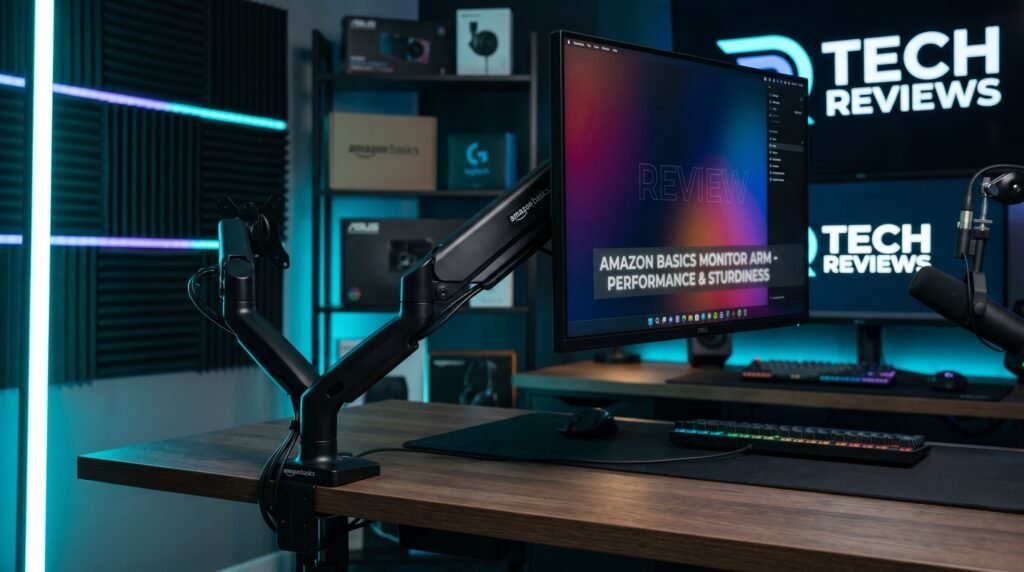
The Amazon Basics Gas Spring Single Monitor Arm is the recommendation for buyers who want to test whether a monitor arm improves their setup before committing to the Ergotron price point. Gas spring mechanism, supports monitors up to 27 inches, full tilt, swivel, and height adjustment — functional coverage for most standard home office displays.
The honest truth about this arm: it works well for the first 6-12 months, and then the gas spring begins to lose pressure slightly, causing gradual monitor drift at extended positions. At $50, that’s an acceptable tradeoff. If it helps your setup, upgrade to the Ergotron. If it doesn’t, you’ve only spent $50 to find out.
Best for: Budget buyers testing monitor arms for the first time, or users whose monitors are within the 27-inch and 17.6 lb weight limit.
Real-world detail: At 17.6 lbs max load, this arm excludes 32-inch and larger monitors — check your monitor’s weight in its spec sheet before purchasing. Most 24-27 inch monitors weigh 8-12 lbs, well within range.
Pros: Affordable entry point, gas spring mechanism, full articulation, cable management channel, easy installation.
Cons: Gas spring pressure reduces over 6-12 months, not suitable for monitors over 27 inches or 17.6 lbs, lower build quality than Ergotron.
4. Fully Jarvis Single Monitor Arm — Best for Standing Desks (~$99)
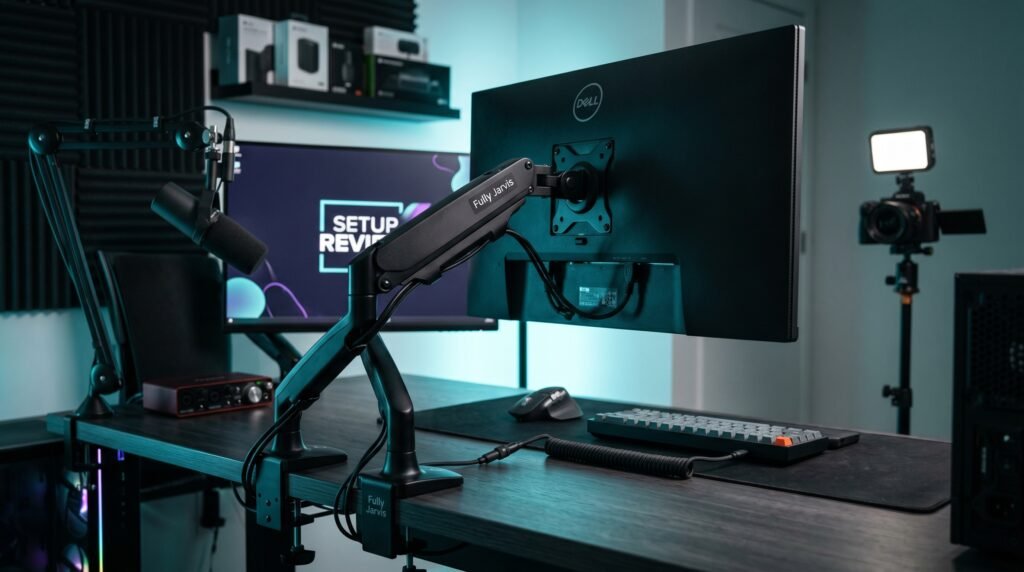
The Fully Jarvis Monitor Arm occupies the gap between the Amazon Basics and the Ergotron LX — better build quality than budget options without the full Ergotron price. Supports monitors up to 32 inches and 20 lbs, with a 16-inch height adjustment range — wider than the Ergotron LX’s 13 inches. That extra range matters specifically for standing desk users.
Fully is known for their standing desks, and the Jarvis arm reflects that ergonomic focus — the wider vertical adjustment range accommodates the full height transition of most standing desks from seated to standing position. 15-year warranty — the longest on this list. Available in black, white, and silver to match any desk aesthetic.
Best for: Standing desk users who need wider vertical adjustment range, or buyers who want better quality than budget arms without reaching the Ergotron price.
Real-world detail: The 16-inch vertical range handles the full height transition of most standing desks — from seated position at around 28 inches to standing position at 44 inches — more comfortably than the Ergotron LX’s 13-inch range.
Pros: 16-inch height range, supports 32″ monitors, 15-year warranty, three color options, standing desk optimized, clamp and grommet mounting included.
Cons: $99 is close to Ergotron territory, articulation feel less refined than Ergotron, supports up to 20 lbs only.
5. Secretlab Magnus Monitor Arm — Best for Ultrawide and Premium Setups (~$150-180)
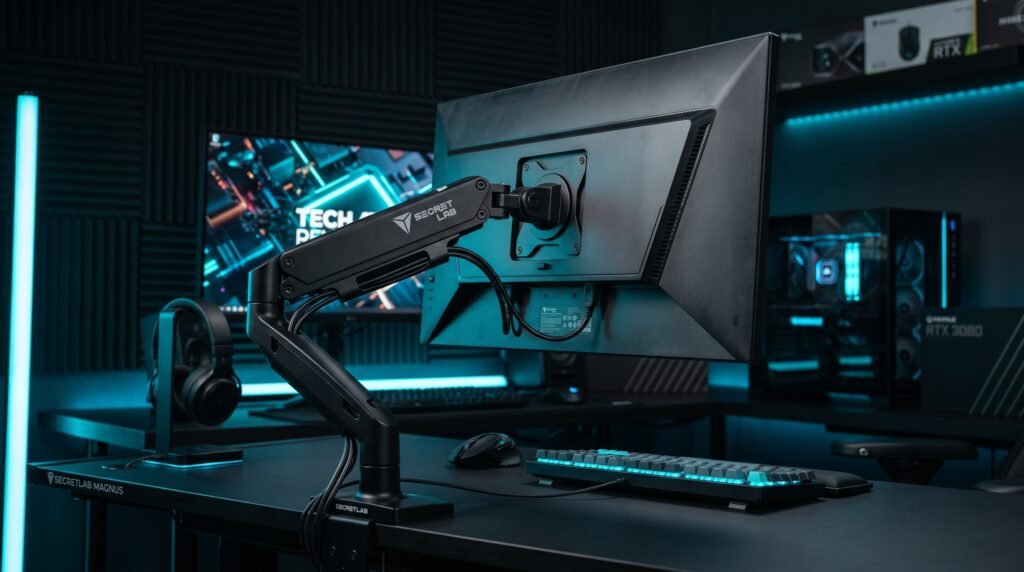
The Secretlab Magnus Monitor Arm Heavy Duty Edition is designed for users who run ultrawide monitors or want premium build quality with an industrial aesthetic. Supports monitors up to 57 inches and 35 lbs — the highest weight and size capacity on this list. Heavy aluminum construction, matte black finish, and a tilt pivot designed specifically for curved ultrawide panels.
The heavy-duty pivot mechanism handles the weight distribution of large ultrawide monitors without the drift that standard arms develop under heavier loads. For anyone running a 34-38 inch ultrawide, this is the arm specifically designed for that weight class.
Best for: Ultrawide monitor users who need higher weight capacity, and gaming or creative setups that want an arm that looks as intentional as the rest of the desk.
Real-world detail: At 35 lbs maximum capacity, this arm handles monitors that the Ergotron LX (25 lbs) cannot — including most 34-38 inch curved ultrawide monitors that regularly weigh 20-30 lbs.
Pros: Supports up to 57″ and 35 lbs, heavy-duty tilt pivot for curved panels, premium aluminum construction, designed for ultrawide weight distribution.
Cons: $150-180 price point, heavy-duty aesthetic may not suit all home office setups, heavier than standard arms.
Comparison Table
| Monitor Arm | Price | Max Size | Max Weight | Best For | Rating |
|---|---|---|---|---|---|
| Ergotron LX Single | ~$160 | 34″ | 25 lbs | Best overall | 9.5/10 |
| Ergotron LX Dual | ~$250 | 27″ per arm | 20 lbs/arm | Best dual setup | 9/10 |
| Amazon Basics Gas Spring | ~$50 | 27″ | 17.6 lbs | Best budget | 7.5/10 |
| Fully Jarvis Single | ~$99 | 32″ | 20 lbs | Best for standing desks | 8.5/10 |
| Secretlab Magnus | ~$165 | 57″ | 35 lbs | Best for ultrawide | 8.5/10 |
What to Look for When Choosing a Monitor Arm for Your Desk
1. Weight capacity — non-negotiable Every monitor arm has a maximum weight limit. Exceeding it causes the arm to drift downward over time as the tension mechanism compresses under load. Find your monitor’s weight in its spec sheet (listed as “without stand”) and choose an arm rated for at least 20% more than that weight. If your monitor weighs 15 lbs, choose an arm rated for 18+ lbs minimum.
2. VESA compatibility All modern monitors have a VESA mounting pattern — either 75x75mm or 100x100mm. Verify your monitor has VESA mounts by checking if the stock stand detaches and measuring the bolt pattern. Some ultra-budget monitors and all-in-one computers occasionally lack VESA mounts — check before purchasing.
3. Desk mounting method — clamp vs grommet Clamp mounts attach to the desk edge and work on most desks without modification. Grommet mounts thread through a hole in the desk — more secure, but require drilling or using an existing cable management hole. For glass desks, neither standard method works — look for monitor arms that specify glass desk compatibility or use a freestanding base option.
4. Height adjustment range Measure from your desk surface to your eye level when seated — your monitor center should sit approximately 2-3 inches below eye level. Most arms provide 13-20 inches of vertical range, which covers the majority of setups. Standing desk users specifically need 16+ inches of vertical range to accommodate both sitting and standing positions comfortably.
5. Cable management The best monitor arms route cables internally through the arm — no visible cables between desk and monitor. Budget arms include external cable clips that are tidier than bare cables but still visible. If a clean desk aesthetic is a priority, confirm the arm routes cables internally before purchasing.
FAQ
Is a monitor arm worth it for a home office?
For anyone working 6+ hours daily at a desk, yes. The combination of recovered desk space, ergonomic positioning flexibility, and visual cleanliness makes a monitor arm one of the highest-impact desk upgrades available. The Ergotron LX at $160 costs less per day over 5 years than a daily coffee — and the ergonomic benefit of correct monitor positioning is measurable in reduced neck and shoulder tension within the first week.
Will a monitor arm work with any desk?
Most desks, but not all. Standard wooden desks with edges 0.4-3.5 inches thick work with clamp mounts. Glass desks, desks with very thick edges over 3.5 inches, and desks with lip edges that prevent clamping require grommet mounts or alternative solutions. Measure your desk edge thickness before purchasing — and check the arm’s minimum desk thickness specification.
Can I use a monitor arm with an ultrawide monitor?
Yes, but check weight and size compatibility carefully. Ultrawide monitors at 34 inches typically weigh 15-22 lbs — within the Ergotron LX’s 25 lb capacity. Ultrawide monitors at 38-49 inches can weigh 25-35 lbs, which exceeds standard single arms and requires the Secretlab Magnus Heavy Duty or equivalent. Always verify your specific ultrawide’s weight against the arm’s maximum capacity.
How difficult is it to install a monitor arm?
Most monitor arms install in 15-30 minutes without special tools. The process: attach the clamp or grommet mount to the desk edge, attach the arm to the mount, remove the stock stand from your monitor, attach the VESA plate to the monitor’s back, and clip the monitor onto the arm. A hex key (Allen wrench) is typically included. The most common installation mistake is over-tightening the desk clamp — firm is sufficient, overtightening can damage desk edges.
Our Final Verdict
The best monitor arm for desk use in 2026 is the Ergotron LX — the Constant Force mechanism, 10-year warranty, and build quality that outlasts every monitor you’ll attach to it make it the clear recommendation for most home office users. Standing desk users should seriously consider the Fully Jarvis for its wider vertical range. Budget-conscious buyers should start with the Amazon Basics Gas Spring — test the format before committing to premium. Ultrawide users running 34″+ panels should go straight to the Secretlab Magnus. Whatever arm you choose, removing your monitor’s stock stand is one of the best decisions you’ll make for your desk setup. Check current pricing on Amazon before buying.