
This article contains affiliate links. We may earn a commission if you buy through our links, at no extra cost to you.
The best monitor for MacBook Pro is decided by pixel density, not by panel quality. macOS renders text differently from Windows, and a monitor that looks flawless on a PC can look soft on a Mac at the same size and price.
That single difference explains most of the disappointment people report after buying a 27-inch 1440p screen for a Mac. The panel isn’t the problem. The math between the panel’s pixels and macOS scaling is.
After comparing pixel densities, power delivery figures, port layouts, panel types and long-term owner feedback across more than 20 monitors, four stand out. One suits most people, one delivers true Retina density, one balances price and specs, and one covers a tight budget.
Quick Answer
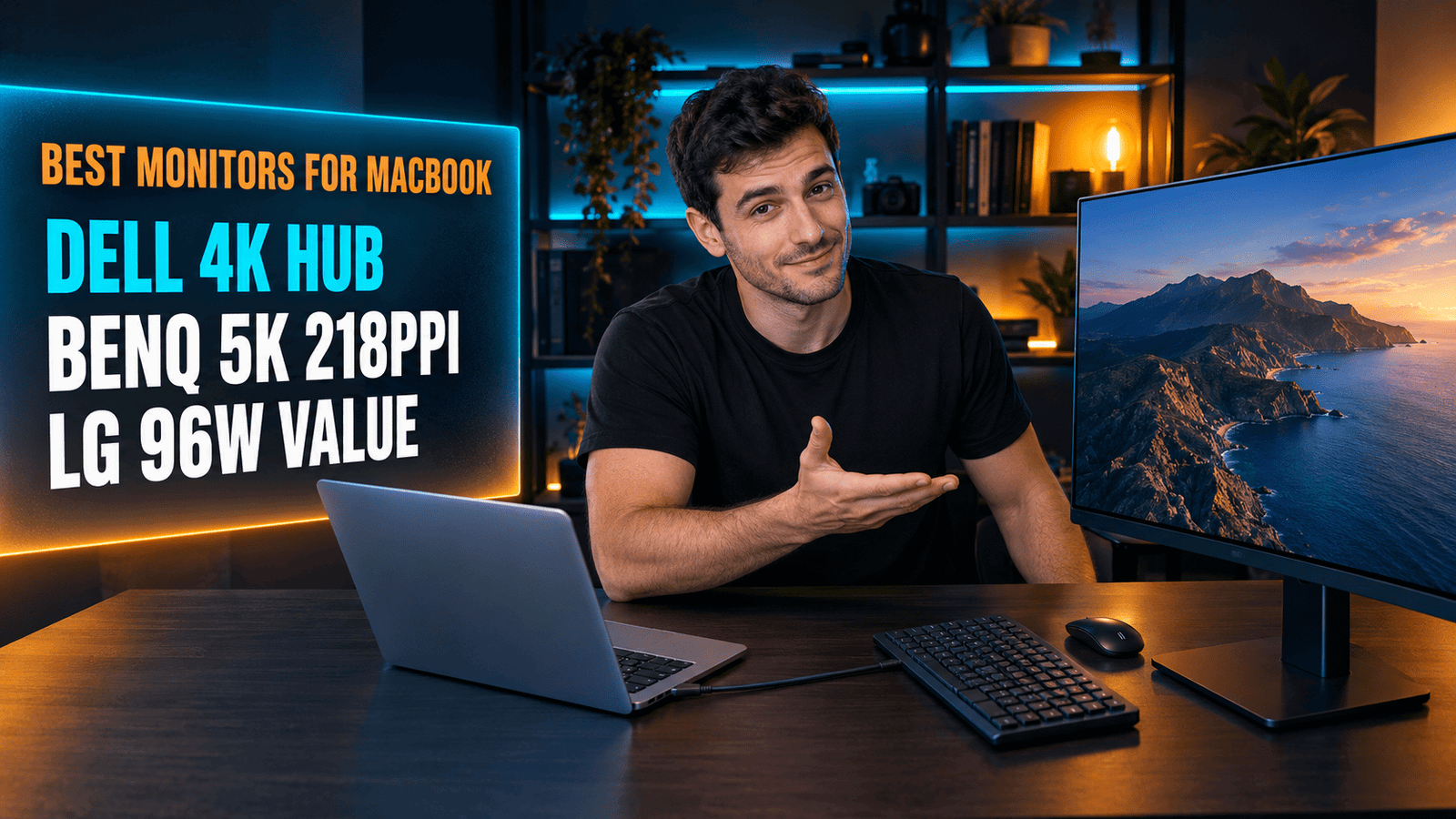
The Dell UltraSharp U2723QE is the best monitor for MacBook Pro for most people: 4K at 27 inches, 90W of charging over one cable and an IPS Black panel. For true Retina density, the BenQ PD2730S runs 5K at 218 PPI over Thunderbolt 4, and the LG 27UP850-W delivers 4K with 96W for considerably less.
Why Do Some Monitors Look Blurry on a Mac?
macOS handles scaling differently from Windows, and pixel density is what decides whether text looks sharp. Apple’s own displays sit at 218 pixels per inch, and macOS is built around that figure.
A 27-inch 1440p monitor is the wrong buy for a MacBook Pro even though it looks fine on a PC. At that size, 1440p works out to roughly 109 PPI, half Apple’s density, and macOS renders text noticeably softer than Windows does on the same screen.
Two densities work well. A 27-inch 4K panel like the Dell UltraSharp U2723QE gives you 163 PPI, sharp enough that most people never think about it again, while a 27-inch 5K panel like the BenQ PD2730S hits 218 PPI exactly and matches Apple’s rendering target.
If you’re coming from a MacBook Pro’s built-in Retina screen and moving to an external display, that gap is what you’ll notice first. Buy 4K at 27 inches as the floor, and treat anything below it as a compromise you’ll see every day. Our guide to the best 27 inch monitor for work covers the same size class for Windows machines, where the rules are looser.
How Much Power Does a MacBook Pro Need From a Monitor?
A MacBook Pro needs more power than most monitors deliver. Apple ships a 96W adapter with the 14-inch model and a 140W one with the 16-inch, while monitor USB-C ports commonly stop at 65W or 90W.
The cheapest monitor here will drain your battery while plugged in. The Dell S2722QC delivers 65W, which holds a MacBook Air comfortably but falls short of a 14-inch Pro under sustained load, so the battery slowly discharges during heavy work.
Ninety watts is the practical minimum for a Pro. The U2723QE and the BenQ both hit that figure, and the LG 27UP850-W goes to 96W, matching what Apple’s own 14-inch adapter supplies.
If you export video or compile code for hours, check the wattage before the panel specs. A monitor that charges at 65W means keeping the Apple brick plugged in alongside it, which defeats the single-cable setup you bought the monitor for in the first place.
Can a MacBook Pro Run Two External Monitors?
How many external displays a MacBook Pro supports depends on its chip, not on the monitors. Base M-series chips have historically supported fewer external displays than Pro and Max variants, and that limit sits in the laptop.
The cheaper laptop is the one that restricts your monitor plans. A MacBook Pro with a Pro or Max chip drives multiple external displays comfortably; a base-chip MacBook Air has been limited to one in several generations, sometimes requiring the lid closed for a second.
Daisy chaining changes the cable count but not the limit. The BenQ PD2730S supports daisy chaining over Thunderbolt 4, which means one cable from the Mac feeds two monitors, provided your chip supports two displays in the first place.
Check your specific model on Apple’s spec page before buying a second screen. If your chip caps you at one external display, a single 5K panel is a better purchase than two 4K ones, and our guide to setting up dual monitors covers the arrangement once you’ve confirmed the hardware allows it.
Does the Monitor Need to Be a Hub?
A monitor with a built-in hub replaces a docking station, and on a MacBook Pro with four ports that matters less than it used to. What it saves is desk clutter, not ports.
The hub is worth more than the extra resolution for most work. The U2723QE carries RJ45 Ethernet, four USB ports and a KVM switch, so one Thunderbolt cable to the Mac brings wired internet, a keyboard, a mouse and an external drive with it.
KVM is the feature people discover late. It lets the monitor’s USB devices switch between two connected computers, which turns the screen into the meeting point between a work MacBook and a personal machine.
If your desk already has a dock, the hub features duplicate it and you can spend the money on density instead. If it doesn’t, a hub monitor is cheaper than buying a dock separately, and it removes one box and one power brick from the desk. We’d take the hub over a marginally better panel every time.
Is 5K Worth Double the Price of 4K?
Five-K is worth it for design and code work at 27 inches, and hard to justify for everything else. The BenQ PD2730S hits 218 PPI against 163 on a 4K panel of the same size, which means macOS renders at exactly the density it was designed around.
The bigger screen is often the wrong answer for a Mac. Going from 27-inch 4K to 32-inch 4K drops density to about 138 PPI, so a larger, more expensive monitor can look worse on macOS than the smaller one it replaced.
That’s the trap in this category. Screen size and price both suggest an upgrade, while pixel density moves in the opposite direction.
If you write code or edit photos for eight hours a day, the jump from 163 to 218 PPI is visible in small text and fine gradients, and the BenQ adds a nano matte panel that cuts reflections in a bright room. If you work in browsers and spreadsheets, 4K at 27 inches is the sensible stopping point, and the difference in price buys a monitor arm and a dock.
Best Monitors for MacBook Pro: Comparison Table
| Product | Price | Best For | Rating |
|---|---|---|---|
| Dell UltraSharp U2723QE | ~$520 | Best overall | 9/10 |
| BenQ PD2730S | ~$1300 | True 5K density | 9/10 |
| LG 27UP850-W | ~$450 | Best value 4K | 8.5/10 |
| Dell S2722QC | ~$330 | Tight budgets | 8/10 |
Detailed Reviews
Dell UltraSharp U2723QE — Best Overall
Ninety watts over a single USB-C cable, plus a full hub, is what makes this the default Mac monitor. The U2723QE runs 4K (3840 x 2160) across 27 inches for 163 PPI on an IPS Black panel, and its USB-C upstream port carries video, data and 90W of charging at once. Behind it sit RJ45 Ethernet, DisplayPort in and out, HDMI, four USB 3.2 Gen 2 ports and a KVM switch, with a three-year warranty.
If your MacBook Pro lives on the desk five days a week and travels on weekends, one cable connects the screen, wired internet, your keyboard and an external SSD, and charges the laptop while you work.
It stops short of Retina density at 163 PPI, so a 5K panel is sharper for detailed work. Availability also moves around, with some listings showing as unavailable, and the price sits well above basic 4K monitors. For the combination of density, power and ports, it’s the one we’d buy.
Best for: MacBook Pro owners who want the monitor to replace a docking station.
Real-world detail: Its 90W USB-C port matches the charging output a 14-inch MacBook Pro expects from its own adapter.
Pros: 90W charging, RJ45 Ethernet and 4 USB ports, KVM switch, IPS Black contrast, 3-year warranty.
Cons: 163 PPI rather than Retina density, premium price, listing availability varies.
BenQ PD2730S — True Retina Density
Two hundred and eighteen pixels per inch is the number Apple designed macOS around, and this is the monitor here that hits it. The PD2730S runs 5120 x 2880 across 27 inches, connects over Thunderbolt 4 with 90W of charging and 40Gbps of data, covers 98% of DCI-P3 at 2000:1 contrast, and uses a nano matte panel to cut reflections. It supports daisy chaining, a KVM, and height adjustment.
If you spend the day in a code editor or a photo tool, that density shows up in small text and fine gradients in a way the spec sheet undersells.
Price is the obstacle, at roughly double a good 4K panel, and 5K at 60Hz remains a niche with few competitors, so there’s little pressure on that price. The nano matte coating also divides opinion, since it trades a slight loss of contrast punch for far fewer reflections. For professional visual work on a Mac, it’s the closest thing to an Apple display without Apple’s logo.
Best for: Designers, developers and photo editors working on a Mac all day.
Real-world detail: At 218 PPI it matches the pixel density of Apple’s own Studio Display.
Pros: True 5K at 218 PPI, Thunderbolt 4 with 90W, 98% DCI-P3, nano matte panel, daisy chain and KVM.
Cons: Roughly twice the price of 4K, 60Hz only, matte coating softens contrast slightly.
LG 27UP850-W — Best Value 4K
Ninety-six watts is more charging than either Dell offers, and it costs less than the UltraSharp. LG’s 27UP850-W puts 4K (3840 x 2160) on a 27-inch IPS panel with VESA DisplayHDR 400, 95% DCI-P3 coverage and 400 nits of brightness, on a stand with height, pivot and tilt adjustment.
If you own a 14-inch MacBook Pro, 96W matches its bundled adapter exactly, so the laptop charges at full speed while driving the display.
You give up the Dell’s Ethernet port and KVM switch, so this is a monitor with USB-C rather than a full docking hub. The white finish suits a Mac desk and clashes with darker setups, and LG has discontinued the closely related 27UP850N model, which makes model numbers confusing when comparing prices. For someone who already owns a dock, this delivers the same 163 PPI as the Dell for less money.
Best for: Mac owners with an existing dock who want 4K and full-speed charging.
Real-world detail: Its 96W output matches the adapter Apple ships with the 14-inch MacBook Pro.
Pros: 96W power delivery, 95% DCI-P3, DisplayHDR 400, pivot and height adjustment, lower price than the Dell.
Cons: No Ethernet or KVM, white finish won’t suit every desk, confusing model naming.
Dell S2722QC — Best Budget
Getting 4K onto a Mac desk for around $330 is this monitor’s entire argument. The S2722QC gives 3840 x 2160 across 27 inches, the same 163 PPI as monitors costing far more, with USB-C carrying video, data and 65W of power, plus dual 3W speakers and a 60Hz refresh rate.
If you use a MacBook Air or a MacBook Pro for browsing, documents and video calls, the density is identical to the UltraSharp and the difference lives entirely in the ports and the panel technology.
Sixty-five watts is where it falls short for a Pro. Apple ships 96W with the 14-inch model, so under sustained load this monitor charges slower than the laptop consumes, and the battery drains while plugged in. The 8ms grey-to-grey response and standard IPS panel also sit below the UltraSharp’s IPS Black contrast. As a first 4K monitor on a budget, it does the important part right.
Best for: MacBook Air owners and light workloads on a tight budget.
Real-world detail: Its 65W USB-C output is below the 96W a 14-inch MacBook Pro draws under load.
Pros: 4K at 163 PPI, USB-C single-cable setup, built-in speakers, lowest price here.
Cons: 65W charging, standard IPS panel, no Ethernet or KVM.
What to Look for When Choosing a Monitor for a MacBook Pro
1. Start with pixel density. 27-inch 4K gives 163 PPI and 27-inch 5K gives 218, matching Apple’s own displays. Avoid 27-inch 1440p at roughly 109 PPI, and note that 32-inch 4K drops to about 138.
2. Match power delivery to your laptop. Apple ships 96W with the 14-inch MacBook Pro and 140W with the 16-inch. A 65W monitor will charge slower than a Pro consumes under load.
3. Check your chip before planning two screens. The number of external displays is set by the Mac’s processor, not the monitors. Confirm it on Apple’s spec page first.
4. Decide whether you need a hub. Ethernet, USB ports and KVM turn the monitor into a dock. If you already own one, spend the money on density instead.
5. Consider the panel coating. A nano matte or anti-glare finish cuts reflections in a bright room at the cost of a little contrast punch.
FAQ
What monitor resolution is best for a MacBook Pro?
A 27-inch 4K monitor at 163 PPI is the practical minimum for a MacBook Pro, and 27-inch 5K at 218 PPI matches the density of Apple’s own displays. Avoid 1440p at 27 inches, where roughly 109 PPI makes macOS text look soft. Larger 4K panels reduce density further, so a 32-inch 4K sits near 138 PPI.
Why does text look blurry on my external monitor with a Mac?
Text looks blurry because macOS is built around a pixel density near 218 PPI, and lower-density monitors force it to scale in ways that soften edges. A 27-inch 1440p panel delivers about 109 PPI, which is where most complaints come from. Moving to 4K or 5K at the same size resolves it.
How many watts should a monitor deliver to a MacBook Pro?
Aim for at least 90W of USB-C power delivery for a MacBook Pro, since Apple ships a 96W adapter with the 14-inch model and 140W with the 16-inch. A 65W monitor charges a MacBook Air adequately but drains a Pro under heavy load. Check the wattage spec before the panel spec.
Can you charge a MacBook Pro through a monitor?
Yes, monitors with USB-C or Thunderbolt upstream ports carry video, data and power over a single cable, typically delivering 65W to 96W. That one cable replaces the laptop’s charger on the desk. Confirm the wattage matches what your specific MacBook Pro model expects.
Our Final Verdict
For most people, the Dell UltraSharp U2723QE is the monitor to buy for a MacBook Pro: 4K at 163 PPI, 90W of charging, Ethernet, four USB ports and a KVM switch that make it a dock as well as a screen.
If your work depends on text and detail, the BenQ PD2730S hits 218 PPI over Thunderbolt 4 and matches Apple’s own density. The LG 27UP850-W offers the same 4K density with 96W charging for less, and the Dell S2722QC puts 4K on a Mac desk at the lowest price here, as long as 65W is enough for your laptop.