
This article contains affiliate links. We may earn a commission if you buy through our links, at no extra cost to you.
How to Set Up Dual Monitors in 2026
Setting up dual monitors is the single most impactful productivity upgrade available to anyone who works at a computer — and it takes about 20 minutes from unboxing to fully configured. Research from Jon Peddie consistently shows productivity increases of 20-42% for knowledge workers after adding a second monitor. That’s not a small gain. But the actual process of how to set up dual monitors confuses a surprising number of people — port compatibility, display settings, optimal positioning, and cable management all have details that aren’t obvious the first time. After setting up dozens of dual monitor configurations across Windows and Mac, here is what actually works in 2026 and what most guides skip.
This guide is for anyone adding a second monitor for the first time, or troubleshooting a dual monitor configuration that isn’t working correctly. Once your setup is running, our guide to the best monitor for home office under $300 covers the top picks for every budget.
Quick Answer
Connect your second monitor via HDMI or DisplayPort, then go to Display Settings (Windows: right-click desktop → Display Settings; Mac: System Settings → Displays) and select Extend display rather than Mirror. Position the monitors in software to match their physical layout on your desk. Total setup time: 15-20 minutes.
What You Need Before You Start
Before touching any cables, confirm you have everything required. Skipping this step is why most dual monitor setups stall halfway through.
Your computer needs two video outputs. Most desktop computers have at least two video ports — often HDMI, DisplayPort, and sometimes DVI or VGA. Most laptops have one video output (usually HDMI or USB-C) plus the built-in display, which counts as one monitor — meaning the laptop screen plus one external monitor is the standard laptop dual setup. For two external monitors on a laptop, you typically need either a docking station or a USB-C hub with dual video output.
Check the ports on both your computer and your monitors. Modern monitors commonly have HDMI, DisplayPort, and USB-C inputs. Older monitors may have DVI or VGA only. Your computer’s outputs and your monitor’s inputs need to be compatible — either directly or via an adapter.
The cables you need: HDMI-to-HDMI for the most common connection. DisplayPort-to-DisplayPort for the best image quality and highest refresh rates. USB-C-to-DisplayPort or USB-C-to-HDMI for modern laptops. If your monitor only has VGA input and your computer only has HDMI output, you’ll need an active HDMI-to-VGA adapter — passive cables don’t work for this conversion.
Checking port compatibility before purchasing a second monitor saves significant frustration. Our guide to the best ultrawide monitor for productivity covers connectivity options to look for at every price point if you’re considering going ultrawide instead of dual.
Step-by-Step: How to Set Up Dual Monitors on Windows

Windows dual monitor setup is straightforward once you know where to look. These steps work for Windows 10 and Windows 11.
Step 1 — Connect the second monitor. Plug the cable from your second monitor into the appropriate port on your computer. Turn the monitor on. Windows should detect it automatically within 5-10 seconds and either display a notification or simply extend your desktop to the new screen.
Step 2 — Open Display Settings. Right-click anywhere on your desktop → select Display Settings. You’ll see two numbered rectangles representing your two monitors. If Windows detected the second monitor, both rectangles are visible. If only one appears, click Detect at the bottom of the page.
Step 3 — Configure the display mode. Scroll down to Multiple displays and select your preferred mode from the dropdown. Extend these displays is what you want for productivity — your desktop expands across both screens as one large workspace. Duplicate these displays mirrors your primary monitor on both screens — useful for presentations, not for productivity.
Step 4 — Arrange the monitors to match your physical layout. Drag the numbered rectangles in Display Settings to match how your monitors physically sit on your desk. If your second monitor is to the right of your primary, drag rectangle 2 to the right of rectangle 1. This determines how your cursor moves between screens — get this wrong and your cursor appears to teleport when crossing the bezel gap.
Step 5 — Set resolution and refresh rate per monitor. Click on each monitor rectangle to select it, then scroll down to set its resolution and refresh rate. Each monitor runs at its native resolution independently — your 4K primary and 1080p secondary can both run at their optimal settings simultaneously.
Step 6 — Set your primary display. Scroll to Multiple displays and check Make this my main display while monitor 1 is selected. This determines which screen shows your taskbar, Start menu, and where new windows open by default.
Step-by-Step: How to Set Up Dual Monitors on Mac
Mac dual monitor setup differs from Windows but is equally straightforward. These steps work for macOS Ventura, Sonoma, and later.
Step 1 — Connect the second monitor. Plug in via HDMI, DisplayPort, or USB-C. macOS detects connected displays automatically. Important caveat: Apple Silicon Macs have chip-specific limitations. M1 and M2 base MacBook Air and MacBook Pro support only one external monitor natively. Connecting two external monitors requires either an M-series Pro/Max/Ultra chip, or a DisplayLink adapter.
Step 2 — Open Display Settings. Click the Apple menu → System Settings → Displays. You’ll see a visual representation of your connected displays.
Step 3 — Arrange your displays. Drag the display rectangles to match their physical position on your desk. The white bar at the top of one rectangle indicates the primary display — the one with the menu bar.
Step 4 — Set display mode. Confirm Extended Display is selected rather than Mirror Displays. Mirror mode shows the same content on both screens — not what you want for productivity.
Step 5 — Adjust resolution per display. Click on each display in the arrangement view, then select Resolution and choose your preferred setting. Most users should select Default for display which runs each monitor at its optimal native resolution.
Step 6 — Use Stage Manager or Mission Control. Mac’s Stage Manager works well with dual monitors — it groups related windows into stages that you can switch between on either display. Mission Control (swipe up with three fingers) gives you an overview of all open windows across both screens simultaneously.
The Essential Accessories for a Dual Monitor Setup
Getting the monitors connected is step one. Making the setup comfortable to use requires a few accessories that most dual monitor guides skip.
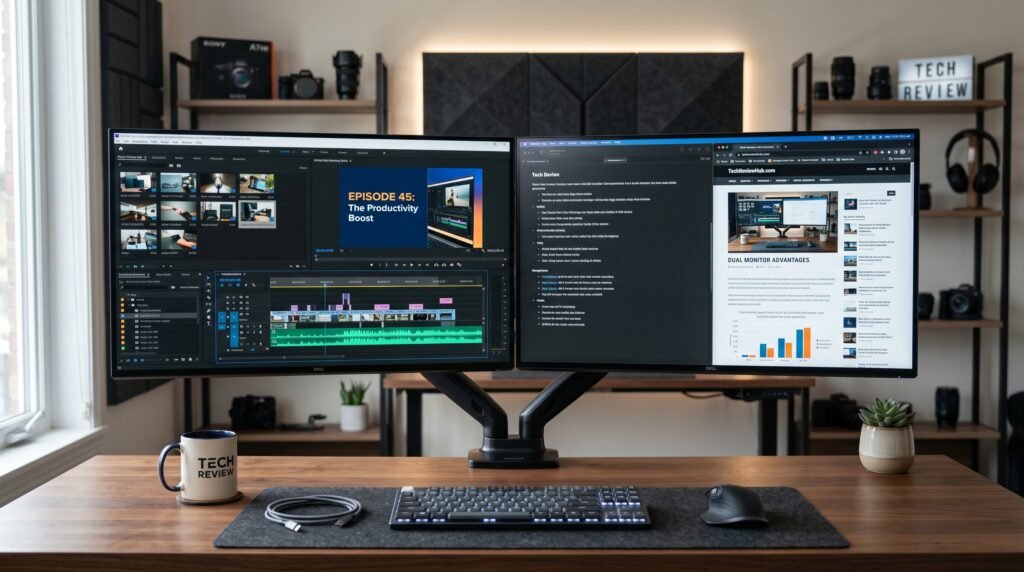
Dual monitor arm: The most impactful accessory for a dual monitor setup. A single desk clamp supports both monitors, eliminates two stock stands from your desk surface, and allows each monitor to be positioned at exactly the right height and angle independently. The Ergotron LX Dual at ~$250 is the gold standard — the same Constant Force mechanism as the single LX, applied to two screens with independent adjustment per arm. For most productivity dual monitor setups, this is the arm to buy.
HDMI or DisplayPort cables: For 4K monitors at 60Hz, you need HDMI 2.0 cables at minimum — older HDMI 1.4 cables max out at 4K/30Hz which produces a noticeably choppy experience. For high-refresh displays at 144Hz+, DisplayPort 1.4 is the correct choice. Cable quality doesn’t need to be premium — any cable meeting the correct specification performs identically to an expensive one.
USB-C docking station for laptop users: If you’re running dual monitors from a laptop, a docking station simplifies everything. The Anker 577 Thunderbolt Dock at ~$130 provides dual display output, 85W laptop charging, USB hub, and ethernet from a single USB-C connection. Important compatibility note: the Anker 577 requires Thunderbolt 3 or 4 — it does not work with M1 MacBooks natively. M1 users need a DisplayLink dock specifically, or an M-series Pro/Max chip for native dual monitor support.
Cable management: Two monitors mean at least four cables running from your desk — power and video for each. Cable management clips, a cable sleeve, or a cable tray under the desk transforms a chaotic wire situation into a clean workspace. A $15 cable management kit from Amazon handles this completely and is one of the highest ROI purchases in any desk setup.
Optimal Dual Monitor Positioning and Ergonomics
Connecting two monitors and extending the display is the technical part. Positioning them correctly is the ergonomic part — and it’s where most dual monitor setups fall short.
The counterintuitive point: most people set up dual monitors side by side with both at equal height and distance, treating them as a symmetrical setup. This is correct only if you use both monitors equally throughout the day. If you have a primary monitor you look at 80% of the time and a secondary you glance at occasionally, positioning them symmetrically forces you to rotate your neck toward the center of the combined setup rather than facing your primary screen directly.
For asymmetric use — one primary, one secondary: Position your primary monitor directly in front of you, centered on your body. Place the secondary to the side — left or right depending on preference. Angle the secondary 30-45 degrees toward you so it’s readable with minimal head movement. Your primary monitor should be at arm’s length (50-70cm) with the top of the screen at or slightly below eye level.
For equal use — both monitors used equally: Position both monitors side by side with the bezel gap centered on your body. Both at the same height, same distance, angled inward symmetrically. A dual monitor arm makes this positioning significantly easier to achieve and maintain than stock stands ever can.
Height matters for both setups. Your eyes should be level with the top third of your primary monitor. If your monitors sit on stock stands, they’re almost certainly too low — which is the primary ergonomic argument for a monitor arm for desk in any dual monitor setup.
Troubleshooting Common Dual Monitor Problems
Second monitor not detected: Check the cable connection at both ends — loose connections are the most common cause. Verify the monitor is powered on and set to the correct input source using the monitor’s physical buttons. On Windows, open Display Settings and click Detect. On Mac, hold Option and click Detect Displays in the Displays pane.
Wrong resolution on second monitor: Open Display Settings and manually set the native resolution for the second monitor. If the native resolution isn’t listed, your cable may not support it — an HDMI 1.4 cable won’t display 4K at 60Hz. Upgrade to HDMI 2.0 or DisplayPort.
Cursor doesn’t move correctly between monitors: The virtual arrangement in Display Settings doesn’t match the physical arrangement on your desk. Open Display Settings and drag the monitor rectangles to exactly match the physical position of each monitor, including vertical offset if one monitor sits higher than the other.
Screen flickering on second monitor: Usually a cable quality issue or refresh rate mismatch. Try a different cable first. If that doesn’t fix it, manually set the flickering monitor’s refresh rate to 60Hz in Display Settings — some monitors have compatibility issues at non-standard refresh rates.
Different scaling on each monitor: Windows and Mac both support per-monitor DPI scaling. Set each monitor to its own scaling level — 150% on a 4K monitor, 100% on a 1080p monitor — so text and UI elements appear the same physical size on both screens.
What to Look for When Choosing a Second Monitor
1. Match your primary monitor’s specs The most comfortable dual monitor setup uses two monitors of identical size, resolution, and panel type. Switching your eyes between a 4K IPS panel and a 1080p TN panel all day is more fatiguing than it sounds. If matching exactly isn’t possible, prioritize matching panel type — IPS with IPS — and calibrating both to the same brightness and color temperature.
2. Bezel thickness In a side-by-side dual monitor setup, the bezel gap is always visible. Thin-bezel monitors (3-5mm per side) create a combined gap of 6-10mm — nearly invisible in use. Thick-bezel monitors (15mm+) create a 30mm+ gap that interrupts content spanning both screens. Most monitors at $150+ have thin bezels — verify before purchasing budget options.
3. Connectivity options Your second monitor needs a port that matches one of your computer’s available outputs. If your primary monitor uses HDMI and your computer has one HDMI and one DisplayPort output, your second monitor needs a DisplayPort input. Check available ports before purchasing.
4. Stand height adjustability For a level dual monitor setup without a monitor arm, both monitors need stands that reach the same height. Most budget monitors have tilt-only stands — you’ll use books or risers to match heights if stands differ. A monitor arm eliminates this problem entirely.
5. Refresh rate consistency For work-only use, 60Hz is sufficient for both monitors. If you game on one and work on the other, a 144Hz gaming monitor as secondary with a 60Hz work monitor as primary is a valid setup — just be aware that applications run at the refresh rate of whichever screen they’re currently on.
FAQ
Do you need a graphics card to run dual monitors?
Any modern computer with two video outputs can run dual monitors — you don’t need a dedicated GPU. Integrated graphics handle dual monitor output at 1080p and 1440p well for productivity use. A dedicated GPU is only necessary if you want dual 4K monitors at high refresh rates, or three or more displays simultaneously.
Can a laptop run two external monitors?
It depends on the hardware. Most Windows laptops with a dedicated GPU can run the built-in display plus two external monitors. Laptops with only integrated graphics typically support one external monitor. Apple Silicon M1 and M2 base chips support one external monitor natively — M2 Pro and above support up to six. A DisplayLink docking station can bypass these hardware limitations for most laptops.
Should my two monitors be the same size?
Ideally yes, but it’s not required. Same-size monitors create a visually uniform setup that’s easier on the eyes. Different-size monitors work fine functionally — a 27-inch primary and 24-inch secondary is a common combination. The main consideration is height matching — if monitors are different sizes, you’ll need to adjust stand heights or use monitor arms to align the top edges.
How do I move windows between dual monitors?
Several methods work. The simplest: click and drag any window’s title bar from one monitor to the other. Keyboard shortcut on Windows: Windows key + Shift + Left/Right arrow moves the active window between monitors. On Mac: drag windows by their title bar across the bezel gap. Third-party tools like DisplayFusion (Windows) and Moom (Mac) add sophisticated window management with keyboard shortcuts.
Our Final Verdict
Knowing how to set up dual monitors is a 20-minute process that delivers sustained productivity gains. Connect the second monitor via HDMI or DisplayPort, extend the display in your system settings, arrange the virtual monitors to match your physical layout, and position both screens at the correct ergonomic height. The technical setup is simple — the positioning is where the real impact comes from. Add the Ergotron LX Dual to eliminate stock stands and gain full positioning control. For laptop users, the Anker 577 Thunderbolt Dock simplifies everything into a single cable — just confirm Thunderbolt 3/4 compatibility with your specific laptop before ordering. Check current pricing on Amazon for monitors, cables, and docking stations before buying.