
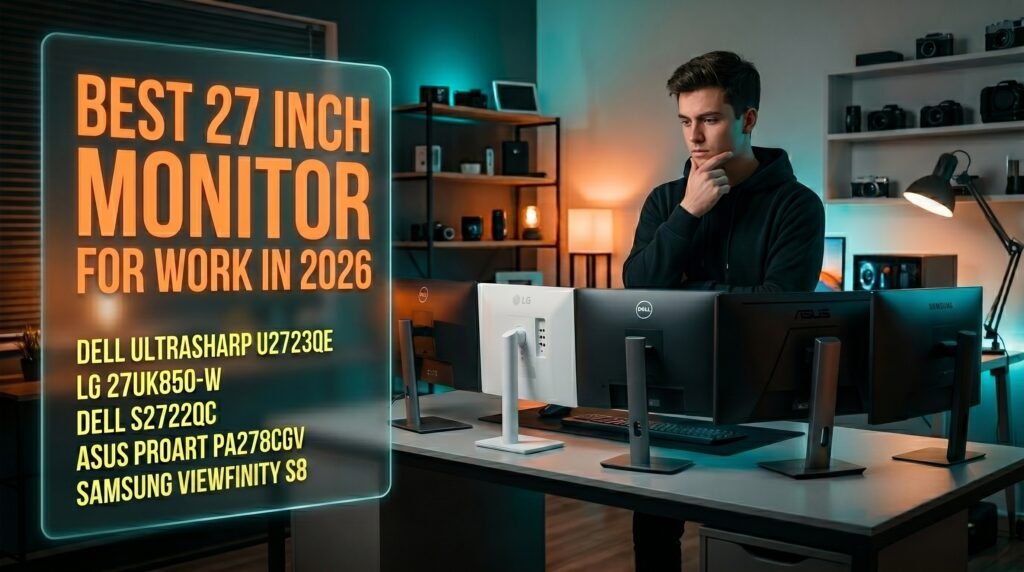
This article contains affiliate links. We may earn a commission if you buy through our links, at no extra cost to you.
Best 27 Inch Monitor for Work in 2026
27 inches is where productivity monitors make the most sense for most desk workers — large enough to comfortably run two documents side by side or keep a reference window open alongside your main work, compact enough to fit a standard desk without dominating your field of vision. The best 27 inch monitor for work isn’t the one with the highest refresh rate or the most saturated colors — it’s the one that makes 8 hours of looking at text, spreadsheets, and video calls the least fatiguing experience possible.
After researching and comparing dozens of 27 inch monitors specifically for professional work use — not gaming, not content creation — here is what actually works for home office and productivity in 2026. For the broader landscape of work monitors at every size and budget, see our guide on the best monitor for home office under $300.
Quick Answer
The Dell UltraSharp U2723QE is the best 27 inch monitor for work for most professionals — 4K IPS Black panel with factory-calibrated color accuracy, USB-C 90W charging, and build quality that justifies its price for anyone spending 6-8 hours daily in front of it. For a strong 4K alternative at roughly half the price, the LG 27UP850N-W delivers excellent panel quality with similar single-cable connectivity. Budget-conscious buyers should look at the Dell S2722QC. Creative professionals should consider the ASUS ProArt PA278CGV. Mac users wanting Samsung’s ecosystem integration should look at the Samsung ViewFinity S8.
Why 27 Inches Is the Sweet Spot for Work Monitors
The 27 inch category isn’t arbitrary — it’s where the relationship between screen real estate, pixel density, and viewing distance converges most practically for desk workers.
At a standard viewing distance of 60-80cm, a 27 inch monitor at 1440p produces a pixel density of approximately 109 PPI — sharp enough that individual pixels are invisible at normal viewing distance, comfortable enough that text rendering doesn’t require scaling adjustments. At 4K, the same 27 inch panel reaches 163 PPI — genuinely retina-class sharpness where text rendering approaches print quality.
The screen real estate at 27 inches is sufficient to comfortably display two documents side by side, or a primary application alongside a reference window, without the text becoming small enough to cause eye strain. This is the practical work use case that 24 inch monitors handle awkwardly — two windows at 24 inches requires compromising on either window size or text size.
The counterintuitive point: 4K on a 27 inch monitor is not overkill for work — it’s arguably the ideal use case for 4K. Gaming at 4K on 27 inches requires significant GPU power for a pixel density advantage that’s barely perceptible in motion. Text rendering at 4K on 27 inches produces a visible, immediately appreciable improvement in reading comfort over 1440p that anyone who works with documents or code notices within the first hour of use.
For context on how to pair your monitor with a proper arm setup, see our guide on the best monitor arm for desk — the ergonomic positioning that a monitor arm enables matters as much as the display quality itself.
The Specs That Actually Matter for Work Monitors
Panel type is the most important work monitor specification. IPS panels produce accurate colors across wide viewing angles — critical for anyone who shares their screen with colleagues or works with color-sensitive documents. VA panels offer better contrast ratios but have narrower viewing angles. For work monitors, IPS is the default recommendation for most users.
Resolution at 27 inches effectively comes down to 1440p or 4K. 1080p at 27 inches produces a PPI of 82 — low enough that individual pixels are visible at normal viewing distance. 1440p is the minimum resolution worth considering. 4K produces significantly sharper text and is worth the premium for document-heavy or code-heavy work.
Color accuracy matters differently for work versus gaming. Work monitors should prioritize accurate colors — correct color temperature for long viewing sessions, low Delta E for color consistency, and factory calibration that verifies the panel meets specifications before shipping.
Connectivity is where work monitors justify their premium over gaming alternatives. USB-C with Power Delivery — 65W minimum, 90W preferred — lets a modern laptop charge through the monitor cable, eliminating a separate charging brick. USB-A hub ports reduce the number of cables going to your laptop.
The 5 Best 27 Inch Monitors for Work in 2026
1. Dell UltraSharp U2723QE — Best Overall (~$550-600)
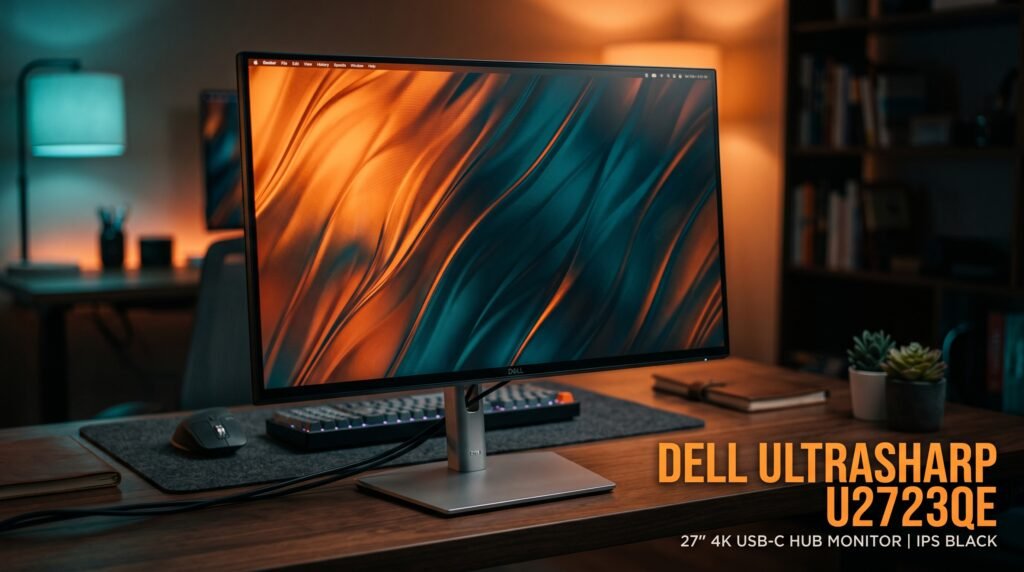
The Dell UltraSharp U2723QE is the 27 inch work monitor benchmark — 4K IPS Black panel with a contrast ratio of 2000:1, factory-calibrated to Delta E < 2, USB-C 90W Power Delivery, four USB-A ports, RJ45 ethernet, and build quality that matches the display quality.
The IPS Black panel technology is the meaningful upgrade over standard IPS. Standard IPS panels produce a grey-black in dark scenes rather than true black — reducing perceived contrast and making dark UI elements look washed out. IPS Black addresses this without the viewing angle compromise of VA. Factory calibration with individual Delta E report included in the box means you’re not gambling on panel quality.
At $550-600, it’s a significant investment — but a monitor you use 8 hours daily for 5 years costs approximately $0.55 per workday. The price premium over a $300 alternative is $0.25 per workday.
Pros: 4K IPS Black panel, factory-calibrated Delta E < 2, USB-C 90W, USB-A hub, RJ45 ethernet, KVM switch, 3-year advanced exchange warranty. Cons: $550-600 is above most home office monitor budgets, no built-in speakers, 60Hz only.
2. LG 27UP850N-W — Best 4K Under $300 (~$270-300)
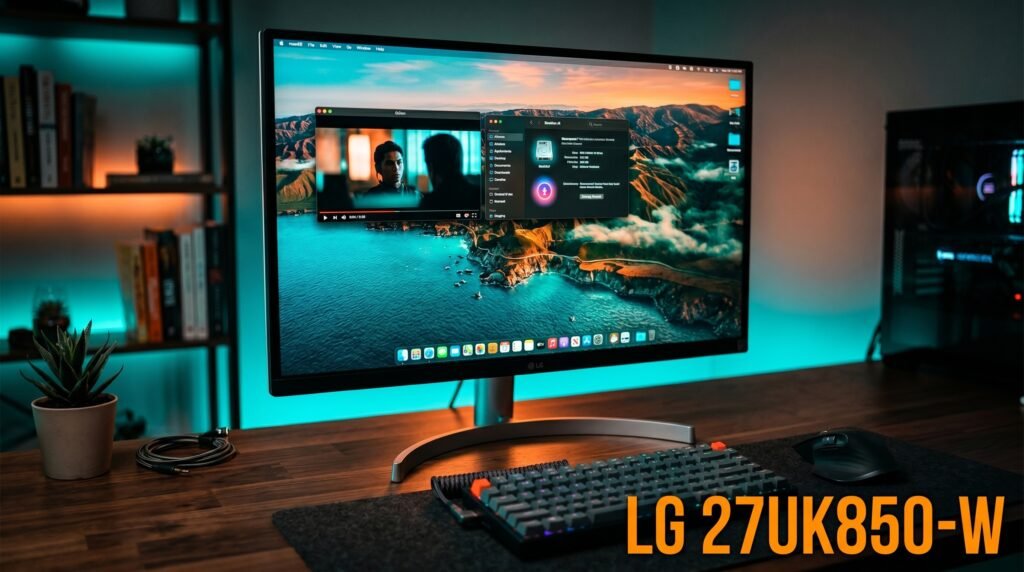
The LG 27UP850N-W is the 4K 27 inch work monitor for professionals who want the resolution and color accuracy of the UltraSharp category without the full price. 4K IPS panel, 99% sRGB coverage, USB-C with 96W Power Delivery, two HDMI ports, DisplayPort, and a built-in USB hub.
The 96W USB-C is noteworthy — it exceeds the Dell S2722QC’s 65W and matches the UltraSharp’s 90W, meaning it handles even demanding 16-inch MacBook Pro charging under sustained load. The height-adjustable stand with tilt and pivot covers the ergonomic positioning needs of most desk setups without requiring a monitor arm.
At ~$270-300, this is one of the best value-per-dollar propositions in the 4K 27-inch monitor category. The color accuracy and connectivity rival monitors costing $100-150 more.
Pros: 4K IPS, 99% sRGB, 96W USB-C PD, built-in USB hub, height-adjustable stand, excellent value for the price. Cons: No factory calibration certificate, no RJ45 ethernet, no KVM switch.
3. Dell S2722QC — Best Budget 4K 27 Inch (~$280-320)
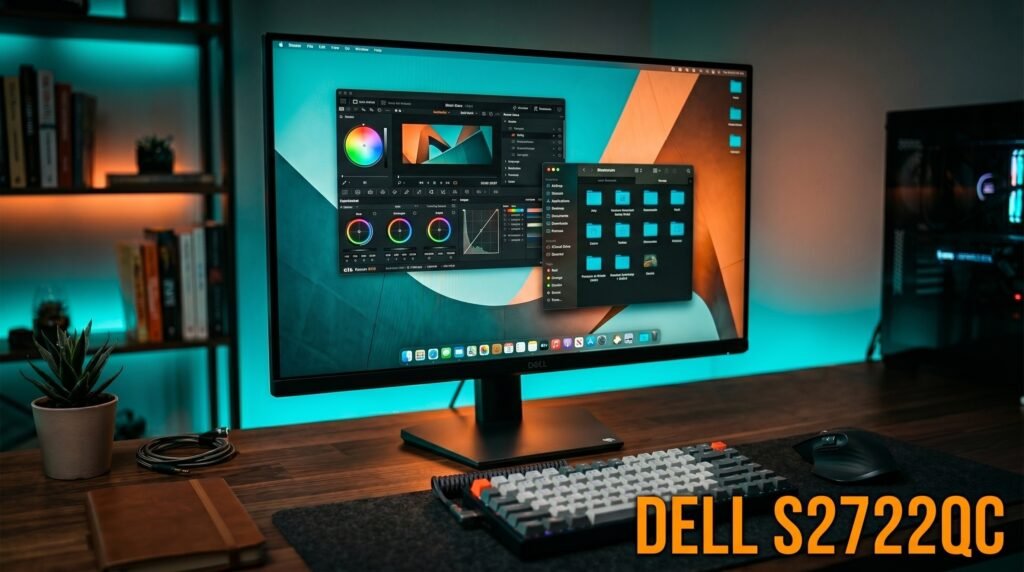
The Dell S2722QC is the entry point for 4K on a 27 inch work monitor — 4K IPS panel, USB-C 65W Power Delivery, two USB-A ports, and Dell’s reliable build quality at a price that undercuts both the UltraSharp and the LG significantly.
The tradeoffs versus the UltraSharp are real but manageable for most home office users. No factory calibration certificate — panel color consistency varies more than the UltraSharp. Standard IPS rather than IPS Black — contrast ratio at 1000:1 versus 2000:1, visible in side-by-side comparison but not noticeable in isolated daily use. For a remote worker whose primary work is document editing, video calls, and web browsing, the S2722QC delivers 4K sharpness and USB-C charging — the two features that most directly improve daily work quality.
Pros: 4K IPS at $280-320, USB-C 65W charging, Dell build quality, adjustable stand, two USB-A ports. Cons: No factory calibration, standard IPS contrast, fewer USB ports than UltraSharp, no RJ45.
4. ASUS ProArt PA278CGV — Best for Creative Professionals (~$400-450)
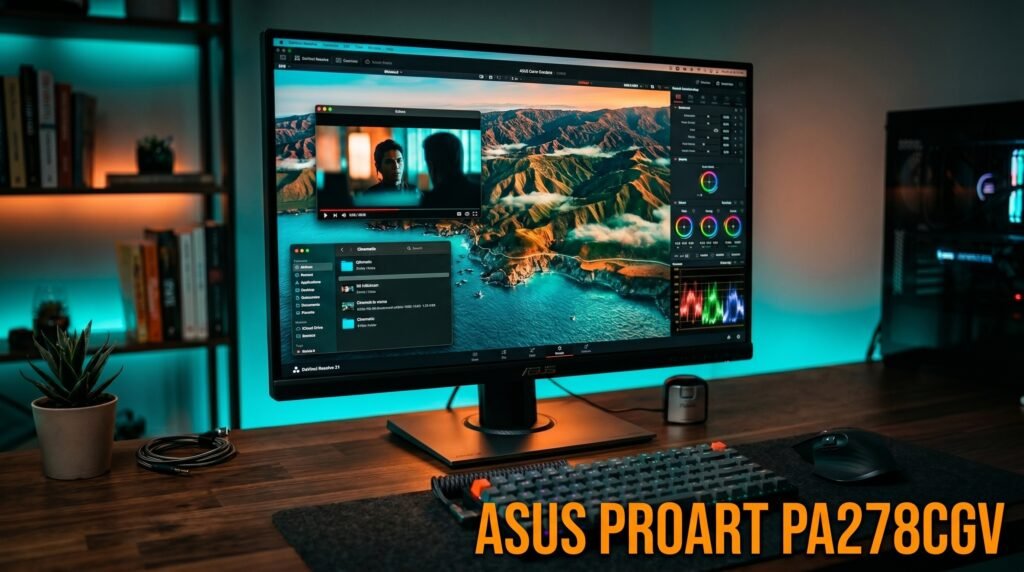
The ASUS ProArt PA278CGV targets professionals who need color accuracy for design, photography review, or video work. Factory-calibrated with Delta E < 2 and Calman Verified certification, 95% DCI-P3 coverage, 144Hz refresh rate, and USB-C with 90W Power Delivery.
1440p rather than 4K is the meaningful spec difference from the other options. At 27 inches, 1440p produces 109 PPI — adequate for text work but less sharp than 4K. The tradeoff: the ProArt’s color accuracy and Calman Verified calibration for creative work are class-leading at this price. For a home office worker who splits time between standard productivity work and color-sensitive creative review — photo editing, design feedback — the ProArt’s color credentials outperform the Dell UltraSharp at a lower price.
Pros: Factory-calibrated Delta E < 2, Calman Verified, 95% DCI-P3, USB-C 90W PD, 144Hz, hardware calibration support, full ergonomic stand. Cons: 1440p rather than 4K — less sharp text than 4K alternatives, premium pricing for color accuracy that general office workers won’t fully utilize.
5. Samsung ViewFinity S8 27″ — Best for KVM and Multi-Device (~$350-400)
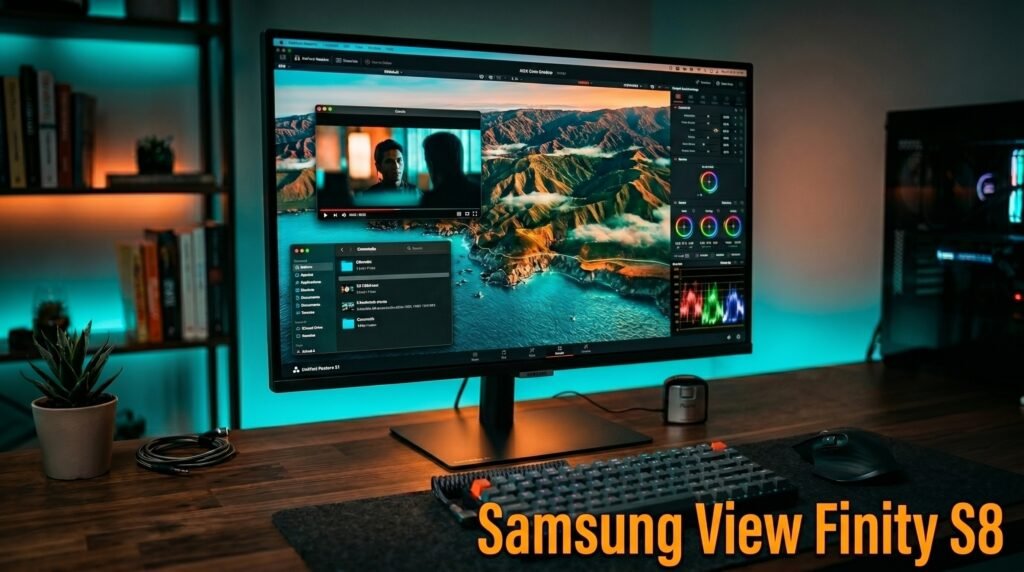
The Samsung ViewFinity S8 brings a practical feature set that stands out in the 27-inch work category: a built-in KVM switch, 4K UHD resolution, USB-C connectivity, and Samsung’s height-adjustable ergonomic stand in a clean, professional design.
The KVM switch is the standout feature for professionals who work across multiple computers. One keyboard and mouse connected to the monitor controls both a desktop and a laptop through the monitor — switching between them requires a single button press rather than physically swapping cables or using a separate KVM device. For a developer who runs a Mac and a Windows machine simultaneously, or a professional who has a work laptop and a personal desktop, this eliminates a recurring daily friction point.
HDR10 support, advanced eye care certification from TÜV, and a 3-year warranty round out the professional credentials. The design is clean and minimal — more aligned with professional desk aesthetics than Samsung’s gaming monitor lineup.
Pros: Built-in KVM switch, 4K UHD, USB-C, height-adjustable stand, TÜV certified eye care, 3-year warranty, clean professional design. Cons: Less color accuracy than Dell UltraSharp or ASUS ProArt, no factory calibration, 60Hz only, no built-in ethernet.
Comparison Table
| Product | Price | Resolution | Best For | Rating |
|---|---|---|---|---|
| Dell UltraSharp U2723QE | ~$575 | 4K IPS Black | Best overall work monitor | 9.5/10 |
| LG 27UP850N-W | ~$285 | 4K IPS | Best 4K value under $300 | 9/10 |
| Dell S2722QC | ~$300 | 4K IPS | Best budget 4K option | 8.5/10 |
| ASUS ProArt PA278CGV | ~$425 | 1440p IPS | Best for creative professionals | 8.5/10 |
| Samsung ViewFinity S8 | ~$375 | 4K IPS | Best built-in KVM | 8.5/10 |
What to Look for When Choosing a 27 Inch Work Monitor
1. Resolution — 1440p minimum, 4K preferred 1080p at 27 inches is too low a pixel density for comfortable all-day text work — individual pixels are visible at normal viewing distance. 1440p is the minimum that produces sharp text at 27 inches. 4K produces genuinely print-quality text sharpness — the improvement is immediately perceptible and makes a meaningful difference in reading comfort over 6-8 hour work sessions.
2. USB-C Power Delivery — 65W minimum For any laptop user, a monitor with USB-C PD consolidates charging and video signal into a single cable. One cable from laptop to monitor handles both data and power — the desk becomes cleaner and the laptop always charges while connected. 65W covers most 13-14 inch laptops. 96W covers all laptops including 15-16 inch MacBook Pros under sustained load.
3. Panel type for your work environment IPS is the default recommendation for most work environments — accurate colors across wide viewing angles, consistent color temperature, good performance in bright rooms. The IPS Black variant in the Dell UltraSharp delivers meaningfully better black depth than standard IPS for users who work heavily in dark mode or review dark video content.
4. Color accuracy for your work type Most office workers — email, documents, spreadsheets, video calls — don’t require factory-calibrated color accuracy. A monitor with good color out of the box is sufficient. Professionals who review color-sensitive work should prioritize Delta E < 2 factory calibration and wide color gamut coverage. Paying for color calibration you don’t use is the most common way home office workers overspend on monitor features.
5. Stand adjustability for ergonomic positioning The top of the monitor screen should sit at or slightly below eye level. Most people need to raise their monitor 5-10cm above its lowest stand position to achieve this. All five monitors on this list offer height-adjustable stands with adequate range. Fixed-height monitors requiring a monitor arm to achieve correct positioning add cost and complexity that’s unnecessary when the stand handles it natively.
FAQ
Is 27 inches too big for a work monitor at a standard desk?
At a standard viewing distance of 60-80cm, 27 inches is within the comfortable viewing range for most people — you can see the full screen without turning your head and the edges don’t feel peripheral. 32 inches at the same viewing distance starts to require head movement to see the edges. For desks where the monitor sits closer than 60cm, 24-25 inches may be more comfortable.
Should I get 1440p or 4K for a 27 inch work monitor?
For work use — documents, spreadsheets, code, web browsing — 4K at 27 inches produces noticeably sharper text than 1440p and the improvement in reading comfort over long sessions is meaningful. The GPU requirement for 4K at 60Hz in desktop use is modest — any modern laptop handles it. If budget constrains the choice, 1440p at 27 inches is entirely adequate; 4K is the upgrade worth making when budget allows.
Do I need a factory-calibrated monitor for office work?
For general office productivity work — email, documents, presentations, video calls — factory calibration is not necessary. A well-reviewed IPS panel from Dell or LG produces accurate enough color for all standard office tasks. Factory calibration becomes meaningful for professionals reviewing color-sensitive work — photography editing, graphic design, video color grading — where color accuracy directly affects work quality.
Can a 27 inch monitor work with a standing desk setup?
Yes, and the combination is particularly effective. Standing desks raise the working surface 30-40cm compared to seated height, and a height-adjustable monitor stand allows the screen to rise proportionally. All five monitors on this list have stands with sufficient height adjustment range to accommodate standing desk use. Most quality 27 inch work monitors offer 100-150mm of height adjustment, sufficient for most users transitioning between sitting and standing.
Our Final Verdict
The best 27 inch monitor for work in 2026 is the Dell UltraSharp U2723QE for professionals who spend 6-8 hours daily at their desk and want zero compromises — the IPS Black panel, factory calibration, USB-C 90W, and connectivity suite justify the $575 price. The LG 27UP850N-W at $285 is the best value play — excellent 4K IPS with 96W USB-C at nearly half the Dell’s price.
Budget-conscious buyers should go straight to the Dell S2722QC. Creative professionals should prioritize the ASUS ProArt PA278CGV. Multi-computer users who need KVM functionality should consider the Samsung ViewFinity S8. Whatever you choose, prioritize 4K resolution and USB-C Power Delivery — those two features produce the most daily impact. Check current pricing on Amazon for all five monitors before buying.