
This article contains affiliate links. We may earn a commission if you buy through our links, at no extra cost to you.
Best Mouse for Home Office in 2026
The mouse is the peripheral most home office workers spend the least time thinking about and the most hours actually using. Eight hours a day, five days a week, your hand is on that mouse — and the difference between a mouse that fits your hand and workflow and one that doesn’t compounds into real fatigue, real discomfort, and eventually real injury over months and years of daily use. The best mouse for home office work isn’t the one with the most buttons or the highest DPI spec. It’s the one that disappears into your workflow so completely you stop noticing it’s there.
After researching and comparing dozens of mice specifically for home office and productivity use — not gaming, not graphic design — here is what actually works for remote workers and desk professionals in 2026. For a complete home office desk setup beyond the mouse, see our guide on the best monitor for home office under $300.
Quick Answer
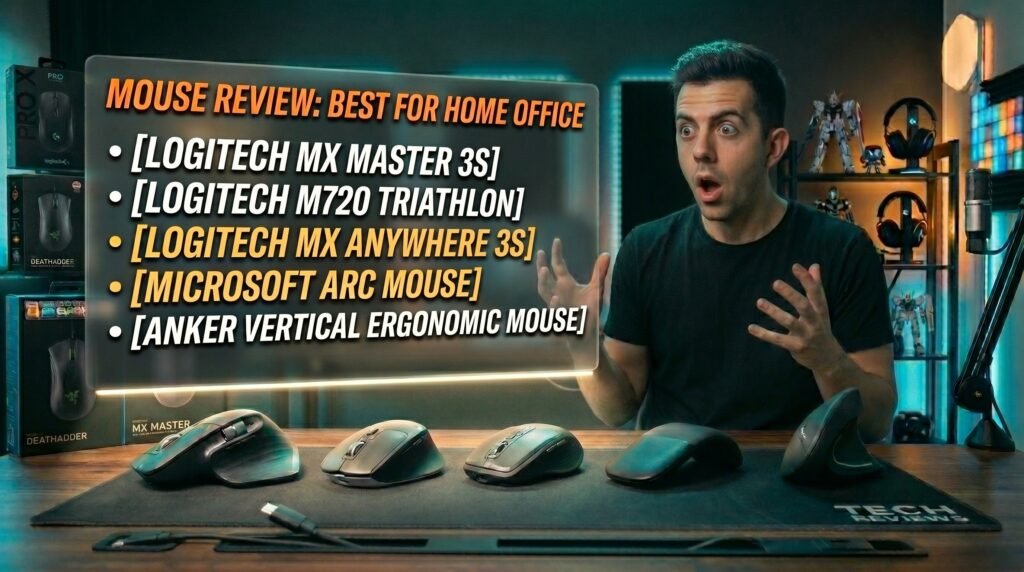
The Logitech MX Master 3S is the best mouse for home office use for most people — near-silent clicks, MagSpeed electromagnetic scroll wheel that covers a full document in seconds, and Logi Options+ software that lets you customize every button per application. For a budget option that doesn’t compromise on the essentials, the Logitech M720 Triathlon covers multi-device pairing and reliable wireless at half the price. Compact desk users should consider the Logitech MX Anywhere 3S. Minimalist setups suit the Microsoft Arc Mouse. Wrist pain sufferers should try the Anker Vertical Ergonomic Mouse before committing to premium ergonomics.
What Makes a Mouse Work for Home Office — and What Doesn’t
Gaming mice and home office mice are optimized for completely different things, and buying the wrong category is the most common mistake desk workers make.
Gaming mice prioritize polling rate, click latency, and sensor accuracy at high DPI for fast, precise cursor movement. These specs are largely irrelevant for office work — a 1000Hz polling rate and a 25,600 DPI sensor don’t improve how accurately you click a spreadsheet cell or drag a slide element. What they do add is weight optimization that can leave office users with a mouse that feels flimsy, and aggressive ergonomic shapes designed for claw or fingertip grip rather than the relaxed palm grip most desk workers use for 8-hour sessions.
Home office mice optimize for different variables: scroll wheel quality for long documents, button customization for application-specific shortcuts, multi-device Bluetooth pairing for switching between laptop and desktop, silent clicks for open-plan offices or video calls, and ergonomic shapes designed for sustained palm grip comfort.
The counterintuitive point: DPI is one of the least important specs for home office use. Most productivity work happens at 800-1200 DPI on a standard desk. The scroll wheel, button programmability, and wireless reliability matter far more than sensor specs for 8 hours of spreadsheet, browser, and document work.
For reference on how your mouse surface affects tracking and ergonomics, see our guide on the best desk mat for home office — surface consistency reduces the micro-adjustments your wrist makes throughout the day.
The Specs That Actually Matter for Office Mice
Scroll wheel quality is the single most impactful spec for office productivity. A mouse with a precision ratchet scroll wheel that takes 30 scroll clicks to move through a long document is a genuinely different — and slower — working experience than a mouse with a free-spinning or electromagnetic scroll wheel that covers the same document in 2-3 seconds. For anyone working with long documents, spreadsheets, or web pages, the scroll wheel is worth prioritizing over almost every other spec.
Button programmability determines whether your mouse adapts to your workflow or your workflow adapts to your mouse. A mouse with 3 programmable buttons that you can set to Back/Forward/Copy-Paste per application saves dozens of deliberate actions per hour across a workday. Logi Options+ from Logitech is the best software implementation of this concept — per-application button profiles that switch automatically when you change focus.
Silent vs. standard clicks matters more than most buyers anticipate. Standard mouse clicks produce 50-60 decibels — audible on video calls through most microphones, noticeable to anyone nearby. Silent mice reduce click noise to 20-30 dB. For anyone who takes video calls or works near family members, this difference is significant.
The 5 Best Mice for Home Office in 2026
1. Logitech MX Master 3S — Best Overall (~$100)
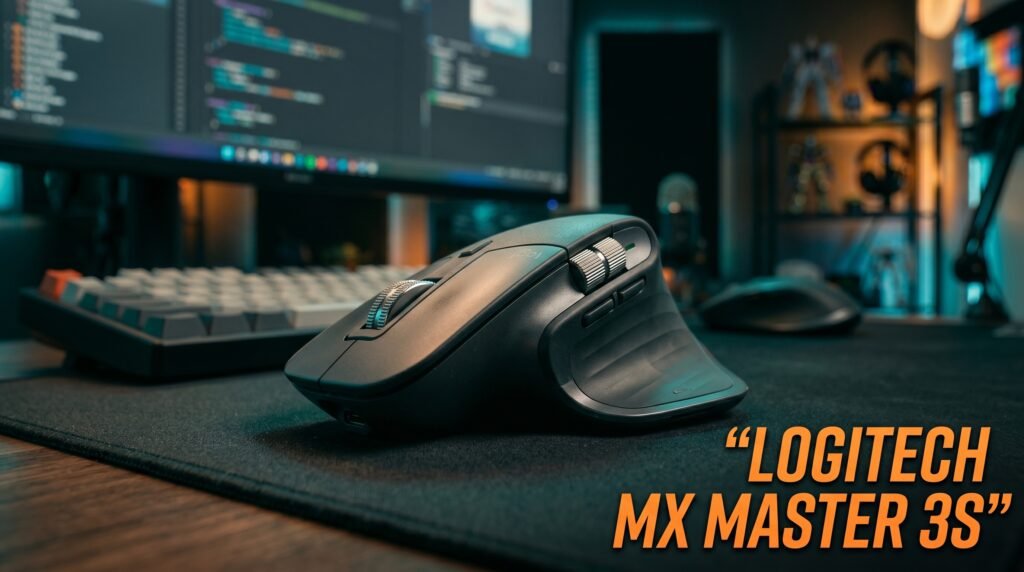
The Logitech MX Master 3S is the home office mouse that justifies its $100 price tag through daily use in a way that few peripherals do. The MagSpeed electromagnetic scroll wheel switches between precise ratchet mode and free-spinning mode automatically, covering 1000 lines per second at full speed. A document that takes 45 seconds to scroll through with a standard wheel takes 3 seconds with MagSpeed.
The silent clicks are the other meaningful upgrade — 90% quieter than standard clicks, making the mouse genuinely inaudible on video calls. Seven programmable buttons with per-application profiles in Logi Options+ turn the mouse into an application-specific tool rather than a generic pointer. Bluetooth and Logi Bolt 2.4GHz included, three-device pairing, 70-day battery life, works on glass.
Best for: Remote workers who use a mouse 6-8 hours daily and want the best-in-class scroll wheel and button customization.
Pros: MagSpeed scroll wheel, silent clicks, 7 programmable buttons with per-app profiles, Logi Bolt and Bluetooth, 70-day battery, glass-compatible sensor. Cons: $100 investment, size suits medium-large hands but may overwhelm small hands, right-hand only, Logi Options+ required for full customization.
2. Logitech M720 Triathlon — Best Mid-Range (~$50-60)
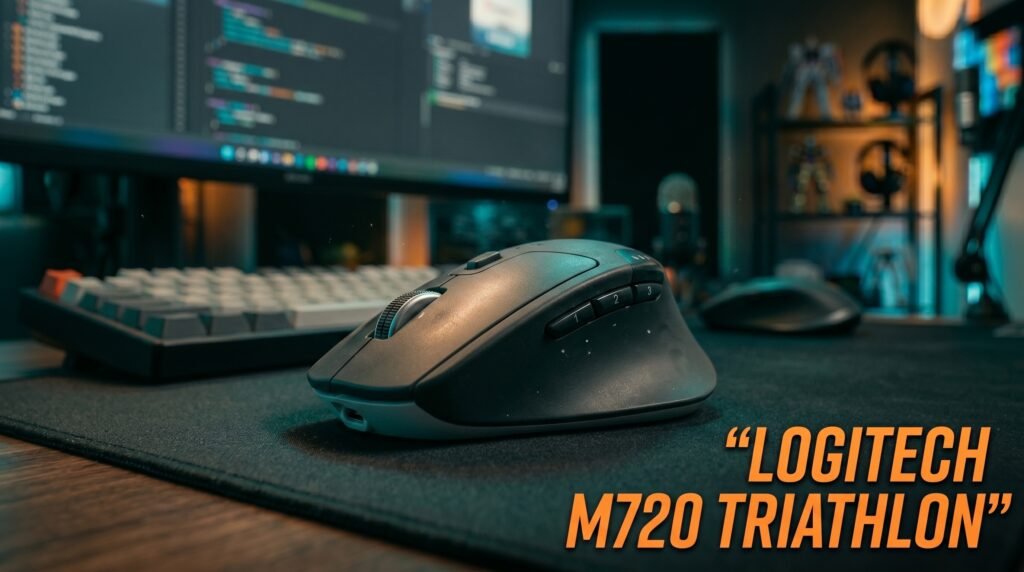
The Logitech M720 Triathlon is the recommendation for home office workers who need multi-device pairing and reliable wireless without spending $100. Three-device pairing via both Bluetooth and Unifying receiver, a hyper-fast scroll wheel that switches between ratchet and free-spinning modes, and 6 programmable buttons — all at roughly half the MX Master 3S price.
The scroll wheel doesn’t reach MagSpeed’s 1000 lines per second, but the free-spinning mode handles practical document navigation significantly better than standard ratchet wheels. The ergonomic shape fits medium to large right hands and handles 8-hour sessions without fatigue. Battery life runs approximately 24 months on a single AA battery — the longest on this list.
Best for: Multi-device home office workers who want professional wireless features at $50-60 without committing to the MX Master 3S premium.
Pros: Three-device multi-pairing, hyper-fast scroll wheel, 6 programmable buttons, 24-month battery life, Logi Options+ compatible, Unifying receiver included. Cons: No silent clicks, hyper-fast scroll not as refined as MagSpeed, right-hand only, older design compared to MX Master 3S.
3. Logitech MX Anywhere 3S — Best for Laptop and Travel (~$60-70)
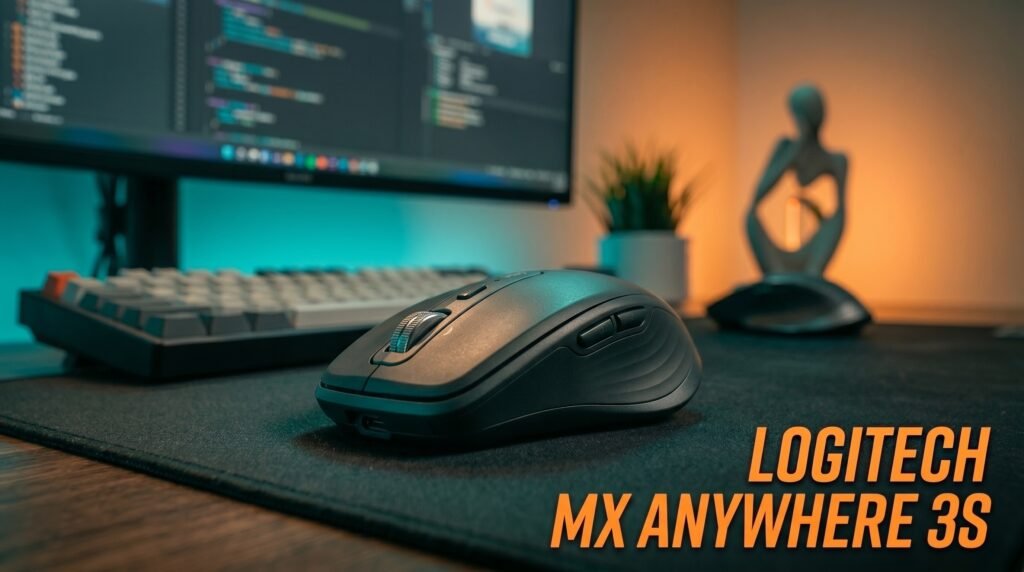
The Logitech MX Anywhere 3S applies the MX Master philosophy to a compact form factor — MagSpeed scroll wheel, silent clicks, and Logi Options+ compatibility in a mouse small enough for a laptop tray table, coffee shop table, or any space-limited setup.
The compact size is the defining characteristic. It’s noticeably smaller than the MX Master 3S — comfortable for small to medium hands as a primary mouse and for larger hands as a travel option. For home office workers who split time between a desk and a laptop used elsewhere, the MX Anywhere 3S covers both use cases without the size compromise of carrying a full-size mouse.
Best for: Home office workers who split time between a desk and remote locations, and users with smaller hands who find the MX Master 3S too large.
Pros: MagSpeed scroll wheel in compact form, silent clicks, Logi Options+ compatible, Logi Bolt and Bluetooth, works on any surface including glass. Cons: Too small for large hands as a primary desktop mouse, 6 buttons versus 7 on MX Master 3S, premium price for a compact mouse.
4. Microsoft Arc Mouse — Best for Minimalist Setups (~$60-80)
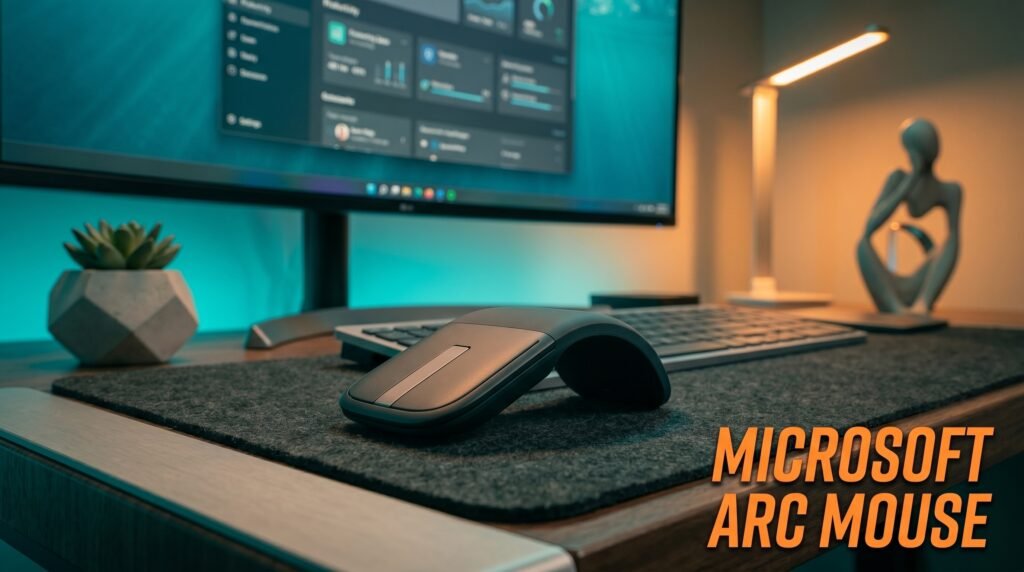
The Microsoft Arc Mouse takes a design-forward approach that prioritizes portability and aesthetics. It snaps flat for storage — completely flat, thinner than a notebook — and curves into a comfortable arc shape during use. Bluetooth only, no dongle required, and a touch-sensitive scroll strip rather than a physical scroll wheel.
The touch scroll strip divides users. It’s more gesture-like than a wheel — flick to scroll fast, drag slowly for precision — with no click noise at all. Some office workers find it more intuitive after a short adjustment period; others never adapt. What most reviews won’t tell you is that the Arc Mouse is genuinely useful for one specific person: the remote worker who carries a laptop bag daily and wants a mouse that adds almost no bulk. For a fixed desktop setup, the ergonomic tradeoffs aren’t worth it.
Best for: Frequent travelers and minimalists who prioritize pack-flat portability above all other features.
Pros: Snaps flat for minimal bag footprint, Bluetooth without dongle, silent touch scroll strip, elegant design, lightweight. Cons: No programmable buttons, touch scroll strip requires adjustment, right-hand only, no software customization.
5. Anker Vertical Ergonomic Mouse — Best for Wrist Pain (~$30-35)
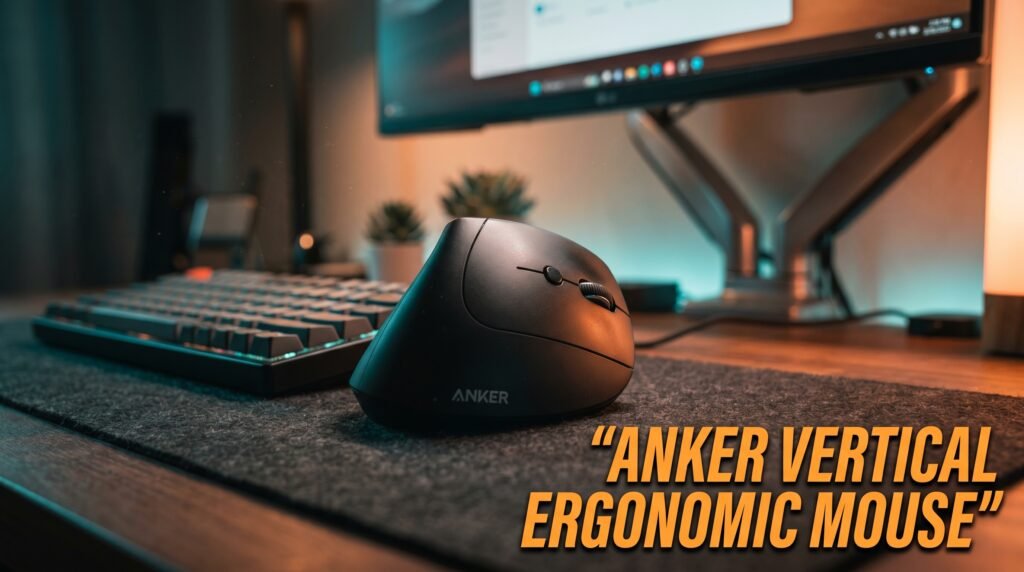
The Anker Vertical Ergonomic Mouse addresses a specific home office problem — wrist and forearm pain from sustained mouse use — at a price that makes the experiment low-risk. The 57-degree vertical angle holds your hand in a natural handshake position rather than the pronated flat position that standard mice require, reducing the forearm muscle load that causes end-of-day wrist fatigue.
At $30-35, it’s the entry point for testing whether a vertical mouse design works for your anatomy before committing to the $100 Logitech MX Vertical. Build quality is visibly below premium options — buttons have less satisfying feedback, plastic feels lighter, no software customization — but the ergonomic angle, which is what determines whether vertical mice actually help, is identical to more expensive options.
Best for: Home office workers experiencing persistent end-of-day wrist fatigue who want to test the vertical mouse format before spending $100+.
Pros: 57-degree vertical angle, $30-35 low-risk entry point, wireless 2.4GHz, 5 DPI settings, reliable connection. Cons: Budget build quality, no software customization, shorter battery life than premium options, right-hand only.
Comparison Table
| Product | Price | Best For | Rating |
|---|---|---|---|
| Logitech MX Master 3S | ~$100 | Best overall home office mouse | 9.5/10 |
| Logitech M720 Triathlon | ~$55 | Best mid-range multi-device | 9/10 |
| Logitech MX Anywhere 3S | ~$65 | Best for laptop and travel | 8.5/10 |
| Microsoft Arc Mouse | ~$70 | Best for minimalist travel setups | 7.5/10 |
| Anker Vertical Ergonomic | ~$32 | Best for wrist pain testing | 8/10 |
What to Look for When Choosing a Home Office Mouse
1. Scroll wheel quality matched to your document work If you regularly work with long documents, spreadsheets with hundreds of rows, or extensive web pages, the scroll wheel is the most important spec to evaluate. Free-spinning or electromagnetic wheels dramatically reduce the time and effort required to navigate long content. Standard ratchet wheels are fine for light browsing but become genuinely inefficient for document-heavy workflows.
2. Hand size and grip style Most home office mice use a palm grip — your entire hand rests on the mouse. Palm grip mice need to be long enough to support from the base of your palm to your fingertips. Measure from wrist crease to middle fingertip: under 17cm is small, 17-19cm is medium, over 19cm is large. The MX Master 3S fits medium to large hands; the MX Anywhere 3S fits small to medium. A mouse that doesn’t support your full palm causes hovering, which creates fatigue faster than any other ergonomic factor.
3. Wireless technology for your connection setup For a single computer, Bluetooth or 2.4GHz both work well. For multiple computers — a desktop and a laptop, or work machine and personal machine — multi-device pairing via Bluetooth is most convenient. The M720 Triathlon and MX Master 3S handle three-device pairing with dedicated connection buttons that switch without re-pairing.
4. Silent vs. standard clicks for your environment Open-plan home offices, video calls with a microphone, and shared spaces all benefit from silent click mice. The noise reduction from dampened switches is significant — 50-60dB to 20-30dB — and genuinely changes whether your mouse is audible on calls. The MX Master 3S and MX Anywhere 3S both have silent clicks; the M720 Triathlon does not.
5. Software ecosystem for button customization Logitech’s Logi Options+ is the most capable mouse customization software for home office use — per-application button profiles, gesture controls, and Flow for moving cursor between multiple computers. If you use multiple Logitech peripherals, unified software managing keyboard and mouse profiles together adds meaningful workflow efficiency.
FAQ
Is a $100 mouse worth it for home office use?
For most home office workers doing 6-8 hours of daily computer work, yes. The MX Master 3S at $100 produces a daily quality-of-life improvement that a $25 mouse doesn’t. The MagSpeed scroll wheel alone saves measurable time in document-heavy workflows, and per-application button profiles reduce repetitive actions across the workday. The upgrade cost amortized over 3-5 years of daily use is less than $0.10 per workday.
Should I use a wired or wireless mouse for home office?
Wireless for almost every home office use case. Modern 2.4GHz wireless mice have latency indistinguishable from wired in productivity use, battery life of months to years, and the cable-free desk experience that reduces clutter and allows more natural hand movement. The only reasons to prefer wired are eliminating battery charging entirely or competitive gaming — neither applies to typical home office workflows.
How often should I replace my home office mouse?
Quality mice from Logitech and Microsoft last 3-7 years of daily use before switch degradation causes double-clicking issues or scroll wheel problems. Budget mice typically last 1-3 years. The most common failure mode is double-clicking — a worn switch that registers one click as two — which appears gradually and becomes increasingly frequent before the mouse needs replacement.
Does a mouse pad matter for home office use?
Yes, for two reasons. Mouse tracking accuracy is consistently better on a quality mouse pad surface than on a bare desk — particularly on glass, glossy wood, or highly textured surfaces. A large desk mat under both keyboard and mouse standardizes the surface angle and texture, reducing the micro-adjustments your wrist makes to compensate for surface variation and decreasing end-of-day fatigue.
Our Final Verdict
The best mouse for home office use in 2026 is the Logitech MX Master 3S for most desk workers — the MagSpeed scroll wheel, silent clicks, and per-application button customization through Logi Options+ justify the $100 price for anyone using a mouse 6-8 hours daily. The Logitech M720 Triathlon is the right call for multi-device users who want professional wireless at half the price. If wrist pain is the primary concern, start with the Anker Vertical Mouse at $30 to test the vertical design before committing to a premium ergonomic option. Check current pricing on Amazon for all five options in this guide.