This article contains affiliate links. We may earn a commission if you buy through our links, at no extra cost to you.
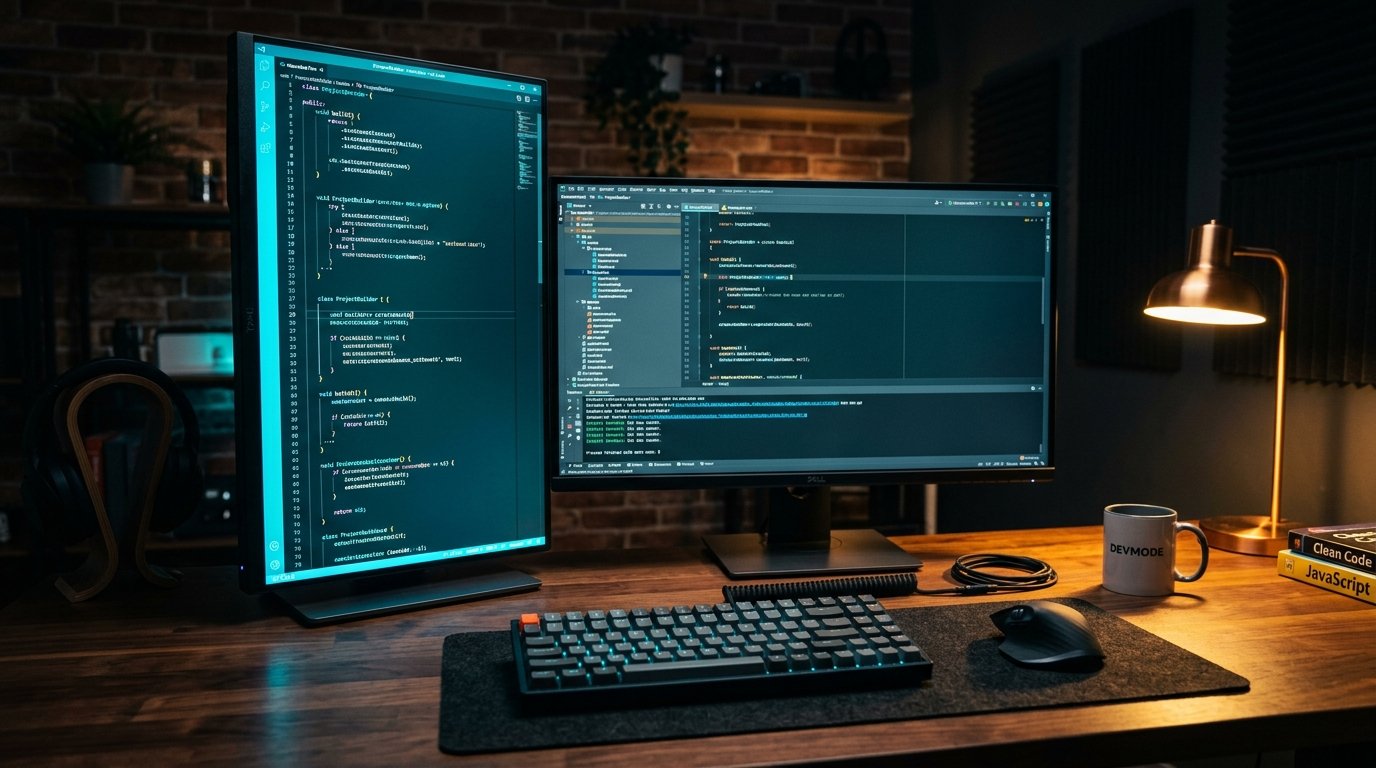
Rotate a monitor 90 degrees into portrait mode and something clicks for developers: you suddenly see an entire function, a full log file, or a complete pull request without scrolling. Code is tall, not wide — and a vertical monitor for coding matches that shape. Portrait orientation shows 60-100 lines of code at once versus 30-50 in landscape, which means less scrolling and better grasp of code structure.
After researching pivot mechanisms and comparing how monitors actually behave when rotated, here’s what holds up. This guide covers the top picks for 2026, explains the one spec that separates a good vertical monitor from a frustrating one, and helps you set up portrait mode the right way. For the broader dev-monitor picture, see our guide to the best monitor for programming.
Quick Answer
The ASUS ProArt PA278QV is the best vertical monitor for coding for most developers — a 27-inch 1440p IPS panel with a smooth 90° pivot and, crucially, color that stays consistent when rotated. For the sharpest text in portrait, the Dell UltraSharp U2723QE 4K is the upgrade. Budget-focused devs should grab the Dell P2422H at around $200 as a dedicated vertical second screen.
The One Spec That Actually Matters: A Real Pivot Stand
Here’s the thing most buyers miss until it’s too late: “vertical monitor” isn’t a category of monitor you buy — it’s a capability you enable. Almost no monitors are manufactured in portrait. What you actually need is a monitor whose stand physically pivots 90 degrees, or a VESA arm that rotates.
This trips people up constantly. They buy a cheap monitor, get it home, and discover the stand only tilts — it won’t rotate to portrait at all. What most reviews won’t tell you is that a huge number of budget monitors have tilt-only stands, so “vertical monitor for coding” really means “monitor with a proper pivot stand.”
Look for the words “pivot” or “90-degree rotation” explicitly in the specs, not just “adjustable.” Every monitor on this list pivots. The ASUS ProArt and Dell P-series models have detents that lock cleanly at 90 degrees, so rotation takes seconds and stays put.
A concrete scenario: a developer buys a monitor expecting to stand it vertically for reviewing long files, only to find the stand won’t turn. The fix is either returning it or buying a $30-100 VESA arm. Check the pivot spec first, and you skip that whole headache. For the arm route, see our guide on whether a monitor arm is worth it.
Why Color Shift Ruins Cheap Vertical Monitors
The counterintuitive problem with vertical monitors is one nobody warns you about: cheap panels look worse when rotated.
Standard budget monitors — especially TN and some VA panels — shift color and brightness depending on the viewing angle. In landscape, you’re looking straight on and it’s fine. But rotate to portrait, and the top of the screen is now far from your eye at a different angle than the bottom. On a poor panel, the top of your code looks slightly darker or color-shifted compared to the bottom.
We found that this is the single biggest reason developers get disappointed with a vertical setup. They rotate a cheap monitor and the image looks uneven, and they blame portrait mode itself — when the real culprit is the panel.
The fix is an IPS panel, which holds color and brightness consistent across wide viewing angles. That’s why the ASUS ProArt PA278QV stands out here: it’s factory-calibrated IPS with Delta E < 2, so when you rotate it, the text and colors stay uniform top to bottom. For pure code, uniform is what you want — no distracting brightness gradient down a 27-inch column of text.
The honest truth is that for a vertical coding monitor, panel type matters more than resolution. A consistent 1440p IPS beats a color-shifting 4K panel every time in portrait.
The 4 Best Vertical Monitors for Coding in 2026
Comparison Table
| Product | Price | Best For | Rating |
|---|---|---|---|
| ASUS ProArt PA278QV | ~$230 | Best overall vertical | 9.5/10 |
| Dell UltraSharp U2723QE | ~$580 | Best 4K (sharpest text) | 9/10 |
| ASUS ProArt PA278CV | ~$300 | Best USB-C single-cable | 8.5/10 |
| Dell P2422H | ~$200 | Best budget second screen | 8.5/10 |
1. ASUS ProArt PA278QV — Best Overall (~$230)
The ASUS ProArt PA278QV is the vertical coding monitor to beat. It’s a 27-inch 1440p IPS panel with a professional ergonomic stand that tilts, swivels, pivots, and adjusts height — the pivot is smooth and locks cleanly at 90 degrees. What makes it stand out for vertical use specifically is the factory calibration: Calman Verified with Delta E < 2, so color stays uniform when you rotate it.
At around $230, it delivers professional-grade panel quality for far less than most ProArt models.
Best for: Developers who want the best balance of price, panel quality, and a pivot stand that just works.
Real-world detail: The color consistency is the vertical-specific advantage — rotate it to portrait and the top of a 27-inch column of code looks identical in brightness to the bottom, where a cheaper panel would show an uneven gradient over a long file.
Pros: Excellent IPS with Delta E < 2, smooth 90° pivot, height adjustable, 100% sRGB, USB hub, strong value.
Cons: 1440p not 4K (less sharp than 4K in portrait), 75Hz, no USB-C on this model.
2. Dell UltraSharp U2723QE — Best 4K for Sharpest Text (~$580)
The Dell UltraSharp U2723QE is the pick when text sharpness in portrait is your priority. It’s a 27-inch 4K IPS Black panel — 163 PPI means razor-sharp code characters, and rotated to portrait, that density makes long files exceptionally crisp. The stand pivots to vertical, and IPS Black’s 2000:1 contrast keeps dark-theme editors looking genuinely dark.
It also includes a USB-C dock (90W charging, ethernet), so a single cable handles everything even in vertical orientation.
Best for: Developers who want the sharpest possible text in portrait and a single-cable dock.
Real-world detail: At 4K in portrait, you get both more lines and sharper characters — a dense config file or a long stack trace renders with crisp edges that reduce the eye effort of scanning code for hours.
Pros: 4K 163 PPI (sharpest text), IPS Black contrast, pivots to vertical, USB-C dock with ethernet, factory calibrated.
Cons: Most expensive here, 4K in portrait may need display scaling tweaks, overkill as a pure second screen.
3. ASUS ProArt PA278CV — Best USB-C Single-Cable (~$300)
The ASUS ProArt PA278CV is the PA278QV’s USB-C sibling — same 27-inch 1440p IPS quality and pivot stand, with 65W USB-C power delivery added. For a laptop-based developer who wants to rotate a screen to portrait and connect it with one cable that also charges, this is the sweet spot.
The pivot stand and color-accurate IPS carry over, so it handles vertical orientation just as cleanly as the PA278QV.
Best for: Laptop developers who want vertical orientation plus single-cable USB-C connectivity.
Real-world detail: The 65W USB-C is the practical win — rotate it vertical beside your laptop, connect one cable, and it drives the portrait display while charging the laptop, keeping the desk clean.
Pros: 1440p IPS with pivot, USB-C 65W charging, factory calibrated Delta E < 2, full ergonomic stand.
Cons: Pricier than the PA278QV for the USB-C addition, 1440p not 4K, 75Hz.
4. Dell P2422H — Best Budget Second Screen (~$200)
The Dell P2422H is the smart budget pick for a dedicated vertical monitor beside your main display. It’s a 24-inch Full HD IPS panel with a stand that tilts, swivels, pivots, and adjusts height — proper 90° rotation at a low price — plus 99% sRGB and a built-in USB hub. The 24-inch size is ideal in portrait: tall enough to show plenty of code, not so tall it forces head movement.
Being IPS, it avoids the color-shift problem that plagues cheap vertical setups.
Best for: Developers adding a dedicated portrait second screen for docs, logs, or file trees on a budget.
Real-world detail: The 24-inch size is the sweet spot for a vertical second monitor — a 32-inch panel in portrait becomes so tall you crane your neck to read the top, while this 24-inch fits comfortably in your peripheral vision beside a landscape main display.
Pros: Genuine pivot stand, IPS (no color shift), 99% sRGB, USB hub, ideal 24″ portrait size, low price.
Cons: 1080p (less sharp than 1440p/4K), 60Hz, smaller than the 27″ options.
What to Look for When Choosing a Vertical Monitor for Coding
1. A stand with genuine 90° pivot This is the non-negotiable. Confirm the spec explicitly says “pivot” or “90-degree rotation,” not just “tilt” or “adjustable.” Many budget monitors only tilt. If your preferred monitor doesn’t pivot, budget for a VESA arm that does.
2. IPS panel to avoid color shift In portrait, a wide column of screen sits at varying angles to your eye. IPS panels keep brightness and color uniform top to bottom; cheaper TN/VA panels show an uneven gradient. For code, uniform matters more than fancy specs.
3. 24 or 27 inches — not 32 27 inches is the sweet spot for a primary vertical display; 24 inches is ideal for a secondary portrait screen. A 32-inch monitor in portrait becomes uncomfortably tall, forcing you to move your head to read the top and bottom.
4. Resolution for text sharpness 1440p is the practical minimum for crisp text in portrait; 4K is sharper still if budget allows. Below 1440p on a 27-inch screen, text starts looking soft when rotated. On a 24-inch second screen, 1080p is acceptable.
5. A sturdy base Portrait orientation makes a monitor top-heavy. A flimsy stand wobbles every time you type or bump the desk. The professional stands on Dell P-series and ASUS ProArt models are weighted to stay stable when rotated.
FAQ
Is a vertical monitor good for coding?
Yes. Portrait orientation shows significantly more lines of code at once — typically 60-100 versus 30-50 in landscape — which reduces scrolling and makes it easier to understand code structure, review long files, and read logs or pull requests. Most developers use a vertical monitor as a secondary screen alongside a landscape main display for the best of both orientations.
Do I need a special monitor to use it vertically?
Not a special panel, but you need a stand that physically pivots 90 degrees, which not all monitors have. Look for “pivot” or “90-degree rotation” explicitly in the specs. If your monitor only tilts, you can add a VESA-compatible monitor arm that rotates to portrait, which works with almost any monitor.
What size monitor is best for vertical coding?
27 inches is the sweet spot for a primary vertical monitor — enough height to show 60-80 lines of code comfortably while fitting most desks. 24 inches works well for a secondary portrait screen or smaller spaces. Avoid 32-inch monitors in portrait, since they become so tall you have to move your head to see the top and bottom edges.
Should I get 4K or 1440p for a vertical coding monitor?
1440p is the practical sweet spot — sharp text in portrait at a reasonable price. 4K gives noticeably crisper characters and fits more content, which is ideal if budget allows, though you may need display scaling. More important than resolution is an IPS panel, which keeps color and brightness uniform when the screen is rotated.
Our Final Verdict
The best vertical monitor for coding in 2026 is the ASUS ProArt PA278QV for most developers — a smooth 90° pivot, IPS panel that stays color-consistent when rotated, and professional quality at around $230. For the sharpest text in portrait, step up to the Dell UltraSharp U2723QE 4K, and for a dedicated budget second screen, the Dell P2422H at around $200 is ideal. Confirm the stand truly pivots and choose IPS to avoid color shift — those two checks matter more than any other spec. Check current pricing on Amazon and see more of your code at once.