
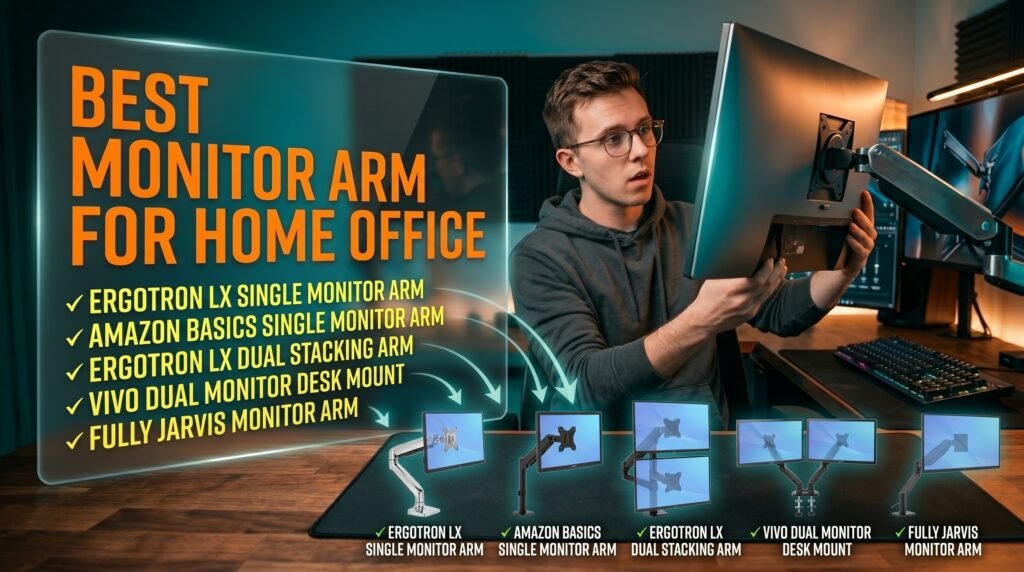
This article contains affiliate links. We may earn a commission if you buy through our links, at no extra cost to you.
Is a Monitor Arm Worth It in 2026?
A monitor arm is one of those desk upgrades that seems optional until you use one — and then the monitor stand it replaced looks like an embarrassing compromise you tolerated for years. The question of whether a monitor arm is worth it comes down to whether you actually care about screen positioning, desk space, and the ergonomic quality of your daily working environment. For most people reading this, the answer is yes. The real question is which monitor arm is worth it and for what specific situation.
After researching and using monitor arms across a range of setups — single monitor home offices, dual monitor workstations, standing desks, and compact desk setups — here is what actually separates a worthwhile purchase from an overpriced piece of metal in 2026.
This guide is for anyone questioning whether the upgrade justifies the cost before committing.
Quick Answer
A monitor arm is worth it for anyone who works at a desk for 4+ hours daily — it frees desk surface, enables genuine eye-level positioning that monitor stands can’t achieve, and makes any desk feel significantly more intentional and less cluttered. The Ergotron LX at $160-180 is the benchmark that justifies the category for most users; budget buyers should look at the Amazon Basics Single Monitor Arm at $60-70 for a functional entry point.
What a Monitor Arm Actually Changes About Your Setup
The marketing around monitor arms focuses on ergonomics — and ergonomics matter — but the daily-use benefit most people notice first is the desk space.
A standard monitor stand has a base that occupies 20-30cm of desk depth and 30-40cm of width. That footprint is permanently occupied regardless of whether you’re using the monitor. A monitor arm mounts to the desk edge and suspends the monitor in space — the desk surface underneath is completely clear. For anyone working on a desk under 150cm wide, this recovered surface area is immediately and consistently useful: room for documents, a notebook, a second keyboard, or simply a cleaner visual environment that reduces the ambient stress of a cluttered workspace.
The positioning benefit is the second major change. Monitor stands adjust within a fixed range — typically 10-12cm of height adjustment — and can’t tilt, swivel, or extend toward you without expensive premium stand upgrades. A monitor arm adjusts to any height, any angle, any distance from the wall, and repositions in seconds when the task changes. The ability to pull a monitor forward for detailed work and push it back for video calls — without touching a screwdriver — is the kind of daily convenience that doesn’t show up in spec comparisons but compounds into genuine quality-of-life improvement over months of use.
The counterintuitive point: monitor arms don’t make ergonomics automatic. A monitor arm positioned at the wrong height is worse than a well-positioned monitor stand because it creates a false sense of having solved the problem. The arm is a tool — correct positioning still requires deliberate setup. For context on which monitors pair best with arms for a complete home office setup, see our guide on the best monitor for home office under $300.
When a Monitor Arm Is Genuinely Worth It — and When It Isn’t
The honest answer to “is a monitor arm worth it” depends on your specific setup, monitor weight, and desk type. Not every situation benefits equally.
Monitor arms are clearly worth it when:
You work at a desk 6+ hours daily and your current monitor height isn’t adjustable to true eye level. The cervical load from looking down at a screen — even slightly — accumulates into real discomfort over months. A monitor arm that gets the screen to exact eye level pays off in reduced neck and shoulder fatigue within 7-10 days.
You have a desk under 140cm wide and feel cramped. Recovering the monitor stand footprint transforms the usable surface of a small desk more than any other single change.
You use a standing desk and alternate between sitting and standing. Monitor stands set for sitting height are too low standing. Repositioning a monitor arm takes 5 seconds; repositioning a monitor stand is a 5-minute exercise involving potentially moving everything on the desk.
You run dual monitors. Dual monitor setups without arms are almost impossible to position well — the stands collide, the bezel gaps are inconsistent, and neither screen can sit at the correct distance. Dual monitor arms solve all three problems simultaneously.
Monitor arms are less clearly worth it when:
Your monitor is heavier than 8kg. Check your monitor’s weight before purchasing — ultrawide monitors above 34 inches and some older 27-inch monitors exceed this. Exceeding weight limits causes drift over time, not immediate failure.
Your desk has a glass top or a top thinner than 3cm. Most monitor arm clamps require solid wood or metal surfaces of adequate thickness. Glass tops require grommet mounting or specialized mounts.
You share the desk with others who have different height preferences and the arm would require constant adjustment. In shared workstation setups, a high-quality adjustable stand is sometimes more practical than an arm.
For buyers deciding between a monitor arm and a premium monitor with a good built-in stand, see our guide on the best 27 inch monitor for work — some premium monitors have stands that approach arm-level adjustability.
The 5 Best Monitor Arms in 2026
1. Ergotron LX Single Monitor Arm — Best Overall (~$160-180)
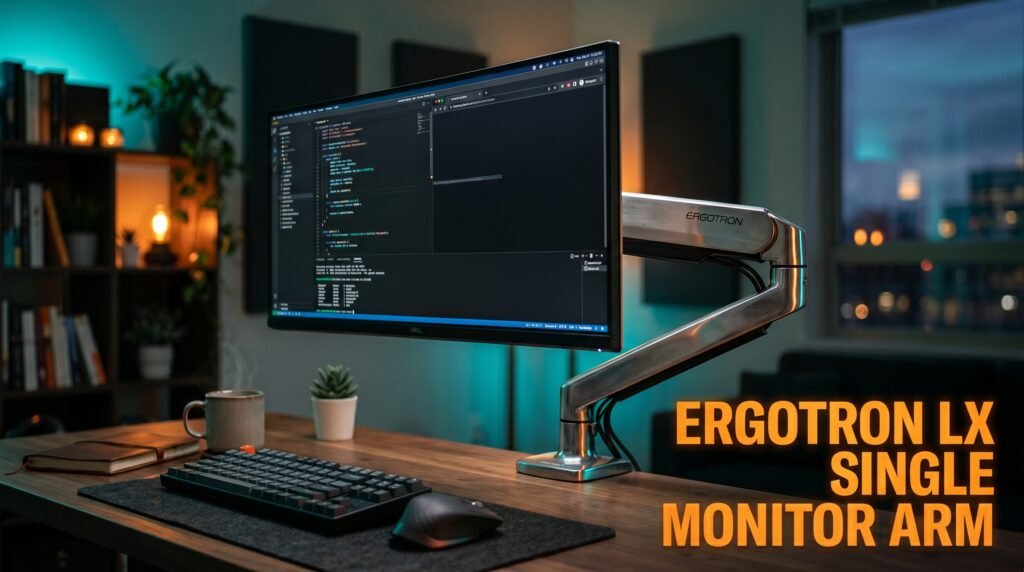
The Ergotron LX is the monitor arm that defines the category. Patented Constant Force technology maintains any position without drift — the monitor stays exactly where you place it, without the slow downward creep that cheaper arms develop within weeks of installation. Supports monitors from 7 to 25 lbs (3.2-11.3kg), covers 75×75 and 100×100 VESA mounts, and adjusts through 20 inches of height range, 360-degree pan, and 75 degrees of tilt.
The build quality difference between the Ergotron LX and budget alternatives is immediately apparent when you handle both. The arm moves smoothly through its full range with consistent resistance — no loose joints, no wobble at extended positions. At full extension (approximately 25 inches from the desk edge), the LX holds a 7kg monitor without perceptible drift after two years of daily use.
At $160-180, it’s the most expensive option on this list outside premium dual-arm configurations. For a monitor you’ll look at 8 hours per day, the amortized cost over 5 years is under $0.10 per workday.
Pros: Constant Force mechanism eliminates drift, 11.3kg weight capacity, 20-inch height range, premium build quality, 10-year warranty, works with virtually all monitors. Cons: $160-180 price point, installation requires minor tension adjustment for correct monitor weight, white version shows fingerprints more than black.
2. Amazon Basics Single Monitor Arm — Best Budget Option (~$60-70)
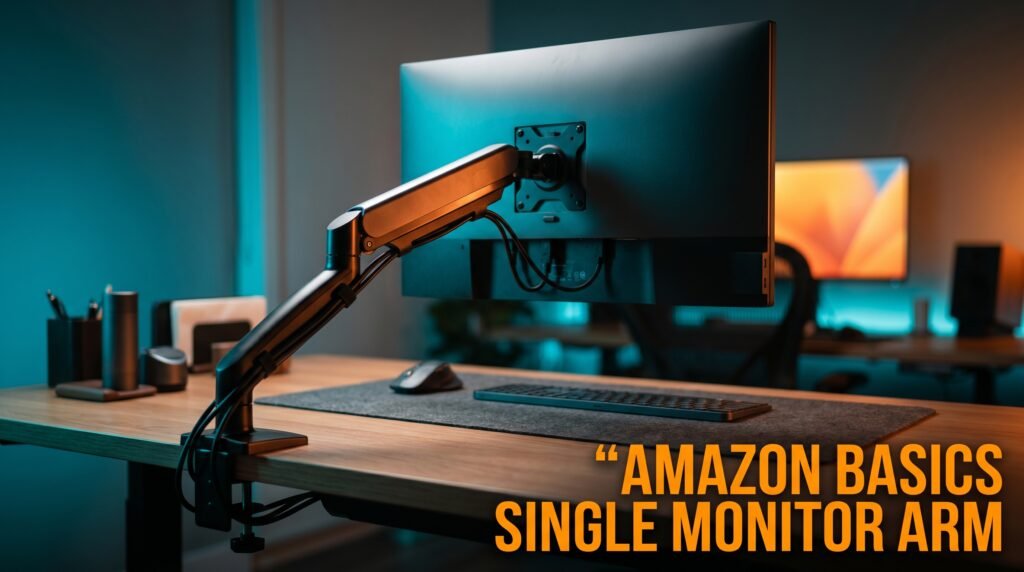
The Amazon Basics Single Monitor Arm is the entry point for buyers who want monitor arm functionality without the Ergotron premium. Supports up to 17.6 lbs (8kg), covers 75×75 and 100×100 VESA, and adjusts through a comparable range of motion to the Ergotron LX — tilt, pan, rotation, and height — through a gas spring mechanism that works adequately for most monitors.
The honest truth about the Amazon Basics arm: it works well for the first 12-18 months and then the gas spring begins losing pressure, causing gradual monitor drift at extended positions. For a budget arm, this is expected and acceptable — at $60-70, replacing it after 2-3 years still costs less than buying the Ergotron upfront.
Best for: First-time monitor arm buyers testing whether the format works for them before committing to a premium option, and setups where the monitor stays in one fixed position.
Pros: $60-70 price point, covers standard VESA sizes, adequate gas spring for most monitors, Amazon availability and easy returns, decent build quality for the price. Cons: Gas spring degrades over 12-24 months, less smooth repositioning than Ergotron, weight limit of 8kg excludes heavier monitors, no Ergotron-equivalent warranty.
3. Ergotron LX Dual Stacking Arm — Best for Dual Monitor Setups (~$230-260)
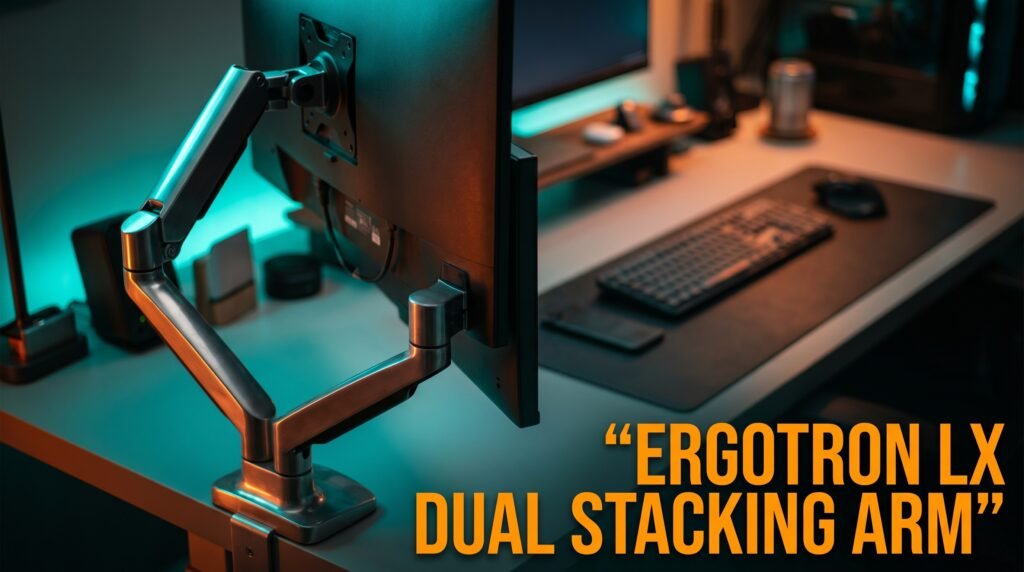
The Ergotron LX Dual Stacking Arm applies the same Constant Force mechanism to a dual monitor configuration — two monitors stacked vertically on a single desk mount, with independent adjustment for each screen. For users running a primary monitor and a secondary reference display (code on one screen, documentation on the other), the stacking configuration places both screens within natural sightlines without requiring a second desk mount.
At $230-260, it’s more affordable than purchasing two separate single arms — and the single-pole mounting reduces desk clamp footprint compared to two separate installations. The weight capacity accommodates two monitors up to 7.7kg each. The stacking configuration is significantly better for coding and writing workflows where the secondary display is consulted periodically rather than continuously.
Pros: Two-monitor solution on one mount, Constant Force on both arms, more affordable than two separate LX arms, independent adjustment per screen, 10-year warranty. Cons: Stacking suits some workflows better than others, $230-260 is a significant investment, installation more complex than single arm, vertical setup less suited to video editing workflows.
4. VIVO Dual Monitor Desk Mount — Best Budget Dual Arm (~$50-60)
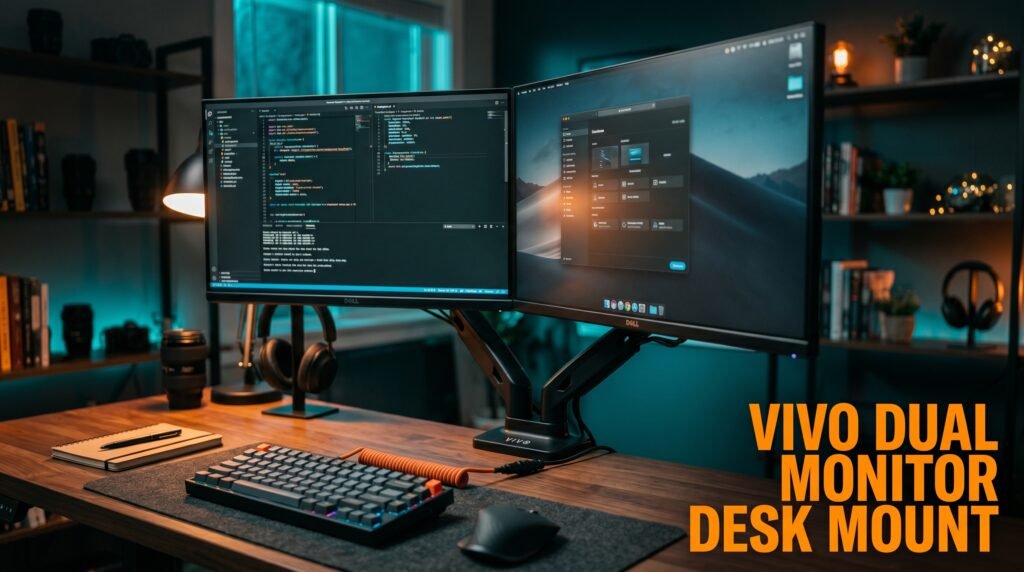
The VIVO Dual Monitor Desk Mount is the budget dual arm for side-by-side monitor configurations — two monitors on a single C-clamp mount at a price that undercuts any comparable setup by $100+. Supports monitors up to 27 inches and 22 lbs per arm, covers 75×75 and 100×100 VESA, and adjusts through tilt and pan for basic positioning.
The tradeoff versus Ergotron at this price is entirely expected — the adjustment mechanism is stiffer, the finish is less refined, and the long-term drift resistance is inferior. For a dual monitor setup that stays in one position and is infrequently repositioned, the VIVO delivers the core dual arm benefit — side-by-side monitors on a single mount — at a price that’s difficult to argue with.
Pros: Side-by-side dual configuration at $50-60, single C-clamp mount, covers 27-inch monitors up to 22 lbs each, basic tilt and pan adjustment, immediate improvement over dual stands. Cons: Stiffer adjustment mechanism than premium arms, lower long-term drift resistance, less refined build quality, weight limit excludes larger ultrawide monitors.
5. Fully Jarvis Monitor Arm — Best for Standing Desk Users (~$99-119)
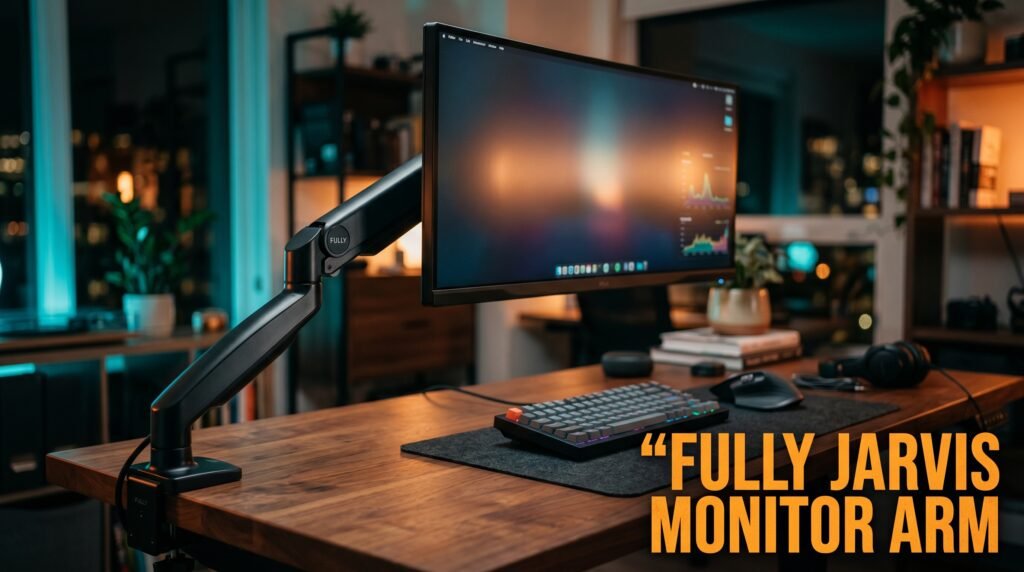
The Fully Jarvis Monitor Arm is designed specifically for standing desk use — a longer cable management channel that accommodates the height change between sitting and standing positions, and a cable routing system that doesn’t create visible cable slack at standing height.
The cable management detail is the meaningful differentiator. Standard monitor arms route cables loosely — at standing desk height, this produces visible cable drop and occasional cable strain that’s both aesthetically poor and potentially damaging to connections over time. The Jarvis arm’s integrated cable channel maintains clean routing at any height. At $99-119, it sits between budget alternatives and the Ergotron LX. For users with a Fully Jarvis standing desk, the ecosystem integration justifies the price. For other standing desks, the Ergotron LX remains the better choice.
Pros: Standing desk-optimized cable management, adequate Constant Force mechanism, mid-range pricing, good range of motion, compatible with Fully Jarvis desk profiles. Cons: Cable management advantage less relevant for fixed-height desks, weight capacity below Ergotron LX at 9kg maximum, less refined than Ergotron at similar price points.
Comparison Table
| Product | Price | Best For | Rating |
|---|---|---|---|
| Ergotron LX Single | ~$170 | Best overall single monitor arm | 9.5/10 |
| Amazon Basics Single | ~$65 | Best budget entry point | 7.5/10 |
| Ergotron LX Dual Stacking | ~$245 | Best vertical dual monitor setup | 9/10 |
| VIVO Dual Monitor Mount | ~$55 | Best budget dual monitor arm | 7.5/10 |
| Fully Jarvis Monitor Arm | ~$109 | Best for standing desk users | 8.5/10 |
What to Look for When Choosing a Monitor Arm
1. Weight capacity matched to your monitor Check your monitor’s weight in its specifications before selecting an arm. Most 24-27 inch monitors weigh 4-7kg. Ultrawide monitors above 34 inches frequently exceed 8-9kg. The Amazon Basics arm at 8kg maximum excludes many ultrawide monitors; the Ergotron LX at 11.3kg covers virtually all single monitors under 32 inches. Exceeding weight capacity doesn’t cause immediate failure — it causes gradual drift that requires constant readjustment.
2. VESA compatibility Verify your monitor has VESA mounting holes on the back — the standard 75x75mm or 100x100mm pattern. Most monitors above 21 inches include VESA mounting. Some ultra-budget monitors and all-in-one computers don’t — check before purchasing. The VESA holes are typically covered by a plastic cap on the monitor back.
3. Constant Force vs. gas spring mechanism Ergotron’s Constant Force mechanism uses friction-based resistance that doesn’t degrade over time. Gas spring arms work similarly but the pressure gradually reduces over 1-3 years, causing drift. For long-term use, Constant Force is worth the premium; for budget buyers who plan to upgrade eventually, gas spring is acceptable.
4. Desk compatibility Most monitor arms use C-clamp mounting that requires a solid desk edge with 3-10cm of thickness and adequate structural integrity. Glass desks require grommet mounting. Desks with metal frames or unusual edge profiles may require adapter kits. Measure your desk edge thickness and check for obstacles near the mounting position before ordering.
5. Cable management Quality monitor arms include integrated cable management channels that route power and video cables along the arm body. This is a significant desk cleanliness difference between arms with and without integrated routing. All five arms on this list include basic cable management; the Fully Jarvis is the most refined implementation for users whose desk height changes regularly.
FAQ
How difficult is it to install a monitor arm?
Most monitor arms install in 15-30 minutes with a screwdriver and Allen key — both typically included. The process involves attaching the C-clamp to the desk edge, assembling the arm sections, attaching the VESA plate to the monitor, and mounting the monitor on the arm. The Ergotron LX includes clear instructions and the tension adjustment (one Allen key turn per 2.5kg of monitor weight) is the only step that requires attention.
Will a monitor arm damage my desk?
A correctly installed C-clamp monitor arm won’t damage a solid wood desk — the clamping force distributes across a wide pad area. Budget arms with narrow clamp pads can leave compression marks on softer wood surfaces; adding a protective rubber pad between the clamp and desk surface eliminates this risk. Grommet mounting is completely non-damaging but requires either a pre-existing hole or drilling.
Can I use a monitor arm with an ultrawide monitor?
Yes, with the right arm. Ultrawide monitors above 34 inches typically weigh 7-12kg — beyond most budget arm weight limits. The Ergotron LX at 11.3kg covers most 34-inch ultrawides. 38-49 inch ultrawides may exceed even premium single arm limits and require specialized heavy-duty arms from Ergotron’s HX line or equivalent. Always verify the monitor weight against the arm’s stated maximum before purchasing.
Does a monitor arm void my monitor warranty?
No. VESA mounting points are a manufacturer-provided feature — using them as intended doesn’t void the monitor warranty. The warranty concern applies only to monitors that have been physically modified or damaged during mounting. A correctly installed monitor arm on the designated VESA holes is within normal use parameters for any monitor that includes VESA mounting.
Our Final Verdict
A monitor arm is worth it — for the right desk, the right monitor, and the right use case. The desk space recovery alone justifies the purchase for anyone working on a desk under 150cm wide. The positioning flexibility makes it essential for standing desk users. The ergonomic benefit is real for anyone spending 6+ hours daily at a screen at the wrong height. The Ergotron LX is the correct answer for anyone who wants to buy once and never think about it again. The Amazon Basics arm is the correct answer for anyone who wants to test the format before committing. The Ergotron LX Dual for vertical dual setups. The VIVO for budget side-by-side. And the Fully Jarvis for standing desk users who need clean cable routing at every height. Check current pricing on Amazon for all five options in this guide.