This article contains affiliate links. We may earn a commission if you buy through our links, at no extra cost to you.
Your monitor is the tool you stare at for eight hours a day while reading text that must be unambiguous — where a misplaced semicolon or a confused l and 1 costs you twenty minutes of debugging. That makes text sharpness, vertical space, and eye comfort more important for developers than for almost any other profession. The best monitor for programming in 2026 prioritizes pixel density and screen real estate over the refresh rates and response times that dominate monitor marketing.
After researching the specs that actually matter for code and comparing monitors across resolution, size, and ergonomics, here’s what holds up for real development work. This guide covers the top picks for 2026, explains why 4K and vertical orientation change how you work, and helps you match a monitor to your setup. For the broader work-focused picture, see our guide to the best productivity monitors.
Quick Answer
The Dell UltraSharp U2723QE is the best monitor for programming for most developers — 4K sharpness at 163 PPI for crisp code, a stand that pivots to vertical, and a USB-C dock that runs your whole setup from one cable. For running an IDE and documentation side by side, the LG 34WN80C-B ultrawide is better. Budget-focused devs should start with the LG 27QN600-B at around $200.
What Makes a Monitor Good for Programming (It’s Not What You Think)
Monitor marketing is built around gaming specs: 144Hz, 1ms response, HDR. For programming, almost none of that matters. You’re reading static text, not tracking moving targets.
What matters instead is pixel density. Code is text, and text renders sharper with more pixels per inch. A 27-inch 4K monitor gives roughly 163 PPI versus 109 PPI at 1440p — the difference between characters with clean, defined edges and characters with slightly fuzzy ones. Over an eight-hour day, that sharpness reduces the micro-effort your eyes spend resolving each character.
Vertical space matters second. Code is tall, not wide — you scroll up and down through functions constantly. More vertical pixels means more lines visible at once, which means less scrolling and better context retention.
Ergonomics matter third, and are the most ignored. A stand with height adjustment and pivot lets you position the screen at eye level and rotate it to portrait.
The honest truth is that most developers would benefit more from a $500 4K monitor with a great stand than from a $1,500 gaming display — the gaming specs solve problems you don’t have. If eye fatigue is your main complaint, our guide to the best monitor for eye strain covers panel comfort in depth.
Resolution, Size, and Scaling for Code
Here’s where developers get tripped up. 4K sounds obviously better, but on a 27-inch screen at 100% scaling, text becomes too small to read comfortably — so you scale to 150%, which effectively gives you the workspace of 1440p with the sharpness of 4K.
That’s the actual tradeoff, and it confuses people: you’re buying 4K for sharpness, not for extra space. If you want more usable space, you need a bigger screen or an ultrawide, not just more pixels.
27-inch 1440p is the value sweet spot — 109 PPI, native scaling, no fuss. Plenty of room for an editor and a terminal.
27-inch 4K at 150% scaling gives you 1440p-equivalent space with dramatically crisper text. This is the setup most developers settle into once they try it.
32-inch 4K at 100-125% scaling gives genuinely more workspace at good sharpness — the pick if you want a single large screen.
34-inch ultrawide (3440×1440) trades vertical pixels for horizontal ones. A concrete scenario: a backend developer with the IDE on the left two-thirds and API docs plus a terminal stacked on the right gets a workflow that no 16:9 monitor matches.
What most reviews won’t tell you is that ultrawides are worse for pure code reading (less vertical space than a 4K 27-inch) but better for the surrounding workflow — docs, terminals, Slack, browser. Choose based on which dominates your day.
Vertical Orientation: The Programming Trick Worth Knowing
Rotating a monitor to portrait is one of those changes that sounds gimmicky until you try it. In vertical orientation, a 27-inch 1440p monitor shows roughly 2560 pixels of height — nearly double the vertical lines of code compared to landscape.
For reading long files, reviewing pull requests, or scanning log output, that’s transformative. You see an entire function without scrolling. You catch structural problems that are invisible when you’re peeking through a horizontal slot.
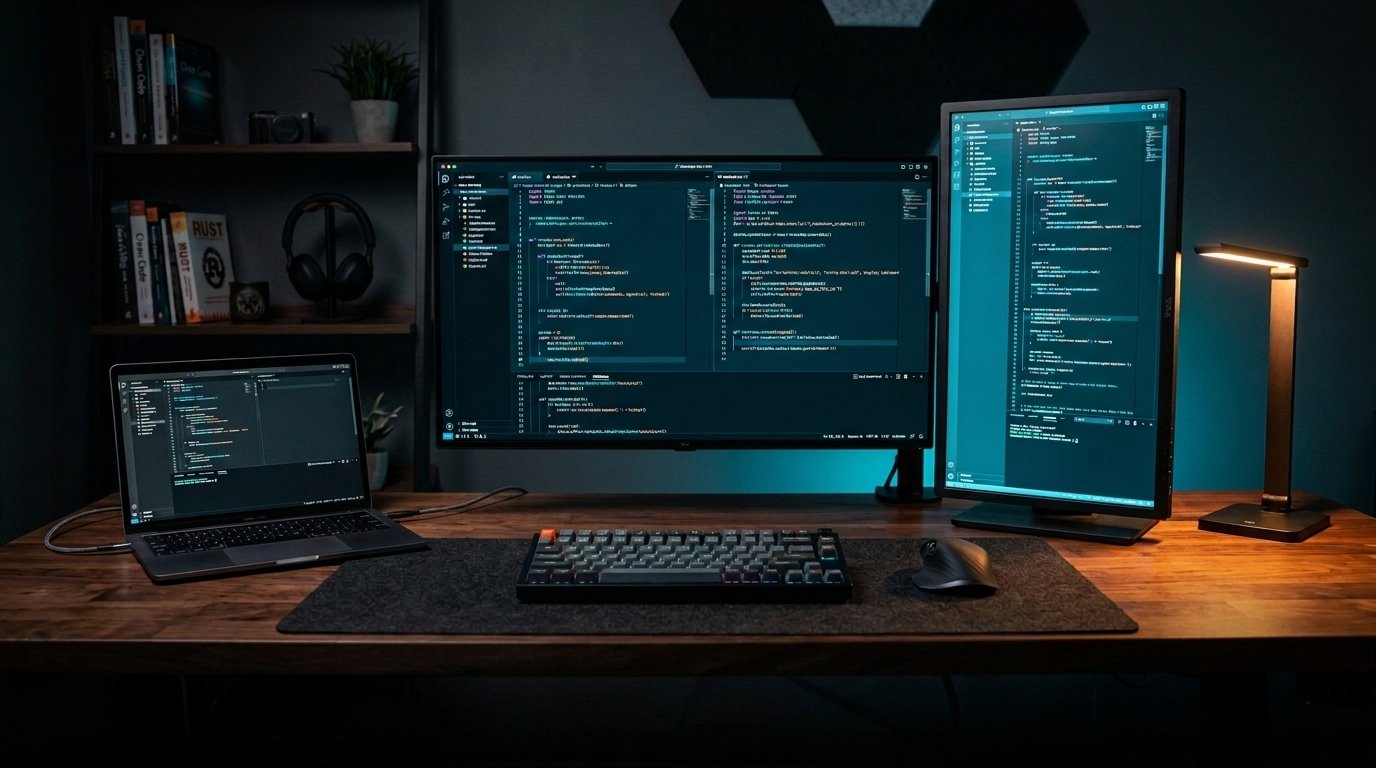
The typical setup that works: a main landscape monitor for your editor and a secondary vertical monitor for docs, logs, or file trees. In our experience this is the single highest-impact desk change a developer can make that costs nothing beyond a monitor that pivots.
That’s the catch — the monitor has to physically rotate. Many budget monitors have tilt-only stands, so check for “pivot” or “rotation” in the specs before buying. The Dell UltraSharp and ASUS ProArt models below both pivot; cheaper models often don’t, though a VESA monitor arm solves it for any monitor. For that route, see our guide on whether a monitor arm is worth it.
The 4 Best Monitors for Programming in 2026
Comparison Table
| Product | Price | Best For | Rating |
|---|---|---|---|
| Dell UltraSharp U2723QE | ~$580 | Best overall for developers | 9.5/10 |
| LG 34WN80C-B | ~$500 | Best ultrawide for IDE + docs | 9/10 |
| ASUS ProArt PA278CV | ~$300 | Best value with pivot | 8.5/10 |
| LG 27QN600-B | ~$200 | Best budget | 8/10 |
1. Dell UltraSharp U2723QE — Best Overall for Developers (~$580)
The Dell UltraSharp U2723QE checks every box that matters for programming. It’s a 27-inch 4K IPS Black panel — 163 PPI for razor-sharp code text, with 2000:1 contrast that’s double standard IPS, so dark-theme editors look genuinely dark instead of washed gray. The stand tilts, swivels, adjusts height, and pivots to vertical.
The built-in USB-C dock is the developer’s dream feature: 90W laptop charging, ethernet, and a five-port USB hub through one cable. Plug in your laptop and everything connects at once.
Best for: Developers who want maximum text sharpness, a dark-theme-friendly panel, and single-cable connectivity.
Real-world detail: IPS Black’s 2000:1 contrast is the underrated spec for coders specifically — if you work in a dark-theme IDE for eight hours, the deeper blacks reduce the glow-and-halo effect that standard IPS panels produce around light text on dark backgrounds.
Pros: 4K at 163 PPI, IPS Black 2000:1 contrast, pivots to vertical, 90W USB-C dock with ethernet, factory calibrated, full ergonomic stand.
Cons: Premium price, 4K needs display scaling at 27 inches, 60Hz.
2. LG 34WN80C-B — Best Ultrawide for IDE + Docs (~$500)
The LG 34WN80C-B is built for the developer whose day is spent with multiple windows visible at once. It’s a 34-inch curved ultrawide (3440×1440 IPS) that gives you one continuous workspace — editor on the left, docs and terminal stacked on the right, no bezel splitting your attention.
USB-C with 60W power delivery keeps the desk clean, and LG’s Screen Split software snaps windows into preset zones, which on a screen this wide is genuinely useful rather than a checkbox feature.
Best for: Developers who constantly reference documentation, run terminals alongside code, or want a dual-monitor workflow in one screen.
Real-world detail: The 3440 horizontal pixels fit three usable columns side by side — a common dev layout is editor (50%), browser docs (25%), terminal (25%), all readable without overlapping windows.
Pros: Replaces dual monitors with no bezel, curved IPS, USB-C 60W, Screen Split software, 99% sRGB.
Cons: 1440 vertical is less than a 4K 27″ (fewer code lines), 60W may not fully charge large laptops, needs desk depth.
3. ASUS ProArt PA278CV — Best Value with Pivot (~$300)
The ASUS ProArt PA278CV is the smart mid-budget pick for developers who want proper ergonomics without paying flagship prices. It’s a 27-inch 1440p IPS panel with a full ergonomic stand that pivots to vertical — the key feature for a portrait secondary screen — plus USB-C with 65W power delivery.
Factory calibration to Delta E < 2 is aimed at creatives, but it benefits developers too: accurate color means syntax highlighting themes look the way their designers intended.
Best for: Developers wanting pivot capability and USB-C at a mid-range price, or a second monitor for a vertical setup.
Real-world detail: At around $300 with pivot and USB-C, this is the sensible choice for a second vertical monitor beside a larger primary — you get rotation and single-cable convenience without doubling your monitor budget.
Pros: Pivots to vertical, USB-C 65W, factory calibrated Delta E < 2, 100% sRGB, full ergonomic stand, strong value.
Cons: 1440p not 4K (109 PPI), 75Hz, sRGB-focused gamut.
4. LG 27QN600-B — Best Budget (~$200)
The LG 27QN600-B is the entry point where a monitor genuinely improves your coding day. A 27-inch 1440p IPS panel with 99% sRGB at around $200 — enough resolution for an editor and terminal side by side, and sharp enough that code text is comfortable to read for hours.
For a student, bootcamp grad, or developer building a first proper setup, this delivers the essentials: IPS accuracy, 1440p space, no wasted money on gaming specs.
Best for: Budget-conscious developers and anyone upgrading from a laptop screen or 1080p monitor.
Real-world detail: Moving from a 15-inch laptop display to this 27-inch 1440p roughly triples your visible code — the single biggest jump in workflow most junior developers experience, for around $200.
Pros: Affordable, 27″ 1440p IPS, 99% sRGB, HDR10, huge upgrade over laptop screens.
Cons: Tilt-only stand (no pivot — needs a VESA arm for vertical), no USB-C, 109 PPI not 4K-sharp.
What to Look for When Choosing a Monitor for Programming
1. Pixel density over refresh rate Code is static text, so PPI matters and refresh rate doesn’t. 4K on 27 inches (163 PPI) gives the sharpest text; 1440p on 27 inches (109 PPI) is the value sweet spot. Ignore 144Hz+ unless you also game — you’re paying for a spec that does nothing for code.
2. Pivot/rotation capability A monitor that rotates to portrait shows nearly double the lines of code — invaluable for reviewing long files or logs. Check the specs for “pivot” or “rotation,” not just “tilt.” If the monitor you want doesn’t pivot, a VESA monitor arm adds the capability to any screen.
3. USB-C with power delivery Most developers work on laptops. A monitor with USB-C charging connects video, peripherals, and power in one cable — plug in and your whole setup comes alive. Check wattage: 65W for ultrabooks, 90W+ for 16-inch machines.
4. Panel type and contrast for dark themes IPS is the right default for accurate color and viewing angles. If you code in a dark theme all day, higher contrast (like Dell’s IPS Black at 2000:1) reduces the halo effect around light text on dark backgrounds — a real comfort difference over eight hours.
5. Ergonomic stand with height adjustment You’ll spend thousands of hours at this screen. Height adjustment lets you set the top of the display at eye level, the position that reduces neck strain. A tilt-only stand means stacking books or buying an arm.
FAQ
Is 4K worth it for programming?
Yes, primarily for text sharpness rather than extra space. A 27-inch 4K monitor gives roughly 163 PPI, making code characters noticeably crisper than at 1440p — which reduces eye effort over long sessions. Most developers run 4K at 150% scaling, so you get 1440p-equivalent workspace with much sharper text. If budget is tight, 1440p at 27 inches is still a solid choice.
Is an ultrawide or dual monitors better for programming?
It depends on your workflow. An ultrawide gives one seamless workspace with no bezel gap — ideal if you constantly reference docs beside your editor. Dual monitors are cheaper, more flexible, and let you rotate one to vertical for reading long files. Many developers land on a hybrid: one large landscape monitor plus a second in portrait orientation.
Should I use a vertical monitor for coding?
A vertical monitor is excellent as a secondary screen for reading long files, reviewing pull requests, and watching log output — portrait orientation shows nearly double the lines of code. Most developers keep their main editor on a landscape monitor and use the vertical one for docs, terminals, or file trees. Make sure your monitor pivots, or add a VESA arm.
Do I need a high refresh rate monitor for programming?
No. Refresh rate affects motion smoothness, which matters for gaming and video, not for reading static code. A 60Hz IPS panel is perfectly adequate for development work. Spending your budget on resolution, panel quality, and an ergonomic stand delivers far more benefit than paying extra for 144Hz you’ll never notice while typing.
Our Final Verdict
The best monitor for programming in 2026 is the Dell UltraSharp U2723QE for most developers — 4K sharpness for crisp code, IPS Black contrast that suits dark themes, a stand that pivots to vertical, and a USB-C dock that runs everything from one cable.
Developers who live in docs and terminals alongside their editor should get the LG 34WN80C-B ultrawide instead, and the LG 27QN600-B is a genuine upgrade at around $200. Prioritize pixel density and a stand that pivots — those beat every gaming spec on the box. Check current pricing on Amazon and give your eyes the screen they deserve.