This article contains affiliate links. We may earn a commission if you buy through our links, at no extra cost to you.
The best KVM switch for laptop and desktop setups is the one that matches your monitor’s refresh rate and your laptop’s ports, not the one with the longest feature list. Pick wrong and a 165Hz gaming monitor quietly drops to 120Hz, or your laptop turns out to have no port the switch can use.
A KVM switch lets one keyboard, one mouse and one monitor serve two computers, so a work laptop and a gaming PC can share a desk without a second set of peripherals. Press a button and everything moves across.
After comparing video bandwidth, USB specs, EDID support, cable requirements and long-term owner feedback on more than 20 models, three stand out. One suits most single-monitor desks, one handles dual high-refresh monitors, and one covers the basics for less.
Quick Answer
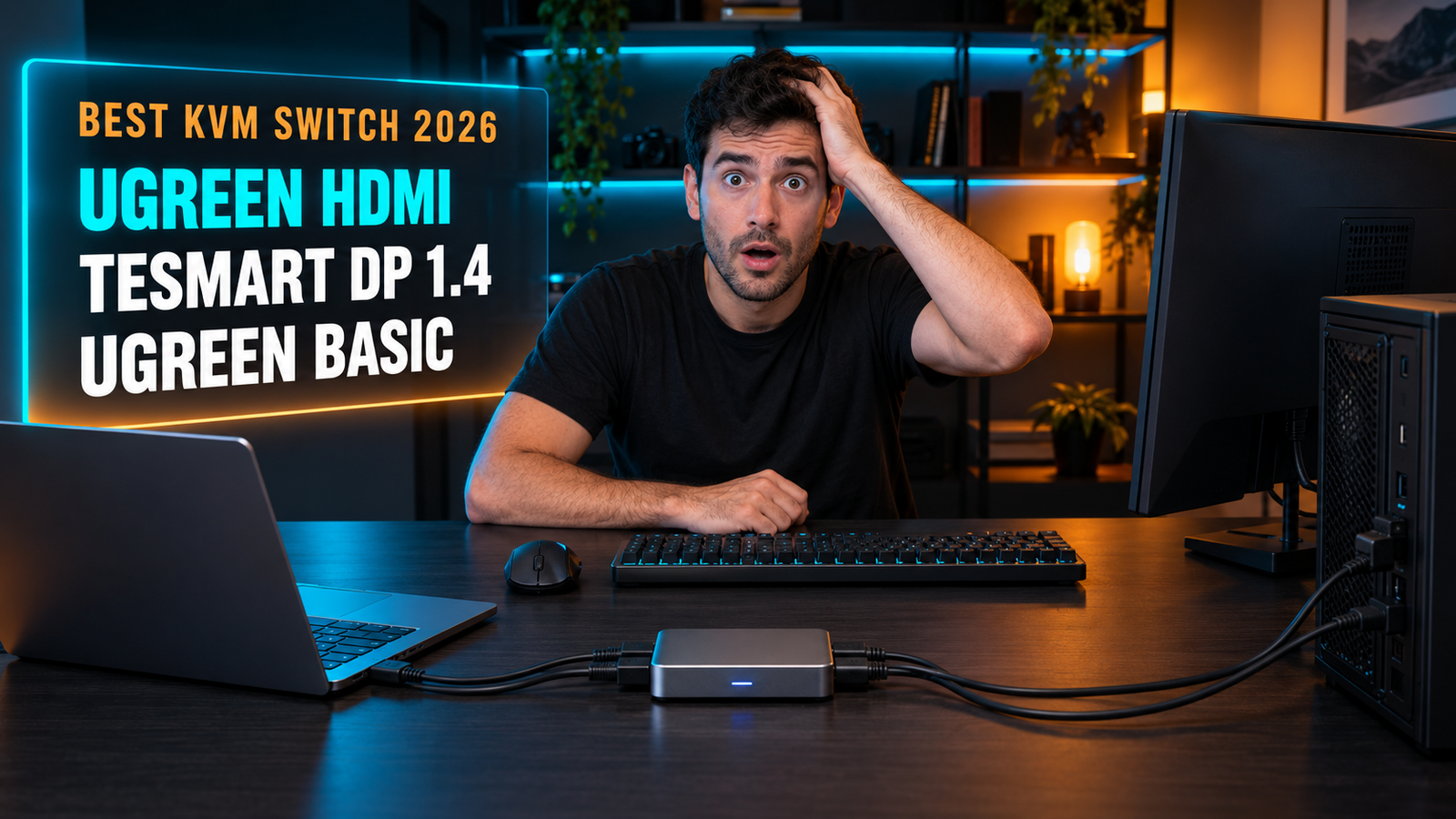
The UGREEN HDMI KVM Switch is the best KVM switch for laptop and desktop for most people: 4K@60Hz, 1440p@120Hz and four USB 3.0 ports in an aluminum shell. For two high-refresh monitors, the TESmart DP 1.4 Dual Monitor KVM carries 4K@144Hz, and the UGREEN Basic HDMI KVM covers a single monitor for less.
What Does a KVM Switch Do for a Laptop and a Desktop?
A KVM switch routes one keyboard, mouse and monitor between two computers at the press of a button. Each computer connects to the switch with a video cable and a USB cable, and the switch decides which one your peripherals talk to.
An HDMI KVM switch does not charge your laptop. It carries video and USB data only, so the laptop stays plugged into its own charger the whole time.
That’s the real line between two categories people often confuse. A dock gives one laptop more ports and power through a single cable; a KVM shares one desk between two computers. If you only ever work from the laptop, our guide to the best laptop docking station for dual monitors is the better fit.
If you finish the workday on a company laptop and then play on a desktop tower, the KVM is the piece that removes the second keyboard from your desk. One button, same monitor, same mouse, different computer.
Will a KVM Switch Lower Your Monitor’s Refresh Rate?
A KVM switch can cap your refresh rate, because every video signal passes through the switch before reaching the monitor. The ceiling printed on the box is the ceiling your monitor gets.
A 4K KVM can hold a 1440p gaming monitor below its native refresh rate. The UGREEN HDMI KVM Switch is rated for 4K@60Hz and 2560×1440@120Hz, so a 1440p panel built for 165Hz runs at 120Hz through it.
For spreadsheets and email that difference is invisible. For fast shooters on a high-refresh panel, it’s 45 refreshes per second you paid for and never see.
The fix is bandwidth. The TESmart DP 1.4 Dual Monitor KVM uses DisplayPort 1.4 and is rated for 4K@144Hz, which clears the limit for most gaming monitors. If your gaming PC drives a 1440p@165Hz screen, check the switch’s rating at your exact resolution rather than its headline 4K number. We’d never buy a KVM for a gaming desk on the 4K figure alone.
Can a Laptop Run Two Monitors Through a KVM Switch?
A laptop can run two monitors through a dual-monitor KVM only if it can send two separate video signals to the switch. Each computer needs one video output per screen, plus a USB connection.
Most laptops fall short of that on their own. A typical thin laptop has one HDMI port and one or two USB-C ports, and only some USB-C ports carry video, so wiring a laptop into a two-monitor KVM often needs extra cables before the switch works at all.
Desktops rarely have this problem, since a graphics card usually offers several DisplayPort and HDMI outputs.
The port type has to match the switch, too. An all-DisplayPort switch like the TESmart needs two DisplayPort signals from each computer, so a laptop with two video-capable USB-C ports can feed it through two USB-C to DisplayPort cables. If your laptop only has HDMI and one video-capable USB-C port, a single-monitor HDMI KVM is the realistic choice. Our guide on how to set up dual monitors explains how to check which ports carry video.
What Is EDID Emulation, and Do You Need It?
EDID emulation keeps each computer believing its monitor is still connected while the switch is pointed at the other one. Without it, the idle computer behaves as if the display was unplugged.
A cheaper KVM shows the same picture as an expensive one; the difference appears when you switch back. On a switch without EDID, the idle computer may rearrange open windows or reset its resolution, because it lost track of the display while you were away.
The UGREEN Basic HDMI KVM lists no EDID emulation, while TESmart builds it into its dual-monitor switches.
If you run one full-screen app per computer, missing EDID costs you little. If your work laptop has a dozen windows arranged across the screen and you switch to the gaming PC at lunch, returning to a shuffled desktop every day wears thin fast. For that workflow, we’d pay extra for EDID without a second thought.
Do Wireless Keyboards and Mice Work With a KVM Switch?
Wireless keyboards and mice work with a KVM switch when they use a USB receiver plugged into the switch, but Bluetooth devices bypass it entirely. A Bluetooth keyboard pairs directly with one computer, so the KVM never sees it.
A KVM does nothing for a Bluetooth keyboard. It stays connected to whichever computer it was paired with, whatever input the switch is showing.
Receiver distance matters too. UGREEN specifies that a wireless receiver plugged into its basic switch should sit within 1 meter of the keyboard or mouse, and within 0.3 meters when several wireless devices share the switch.
If your keyboard has a multi-device button, like Logitech’s Easy-Switch, you can leave it out of the KVM entirely and toggle it on its own, at the cost of pressing two buttons instead of one. If you’d rather press one, use a keyboard and mouse with USB receivers and keep the switch within arm’s reach of the desk.
Best KVM Switch for Laptop and Desktop: Comparison Table
| Product | Price | Best For | Rating |
|---|---|---|---|
| UGREEN HDMI KVM Switch | ~$60 | Best overall | 9/10 |
| TESmart DP 1.4 Dual Monitor KVM | ~$280 | Dual gaming monitors | 8.5/10 |
| UGREEN Basic HDMI KVM | ~$35 | Single office monitor | 8/10 |
Detailed Reviews
UGREEN HDMI KVM Switch — Best Overall
Four USB 3.0 ports at 5Gbps set this UGREEN switch apart from the many cheaper KVMs still running USB 2.0. Three USB-A ports and one USB-C port share a keyboard, mouse, webcam and external drive between two computers. Inside the aluminum shell, HDMI 2.0 video is rated for 4K@60Hz, 2560×1440@120Hz and 1920×1080@240Hz, with HDR support. A wired desktop controller switches computers without reaching behind the monitor, and two HDMI and two USB cables come in the box.
If your work laptop and home desktop share one 27-inch monitor, this covers everything. The USB 3.0 speed also means an external SSD moves files at full speed on whichever computer is active.
Refresh rate is the first limit: a 165Hz 1440p gaming panel runs at 120Hz through it. UGREEN also asks that both computers output the same resolution as the monitor, and it’s a single-monitor switch. For a one-screen desk shared between work and play, it’s the one we’d buy.
Best for: Single-monitor desks shared between a work laptop and a home desktop.
Real-world detail: It runs 1080p at 240Hz and 1440p at 120Hz, so check your monitor’s native refresh rate before buying.
Pros: Four USB 3.0 ports at 5Gbps, 4K@60Hz with HDR, 1080p@240Hz support, aluminum shell, desktop controller and cables included.
Cons: 1440p capped at 120Hz, single monitor only, both computers must match the monitor’s resolution.
TESmart DP 1.4 Dual Monitor KVM — Best for Dual Gaming Monitors
DisplayPort 1.4 is what lets this TESmart switch keep high-refresh gaming monitors at full speed. It’s rated for 4K@144Hz across two monitors and 8K@60Hz, with EDID emulation so neither computer loses track of its displays. On top of that come USB 3.0, a shared Gigabit network connection, audio and microphone ports, and hotkey switching, with all input cables in the box.
If your desk runs two 1440p or 4K gaming monitors fed by a desktop graphics card, this is the switch that doesn’t force a choice between the KVM and your refresh rate. Hotkeys also let you switch from the keyboard instead of reaching for a button.
It’s the most demanding switch here on inputs. Every signal is DisplayPort, so each computer needs two DisplayPort outputs, which many laptops can only supply through USB-C to DisplayPort cables, if at all. It also costs several times more than either UGREEN model. For a gaming PC paired with a DisplayPort-capable laptop, that price buys bandwidth nothing else here offers.
Best for: Desks with two high-refresh gaming monitors shared between a gaming PC and a laptop.
Real-world detail: Each computer needs two DisplayPort outputs for dual-monitor use, so check your laptop’s USB-C video support first.
Pros: 4K@144Hz on two monitors, EDID emulation, USB 3.0, shared Gigabit network, hotkey switching.
Cons: DisplayPort-only inputs, demanding on laptop ports, several times the price of the UGREEN models.
UGREEN Basic HDMI KVM — Best Budget
The cheapest way here to share one monitor between a laptop and a desktop still reaches 4K@60Hz. UGREEN’s basic switch handles 4K@60Hz and 2560×1440@120Hz over HDMI 2.0, with four USB ports for a keyboard, mouse and printer, a desktop controller, and two HDMI plus two USB cables included.
If both computers only need to share one office monitor and a wired keyboard and mouse, the extra features of pricier switches do nothing for you. It’s also the sensible buy for a second desk or a spare-room setup where the KVM gets used a few times a week.
What you give up is EDID emulation, so the idle computer can shuffle windows or reset its resolution when you switch back. Both USB A-to-B cables must stay connected because they also power the switch, wireless receivers need to sit within 1 meter, and HDMI cables longer than 5 meters won’t hold 4K@60Hz.
Best for: Simple office desks sharing one monitor with wired peripherals.
Real-world detail: Both USB cables must be connected even if you only use one computer, because they power the switch.
Pros: Low price, 4K@60Hz, 1440p@120Hz, desktop controller, all cables included.
Cons: No EDID emulation, single monitor only, short wireless receiver range.
What to Look for When Choosing a KVM Switch for a Laptop and Desktop
1. Check the refresh rate at your resolution. A switch rated 4K@60Hz may still cap a 1440p monitor at 120Hz. Match the rating to your monitor’s native resolution and refresh rate, not the headline figure.
2. Count video outputs on every computer. A dual-monitor KVM needs two video outputs per computer. Laptops often have only one HDMI port and limited video-capable USB-C.
3. Decide whether you need EDID emulation. If you keep many windows arranged on screen, EDID stops them shuffling each time you switch. For full-screen apps, you can skip it.
4. Choose USB 3.0 if you share storage. USB 2.0 is fine for a keyboard and mouse. External drives and webcams benefit from USB 3.0’s 5Gbps.
5. Plan your laptop’s cables and power. A KVM doesn’t charge a laptop, and a USB-C-only laptop needs adapters for HDMI and USB-A. Budget for them before the switch arrives.
FAQ
Does a KVM switch work with a laptop?
Yes, a KVM switch works with a laptop as long as the laptop has a video output and a USB port that match the switch. A laptop with only USB-C ports needs a USB-C to HDMI or DisplayPort cable plus a USB-C to USB-A adapter. Check that the USB-C port supports video output first.
Does a KVM switch charge your laptop?
No, a standard HDMI or DisplayPort KVM switch does not charge a laptop, since it carries only video and USB data. Your laptop stays connected to its own charger. KVM docking stations with USB-C power delivery exist, but they are a separate category.
Does a KVM switch add input lag?
A good KVM switch is not usually a meaningful source of input lag for keyboards, mice or video. The more common performance problem is a refresh-rate ceiling, where the switch limits your monitor below its native rate. Check the switch’s rating at your exact resolution and refresh rate.
What is the difference between a KVM switch and a docking station?
A KVM switch shares one keyboard, mouse and monitor between two computers, while a docking station expands the ports of a single laptop. Docks often charge the laptop through one USB-C cable; standard KVM switches don’t. Choose a KVM when two computers share one desk.
Our Final Verdict
For most desks, the UGREEN HDMI KVM Switch is the one to buy: four USB 3.0 ports, 4K@60Hz with HDR and 1080p@240Hz, in an aluminum shell that shares one monitor between a work laptop and a home desktop.
If you run two high-refresh gaming monitors, the TESmart DP 1.4 Dual Monitor KVM keeps them at 4K@144Hz, as long as your laptop can output DisplayPort. For a simple office monitor, the UGREEN Basic HDMI KVM does the job for the least money.