
This article contains affiliate links. We may earn a commission if you buy through our links, at no extra cost to you.
Best Dual Monitor Setup for Home Office in 2026
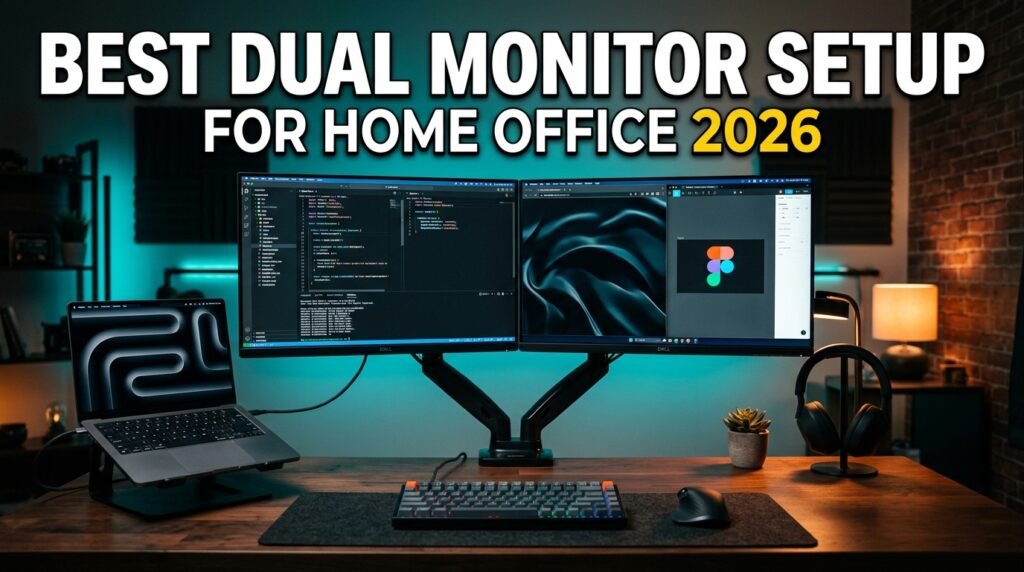
A single monitor home office in 2026 is like working with one hand tied behind your back. Research from the University of Utah found that dual monitors increase productivity by 42% compared to single-display setups — and that number holds across document editing, spreadsheet work, and reference-based tasks. The best dual monitor setup for home office use isn’t just about adding a second screen. It’s about choosing the right monitors, positioning them correctly, managing the cables, and connecting everything through a single clean cable to your laptop. Most people get at least two of these wrong.
After researching and building dual monitor setups across a range of desk sizes, laptop types, and budgets, here is what actually works for home office users in 2026.
This guide covers the complete setup — monitors, arms, and connectivity — so you can build the right configuration from scratch rather than buying the wrong components twice.
Quick Answer
The best dual monitor setup for most home office users is two Dell S2725QC 27″ 4K monitors on an Ergotron LX Dual Stacking Arm, connected through an Anker 7-in-1 USB-C Hub — one cable to the laptop handles both monitors, charging, and all peripherals simultaneously. Budget users should pair two LG 27QN600-B 1440p monitors on a VIVO Dual Monitor Mount for a complete functional setup under $500 total.
Why Most Dual Monitor Setups Fail — And the Three Mistakes to Avoid
Adding a second monitor is easy. Building a dual monitor setup that actually improves your workflow — rather than just adding a second screen you use 20% of the time — requires more thought than most guides acknowledge.
Mistake 1: Mismatched monitors. Two monitors of different sizes, resolutions, or panel types create a visual disconnect that makes cross-monitor work actively uncomfortable. Moving a window from a sharp 1440p primary to a blurry 1080p secondary feels wrong every time. Moving text from a warm-toned IPS to a cold-toned TN panel requires constant visual recalibration. Matching monitors — same size, same resolution, same panel type — is the single most impactful quality-of-life decision in a dual monitor setup.
Mistake 2: Wrong positioning. Most people place both monitors directly in front of them with zero toe-in, then wonder why their neck hurts after an hour. Correct dual monitor positioning places the primary screen centered in front of you and the secondary angled 20-30 degrees inward. The top of both screens should be at or slightly below eye level. Eyes should be 20-28 inches from the panel surface.
Mistake 3: No connectivity plan. Two monitors produce two video cables, two power cables, plus USB connections for built-in display hubs. That’s 6-8 cables before you’ve connected a keyboard, mouse, or webcam. Planning the cable routing — ideally through a single USB-C hub that drives both monitors from one laptop cable — eliminates the desk chaos that makes most dual setups look worse than a single clean screen.
The counterintuitive point: an ultrawide monitor often delivers better value than a dual monitor setup for users who primarily work in a single application at a time. A 34-inch ultrawide at 3440×1440 gives you the equivalent of two 27-inch 1080p monitors side-by-side in a single panel, with no bezel gap in the middle. Only consider dual monitors if you genuinely need two independent windows visible simultaneously — which most knowledge workers do, but worth verifying before committing.
For the complete step-by-step configuration guide once your hardware is assembled, see our article on how to set up dual monitors — it covers display settings, resolution matching, and taskbar configuration for both Windows and macOS.
Choosing Your Monitors — The Decision That Defines Everything Else
The monitor choice determines the visual quality of every hour you spend at your desk. It also determines your cable requirements, arm compatibility, and whether the setup looks intentional or improvised.
Resolution: 1440p vs 4K for dual setups
For a 27-inch screen at standard desk viewing distance (24-28 inches), 1440p (2560×1440) is the sweet spot. Text is sharp without requiring display scaling. 27-inch 4K requires scaling adjustments on Windows and macOS to produce usable text sizes — the additional resolution is genuinely useful for photo editing and detailed design work, but indistinguishable from 1440p for document work and spreadsheets at normal viewing distance.
For users who want the cleanest visual quality and primarily do knowledge work: 1440p. For users whose work involves design, photography, or detailed visual tasks: 4K. For budget-conscious users: two 1440p monitors cost significantly less than two 4K monitors and produce an excellent result for general productivity.
Panel type: IPS for matched dual setups
IPS panels have wide viewing angles — critical for dual monitors, where the secondary screen is always viewed at an angle. VA panels have better contrast but narrow enough viewing angles to produce visible color shift on a screen viewed at 20-30 degrees. For matched dual setups, IPS is the correct choice. Most quality 27-inch monitors at 1440p and above use IPS panels — verify before purchasing.
Size: 27 inches as the standard
27 inches at arm’s length is the practical maximum for a side-by-side dual monitor setup on desks up to 160cm. 32-inch side-by-side requires a desk of at least 180cm and feels overwhelming in most home office configurations. 24-inch side-by-side works on smaller desks but makes text smaller than most users prefer at 1440p. 27 inches is the right answer for 90% of home office dual setups.
The Complete Dual Monitor Setup — 5 Components Explained
1. Dell S2725QC 27″ 4K USB-C Monitor — Best Monitor for Dual Setup (~$280-320 each)
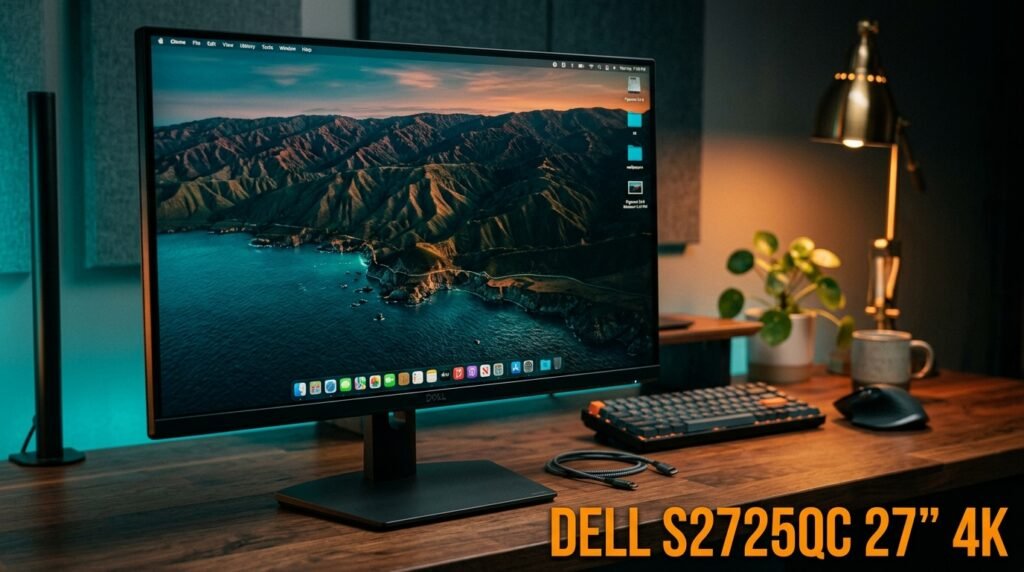
The Dell S2725QC is the monitor that makes sense as the centerpiece of a quality home office dual setup in 2026. 27-inch IPS panel, 4K (3840×2160) at 120Hz, 99% sRGB, USB-C with 90W Power Delivery, built-in dual 5W speakers, and a fully adjustable ergonomic stand (height, tilt, swivel, pivot). The USB-C single-cable connection is the key feature — one cable from laptop to monitor delivers power, video, and USB hub access simultaneously, eliminating half the cable management challenge in a dual setup.
The IPS panel produces accurate colors at the viewing angles inherent in dual monitor use. The 120Hz refresh rate is genuinely useful for scrolling through long documents — the smoothness difference between 60Hz and 120Hz is visible and appreciated in daily use, not just gaming. At $280-320 per monitor, two Dell S2725QC units represent a $560-640 monitor investment — the right spend for a setup you’ll look at 8 hours per day for 3-5 years.
Real-world scenario: a product manager running Figma on the primary and Notion plus Slack on the secondary runs both Dell S2725QC monitors, connects each via USB-C to a hub, and the entire setup runs through a single Thunderbolt cable to her MacBook Pro — completely cable-free desk except for one laptop connection.
Pros: 4K IPS at 120Hz, 99% sRGB accuracy, USB-C 90W PD single-cable connection, built-in speakers, fully ergonomic stand, VESA compatible, TÜV Rheinland eye comfort certified. Cons: ~$280-320 per unit — $560+ for matched pair, 4K requires scaling configuration on Windows for optimal text size at 27 inches, ash white colorway only.
2. LG 27QN600-B 1440p IPS Monitor — Best Budget Monitor for Dual Setup (~$180-220 each)
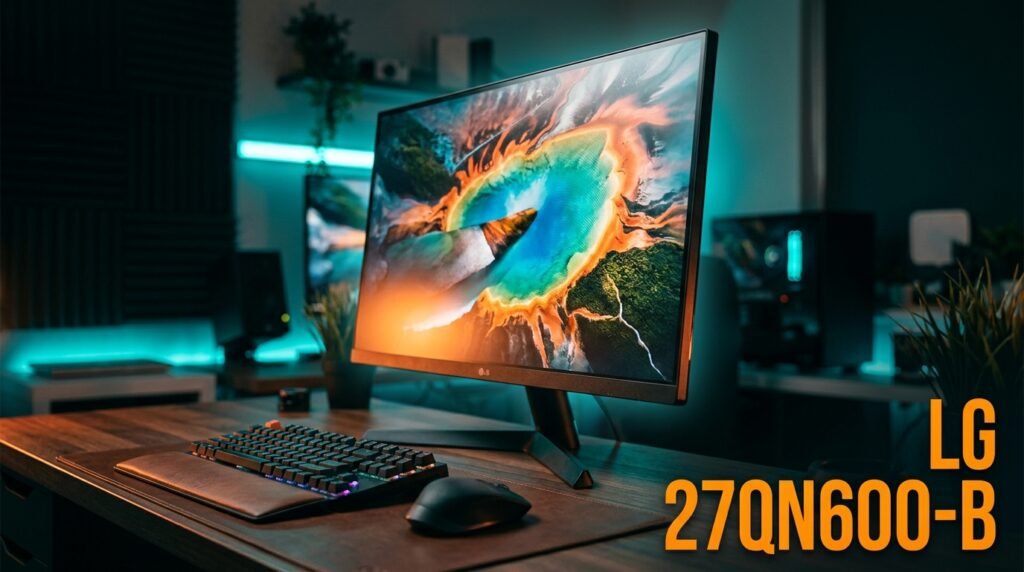
The LG 27QN600-B is the budget answer for users who want a quality matched dual monitor setup without the 4K premium. 27-inch IPS panel, 1440p (2560×1440) at 75Hz, HDR10, slim bezels optimized for side-by-side placement, and a clean minimal design. The slim bezels are specifically worth calling out for dual monitor use — the gap between two LG 27QN600-B panels placed side-by-side is narrow enough to nearly disappear in normal use.
At $180-220 per unit, two LG 27QN600-B monitors cost $360-440 for the matched pair — roughly $200 less than two Dell S2725QC units for a setup that produces excellent 1440p image quality for all standard productivity workflows. The tradeoff is 75Hz versus 120Hz, no USB-C single-cable connection, and no built-in speakers.
For most home office users whose work is document-heavy rather than design or photography-heavy, the LG 27QN600-B matched pair is the correct value decision — equivalent daily productivity at meaningfully lower cost.
Pros: 27-inch 1440p IPS, slim bezels minimize gap in side-by-side placement, HDR10, excellent color accuracy for the price, VESA compatible, minimal clean design. Cons: 75Hz (vs 120Hz on Dell), no USB-C connection, no built-in speakers, stand has limited ergonomic adjustment — monitor arm strongly recommended.
3. Ergotron LX Dual Stacking Monitor Arm — Best Dual Arm (~$230-260)
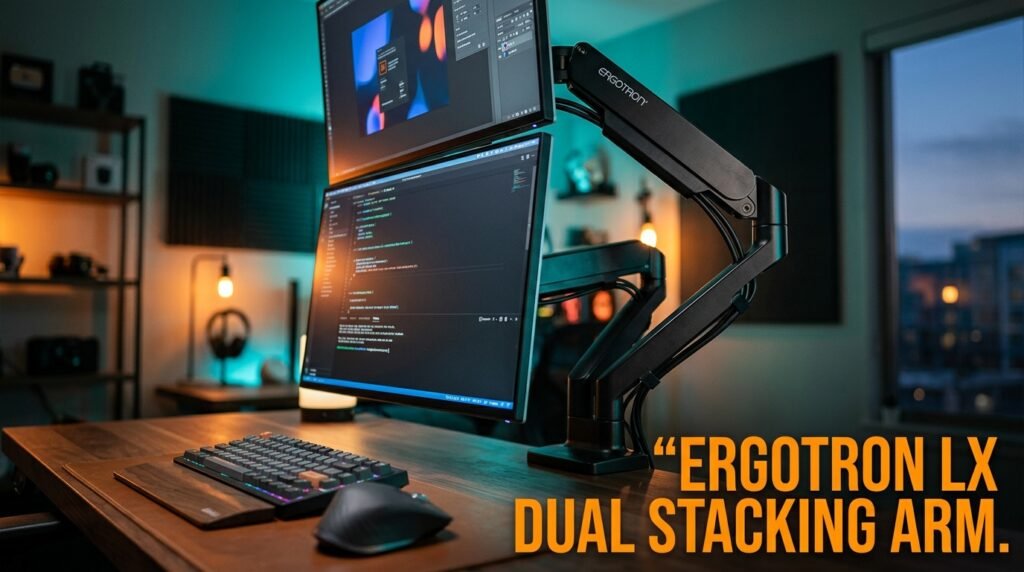
The Ergotron LX Dual Stacking Arm is the arm that makes a dual monitor setup look intentional rather than improvised. Constant Force mechanism holds both monitors in any position without drift — each arm adjusts independently through 20 inches of height range, 360-degree rotation, and full tilt and swivel. Single desk clamp installs in 15 minutes and occupies 3 inches of desk edge. The integrated cable management channels route all cables inside the arm body — from monitors to desk, invisible from the front.
The stacking configuration (one monitor above the other rather than side-by-side) suits workflows where the secondary display is consulted periodically — reference documents above while the primary is centered for main work. The side-by-side version (LX Dual Side-by-Side) is the alternative for users who prefer equal horizontal monitors. At $230-260, the Ergotron LX Dual costs significantly less than two separate LX single arms while providing the same Constant Force quality.
Pros: Constant Force — no drift, independent adjustment per arm, integrated cable management, 20-inch height range each arm, 10-year warranty, single desk clamp footprint. Cons: Stacking layout suits some workflows better than others, $230-260 price point, installation requires 20-minute tension adjustment for monitor weight, large desk clamp requires solid desk edge.
4. VIVO Dual Monitor Desk Mount — Best Budget Dual Arm (~$50-60)
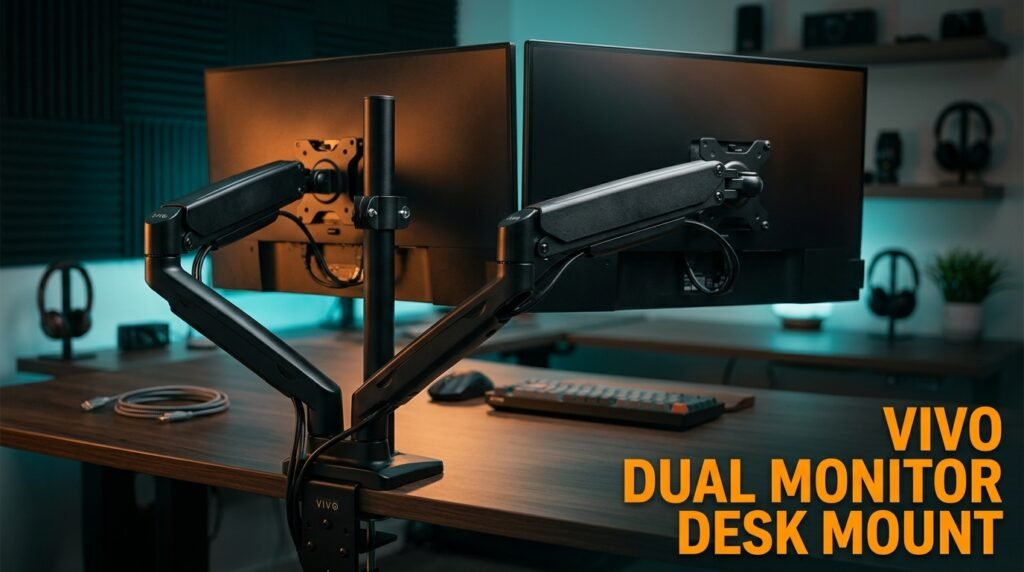
The VIVO Dual Monitor Desk Mount is the budget arm for side-by-side configurations — two monitors on one C-clamp mount at a price that makes the ergonomic upgrade accessible without the Ergotron premium. Supports monitors up to 27 inches and 22 lbs per arm, covers 75×75 and 100×100 VESA, and adjusts through tilt and pan for basic positioning.
The VIVO is stiffer to adjust than Ergotron and the build quality is noticeably less refined. For a dual monitor setup that stays in one position and is infrequently repositioned — which describes most home office setups — the VIVO delivers the core benefit: both monitors off their stands, on a single mount, with recovered desk surface. At $50-60 paired with two LG 27QN600-B monitors, the complete monitor setup comes in under $450.
Pros: Side-by-side configuration at $50-60, single C-clamp mount, VESA 75×75 and 100×100, covers 27-inch monitors up to 22 lbs, gas spring mechanism. Cons: Stiffer adjustment mechanism than premium arms, lower long-term drift resistance, less refined cable management, no tilt adjustment range comparable to Ergotron.
5. Anker 7-in-1 USB-C Hub — Best Connectivity Solution (~$25-35)
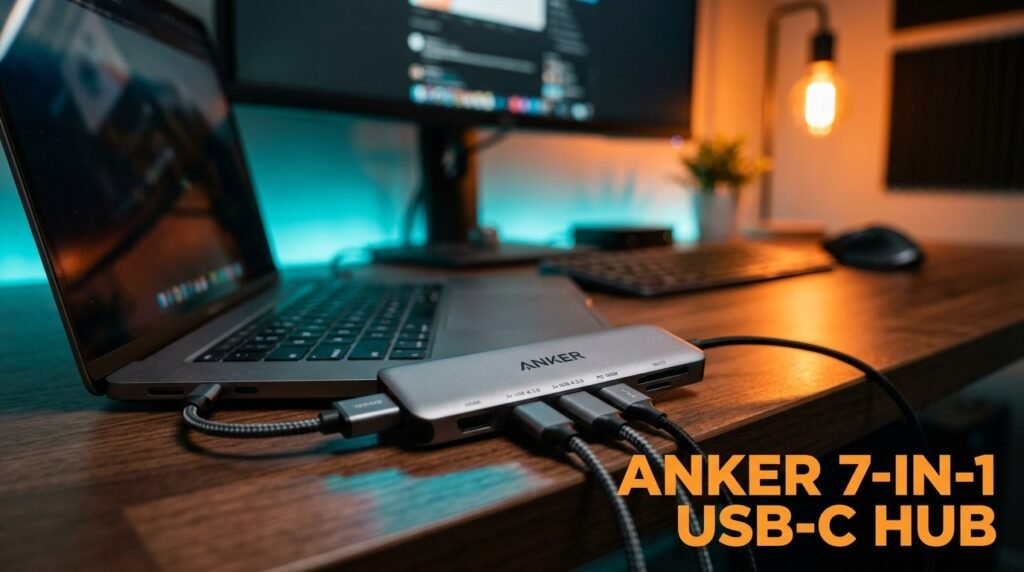
The Anker 7-in-1 USB-C Hub is the connectivity piece that makes a dual monitor home office setup clean rather than cluttered. 85W Power Delivery pass-through charges the laptop while two USB-A 3.0 ports handle keyboard and mouse, SD and microSD card readers handle photography and file transfers, and the 4K HDMI output connects a second monitor when the first is connected via the laptop’s USB-C directly.
For a MacBook Pro or Windows laptop with 2-3 USB-C ports, this hub eliminates the individual cable chaos of a full home office peripheral load — arrive at the desk, plug in one USB-C cable, everything connects. At $25-35, it’s the most affordable component in the setup and one of the highest-impact quality-of-life improvements.
For users who need to drive two monitors simultaneously from a USB-C hub, the Plugable 11-in-1 with dual HDMI outputs is the upgrade — see our full guide on the best USB hub for home office for dual-output hub options.
Pros: 85W Power Delivery, 4K HDMI, two USB-A 3.0, SD and microSD readers, compact bus-powered design, Anker quality, plug-and-play compatibility. Cons: Single HDMI limits to one monitor via hub (second monitor connects directly to laptop), no ethernet, bus-powered limits on simultaneous high-power device charging.
Recommended Dual Monitor Setup Configurations
Premium Setup (~$850-900 total)
Two Dell S2725QC + Ergotron LX Dual Stacking Arm + Anker 7-in-1 Hub
Best for: Professionals who spend 8+ hours daily at a screen and want a setup that lasts 5+ years without compromises. The USB-C single-cable connection per monitor, 120Hz panels, and Ergotron arm combine into the cleanest, most capable home office dual setup available under $1,000.
Budget Setup (~$420-500 total)
Two LG 27QN600-B + VIVO Dual Monitor Mount + Anker 7-in-1 Hub
Best for: Home office workers building their first dual monitor setup or those upgrading from a single monitor on a budget. The LG 1440p panels produce excellent image quality for all standard productivity workflows, and the VIVO arm provides the ergonomic and desk space benefits at minimum cost.
Comparison Table
| Component | Premium Option | Budget Option |
|---|---|---|
| Monitors (×2) | Dell S2725QC ~$600 | LG 27QN600-B ~$400 |
| Dual Arm | Ergotron LX Dual ~$245 | VIVO Dual Mount ~$55 |
| Hub | Anker 7-in-1 ~$30 | Anker 7-in-1 ~$30 |
| Total | ~$875 | ~$485 |
What to Look for When Building a Dual Monitor Setup
1. Match your monitors — same size, same resolution, same panel type Two mismatched monitors produce visual friction every time you move a window between them. Same 27-inch size means both screens sit at the same height on matched arms. Same 1440p or 4K resolution means windows look identical on both panels. Same IPS panel type means color temperature and viewing angle are consistent across the full width of your setup. Buy identical units from the same product line — not two different monitors that happen to be the same size.
2. Plan connectivity before buying monitors Verify what video outputs your laptop or desktop actually has. MacBooks with Apple Silicon have Thunderbolt 4 USB-C — one port can drive a 4K monitor with single-cable USB-C connection. Windows laptops vary significantly — some USB-C ports support DisplayPort, some don’t. Know your ports before deciding how to connect two monitors. Thunderbolt users can drive both monitors from one port via a dock; USB-C-only users need a hub with dual display output or individual cables from separate ports.
3. Monitor arm is not optional — it’s foundational Monitor stands that ship with monitors are designed to keep monitors from falling off desks, not to position them ergonomically. They adjust within a 10-12cm height range and can’t tilt, swivel, or extend toward you. A dual monitor arm positions both screens at exact eye level, at the right distance, with the secondary angled correctly — the setup that makes dual monitors feel like a natural extension of your workspace rather than two screens you happen to have.
4. Desk depth determines what’s possible Two 27-inch monitors on stands require approximately 30-35cm of desk depth just for the monitor bases. A dual arm mounts to the desk edge and suspends monitors in space, returning that 30-35cm to usable surface. On desks under 140cm wide, this space recovery is significant — it’s often the difference between a desk that feels workable and one that feels cramped. Measure your desk before buying to confirm arm mounting is feasible (solid edge, 2-5cm thickness, no obstruction).
5. Cable management from day one Run cables before the monitors are at working height — it’s significantly harder to route cables through arm channels once the monitors are positioned. Use the cable management system in your arm. A desk cable spine or cable tray under the desk surface catches the vertical run from arm to desk surface. Velcro cable ties at 30cm intervals keep horizontal runs clean. A setup with good cable management takes 45 minutes longer to build and looks dramatically better for the next several years.
FAQ
Do I need identical monitors for a dual monitor setup?
Technically no — any two monitors will work. Practically yes — mismatched monitors create visual friction that accumulates over hours of daily use. The brain constantly recalibrates for different color temperatures, resolutions, and sizes when moving between screens. Matched monitors eliminate this entirely. Buy two of the same model if at all possible. If budget requires one premium and one budget monitor, use the premium as primary and the budget as secondary for reference content rather than active work.
Can a MacBook run dual monitors?
Yes, with the right connection method. MacBooks with Apple Silicon (M1 and later) natively support one external monitor — running two requires a USB hub with DisplayPort Multi-Stream Transport (MST) capability, a Thunderbolt dock with dual monitor support, or a DisplayLink adapter. MacBooks with Intel chips support two external monitors more straightforwardly through Thunderbolt. Check your specific MacBook model’s display support specifications before purchasing a dual monitor setup.
What’s the best monitor size for a dual setup?
27 inches is the practical standard for most home offices. It’s large enough to display 1440p content comfortably at arm’s length without text scaling, small enough to fit two side-by-side on desks 140cm or wider, and the most supported size for monitor arms and dual mounts. 24-inch works on compact desks but feels small for most workflows at 1440p. 32-inch side-by-side requires desk width of 180cm minimum and feels overwhelming in smaller rooms.
Is a dual monitor setup worth it for working from home?
For knowledge workers who regularly reference one application while actively working in another — email open on secondary while writing in primary, Slack and documentation open while coding, spreadsheet reference while building presentations — yes, unambiguously. The 42% productivity increase cited by University of Utah research is the most-quoted number in this space and has held up across replications. For workers who primarily focus in one application at a time, an ultrawide single monitor may be a better fit than a dual setup.
Our Final Verdict
The best dual monitor setup for home office use in 2026 matches two identical monitors at the right resolution, positions them on a quality dual arm, and routes everything through a single hub cable to the laptop. The Dell S2725QC pair on an Ergotron LX Dual Arm with an Anker 7-in-1 Hub is the premium setup that justifies the investment for anyone spending serious time at a desk. The LG 27QN600-B pair on a VIVO Dual Mount builds a complete, capable dual setup for under $500. Get the matching right. Position them correctly. Manage the cables from day one. Check current pricing on Amazon for all components before building your setup.