This article contains affiliate links. We may earn a commission if you buy through our links, at no extra cost to you.
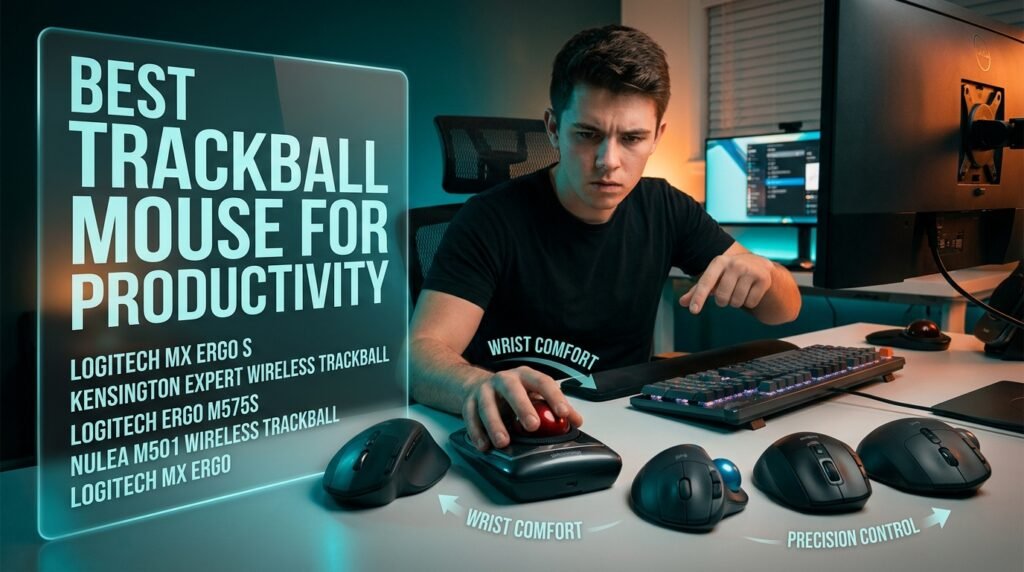
Best Trackball Mouse for Productivity in 2026
Most people try a trackball mouse once, spend three days feeling like they’re computing with their non-dominant hand, and go back to their regular mouse convinced trackballs aren’t for them. That’s a shame — because the people who push through the 2-3 week adaptation period almost universally report they’d never go back. The best trackball mouse for productivity eliminates the repetitive arm movement that causes fatigue, frees up desk space, and works on any surface including cluttered desks where a regular mouse becomes difficult to use.
After researching the trackball category specifically for productivity workflows — document work, spreadsheets, coding, design, and multi-monitor navigation — here is what actually works for desk workers in 2026.
This guide is for anyone experiencing wrist or arm fatigue from daily mouse use, working in a tight desk space, or simply curious whether a trackball would improve their daily workflow.
Quick Answer
The Logitech MX Ergo S is the best trackball mouse for productivity for most users — adjustable 20-degree tilt, 6 programmable buttons, USB-C charging, and 120-day battery life in the most polished trackball package available. For users who want fingertip control over thumb control, the Kensington Expert Wireless Trackball is the professional standard with its 55mm ball and ambidextrous design that works for both hands.
Why Trackball Mice Improve Productivity — And the Real Adaptation Timeline
The productivity case for trackballs is straightforward: your arm stays completely still while your thumb or fingers control the cursor. No mouse pad required. No arm sweeping. No reclaiming the mouse when it drifts to the edge of the desk. The hand rests in one position for the entire workday, which eliminates the repetitive forearm and shoulder movement that accumulates into fatigue over 6-8 hour sessions.
The adaptation reality is less marketed. Most trackball reviews gloss over the learning curve to avoid scaring buyers off. Here’s the honest timeline: days 1-5 feel genuinely worse than your regular mouse — slower, imprecise, and frustrating. Days 6-14 the cursor starts going where you intend it to go most of the time. By day 21-30, cursor control is back to your baseline accuracy and the ergonomic benefits become the new normal. Nearly everyone who sticks with a trackball for 30 days reports they prefer it. Nearly everyone who evaluates at day 5 concludes it doesn’t work.
The counterintuitive point: trackballs are not slower than regular mice once adapted. Studies on cursor positioning accuracy show no statistically significant difference between experienced trackball users and experienced mouse users for standard productivity tasks. The speed perception comes from the adaptation period, not from any fundamental limitation of the input method.
For users also evaluating other ergonomic input devices for wrist pain relief, see our guide on the best ergonomic mouse for wrist pain — trackballs and vertical mice solve different problems and the comparison is worth reading before committing.
Thumb Trackball vs Fingertip Trackball — Which Type Is Right for You
The single most important decision in trackball selection isn’t brand or price — it’s ball position. Thumb trackballs and fingertip trackballs feel completely different and suit different users. Getting this wrong is the most common reason people abandon trackballs during the adaptation period.
Thumb trackballs place the ball on the left side of the mouse body, controlled by rolling it with the thumb. The hand rests in a natural palm-down position similar to a standard mouse — which makes the transition from regular mouse use more intuitive. Most first-time trackball users adapt to thumb control faster than fingertip control, and the overall form factor is familiar enough to reduce initial frustration. The Logitech MX Ergo S, M575S, and Nulea M501 are all thumb trackballs.
Fingertip trackballs place a large ball (typically 55mm) in the center or top of the device, controlled by rolling it with the index and middle fingers. The hand can approach from any angle — these designs are typically ambidextrous. Fingertip control distributes movement effort across the fingers rather than concentrating it in the thumb, which makes it more comfortable for extended use for many users. The tradeoff is a steeper initial learning curve. The Kensington Expert and SlimBlade series use fingertip control.
Real-world scenario: a right-handed developer switching from a standard mouse typically adapts to the MX Ergo S (thumb) within 10-14 days. The same developer adapting to the Kensington Expert (fingertip) typically takes 18-25 days before reaching baseline accuracy. The endpoint comfort is comparable — the path to get there is different.
In our experience, thumb trackballs are the better starting point for most people switching from a regular mouse. Fingertip trackballs are often preferred long-term by users with thumb pain or those who’ve used trackballs before.
The 5 Best Trackball Mice for Productivity in 2026
1. Logitech MX Ergo S — Best Overall (~$99-119)
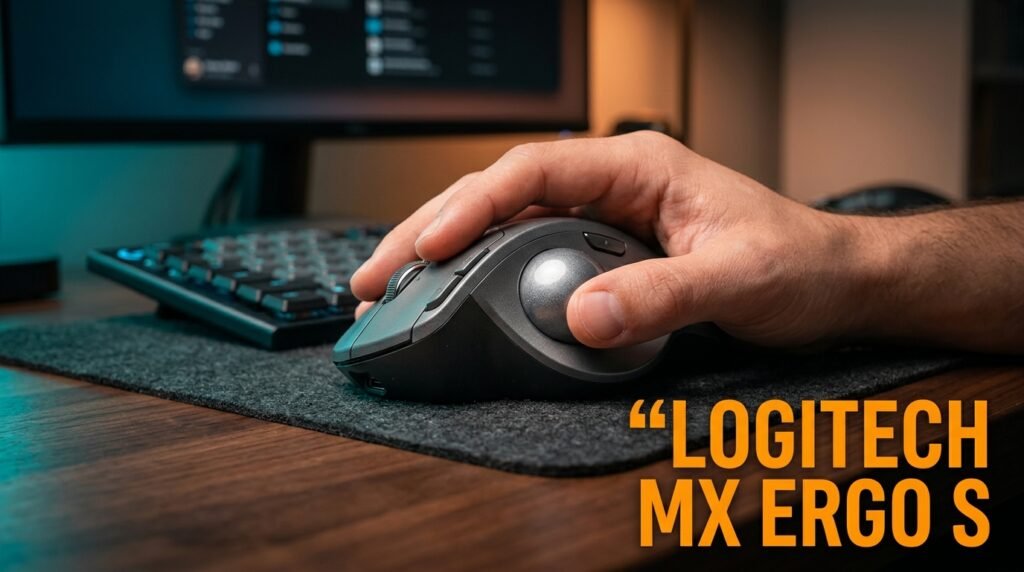
The Logitech MX Ergo S is the trackball that justifies the category for skeptics. The magnetic metal hinge allows the body to tilt at 0 or 20 degrees — the 20-degree position eliminates forearm pronation and reduces muscle strain by 27% compared to a flat mouse position, according to Logitech’s ergonomist testing. USB-C charging delivers 24 hours of use from a 1-minute charge, with up to 120 days on a full charge. Six programmable buttons with Logi Options+ per-application profiles make it the most customizable trackball available.
The Precision Mode button adjacent to the ball instantly slows cursor speed for detail work — useful for spreadsheet navigation and design tasks where pixel-precise cursor placement matters. Dual wireless via Bluetooth and Logi Bolt USB receiver, quiet clicks that are 80% quieter than the previous generation.
Real-world scenario: a UX designer maps the Precision Mode button to slow cursor speed when working in Figma, the side button to undo, and uses per-app profiles to switch between Figma, Notion, and Slack configurations without any manual switching.
Pros: 20-degree adjustable tilt, 6 programmable buttons, USB-C charging, 120-day battery, Precision Mode button, Logi Options+ deep customization, quiet clicks, dual wireless. Cons: ~$99-119 is the highest price on this list, right-hand only, thumb control only — no fingertip option, larger footprint than M575S.
2. Kensington Expert Wireless Trackball — Best Fingertip Trackball (~$85-95)
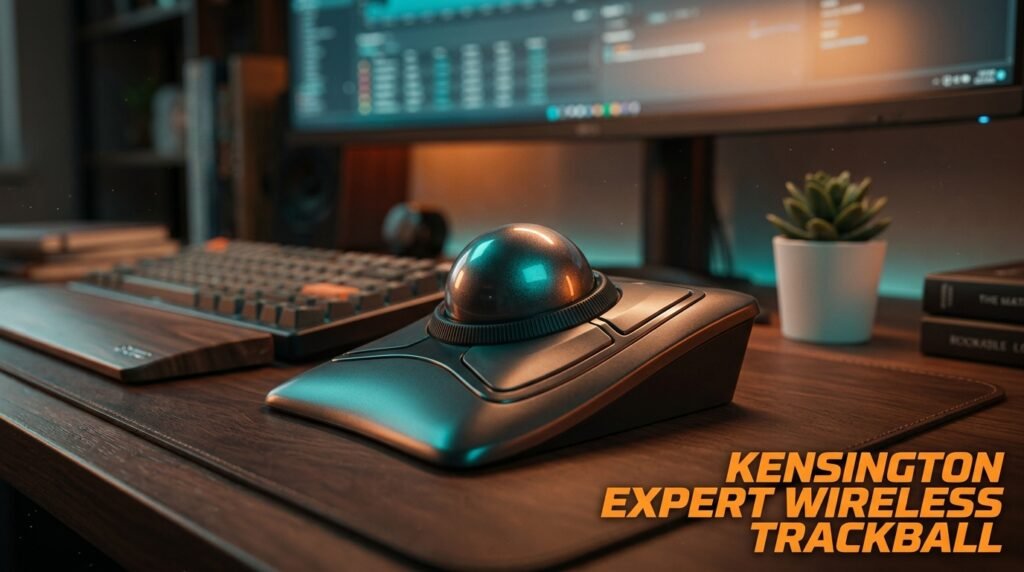
The Kensington Expert Wireless Trackball is the professional’s choice for fingertip trackball control. The 55mm ball is the largest on this list — larger balls require less finger movement per unit of cursor travel, producing more precise cursor control for detail-oriented work once adapted. The scroll ring surrounding the ball is a Kensington-exclusive design that makes scrolling smooth and continuous without any thumb strain or scroll wheel mechanics.
Ambidextrous design works equally well for left and right-handed users — one of the few premium trackballs that genuinely doesn’t force a handedness decision. Four programmable buttons, dual wireless via Bluetooth and 2.4GHz receiver, up to 4 months of battery life. Works on any surface with no movement required.
The honest positioning: Kensington Expert requires a longer adaptation period than thumb trackballs — expect 3-4 weeks before fingertip control feels natural. For users who reach that point, it’s consistently rated as the most comfortable long-term trackball by experienced trackball users across review communities.
Pros: 55mm ball for precise fingertip control, ambidextrous design, scroll ring for smooth scrolling, 4-month battery, dual wireless, no surface requirement, works for left-handed users. Cons: 3-4 week adaptation period steeper than thumb trackballs, four buttons only — fewer than MX Ergo S, requires periodic ball cleaning, $85-95 price point.
3. Logitech Ergo M575S — Best Mid-Range (~$49-59)
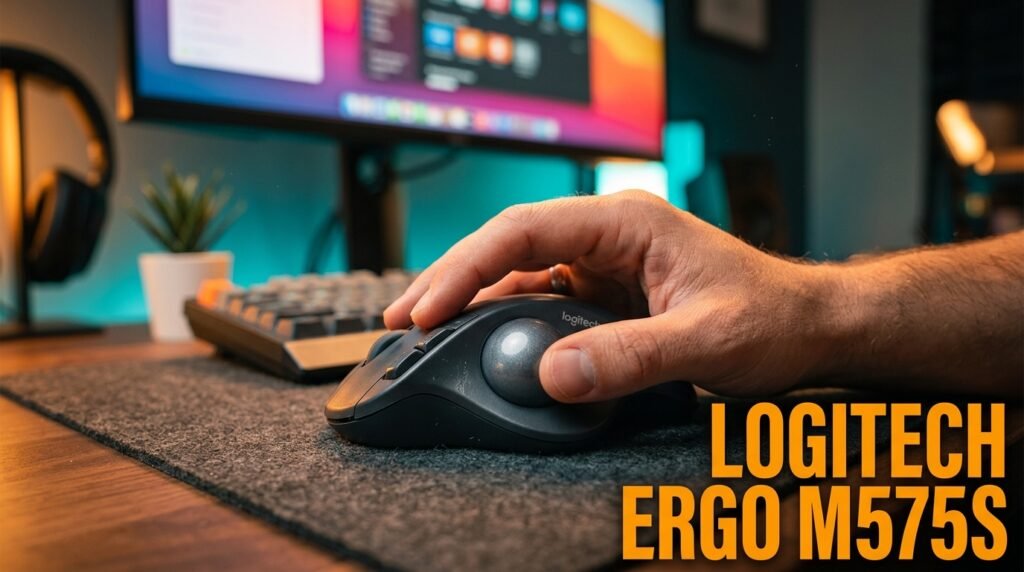
The Logitech Ergo M575S is the updated version of the M575 — one of the best-selling trackballs of all time — with 80% quieter clicks, Logi Bolt encrypted receiver, and 18-month battery life on a single AA battery. The ergonomic sculpted shape provides good palm support for medium hands, and the 34mm thumb ball tracks smoothly on the optical sensor.
Three programmable buttons with Logi Options+ support, Bluetooth or Logi Bolt wireless connectivity, and 52% recycled plastic construction. The M575S hits the sweet spot of trackball functionality at a price that makes it the sensible first trackball purchase for anyone who isn’t ready to commit $100+ to a category they haven’t tried.
What most reviews won’t tell you about the M575S versus the MX Ergo S: the core trackball experience — ball smoothness, tracking accuracy, wireless reliability — is nearly identical. You’re paying the MX Ergo S premium for the adjustable tilt, USB-C charging, and additional programmable buttons. If those features don’t matter for your workflow, the M575S delivers 90% of the experience at half the price.
Pros: 80% quieter clicks vs. previous generation, Logi Bolt encrypted wireless, 18-month battery, Logi Options+ support, excellent price-to-performance ratio, recycled plastic construction. Cons: Three buttons only — fewer customization options than MX Ergo S, no tilt adjustment, AA battery (not rechargeable), right-hand only.
4. Nulea M501 Wireless Trackball — Best Budget (~$30-35)
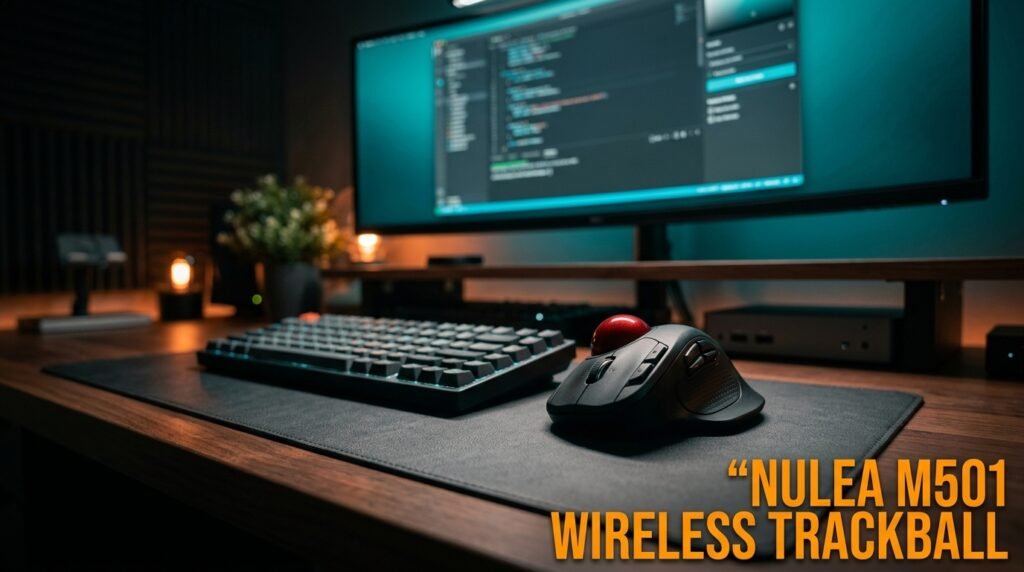
The Nulea M501 is the #1 best-selling trackball on Amazon — and the sales rank is justified. Three-device Bluetooth connectivity at under $35 is the standout specification that no competitor matches at this price. USB-C rechargeable with no need for disposable batteries, smooth thumb ball tracking, and a comfortable ergonomic shape that closely mirrors the M575S profile at roughly half the price.
The build quality reflects the price — lighter plastic than Logitech, less refined button feel, and no companion software for button remapping. For a user testing whether trackballs work for them before committing to a premium option, the Nulea M501 is the most sensible entry point in the category. 3-device switching means a single mouse covers a desktop, laptop, and tablet simultaneously.
Pros: #1 bestselling trackball on Amazon, 3-device Bluetooth pairing, USB-C rechargeable, comfortable ergonomic shape, best price on this list, plug-and-play setup. Cons: No companion software for button customization, lighter build quality than Logitech, fewer buttons than premium options, less refined scroll wheel feel.
5. Logitech MX Ergo — Best for Transition Users (~$89-99)
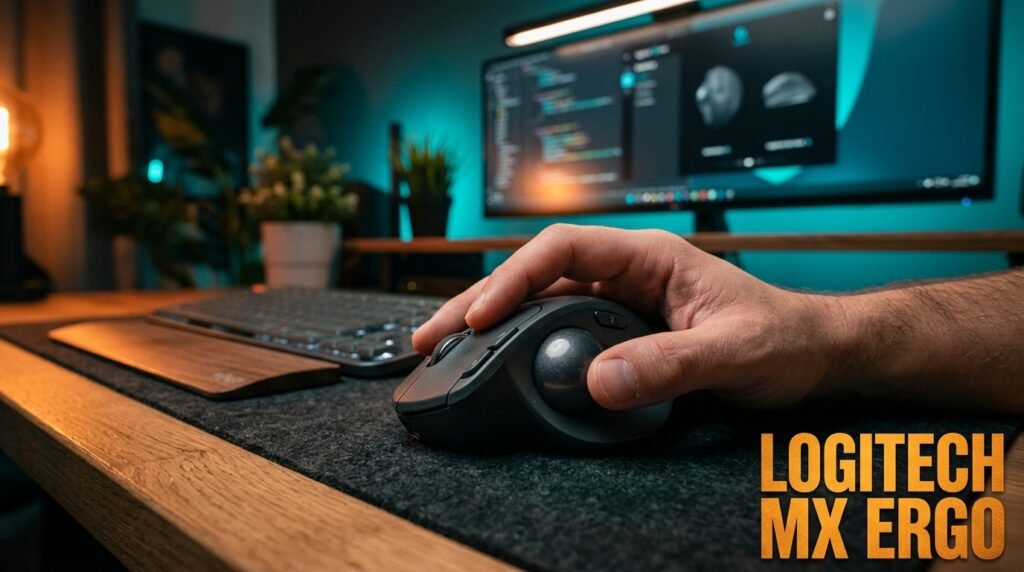
The Logitech MX Ergo is the previous generation MX Ergo S — same adjustable tilt mechanism, same 6-button layout, same Logi Options+ integration, but with micro-USB charging instead of USB-C and slightly louder clicks. For users who find the MX Ergo S out of stock or want the same adjustable tilt at a lower price point, the MX Ergo remains an excellent option.
The 0-20 degree adjustable tilt is the key feature that makes this the right choice for users coming specifically from a vertical mouse or ergonomic setup — you can start at 0 degrees while adapting to the trackball, then tilt to 20 degrees as cursor control improves, effectively using the tilt adjustment as a recovery progression tool.
Pros: Adjustable 20-degree tilt, 6 programmable buttons, Logi Options+ integration, multi-device pairing, established product with extensive user community and tip resources for new trackball users. Cons: Micro-USB charging (not USB-C), louder clicks than MX Ergo S, older design with less refined build quality, similar price to MX Ergo S which is the superior current-generation product.
Comparison Table
| Product | Price | Type | Best For | Rating |
|---|---|---|---|---|
| Logitech MX Ergo S | ~$109 | Thumb | Best overall productivity trackball | 9.5/10 |
| Kensington Expert Trackball | ~$90 | Fingertip | Best for fingertip control, left-handers | 9/10 |
| Logitech Ergo M575S | ~$54 | Thumb | Best mid-range value | 8.5/10 |
| Nulea M501 | ~$32 | Thumb | Best budget first trackball | 8/10 |
| Logitech MX Ergo | ~$94 | Thumb | Best adjustable tilt at lower price | 8/10 |
What to Look for When Choosing a Trackball Mouse for Productivity
1. Thumb vs fingertip control based on your anatomy Measure whether your thumb or your index/middle fingers are stronger and more dexterous for fine motor tasks. Most people find thumb control more intuitive initially — it’s closer to a standard mouse experience. Users with thumb pain, RSI in the thenar eminence, or who prefer precise fingertip dexterity should go straight to a fingertip trackball like the Kensington Expert. Don’t switch between types during the adaptation period — pick one and commit to it for 30 days.
2. Button count for your workflow Three buttons (M575S, Nulea M501) cover basic back-forward navigation and middle click. Six buttons (MX Ergo S, MX Ergo) allow per-application mapping that transforms the trackball into a workflow tool — Mission Control on one button, Exposé on another, undo on a third. For power users who rely heavily on keyboard shortcuts, the additional buttons can meaningfully reduce hand travel between mouse and keyboard.
3. Wireless connectivity for your setup Single-device users can choose any wireless option. Users who switch between laptop, desktop, and tablet throughout the day should prioritize multi-device pairing — the Nulea M501 offers 3-device Bluetooth at the lowest price. The MX Ergo S pairs two devices simultaneously. Consider whether you need a USB receiver (more reliable, uses a port) or pure Bluetooth (no dongle, port-free).
4. Ball size and its effect on precision Larger balls require less finger/thumb movement per unit of cursor travel, producing more precise cursor control once adapted — at the cost of a larger device footprint. The Kensington Expert’s 55mm ball is the largest on this list. The M575S uses a 34mm ball. For spreadsheet-heavy work or design tasks where cursor precision matters, larger is better. For general productivity and navigation, 34mm is entirely adequate.
5. Adaptation period commitment This is the most important buying criterion that no spec sheet addresses. Commit to 30 days before evaluating. Mark a date on your calendar. The first week will feel slow and frustrating — that’s not the trackball failing, that’s motor learning in progress. Nearly every user who abandons trackballs does so in the first 10 days. Nearly every user who reaches day 30 keeps the trackball permanently.
FAQ
How long does it take to get used to a trackball mouse?
Most users reach functional accuracy — comparable to their regular mouse for everyday tasks — within 14-21 days of consistent daily use. The adaptation curve follows a predictable pattern: days 1-5 are frustrating, days 6-14 show rapid improvement, and by day 21-30 the trackball feels as natural as a standard mouse. Users switching to fingertip trackballs typically take 5-7 days longer than users switching to thumb trackballs.
Are trackball mice better for wrist pain?
For wrist and arm pain caused by repetitive mouse movement, yes — trackballs eliminate the arm movement that causes repetitive strain by keeping the hand stationary. For wrist pain caused by awkward hand angle during standard mouse use, a vertical mouse may be more targeted. For shoulder pain from large desk-sweeping mouse movements, a trackball is often the most effective solution. See our guide on the best ergonomic mouse for wrist pain for a detailed comparison of both approaches.
Do trackball mice work on any surface?
Yes — this is one of the practical advantages over standard mice. Because the device doesn’t move, there’s no optical sensor scanning a desk surface. Trackball mice work on glass, polished wood, fabric, your lap, an armrest, or any surface. No mouse pad required. This makes them particularly practical for tight desk setups, couch computing, or any situation where mouse pad real estate is limited.
Can I use a trackball mouse for design work?
Yes, with the right model. Precision mode features (MX Ergo S) allow instant cursor speed reduction for detail work. Fingertip trackballs with large balls (Kensington Expert’s 55mm) produce fine cursor control comparable to a high-DPI standard mouse once adapted. Many professional illustrators and CAD users use fingertip trackballs specifically because the stationary device allows more deliberate, controlled cursor movements than arm-based mouse use. The adaptation period is longer for precision design work — expect 4-6 weeks before design-level accuracy feels natural.
Our Final Verdict
The best trackball mouse for productivity in 2026 comes down to your budget and which control type suits your anatomy. The Logitech MX Ergo S is the complete answer for most desk workers — adjustable tilt, 6 programmable buttons, and USB-C charging make it the most polished trackball available. The Kensington Expert Trackball is the right choice for fingertip control, left-handed users, and anyone with thumb discomfort. The Logitech M575S delivers the core trackball experience at half the price.
The Nulea M501 is the most sensible budget entry point with 3-device Bluetooth. And the Logitech MX Ergo is the adjustable-tilt alternative for anyone who finds the MX Ergo S out of stock. Commit to 30 days before evaluating. Check current pricing on Amazon for all five options.