
This article contains affiliate links. We may earn a commission if you buy through our links, at no extra cost to you.
Best USB Hub for Home Office in 2026
Modern laptops have sacrificed port variety for thinness — and most home office workers pay for that tradeoff every day. A MacBook Pro with two Thunderbolt ports, a Dell XPS with three USB-C ports, or a Surface Laptop with one USB-A and one USB-C: none of these handles a full home office peripheral load without a hub. Webcam, external drive, keyboard, mouse, microphone, monitor — the best USB hub for home office use connects everything through one cable to a laptop that was designed as if peripherals don’t exist.
After researching the USB hub category specifically for home office desktop use — not travel dongles or gaming hubs — here is what actually works for remote workers who need reliable, fast, multi-device connectivity in 2026. For context on how your hub connects to your broader desk setup, see our guide on the best monitor arm for desk — monitor connectivity runs through your hub in most single-cable setups.
Quick Answer
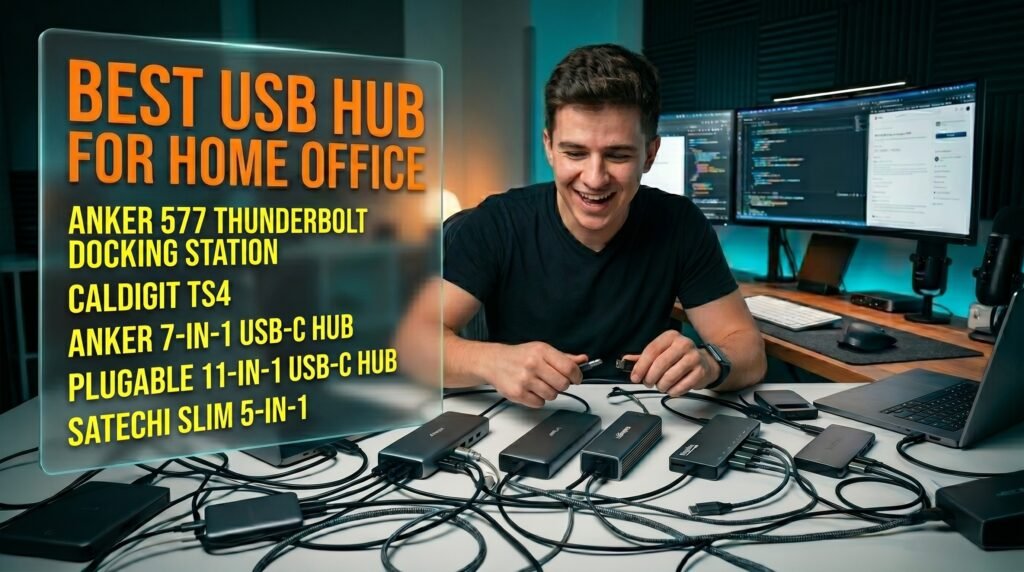
The Anker 577 Thunderbolt Docking Station is the best USB hub for home office use for MacBook and Thunderbolt laptop users — 13 ports, 85W laptop charging, dual 4K display support, and 2.5Gbps ethernet in a single desktop unit. For the best professional-grade Thunderbolt dock, the CalDigit TS4 is the gold standard at 18 ports and 98W charging. Most home office workers connecting one monitor and a few peripherals should look at the Anker 7-in-1 USB-C Hub. Dual monitor non-Thunderbolt users should consider the Plugable 11-in-1. Mac users who prioritize aesthetics should look at the Satechi Slim Multiport V2.
Why USB Hubs Matter More Than Most Workers Realize
The cable management problem that USB hubs solve is more significant than it sounds — and the right hub transforms a cluttered multi-cable desk into a clean, one-cable laptop connection.
Without a hub, a fully-equipped home office laptop setup typically involves 4-6 separate cables running directly to the laptop: power adapter, external monitor, webcam, keyboard and mouse receiver, external drive, and a USB microphone. On a laptop with 2-3 ports, this requires constant plugging and unplugging when moving between desk and portable use.
A quality USB hub consolidates all of these into a single cable to the laptop. Arrive at the desk, plug in one cable, all peripherals connect and the laptop charges. Leave the desk, unplug one cable, the laptop is clean for portable use. The daily friction of managing 5-6 individual cables is a genuine quality-of-life difference that USB hub reviews consistently undersell.
The counterintuitive point: cheap USB hubs often cost more than they save through the frustration they create. Unstable device detection, inconsistent charging power delivery, dropouts during data transfers — all common in sub-$20 hubs — produce a worse experience than no hub at all. The hub category is one where buying quality once produces better outcomes than buying cheap and replacing annually.
For home office workers building a complete desk setup, see our guide on the best laptop stand for desk — hub selection directly affects how monitors and peripherals connect when a laptop stand is part of the setup.
USB Hub vs. Docking Station — Which Do You Actually Need?
The functional distinction between a hub and a docking station is clear and worth understanding before spending.
USB hubs are bus-powered, compact, and designed for moderate peripheral loads — typically 4-7 ports carrying mice, keyboards, USB drives, and similar low-power devices. They draw power from the laptop’s USB port rather than a wall outlet, which limits how much power they can deliver. Most USB hubs don’t meaningfully charge a MacBook Pro under load.
USB-C hubs with Power Delivery are a middle tier — compact hubs that include a USB-C Power Delivery pass-through port, allowing the laptop to charge through the hub while peripherals are connected. Good for setups with moderate peripheral loads where charging is required.
Thunderbolt docking stations are the premium tier — wall-powered, capable of driving dual 4K monitors, delivering 85-100W of laptop charging, and supporting high-bandwidth devices at full speed. They cost significantly more but handle the complete home office peripheral load without compromise.
The decision framework: 3-4 low-power peripherals and occasional USB drive → USB-C hub under $40. Monitor plus multiple USB devices plus laptop charging through one cable → USB-C hub with PD at $50-80. Dual monitors, external SSD, and the cleanest one-cable connection available → Thunderbolt docking station.
The 5 Best USB Hubs for Home Office in 2026
1. Anker 577 Thunderbolt Docking Station — Best Overall (~$230-250)
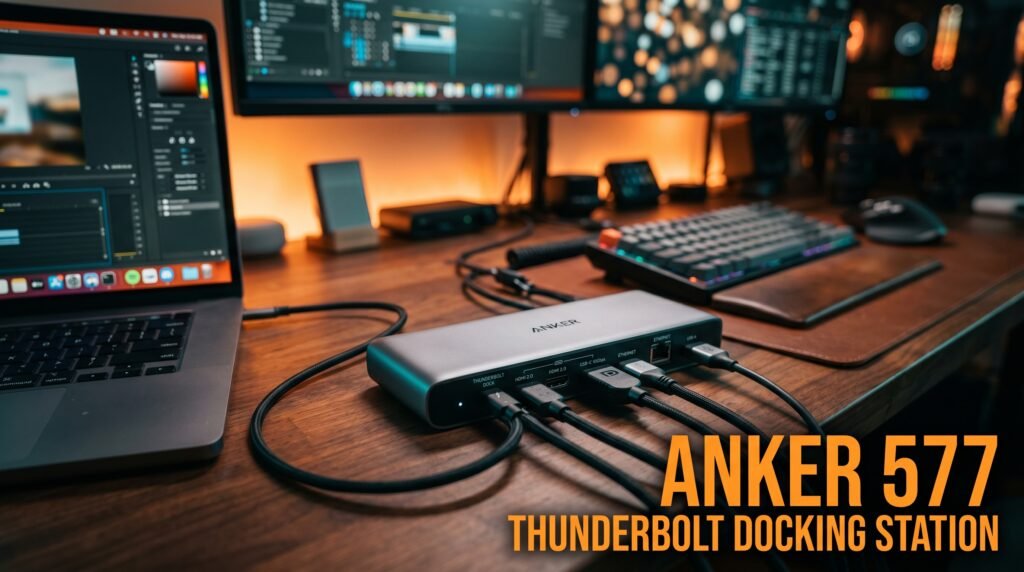
The Anker 577 Thunderbolt Docking Station is the home office hub for users who want to solve connectivity permanently. 13 ports: Thunderbolt 4 upstream with 85W laptop charging, two Thunderbolt 4 downstream at 40Gbps each, two USB-A 3.2 Gen 2 at 10Gbps, two USB-A 2.0, USB-C 3.2, SD and microSD card readers, 3.5mm audio, and 2.5Gbps ethernet. Supports dual 4K displays at 60Hz from a single Thunderbolt connection.
The 85W laptop charging through the single Thunderbolt cable is the feature that makes the 577 a genuine one-cable desk solution — a 16-inch MacBook Pro charges at full rate while connected. The 2.5Gbps ethernet is a meaningful spec upgrade over the 1Gbps ethernet on most competing docks — relevant for workers with multi-gigabit home internet or who transfer large files over the network regularly.
Best for: Thunderbolt laptop users who want to solve desk connectivity permanently with one cable and never think about it again.
Pros: 13 ports, 85W laptop charging, dual 4K support, 2.5Gbps ethernet, Thunderbolt 4 speeds at 40Gbps, complete one-cable desk connection. Cons: $230-250 price point, requires Thunderbolt-capable laptop for full functionality, wall-powered with included 180W adapter, large desktop footprint.
2. CalDigit TS4 — Best Premium Docking Station (~$350-380)
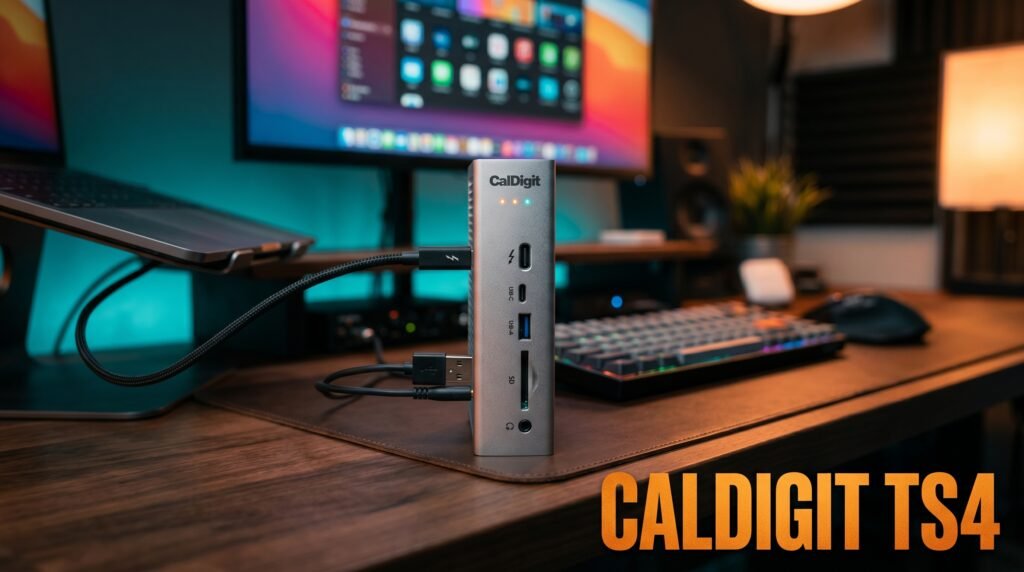
The CalDigit TS4 is the docking station for users who need maximum port count and the most capable Thunderbolt implementation available — 18 ports including three Thunderbolt 4 downstream at 40Gbps, five USB-A 3.2 at 10Gbps, three USB-C 3.2, UHS-II SD card reader, 2.5Gbps ethernet, optical audio out, and 98W laptop charging.
The 98W charging is the spec that distinguishes the TS4 from the Anker 577 for high-performance laptop users — the 16-inch MacBook Pro draws up to 96W under sustained load, and the TS4 meets this requirement without throttling. The UHS-II SD card reader at 312MB/s read speeds — versus the standard UHS-I at 104MB/s — is a meaningful upgrade for photographers shooting in burst mode.
Best for: Creative professionals, photographers, and developers who saturate Thunderbolt bandwidth with multiple high-speed devices simultaneously.
Pros: 18 ports, 98W laptop charging, three Thunderbolt 4 downstream, UHS-II SD reader, optical audio, 2.5Gbps ethernet, industry-standard quality. Cons: $350-380 — expensive for most home office use cases, overkill outside professional creative workflows, large unit requires dedicated desk space.
3. Anker 7-in-1 USB-C Hub — Best Mid-Range Hub (~$25-35)
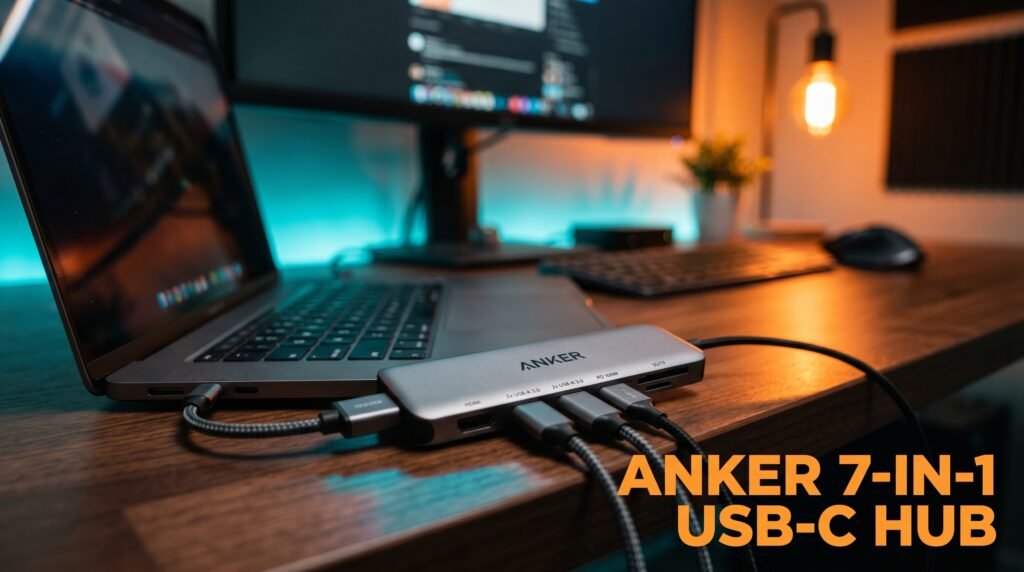
The Anker 7-in-1 USB-C Hub is the recommendation for most home office workers — 85W Power Delivery pass-through, 4K HDMI output, two USB-A 3.0 ports, USB-C 3.0 data, SD and microSD card readers, in a compact bus-powered format. One cable to the laptop handles monitor output, USB peripherals, card reading, and laptop charging simultaneously.
At $25-35 it covers the standard home office peripheral load — one external monitor, keyboard and mouse via USB-A, and laptop charging — without requiring a wall-powered docking station. The 85W PD pass-through charges most laptops at full rate, with the caveat that heavy computational loads on 16-inch MacBook Pros may outpace 85W charging under sustained workloads.
Best for: Home office workers connecting one monitor, keyboard, mouse, and occasional SD card — the standard productivity peripheral load.
Pros: 85W Power Delivery, 4K HDMI, SD and microSD readers, compact bus-powered design, Anker quality, plug-and-play universal compatibility. Cons: Single HDMI limits dual-monitor setups, no ethernet, USB-A at 3.0 rather than 3.2 Gen 2, bus-powered limits simultaneous high-power device charging.
4. Plugable 11-in-1 USB-C Hub — Best for Dual Monitor Non-Thunderbolt (~$70-80)
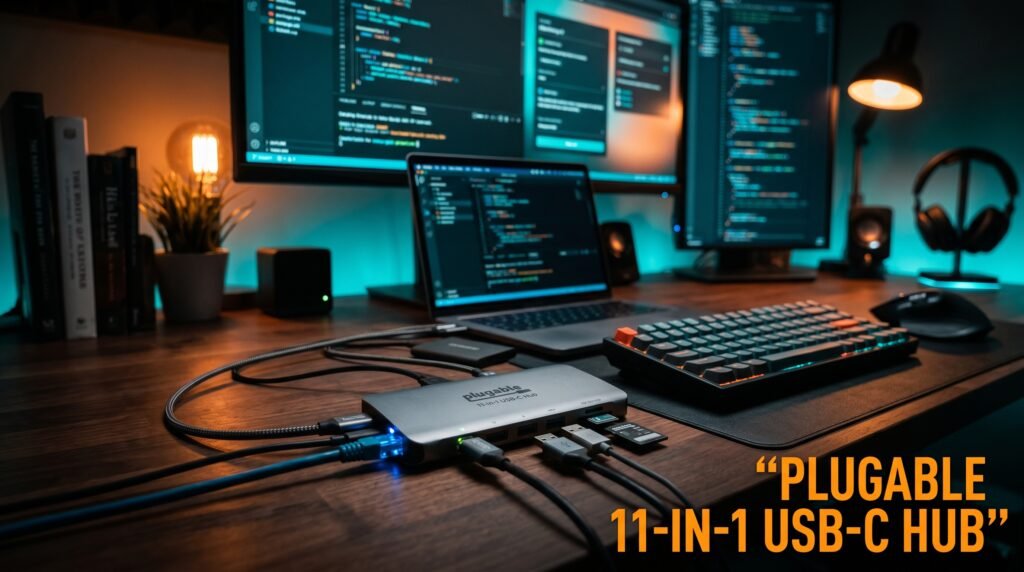
The Plugable 11-in-1 USB-C Hub hits the middle ground between a basic USB-C hub and a full Thunderbolt docking station — 11 ports with 100W Power Delivery, dual HDMI outputs for dual 4K monitor support, Gigabit ethernet, three USB-A 3.0, USB-C 3.0, SD and microSD, and 3.5mm audio in a wall-powered unit.
The dual HDMI output is the feature that makes the Plugable the right choice for home office users running two external monitors without a Thunderbolt laptop. On Windows computers with DisplayPort 1.4, both HDMI ports output at 4K 60Hz in extended mode. Mac computers support one extended display plus one mirrored through this hub — a macOS limitation unrelated to the hub’s hardware capability.
Best for: Windows users running dual monitors from a USB-C laptop without Thunderbolt, or anyone who needs dual display output at the non-Thunderbolt price point.
Pros: Dual HDMI for dual-monitor setups, 100W Power Delivery, Gigabit ethernet, 11 ports, wall-powered for stable device power. Cons: Mac limited to one extended display (macOS limitation), Gigabit rather than 2.5Gbps ethernet, wall adapter adds desk cable, $70-80 approaches entry Thunderbolt pricing.
5. Satechi Slim Multiport Adapter V2 — Best for Mac Aesthetics (~$50-60)
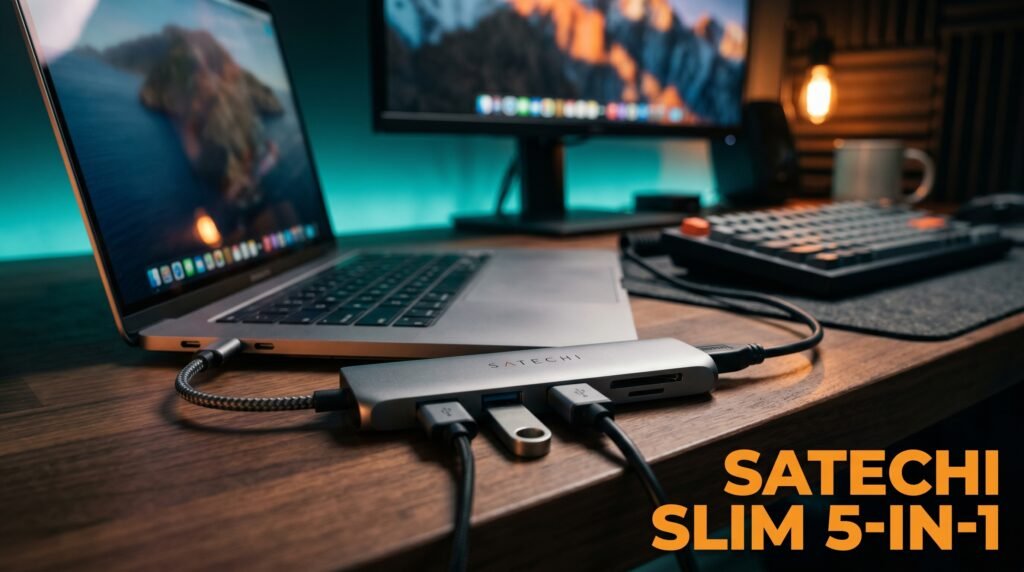
The Satechi Slim Multiport Adapter V2 is the hub for Mac users who want connectivity without desk visual clutter. Slim aluminum construction in space gray and silver that matches MacBook hardware directly, 4K HDMI at 60Hz, 60W USB-C Power Delivery pass-through, two USB-A 3.0 ports, and SD/microSD card readers — in a form factor that lies flat on the desk at near-credit-card thickness.
The visual integration with Apple hardware is genuinely distinctive. Most USB-C hubs dangle awkwardly or sit beside the laptop in a form that reads as afterthought. The Satechi Slim lies parallel to the laptop, adding almost no visual presence to the desk surface. For workers whose desk aesthetic matters and who connect 4-5 peripherals rather than 10, this hub disappears into the setup completely.
Best for: Mac users who prioritize desk aesthetics and connect a single monitor alongside standard productivity peripherals.
Pros: Slim aluminum design matches Apple hardware, 4K HDMI at 60Hz, 60W PD, SD/microSD readers, minimal desk footprint, Satechi build quality. Cons: 60W PD — may not fully charge 16-inch MacBook Pro under heavy load, no ethernet on base model, 60Hz HDMI only, higher cost per port than competing hubs.
Comparison Table
| Product | Price | Ports | Best For | Rating |
|---|---|---|---|---|
| Anker 577 Thunderbolt | ~$240 | 13 | Best overall Thunderbolt dock | 9.5/10 |
| CalDigit TS4 | ~$365 | 18 | Best professional creative dock | 9/10 |
| Anker 7-in-1 USB-C Hub | ~$30 | 7 | Best value mid-range hub | 9/10 |
| Plugable 11-in-1 | ~$75 | 11 | Best dual monitor non-Thunderbolt | 8.5/10 |
| Satechi Slim V2 | ~$55 | 6 | Best for Mac aesthetics | 8/10 |
What to Look for When Choosing a USB Hub for Home Office
1. Power Delivery wattage for your specific laptop Check your laptop’s charging wattage from the brick — MacBook Pro 16-inch: 96-140W. MacBook Air: 30-45W. Dell XPS 15: 65-90W. A hub with 65W Power Delivery charges a MacBook Pro but throttles under heavy computational load. For laptops requiring above 85W, only wall-powered Thunderbolt docks reliably keep pace. Matching hub PD output to laptop requirement is the most commonly skipped buying step.
2. Display output for your monitor setup Single monitor users need one HDMI or DisplayPort — the Anker 7-in-1 covers this. Dual monitor users need either a Thunderbolt dock or a hub with dual display output like the Plugable 11-in-1. Verify your laptop’s USB-C port is Thunderbolt-capable before purchasing a Thunderbolt dock — USB-C-only ports won’t unlock Thunderbolt bandwidth.
3. Bus-powered vs. wall-powered Bus-powered hubs work for keyboards, mice, and webcams — low-draw devices. Wall-powered hubs and docking stations are necessary for stable laptop charging, external SSDs, and any setup connecting more than 5 devices simultaneously. The Anker 7-in-1 is bus-powered and handles standard loads. The Plugable 11-in-1 and Thunderbolt docks are wall-powered and handle everything.
4. Data transfer speed for storage USB 3.0 at 5Gbps is adequate for mechanical drives and flash storage. USB 3.2 Gen 2 at 10Gbps matters for NVMe external SSDs. Thunderbolt 4 at 40Gbps matters for the fastest professional storage workflows. For most home office workers whose heaviest use is backing up files, USB 3.0 is entirely adequate.
5. Ethernet for video call reliability WiFi is adequate for most home office work but introduces latency variability that becomes noticeable on video calls in congested wireless environments. A wired ethernet connection through the hub produces consistently lower latency and eliminates the occasional call freeze from wireless interference. The Anker 577 and CalDigit TS4 both include 2.5Gbps ethernet; the Plugable 11-in-1 includes 1Gbps ethernet. The Anker 7-in-1 and Satechi Slim have no ethernet.
FAQ
Can I use a USB hub with any laptop?
USB-C hubs work with any laptop that has USB-C ports, though Power Delivery and display output functionality depend on what that USB-C port supports — USB 3.0, USB 3.2, USB4, or Thunderbolt 3/4. Thunderbolt docking stations require a Thunderbolt-capable USB-C port for full functionality. On USB-C-only (non-Thunderbolt) ports, Thunderbolt docks function as standard USB-C hubs without Thunderbolt bandwidth advantages.
Will a USB hub slow down my internet connection?
A USB hub with Gigabit or 2.5Gbps ethernet provides a wired connection that’s typically faster and more stable than WiFi — it won’t slow your internet and will often improve call quality compared to wireless. USB hubs without ethernet don’t affect WiFi performance at all. The hub connects to the laptop via USB, operating independently of the WiFi adapter.
How many devices can a USB hub support simultaneously?
The port count determines the maximum simultaneously connected devices. Quality hubs support all connected devices simultaneously without degradation for low-bandwidth peripherals. High-bandwidth devices — external SSDs, 4K displays — consume significant USB bus bandwidth on bus-powered hubs. Wall-powered docking stations manage this through dedicated power allocation per port.
Do I need a Thunderbolt dock if my laptop only has USB-C?
No — Thunderbolt docks connected to USB-C-only (non-Thunderbolt) laptops operate as standard USB-C hubs. The Thunderbolt bandwidth advantage requires a Thunderbolt host port. For USB-C-only laptops, the Plugable 11-in-1 or Anker 7-in-1 are the appropriate options — they deliver USB-C functionality without the Thunderbolt premium that your laptop can’t utilize.
Our Final Verdict
The best USB hub for home office use in 2026 depends entirely on your laptop and peripheral load. The Anker 7-in-1 USB-C Hub at $30 is the right answer for most home office workers connecting one monitor, a keyboard and mouse, and an occasional SD card — it covers the standard load at a price that’s easy to justify. The Anker 577 Thunderbolt Dock solves connectivity permanently for Thunderbolt laptop users who want everything through one cable. Creative professionals who max out Thunderbolt bandwidth should invest in the CalDigit TS4. Dual monitor users on USB-C-only laptops should consider the Plugable 11-in-1. Check current pricing on Amazon for all five options before buying.