

This article contains affiliate links. We may earn a commission if you buy through our links, at no extra cost to you.
Best Home Office Setup Under $1000 in 2026
There’s a meaningful gap between a functional home office and a great one — and it lives almost entirely in the $500–$1000 budget range. The best home office setup under $1000 is where genuine quality begins: a professional-grade monitor, a mechanical keyboard worth keeping for years, a mouse that eliminates friction entirely, and a chair that doesn’t make you shift positions every 20 minutes. After researching and comparing dozens of component combinations at this price tier, here is what actually works for remote workers and professionals who spend serious time at their desks.
This guide builds a complete, professional home office setup for under $1000, explains where the extra budget versus a $500 setup actually goes, and lists the upgrades worth adding when the budget allows.
Quick Answer: The best home office setup under $1000 centers on the Dell UltraSharp U2723QE 27″ 4K monitor (~$380) as the anchor, paired with the Keychron Q2 Pro keyboard (~$170), Logitech MX Master 3S mouse (~$100), Hbada Ergonomic Chair (~$130), Oakywood Felt Desk Mat (~$80), and BenQ ScreenBar lamp (~$109). Total: ~$969.
What the Extra $500 Actually Buys Over a $500 Setup
The jump from a $500 to a $1000 home office setup isn’t just more of the same — it’s a qualitative shift in several components that affects daily work in ways that are immediately noticeable. Understanding where the money goes helps you decide whether the upgrade is worth it for your specific situation.
The monitor is where the biggest improvement lives. A $200 1440p IPS panel is good. A $380 4K IPS Black monitor with USB-C docking, built-in KVM switch, and factory-calibrated color is in a different category — sharper text at any zoom level, better black depth for reduced eye strain over long sessions, and a hub that replaces a separate dock for most laptop users.
The keyboard is the second major upgrade. A $40 Keychron C3 Pro is genuinely good for its price. A $170 Keychron Q2 Pro is a gasket-mounted, aluminum-bodied keyboard that types differently — quieter, with a softer flex on each keypress that reduces finger fatigue over hours of sustained typing. The difference is noticeable within the first day.
The counterintuitive point: the chair stays the same between the two setups. The Hbada at $130 delivers the ergonomic fundamentals that prevent back pain — lumbar support, flip-up armrests, adjustable height — and the next meaningful chair upgrade doesn’t happen until $300+. Spending extra chair budget on a marginally better $200 chair instead of a significantly better monitor or keyboard is the wrong allocation at this tier.
For men building a complete productive workspace from scratch, see our guide on the best home office setup under $500 — the $500 build is the starting point this guide upgrades from.
The $1000 Home Office Setup — Complete Build
| Component | Product | Price |
|---|---|---|
| Monitor | Dell UltraSharp U2723QE 27″ 4K | ~$380 |
| Keyboard | Keychron Q2 Pro | ~$170 |
| Mouse | Logitech MX Master 3S | ~$100 |
| Chair | Hbada Ergonomic Mesh Chair | ~$130 |
| Desk Mat | Oakywood Felt Desk Mat | ~$80 |
| Lamp | BenQ ScreenBar | ~$109 |
| Total | ~$969 |
$31 under budget — enough for a basic cable management solution to keep the setup clean from day one.
The Components — What Each One Does and Why It Made the List
1. Dell UltraSharp U2723QE 27″ 4K — The Anchor (~$380)
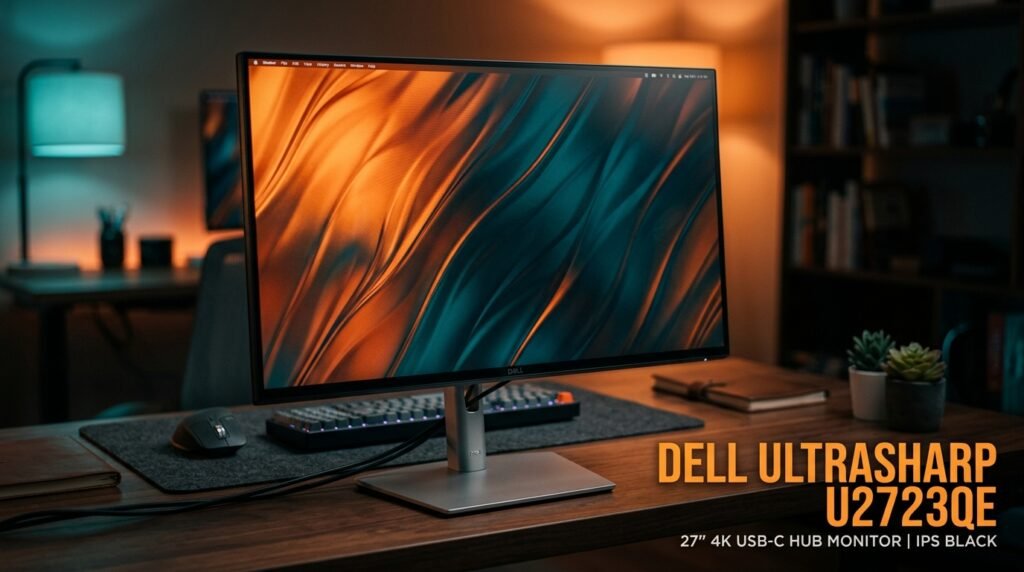
The Dell UltraSharp U2723QE is the monitor that justifies the $1000 budget tier over the $500 one. This is the first 4K IPS Black monitor Dell produced — IPS Black delivers a 2000:1 contrast ratio versus the 1000:1 of standard IPS panels, meaning blacks are genuinely dark rather than the slightly grey appearance that standard IPS produces. For sustained document work and reading, this contrast improvement reduces eye fatigue in ways that users coming from standard IPS panels notice within the first week.
The built-in USB-C dock handles 90W laptop charging, HDMI, DisplayPort, four USB-A ports, and ethernet — eliminating the need for a separate dock or hub for most laptop users. A content creator running a MacBook Pro and an external SSD connected the U2723QE via a single USB-C cable and replaced their separate $80 dock entirely on day one. Factory calibration means color accuracy is professional-grade out of the box — Delta E below 2 without any manual calibration required.
Pros: IPS Black 2000:1 contrast, factory calibrated Delta E <2, 90W USB-C single-cable docking, built-in KVM switch, 4K at 27 inches, full ergonomic stand with height adjustment. Cons: 60Hz refresh rate not suited for gaming, $380 is a significant monitor investment, IPS Black still not OLED-level black depth.
2. Keychron Q2 Pro — The Keyboard (~$170)
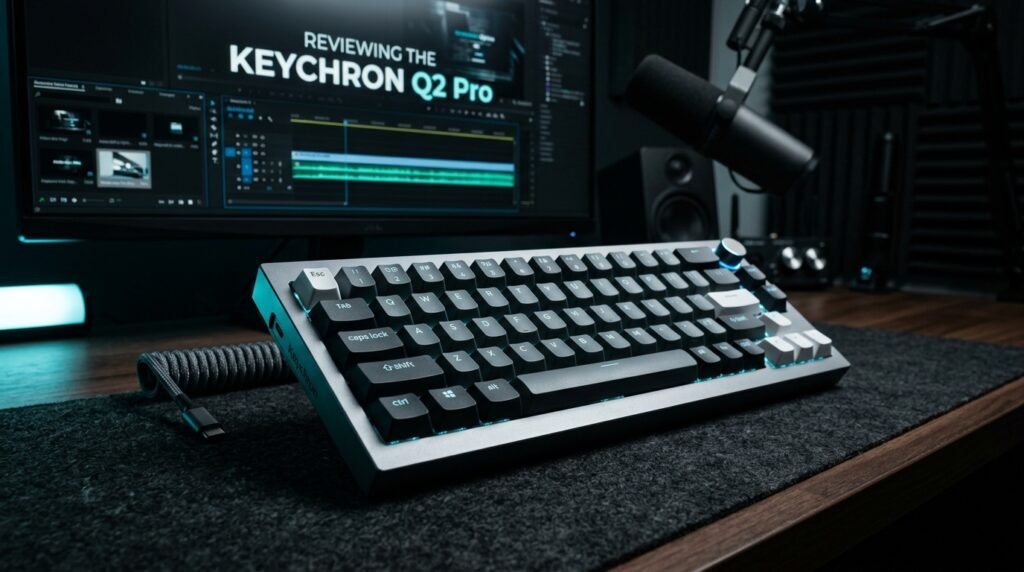
The Keychron Q2 Pro is the keyboard that changes how mechanical keyboards feel to people who’ve only used budget options. Gasket-mounted construction — the PCB floats on silicone gaskets rather than screwing directly to the case — produces a softer, bouncier typing feel that absorbs finger impact instead of transmitting it directly to the desk. The aluminum body eliminates the flex and rattle that plastic-body keyboards produce under sustained typing. Hot-swappable switches mean the keyboard adapts to your preferred feel rather than requiring a new purchase.
The 75% layout — full alphanumeric keys plus function row plus navigation cluster, without a numpad — is the most practical layout for home office setups where desk space is at a premium and mouse positioning matters for shoulder comfort. Wireless via Bluetooth 5.1 or 2.4GHz USB receiver, wired via USB-C. A developer who switched from a standard membrane keyboard to the Q2 Pro reported measurably fewer typing errors and significantly less finger fatigue during 8-hour coding sessions within two weeks.
Pros: Gasket mount for premium typing feel, aluminum body, hot-swappable switches, wireless and wired modes, 75% layout, Mac/Windows toggle, multiple color options. Cons: $170 is a significant keyboard investment, wireless mode adds latency versus wired for some users, knob requires software configuration on first use.
3. Logitech MX Master 3S — The Mouse (~$100)

The Logitech MX Master 3S is the mouse that most productivity-focused professionals eventually buy and stop upgrading. The MagSpeed electromagnetic scroll wheel freewheels at 1000 lines per second — scrolling through long documents or codebases in seconds rather than minutes — then switches to precise click-to-click scrolling for granular control. 90% quieter click than previous MX Master versions. 8K DPI sensor that tracks on any surface including glass.
The thumb rest and contoured ergonomic profile fit medium-to-large right hands through full workdays without the grip fatigue that flat mice cause after 4-5 hours. Three device pairing via Bluetooth allows switching between laptop, desktop, and tablet with a button press — particularly useful for users who move between a personal and work machine throughout the day. In our experience, the MagSpeed scroll wheel is the feature that converts skeptics — it feels like a fundamental quality-of-life improvement rather than a minor spec upgrade.
Pros: MagSpeed electromagnetic scroll, 8K DPI any-surface sensor, 90% quieter click, 3-device Bluetooth pairing, 70-day battery, USB-C charging, Logitech Options+ software. Cons: Right-hand only, $100 is premium mouse pricing, Bluetooth can experience micro-lag in congested wireless environments, large form factor doesn’t suit small hands.
4. Hbada Ergonomic Mesh Chair — The Foundation (~$130)

The Hbada Ergonomic Mesh Chair is the same chair from the $500 setup — intentionally. At $130 it delivers every ergonomic fundamental required for all-day comfort: adjustable lumbar support, flip-up armrests, breathable mesh back, height adjustment, and a headrest. The next meaningful chair upgrade — Herman Miller Aeron, Secretlab Titan, Autonomous ErgoChair Pro — starts at $300-400 and produces real but incremental improvement over the Hbada’s fundamentals.
Spending the $170-270 price difference on a marginally better chair rather than a significantly better monitor or keyboard is the wrong call at this budget. The Hbada prevents back pain and supports proper posture — the primary functional requirements of a home office chair. The aesthetic and material quality upgrade to a $350 chair is real, but it doesn’t affect your work output the way a 4K IPS Black monitor does.
Pros: Full ergonomic feature set, mesh back for airflow, flip-up armrests, adjustable lumbar, 3-year warranty, correct priority allocation within $1000 budget. Cons: Build quality visibly below $300+ chairs, plastic base, lumbar adjustment less refined than premium options, no seat depth adjustment.
5. Oakywood Felt Desk Mat — The Desk Mat (~$80)
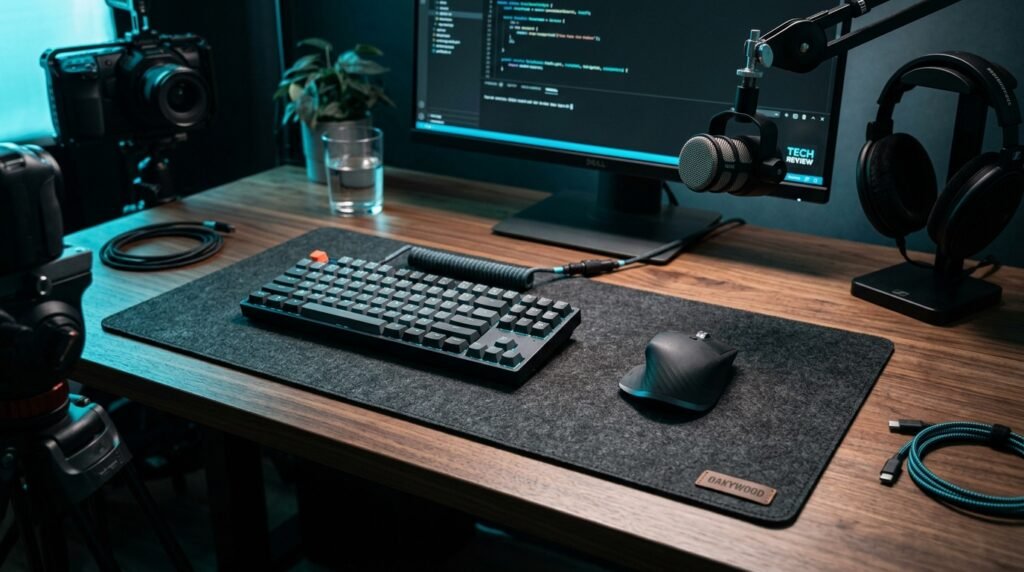
The Oakywood Felt Desk Mat is where the $1000 setup diverges meaningfully from the $500 one in terms of desk aesthetics and material quality. The merino wool felt surface is visually and tactilely premium — it doesn’t look like a gaming peripheral, it looks like a considered design choice. At 800×400mm it covers the full keyboard and mouse zone on most desks with room to spare. The non-slip cork backing keeps it positioned precisely without any sliding or bunching.
The felt surface works well with optical mice and provides a slightly cushioned wrist resting surface that reduces fatigue during long typing sessions compared to hard desk surfaces. For a $1000 setup where every component has been chosen deliberately, the Oakywood mat elevates the visual coherence of the workspace from “assembled” to “designed.” What most reviews won’t tell you is that the material quality difference between a $30 synthetic mat and an $80 felt mat is more apparent in person than any photo communicates.
Pros: Merino wool felt premium material, cork non-slip backing, 800×400mm coverage, works with optical mice, cushioned wrist surface, genuine aesthetic upgrade. Cons: $80 is premium desk mat pricing, felt surface shows dust and debris more visibly than synthetic alternatives, requires occasional lint rolling to maintain appearance.
6. BenQ ScreenBar — The Lamp (~$109)
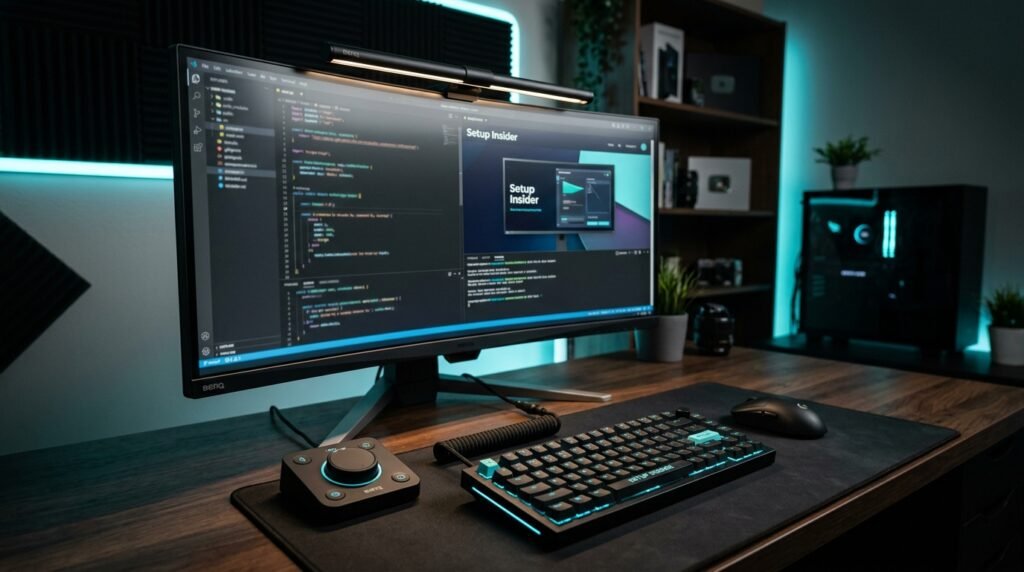
The BenQ ScreenBar mounts on the Dell U2723QE’s top edge, powers via the monitor’s USB-A port, and illuminates the desk with asymmetric optics that direct light exclusively downward — zero monitor glare, zero desk footprint. Auto-dimming via built-in ambient light sensor adjusts brightness automatically as room lighting changes from morning window light to evening artificial light without manual adjustment. Color temperature range from 2700K warm to 6500K daylight covers the full workday’s lighting needs.
At a $1000 budget level, lighting is no longer optional — it’s the component that determines whether an expensive, carefully selected setup looks as good in use as it looks in theory. A dark desk with a bright monitor creates the contrast fatigue that causes headaches and afternoon energy crashes regardless of how good the individual components are. The ScreenBar solves this permanently in 30 seconds of installation. See our full comparison in the best desk lamp for home office guide for all available options.
Pros: Zero desk footprint, asymmetric optics eliminate monitor glare, auto-dimming, USB-powered from monitor, 2700K–6500K range, 30-second installation, no outlet required. Cons: $109 is significant for a lamp, touch-only controls with no remote, requires monitor with accessible top edge.
Optional Upgrades — In Priority Order
Once the base setup is running, these additions are ranked by daily impact per dollar:
Priority 1: Logitech MX Brio Webcam — (~$170)
The Logitech MX Brio delivers 4K/30fps or 1080p/60fps video with Show Mode for desk content display, AI-powered light correction, and dual omnidirectional microphones. For professionals on multiple video calls daily, the visual quality difference between a laptop webcam and the MX Brio is immediately apparent to every person in the call. At a $1000 setup level, a $170 webcam that matches the visual quality of the monitor and keyboard is the right addition for anyone whose work involves regular video presence.
Priority 2: Twelve South Curve SE Laptop Stand — (~$60)
The Twelve South Curve SE elevates the laptop to a proper secondary screen position alongside the Dell monitor, improves laptop ventilation during demanding tasks, and does it with an aesthetic that matches the quality of the rest of the setup. The steel and silicone construction is noticeably more premium than aluminum fold-flat alternatives.
Priority 3: Anker 577 Thunderbolt Dock — (~$150)
The Anker 577 adds Thunderbolt 4, dual 4K monitor support, 100W laptop charging, and 12 ports to any Thunderbolt-equipped laptop. For users whose laptops don’t have adequate USB-C power delivery for the Dell’s 90W dock, or who need more ports than the monitor’s built-in hub provides, this is the dock that handles everything in one connection.
Priority 4: CCCEI Under Desk Cable Management Tray — (~$28)
The CCCEI tray clamps to the desk underside and holds the power strip and cable bricks completely out of sight. At a $1000 setup level, visible cables under the desk undercut the visual quality of every premium component above it. This is the $28 purchase that makes the whole setup look intentional.
What to Look for When Building a Home Office Setup Under $1000
1. Monitor quality is the non-negotiable priority At $1000, the monitor should be 4K IPS with USB-C docking and factory calibration. The Dell U2723QE represents the quality ceiling for monitors in this budget tier — anything significantly cheaper sacrifices panel technology, color accuracy, or connectivity that affects daily use. Don’t compromise the monitor to afford a more expensive chair or keyboard.
2. Gasket-mount keyboard over standard tray-mount The typing experience difference between a gasket-mount keyboard like the Q2 Pro and a standard tray-mount keyboard is immediately perceptible and compounds over hours of daily use. At $1000, the keyboard budget should reach $150-200 — the tier where gasket mounting, aluminum bodies, and hot-swappable switches become standard rather than premium.
3. Mouse with electromagnetic scroll for document-heavy work The MagSpeed scroll wheel in the MX Master 3S is the most underrated productivity feature in any peripheral category. Men who work with long documents, codebases, spreadsheets, or research regularly will use freewheeling scroll more than any other mouse feature — and no mouse at any price below the MX Master 3S delivers an equivalent implementation.
4. Dedicated lighting as a base component, not an upgrade At $500, a desk lamp is an optional addition. At $1000, it’s part of the base setup. The contrast fatigue from a bright 4K monitor in a poorly lit room accumulates over hours and cancels a meaningful portion of the visual quality improvement a premium monitor provides. Budget for the BenQ ScreenBar as a base component rather than a future upgrade.
5. Leave $30-50 for cable management A $1000 setup with visible cable chaos defeats the purpose of careful component selection. The CCCEI under-desk tray at $28 and a set of SOULWIT cable clips at $10 handle the cable situation completely. Build this into the budget from the start rather than adding it reactively.
FAQ
Is a $1000 home office setup worth it over a $500 one?
For professionals spending 6-8 hours daily at a desk, yes — with a specific caveat. The jump from $500 to $1000 produces the most meaningful improvement in two components: the monitor (4K IPS Black with USB-C docking versus 1440p without docking) and the keyboard (gasket-mount aluminum versus standard mechanical). If you spend most of your day reading documents and typing, both upgrades are immediately noticeable and compound over every workday.
Should I buy a standing desk as part of a $1000 home office setup?
Not if it means compromising the monitor or chair. Entry-level electric standing desks start at $350-500, which consumes 35-50% of the total budget and forces significant downgrades on other components. A $1000 setup with a quality fixed desk, proper chair, and premium monitor outperforms a $1000 setup with a standing desk and budget peripherals for most home office workers. Add a standing desk at the $1500+ total setup tier where it doesn’t require component compromises.
What’s the single best upgrade from a $500 to a $1000 home office setup?
The monitor. The Dell UltraSharp U2723QE’s IPS Black panel, 4K resolution, and USB-C docking represent a qualitative improvement over any $200 monitor that affects every minute of every workday. The keyboard is the second most impactful upgrade. Everything else at the $1000 tier is meaningful but incremental compared to those two component improvements.
Can I build this setup gradually rather than all at once?
Yes, and there’s a smart order to follow. Monitor first — it has the highest daily impact. Keyboard second — the Q2 Pro is the component most users wait too long to buy. Mouse third — the MX Master 3S is an immediate upgrade from any budget mouse. Chair, desk mat, and lamp fill in as budget allows. Buying the monitor first and using it with your existing keyboard and mouse for a month while saving for the next component is a perfectly reasonable approach.
Our Final Verdict
The best home office setup under $1000 in 2026 is a deliberate upgrade from the $500 tier in the two components that matter most — monitor and keyboard. The Dell UltraSharp U2723QE at $380 sets a quality ceiling that justifies the entire budget. The Keychron Q2 Pro at $170 delivers a typing experience that doesn’t require upgrading again.
The Logitech MX Master 3S handles any productivity mouse task at its price tier definitively. The Hbada Chair, Oakywood Desk Mat, and BenQ ScreenBar complete a setup that looks and performs at a professional level every day. Check current pricing on Amazon for all components in this guide.