

This article contains affiliate links. We may earn a commission if you buy through our links, at no extra cost to you.
Best Mouse for Mac in 2026
Apple’s trackpad is genuinely excellent — and that’s exactly the problem. Most Mac users default to the trackpad for years, then switch to a mouse and realize how much precision and comfort they’ve been leaving on the table for document work, spreadsheets, and anything that requires sustained cursor control. Choosing the best mouse for Mac isn’t just about compatibility — every modern wireless mouse works with macOS. It’s about finding the right combination of Bluetooth reliability, scroll behavior that feels native rather than jarring, and a form factor that complements how you actually work.
After researching and comparing the Mac mouse category in depth — across productivity workflows, travel use, ergonomics, and Apple ecosystem integration — here is what actually works for Mac users in 2026.
This guide covers five distinct use cases, from the daily desk driver to the budget first mouse, so you can match the recommendation to your specific situation.
Quick Answer
The Logitech MX Master 3S for Mac is the best mouse for Mac for most users — 8K DPI track-on-glass sensor, MagSpeed scroll wheel, silent clicks, and deep macOS customization through Logi Options+, in a pale grey colorway designed for Apple setups. For Mac users who want the native Apple experience with multi-touch gesture support, the Apple Magic Mouse remains the only mouse that replicates trackpad gesture behavior directly on the mouse surface.
What Makes a Mouse Good for Mac — And What Most Reviews Get Wrong
The most common mistake in Mac mouse recommendations is treating macOS compatibility as the primary criterion. Every mouse with Bluetooth or a USB receiver works with macOS. Compatibility is not the differentiator — these factors are.
Scroll direction behavior matters more for Mac users than any other platform. macOS defaults to “natural” scrolling — the same direction as a trackpad swipe — which feels intuitive for trackpad users and counterintuitive for anyone coming from Windows. Mice with premium scroll wheels like Logitech’s MagSpeed produce momentum-style inertial scrolling that mirrors trackpad behavior far more naturally than a standard mechanical click wheel. This is why Mac users who switch from trackpad to mouse often feel an immediate disconnect — the scroll wheel feels wrong. The right mouse closes that gap.
Bluetooth versus USB receiver is a practical decision for MacBook users specifically. Modern MacBooks have two to three USB-C ports and nothing else. A 2.4GHz USB receiver occupies one of those ports permanently or requires a hub. Bluetooth mice leave all ports free — and macOS’s Bluetooth implementation is stable enough that connection reliability is rarely a concern with quality mice. The exception is latency-sensitive use cases where 2.4GHz’s lower latency matters, though this is relevant for gaming rather than productivity work.
Logi Options+ integration is the closest thing to a Mac-native experience outside Apple’s own Magic Mouse. The software allows per-application button mapping, Mission Control shortcuts, Spaces navigation, and app-specific scroll behavior. A Mac user who maps the side buttons to Mission Control and back-forward browser navigation transforms a standard mouse into a workflow tool that feels built for macOS.
The counterintuitive point: the Apple Magic Mouse is not the best mouse for Mac for most people. Apple ships it with every iMac, RTINGS recommends it, and its gesture surface is genuinely clever — but it has zero ergonomic shaping, no scroll wheel, charges from the bottom while unusable, and costs $79-99 for hardware that hasn’t meaningfully changed since 2009. For Mac users who spend 6+ hours at a desk, a Logitech MX mouse produces better daily outcomes than brand matching.
For Mac users who are also evaluating keyboard options to complete their setup, see our guide on the best wireless mechanical keyboard for Mac — the right keyboard and mouse combination makes a meaningful difference in daily workflow.
Bluetooth Pairing and macOS Integration — What to Know Before Buying
macOS handles Bluetooth mouse pairing through System Settings → Bluetooth — pair once, and the connection is maintained through sleep, wake, and restarts. Most quality Bluetooth mice reconnect within 1-2 seconds of waking a Mac from sleep, which is fast enough to be functionally transparent in normal use.
Multi-device pairing is particularly relevant for Mac users who work across multiple Apple devices. Logitech’s Easy-Switch button lets you pair a single mouse to a MacBook, iPad, and Mac mini simultaneously, switching between them with a single button press. This eliminates the need for separate mice across devices — a genuine workflow benefit for anyone who uses multiple Apple screens in the same workspace.
Scroll direction: macOS defaults to natural scroll (content follows finger direction), which most trackpad users prefer. This setting applies to all mice. Reversing it in System Settings → Mouse applies only to mice, not the trackpad — a detail that lets you keep trackpad natural scroll while using traditional scroll direction on the mouse if you prefer.
DPI and tracking: macOS handles cursor acceleration differently from Windows. DPI settings that feel comfortable on Windows often feel too fast or too slow on macOS until adjusted. Most quality mice allow DPI adjustment through their companion software. The Logitech MX series and their Logi Options+ software handle macOS cursor calibration cleanly — you can dial in the exact speed and acceleration curve that feels right without touching System Settings.
For Mac users who frequently work across two screens, our guide on how to set up dual monitors covers the configuration steps including cursor movement across displays — relevant if your mouse is driving a multi-monitor Mac setup.
The 5 Best Mice for Mac in 2026
1. Logitech MX Master 3S for Mac — Best Overall (~$90-100)
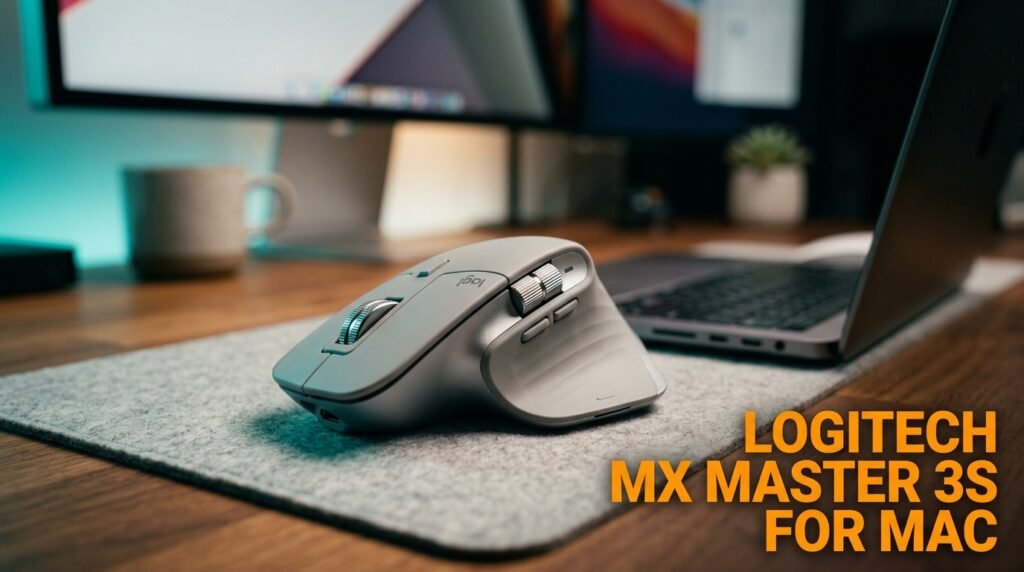
The Logitech MX Master 3S for Mac is the definitive Mac productivity mouse — the pale grey colorway matches Apple’s aluminum aesthetic, and the macOS-specific configuration ships pre-mapped with Mission Control and Expose shortcuts on the side buttons. The 8K DPI track-on-glass sensor works on any surface including glass desks, which matters for Mac users with modern minimalist desk setups. MagSpeed electromagnetic scroll wheel delivers inertia-style momentum scrolling that’s the closest any mouse scroll wheel gets to a trackpad swipe — a significant detail for Mac users transitioning from trackpad use.
Seven programmable buttons with per-application profiles through Logi Options+ means the mouse behaves differently in Figma versus Final Cut Pro versus Safari without any manual switching. Silent clicks reduce office noise by 90% compared to standard buttons. USB-C charging, Bluetooth connectivity without a dongle, three-device Easy-Switch pairing across MacBook, iPad, and iPhone or Mac mini.
Real-world scenario: a UX designer on MacBook Pro M3 maps the thumb button to Exposé, the side scroll wheel to zoom, and the top button to Mission Control — eliminating trackpad reach for the three most frequent macOS navigation actions in a single afternoon of Logi Options+ configuration.
Pros: 8K DPI track-on-glass, MagSpeed scroll wheel, 7 programmable buttons with per-app profiles, pale grey Mac colorway, USB-C charging, silent clicks, three-device pairing, Logi Options+ macOS integration. Cons: ~$90-100 price point, right-hand only, larger footprint than travel-focused alternatives, requires Logi Options+ for full customization.
2. Apple Magic Mouse — Best for Native Gesture Support (~$79-99)
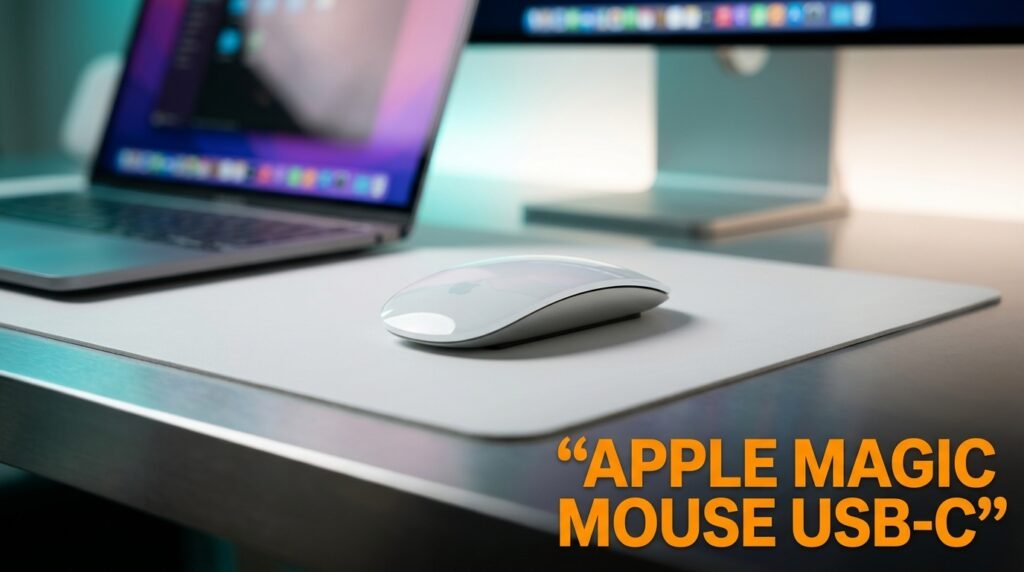
The Apple Magic Mouse is the only mouse that replicates macOS trackpad gestures on the mouse surface itself — swipe left/right for back/forward navigation, two-finger scroll on the touch surface, swipe with two fingers to switch between full-screen apps. For Mac users who are deeply embedded in trackpad gesture workflows and don’t want to relearn navigation patterns, no third-party mouse replicates this.
The USB-C charging update (replacing Lightning) is the most meaningful hardware change in years. The flat touch surface is divisive — some users love the low-profile feel, others find the zero palm support causes fatigue after 3-4 hours. It’s the thinnest, flattest premium mouse available, which makes it the cleanest visual match for an Apple desk setup.
The honest limitation: the charging port is on the bottom, making the mouse unusable while charging. Battery typically lasts 4-5 weeks of normal use, so this isn’t a daily constraint — but it remains the most criticized design decision Apple has consistently refused to fix across two product generations.
Pros: Native macOS gesture support, multi-touch surface replicates trackpad behavior, instant pairing with any Apple device via iCloud, slim low-profile design, USB-C charging, no software required. Cons: Charges from bottom while unusable, zero ergonomic shaping causes fatigue for extended use, no dedicated scroll wheel, $79-99 for hardware largely unchanged since 2009.
3. Logitech MX Anywhere 3S — Best for MacBook Users on the Go (~$60-70)
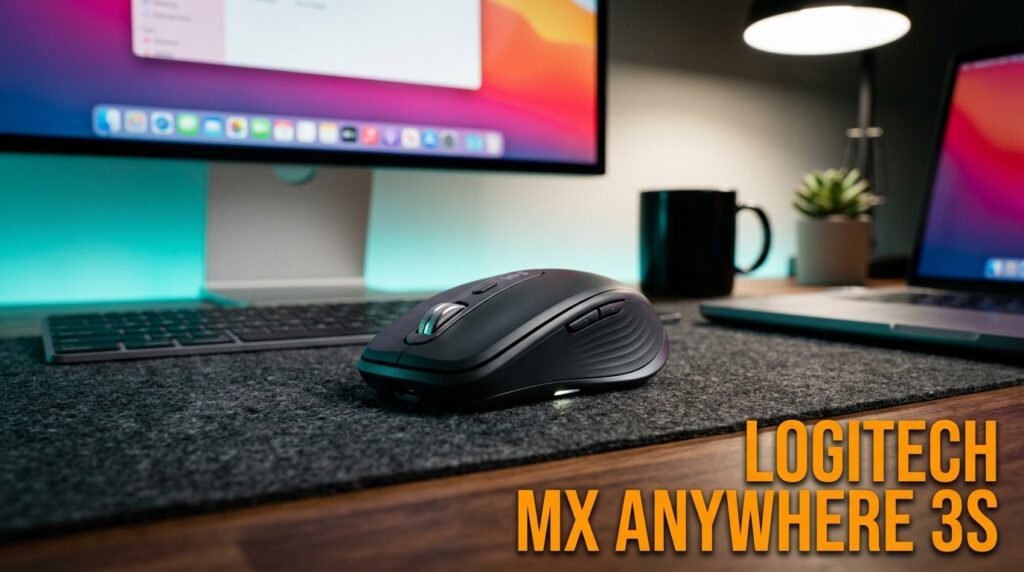
The Logitech MX Anywhere 3S is the travel mouse that doesn’t make compromises to be small. At 99g and roughly the footprint of a deck of cards, it fits in any laptop bag pocket — but the 8K DPI Darkfield sensor tracks on any surface including glass and polished wood without a mousepad, which eliminates the one practical constraint that makes most travel mice frustrating. The MagSpeed scroll wheel is the same electromagnetic design as the MX Master 3S — momentum scrolling that feels macOS-native in a package that’s 40% smaller.
70-day battery on a full charge, with 3 hours of use from a 1-minute quick charge via USB-C. Quiet clicks. Bluetooth connectivity without a dongle — critical for MacBook users with two USB-C ports and no intention of using a hub for a mouse receiver. Six programmable buttons with Logi Options+ support for macOS-specific mapping.
What most reviews won’t tell you about the MX Anywhere 3S: it’s the better daily driver than the MX Master 3S for users with small to medium hands. The smaller form factor puts the buttons at more accessible positions for hands under 18cm, and the reduced reach to the side buttons improves ergonomics significantly for that group.
Pros: Compact travel-friendly form factor, 8K DPI Darkfield sensor tracks on any surface, MagSpeed scroll wheel, USB-C charging, Bluetooth without dongle, 70-day battery, six programmable buttons. Cons: Smaller shape less comfortable for large hands during extended desk use, no dedicated thumb rest, fewer buttons than MX Master 3S, pale grey Mac edition sold separately.
4. Razer Pro Click Mini — Best for Silent Office Use (~$50-65)
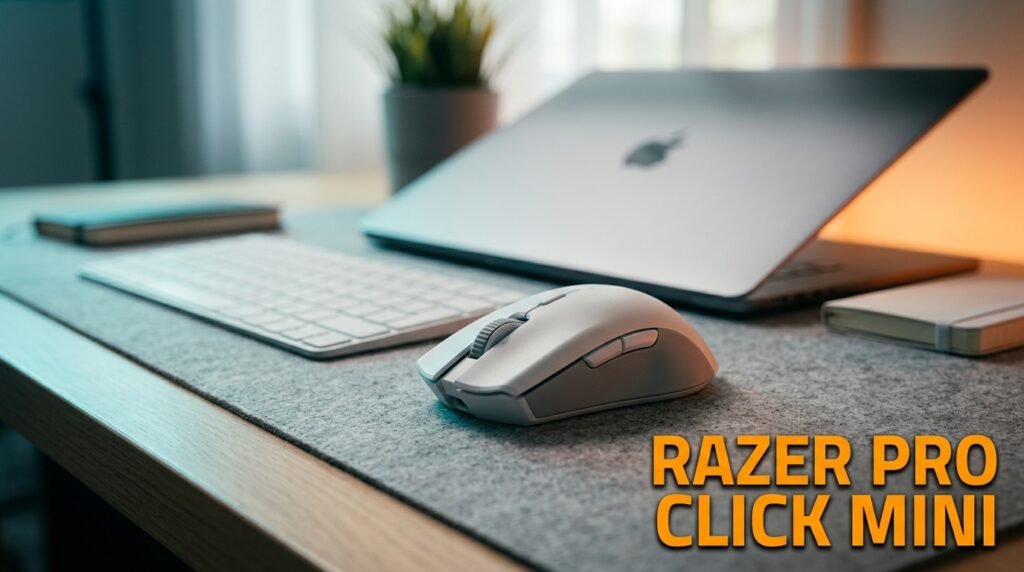
The Razer Pro Click Mini is Razer’s productivity-focused mouse — not a gaming product, though the sensor quality reflects Razer’s engineering heritage. The optical sensor delivers 12,000 DPI precision. The key differentiator for Mac office use is Razer’s mechanical silent switches — they produce 50% less noise than standard switches while maintaining tactile click feel, compared to Logitech’s softer silent technology that reduces more noise but also reduces click feedback.
For Mac users in open offices who want audible click confirmation without the sound carrying across the room, the Razer Pro Click Mini’s tactile-yet-quiet switches are the sweet spot. Bluetooth 5.0 with 4-device pairing, 725-hour battery life using two AA batteries — the longest battery life on this list by a significant margin.
Compact ambidextrous design works for both left and right-handed Mac users — one of the few quality mice that doesn’t exclude left-handers. Razer’s HyperShift function creates secondary button mappings accessible through a dedicated button hold.
Pros: 12,000 DPI optical sensor, silent mechanical switches with tactile feedback, 4-device Bluetooth pairing, 725-hour battery, ambidextrous design works for left-handed users, HyperShift secondary mapping. Cons: No MagSpeed-equivalent scroll wheel, AA batteries add weight versus rechargeable alternatives, no Razer equivalent of Logi Options+ depth for macOS customization, less ergonomic contouring than MX Master.
5. Logitech M240 Silent — Best Budget Mac Mouse (~$25-35)
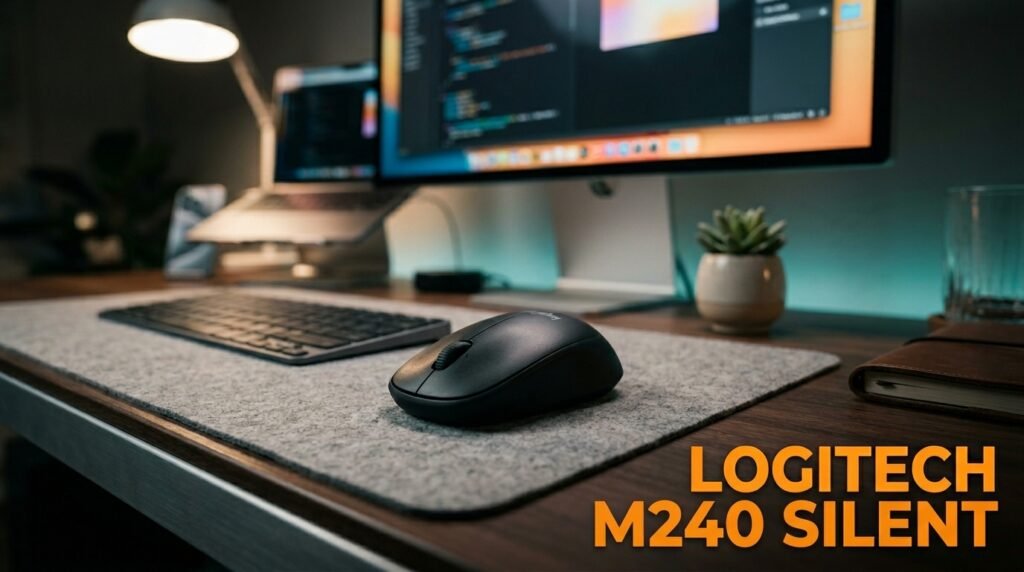
The Logitech M240 Silent is the recommendation for Mac users who want a reliable Bluetooth mouse without spending more than $35. SilentTouch technology reduces click noise by 90% — the same feature previously reserved for Logitech’s premium lineup, brought down to the most accessible price in their Mac-compatible range. Compact ambidextrous design, 18-month battery life on a single AA battery, and Bluetooth pairing without a dongle make it the cleanest budget option for MacBook users.
The honest caveat worth flagging: the scroll wheel produces some audible noise during use despite the “Silent” branding — a disconnect between the product name and the scroll experience. For Mac users who spend significant time scrolling through long documents, the MX Anywhere 3S at roughly twice the price delivers genuinely quieter and smoother scrolling. The M240 is the right choice for moderate use where the click silence matters more than scroll silence.
At $25-35, it’s the entry point for Mac users switching from trackpad for the first time who want to test whether a mouse improves their workflow before committing to a premium option.
Pros: $25-35 price point, SilentTouch 90% quieter clicks, 18-month battery, Bluetooth without dongle, compact ambidextrous design, smooth optical tracking, no software required for basic use. Cons: Scroll wheel not fully silent despite product name, limited button count (3 buttons only), no DPI adjustment without software, basic build quality versus premium alternatives.
Comparison Table
| Product | Price | Best For | Rating |
|---|---|---|---|
| Logitech MX Master 3S for Mac | ~$95 | Best overall Mac productivity mouse | 9.5/10 |
| Apple Magic Mouse | ~$89 | Best native gesture and Apple ecosystem | 8/10 |
| Logitech MX Anywhere 3S | ~$65 | Best compact mouse for MacBook travel | 9/10 |
| Razer Pro Click Mini | ~$58 | Best for silent office with tactile clicks | 8.5/10 |
| Logitech M240 Silent | ~$30 | Best budget first Mac mouse | 8/10 |
What to Look for When Choosing a Mouse for Mac
1. Bluetooth over USB receiver for MacBook users MacBooks have 2-3 USB-C ports. A USB nano receiver occupies one permanently or requires a hub. Bluetooth leaves all ports free, pairs seamlessly with macOS, and reconnects within 1-2 seconds from sleep on quality mice. The only reason to prefer a USB receiver is gaming — where 2.4GHz’s sub-1ms latency advantage over Bluetooth is measurable. For productivity work, Bluetooth is the correct choice for any MacBook setup.
2. Scroll wheel behavior for the macOS transition Mac users coming from trackpad use feel the scroll wheel disconnect immediately — a standard click wheel produces no momentum and no inertia, which feels abrupt after years of trackpad swiping. MagSpeed electromagnetic scroll wheels (MX Master 3S, MX Anywhere 3S) produce momentum-style scrolling that feels far more macOS-native. If you’re switching from trackpad to mouse for the first time, this specification is worth the premium it costs.
3. Logi Options+ compatibility for workflow customization Logitech’s Options+ software is the deepest macOS mouse customization tool available outside Apple’s own ecosystem. Per-application button mapping means the mouse behaves differently in Figma, Final Cut, Xcode, and Safari without manual switching. Mission Control, Spaces, Launchpad, and back-forward navigation are all assignable to physical buttons. For Mac power users, this transforms a mouse into a productivity accelerator.
4. Multi-device pairing for Apple ecosystem users Mac users who work across MacBook, iPad, and iPhone or a second Mac benefit significantly from multi-device pairing. Logitech’s Easy-Switch button switches the active device with a single click — no re-pairing, no Bluetooth menu navigation. Apple’s Magic Mouse pairs instantly with any Apple device through iCloud but requires manual switching in System Settings.
5. Ergonomics for extended desk use The Magic Mouse’s flat surface causes hand fatigue for most users after 3-4 hours of sustained use. If your Mac sessions regularly exceed 4 hours — common for developers, designers, and writers — ergonomic contouring matters. The MX Master 3S provides a full palm rest and dedicated thumb rest. The MX Anywhere 3S provides a partial palm rest adequate for shorter sessions. The Magic Mouse provides none.
FAQ
Do I need a special Mac mouse or will any mouse work?
Any Bluetooth or USB mouse works with macOS — there’s no Mac-specific hardware requirement. The distinction between a “Mac mouse” and a generic mouse is primarily software: Mac-optimized mice like the Logitech MX Master 3S for Mac come pre-configured with macOS shortcuts and a companion app (Logi Options+) that provides deeper macOS integration. A generic mouse provides left click, right click, and scroll without any additional configuration.
Why does my mouse scroll feel wrong on Mac compared to Windows?
macOS defaults to “natural” scrolling — scroll down moves the page up, mirroring trackpad behavior. This is the opposite of Windows default scroll direction. You can reverse it in System Settings → Mouse → Natural Scrolling. On Macs with both a trackpad and an external mouse, reversing mouse scroll direction doesn’t affect the trackpad, letting you keep natural scrolling on the trackpad while using traditional direction on the mouse.
Is the Apple Magic Mouse worth it in 2026?
For Mac users who heavily use macOS gestures and want to maintain that workflow without relearning navigation patterns, yes — the gesture surface is genuinely useful and nothing else replicates it. For Mac users who prioritize ergonomics, scroll wheel quality, button customization, or value for money, no — the Logitech MX Master 3S for Mac is a better mouse in every category except native gesture support, at a similar price point.
How do I connect a Bluetooth mouse to my Mac?
Open System Settings → Bluetooth, put the mouse in pairing mode (typically by holding the power button until an LED flashes), and select the mouse from the available devices list. Pair once and the connection is maintained through sleep and restarts. Multi-device mice (Logitech Easy-Switch models) show a button press number in the device name — connect to position 1 for your Mac, position 2 for your iPad, and switch with a button press on the mouse.
Our Final Verdict
The best mouse for Mac in 2026 is the Logitech MX Master 3S for Mac for most users — the MagSpeed scroll wheel, track-on-glass sensor, and Logi Options+ macOS integration make it the most complete Mac productivity mouse available. The Apple Magic Mouse is the right choice specifically for users who need native gesture support. The MX Anywhere 3S is the compact travel solution that doesn’t compromise on sensor quality. The Razer Pro Click Mini is the best option for left-handed users and open office environments. And the M240 Silent is the right starting point for anyone switching from trackpad for the first time. Check current pricing on Amazon for all five options.