

This article contains affiliate links. We may earn a commission if you buy through our links, at no extra cost to you.
One USB-C cable. That’s all it should take to turn a laptop into a full desktop workstation — dual monitors, ethernet, a keyboard, mouse, SD cards, and a charged battery, connected and disconnected in a single motion. The best USB-C docking station delivers exactly that, and in 2026 the gap between a $35 hub and a $400 Thunderbolt dock is wider than most people realize.
After researching the connectivity specs and comparing docks across every tier — from portable hubs to 18-port Thunderbolt monsters — here’s what actually holds up. This guide covers the top picks for 2026, explains where you genuinely need a premium dock versus where a cheaper hub does the job, and helps you match the dock to your real setup. If you just want a simple port expander, start with our guide to the best USB hub for home office.
Quick Answer
The CalDigit TS4 is the best USB-C docking station for most power users — 18 ports, Thunderbolt 4, 98W charging, and dual 6K display support in one unit. For a more affordable Thunderbolt option, the Anker 577 delivers most of the value for less. If you only need port expansion on a budget, the Anker 7-in-1 USB-C Hub covers the basics for around $35.
USB-C Hub vs Docking Station — What You Actually Need
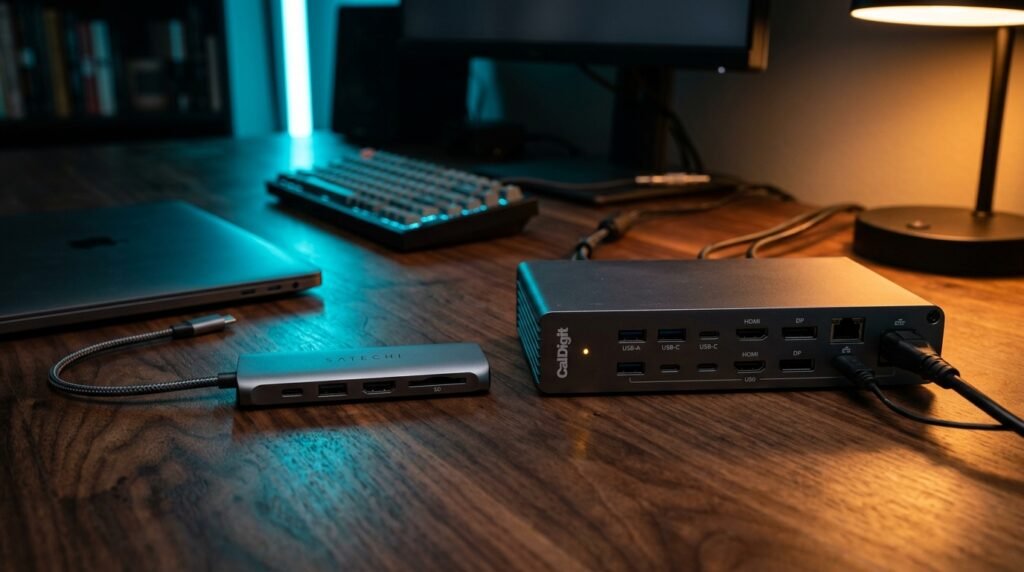
The terms get used interchangeably, but they’re not the same thing, and buying the wrong one wastes money in both directions.
A USB-C hub is a small, usually bus-powered device that adds a few ports — HDMI, a couple of USB-A, maybe an SD reader. It draws power from your laptop, has no external power brick, and is built for portability. Perfect for travel or a minimal setup.
A docking station is a larger, externally-powered device that does far more: it charges your laptop (often 85-98W), drives multiple high-resolution monitors, and provides ethernet plus a dozen or more ports. It stays on your desk.
What most buyers get wrong is overspending. The honest truth is that if you have a single 1080p monitor and a couple of peripherals, a $35 hub does everything you need — a $400 Thunderbolt dock would be a waste. But if you run dual 4K monitors and want one-cable charging, a cheap hub will bottleneck you, drop displays, and fail to charge. Match the tool to the job.
Here’s the counterintuitive part: more ports isn’t the spec that matters most. Bandwidth is. A 13-port USB-C hub sharing one 10Gb/s lane will choke when you load it up, while a 5-port Thunderbolt dock with 40Gb/s handles dual 4K plus fast storage without breaking a sweat.
How We Evaluated These Docking Stations
The differences that matter aren’t the port count on the box. We weighted four factors.
Bandwidth and connection type. Thunderbolt 4 (40Gb/s) is the gold standard for dual high-res displays and fast storage. Plain USB-C (often 10Gb/s) is fine for single monitors and basic peripherals but bottlenecks under heavy load. The connection type matters more than the number of ports.
Charging wattage. A real docking station should charge your laptop through the same cable. Look for 85W minimum for ultrabooks, 96W+ for larger 16-inch laptops. Hubs that don’t charge force you to keep a second cable plugged in.
Display support. Check both the number of monitors and the resolution/refresh rate. “Dual display” at 4K@30Hz is very different from dual 4K@60Hz — the former feels laggy for desktop work. We found this to be the spec people most often overlook until they’re stuck at 30Hz.
Host compatibility. Mac and Windows handle multi-monitor differently — many docks mirror displays on macOS rather than extending them. The best docks clearly support your platform. For the laptop side of your setup, see our guide on the best laptop stand for desk.
The 5 Best USB-C Docking Stations in 2026
Comparison Table
| Product | Price | Best For | Rating |
|---|---|---|---|
| CalDigit TS4 | ~$400 | Best overall (Thunderbolt) | 9.5/10 |
| Anker 577 Thunderbolt 4 | ~$250 | Best value Thunderbolt | 9/10 |
| Anker 575 (13-in-1) | ~$200 | Best USB-C non-Thunderbolt | 8.5/10 |
| Plugable 11-in-1 | ~$150 | Best mid-range value | 8.5/10 |
| Anker 7-in-1 USB-C Hub | ~$35 | Best budget/portable | 8/10 |
1. CalDigit TS4 — Best Overall (~$400)
The CalDigit TS4 is the most capable docking station you can buy, full stop. It packs 18 ports — the most of any Thunderbolt dock ever made — including 3 Thunderbolt 4 (40Gb/s), 8 USB ports at full 10Gb/s, 2.5GbE ethernet, and UHS-II SD/microSD readers. It charges your laptop at up to 98W, the highest of any Thunderbolt 4 dock.
This is the dock for someone who never wants to run out of ports or bandwidth. It drives a single 8K or dual 6K@60Hz displays, making it equally at home for developers, video editors, and multi-monitor power users.
Best for: Power users and professionals running multiple high-res displays and demanding peripherals.
Real-world detail: The 2.5GbE ethernet is a genuinely forward-looking touch — it’s 2.5x faster than standard gigabit, useful for anyone with a NAS or a fast home network, and rare even at this price.
Pros: 18 ports, Thunderbolt 4 40Gb/s, 98W charging, dual 6K support, 2.5GbE ethernet, Mac/Windows.
Cons: Premium price, requires a Thunderbolt 4 host for full performance, large desk footprint.
2. Anker 577 Thunderbolt 4 — Best Value Thunderbolt (~$250)
The Anker 577 delivers the Thunderbolt 4 experience for significantly less than the CalDigit. You get Thunderbolt 4 (40Gb/s) bandwidth, dual 4K@60Hz display support, 85W laptop charging, and a solid port selection including ethernet, USB-A, USB-C, and an SD reader.
We found this to be the smartest pick for most people who want Thunderbolt without paying flagship prices. You lose a few ports and the 2.5GbE versus the TS4, but the core Thunderbolt performance is there.
Best for: Users who want genuine Thunderbolt 4 speed and dual 4K displays without the top-tier price.
Real-world detail: Dual 4K@60Hz (not 30Hz) is the key spec here — it means smooth desktop work across two sharp monitors, the threshold many cheaper “dual display” docks quietly fail to hit.
Pros: Thunderbolt 4 40Gb/s, dual 4K@60Hz, 85W charging, strong build, lower price than flagship docks.
Cons: Fewer ports than the TS4, no 2.5GbE, still a premium purchase.
3. Anker 575 USB-C Docking Station (13-in-1) — Best Non-Thunderbolt (~$200)
The Anker 575 is the pick for people who want lots of ports and triple-display capability without paying for Thunderbolt. It offers 13 ports including dual HDMI plus DisplayPort for triple monitors, 10Gb/s USB-C data, ethernet, audio, SD readers, and 85W laptop charging.
The honest truth is that for a Windows user with standard 1080p or single 4K monitors, this delivers 90% of the docking experience at half the Thunderbolt price. The triple-display support is its standout feature at this tier.
Best for: Windows users wanting triple displays and many ports without Thunderbolt pricing.
Real-world detail: On Windows it supports true extended triple displays via MST; on macOS the external monitors mirror rather than extend — a critical distinction Mac users must know before buying.
Pros: 13 ports, triple display support, 85W charging, 10Gb/s data, strong value for Windows.
Cons: Not Thunderbolt (bandwidth shared), macOS mirrors displays, triple 4K needs capable host.
4. Plugable 11-in-1 — Best Mid-Range Value (~$150)
The Plugable 11-in-1 hits a sweet spot for users who need solid expansion and charging without going premium. It provides 11 ports including HDMI and DisplayPort for dual monitors, gigabit ethernet, multiple USB-A and USB-C ports, an SD reader, and around 100W pass-through charging.
Plugable has a long reputation for reliable docks with good driver support, which matters more than spec-sheet bragging when something has to just work every morning.
Best for: Home office users wanting a dependable dual-display dock at a mid-range price.
Real-world detail: Plugable’s driver and firmware support is the underrated value here — their docks tend to handle OS updates and wake-from-sleep reconnection more reliably than cheaper no-name alternatives.
Pros: 11 ports, dual display, ~100W charging, reliable driver support, reasonable price.
Cons: Not Thunderbolt, some configurations need DisplayLink drivers, plastic build.
5. Anker 7-in-1 USB-C Hub — Best Budget/Portable (~$35)
The Anker 7-in-1 USB-C Hub proves you don’t need a $200 dock for a simple setup. It’s a compact, bus-powered hub with 7 ports — 4K HDMI, USB-A ports, USB-C with pass-through charging, and SD/microSD readers — that slips into a laptop bag.
For someone with a single monitor and a few peripherals, or anyone who works from cafes and needs portable expansion, this is all the “dock” they need. At around $35, it’s the smart entry point.
Best for: Travelers, single-monitor setups, and anyone wanting portable port expansion on a budget.
Real-world detail: A concrete case — the freelancer who moves between a coffee shop and a desk every day gets HDMI, card readers, and charging in a device that weighs a few ounces, instead of lugging a desk-bound dock.
Pros: Compact and portable, 7 ports, 4K HDMI, pass-through charging, very affordable.
Cons: Single display only, bus-powered (no laptop charging beyond pass-through), shared bandwidth, no ethernet.
What to Look for When Choosing a USB-C Docking Station
1. Connection type: Thunderbolt vs USB-C Thunderbolt 4 (40Gb/s) handles dual high-res displays and fast storage simultaneously; plain USB-C (10Gb/s) is fine for single monitors and basic peripherals but bottlenecks under load. Buy Thunderbolt only if you genuinely need the bandwidth — otherwise it’s wasted money.
2. Charging wattage A real dock charges your laptop through the same cable. Aim for 85W+ for ultrabooks and 96W+ for 16-inch laptops. Check whether the dock charges at all — many cheap hubs only pass through limited power or none.
3. Display support — resolution AND refresh rate “Dual display” means little without the refresh rate. Dual 4K@60Hz is smooth for desktop work; dual 4K@30Hz feels laggy. Confirm the dock hits 60Hz at your monitor’s resolution before buying.
4. Mac vs Windows behavior macOS often mirrors external monitors through non-Thunderbolt docks rather than extending them, while Windows extends freely. If you’re on a Mac and need separate content per screen, prioritize a Thunderbolt dock.
5. Port selection that matches your gear Count the ports you actually use — ethernet, SD, USB-A legacy devices, audio. A dock with 18 ports you’ll never touch is no better than one with the 8 you need. Match the port mix to your real desk.
FAQ
What is the best inexpensive USB hub?
For basic port expansion, the Anker 7-in-1 USB-C Hub at around $35 is the best inexpensive option — it adds 4K HDMI, USB-A, USB-C charging pass-through, and card readers in a portable body. If you need laptop charging and dual displays, you’ll need to step up to a powered docking station, but for a single monitor and a few peripherals, an affordable hub is all most people need.
Should I get a 2.0 or 3.0 USB hub?
Always choose USB 3.0 (or newer) over USB 2.0. USB 3.0 transfers data at up to 5Gb/s versus USB 2.0’s 480Mb/s — roughly 10x faster — which matters for external drives, SD card transfers, and any data-heavy peripheral. USB 2.0 is only acceptable for low-bandwidth devices like a keyboard or mouse, and even then there’s little reason to buy 2.0 today.
Do I need a Thunderbolt dock or is USB-C enough?
It depends on your displays. If you run dual 4K monitors at 60Hz or work with fast external storage, Thunderbolt 4’s 40Gb/s bandwidth is worth it. If you have a single monitor or basic 1080p dual displays, a standard USB-C dock at half the price does the job without bottlenecking. Don’t pay for Thunderbolt you won’t use.
Will a USB-C docking station charge my laptop?
Most powered docking stations charge your laptop through the same USB-C cable, typically at 85-98W. Compact bus-powered hubs usually don’t, or only offer limited pass-through charging. Check the wattage against your laptop’s needs — ultrabooks are fine with 85W, while 16-inch laptops want 96W or more to charge under load.
Our Final Verdict
The best USB-C docking station in 2026 is the CalDigit TS4 for power users — 18 ports, Thunderbolt 4, 98W charging, and dual 6K support that no other dock matches. For genuine Thunderbolt at a friendlier price, the Anker 577 is the value pick. And if you just need portable port expansion, the Anker 7-in-1 USB-C Hub covers the basics for around $35.
Match the dock to your actual displays and charging needs — don’t overpay for bandwidth you won’t use. Check current pricing on Amazon and turn your laptop into a one-cable workstation.